How to Check Application Status: Workday “In Progress,” “In Process,” and “Not Retained”
Learn how to check application status across common portal states like Workday “In Progress” and “Not Retained,” plus what to do next. Includes a follow-up email template.
Free Chrome extension
Track all your applications in one place
JobWizard auto-tracks status changes across Workday, Greenhouse, and every major job site — free.
How to check application status when you’re stuck on “no updates”
When your application status hasn’t changed for days, your best move is to re-check the portal and log what you see. Imagine you applied to two roles last week, got confirmation emails, and now the pages look the same—“in progress” or “under consideration”—with no clear next step.
This guide shows you how to check application status across common ATS terms (like Workday “In Progress” and “Not Retained”), and how to turn those statuses into a practical plan—so you know whether to wait, follow up, or pivot to other roles.
Quick goal: Decode the status you see, confirm the latest update date, and take the right next action (follow-up, prepare, or move on).
Decide first: are you checking an ATS portal or your inbox?
Most companies use an ATS (applicant tracking system) to manage application stages. Status updates typically live in the portal where you applied, while emails often arrive when something changes (like a request to interview).
If you have multiple applications open in different places, it’s easy to lose track. That’s where an application tracker helps you consolidate your checks.
Key takeaway: Start with the portal status, then use email confirmations for context—not the other way around.
What does “In Progress” mean on Workday when you check application status?
Workday “In Progress” usually means your application hasn’t reached a final decision yet. When you check application status and see “In Progress,” it typically indicates the hiring team is still working through the application pipeline.
The most useful next step isn’t guessing the exact sub-stage—it’s verifying whether the page includes notes, updated timestamps, or related actions (like “application received” vs. “reviewing”).
What to do after you see “In Progress”
- Re-check the status page for any update notes or timeline changes.
- Prepare for outreach by refreshing your talking points (experience summary, why this role, availability).
- Use a consistent follow-up cadence if your posting or portal allows it—avoid repeated messages back-to-back.
Key takeaway: Treat Workday “In Progress” as “active pipeline,” not “final outcome,” and check for evidence of movement.
What does “In Process” mean after applying (and how is it different from “In Progress”)?
“In Process” generally signals your application is being handled, but the exact stage can vary by employer. Different ATS workflows use similar phrases, and a company may map “In Process” to anything from early screening to ongoing review.
When you’re trying to understand what you should do next, the best approach is to treat “In Process” as “not finished yet,” then confirm if the portal provides more detail than the label alone.
How to verify which stage you’re in
- Look for additional status text around the label (sometimes it includes a step name).
- Check for timestamp changes since your last login.
- Record what you observed (date + wording) so you can recognize real updates.
| Portal status you see | What it usually means | Recommended action |
|---|---|---|
| In Progress (e.g., Workday) | Hiring team has not finished the decision; application is still moving through review. | Re-check the portal for changes, keep interview prep ready, and plan a polite follow-up only if appropriate. |
| In Process | Application is actively being handled; stage specifics depend on the employer’s ATS workflow. | Treat as “not finished,” confirm whether the page provides any additional notes, and log the last update date. |
| Under Consideration / Under Review | Screening/review is ongoing. | Continue targeted preparation and monitor for interview requests; avoid over-following up. |
| Not Retained | Your application won’t move forward at that time. | Pivot: apply to new roles that match, improve resume/keywords, and move on from repeated outreach about the same application. |
| Dispositioned / Closed | Final outcome reached (often the role is filled or decision completed). | Stop checking for that role, but keep your tracker updated and shift to fresh applications. |
| Pending Approval / Pending Review | Application is waiting for a step or reviewer. | Confirm no further details are available, then wait with a plan; update your tracker and prepare basics. |
Key takeaway: Don’t obsess over “In Process” vs “In Progress”—use the portal details and update timing to guide your next action.
What does “application viewed” mean, and does it change how to check application status?
“Application viewed” usually indicates someone (often a recruiter or hiring manager) has opened your submission. If your portal shows an “application viewed” signal, it’s a sign your application progressed beyond the inbox stage.
However, “viewed” doesn’t automatically mean you’re moving to an interview—so your follow-up should still be careful and time-based.
How to respond to “application viewed”
- Confirm date + wording on the portal so you know when it was viewed.
- Keep your prep warm (re-read the job description, practice your top stories).
- Follow up lightly if time passes and the posting supports it.
Key takeaway: “Viewed” is momentum—still monitor for the next stage before assuming an outcome.
What does “Not Retained” mean after applying, and what should you do next?
“Not Retained” typically means your application is not moving forward at this time. When you check application status and see “Not Retained,” you’re usually looking at a disposition decision rather than a temporary pause.
The most productive next step is not repeated follow-ups—it’s learning what to change for the next application (resume emphasis, keywords, or a better role fit).
Next steps after “Not Retained”
- Check for any reason signals the portal may include (sometimes it offers notes).
- Update your application materials with role-specific keywords from the posting.
- Reapply strategically only if the company re-opens a similar role and your experience matches.
Key takeaway: Treat “Not Retained” as a pivot point—adjust your approach and focus energy where it’s more likely to convert.
How can an application activity tracker help you keep checking status without losing the thread?
An application tracker reduces missed updates by keeping each job’s status in one place. If you’re managing multiple roles across different portals, manual checking gets inconsistent—one tab stays open longer, one email gets buried, and you can’t tell whether you missed a real change.
JobWizard’s Activity / Job Track view is designed to centralize your job status checks so you can follow a consistent process across applications.
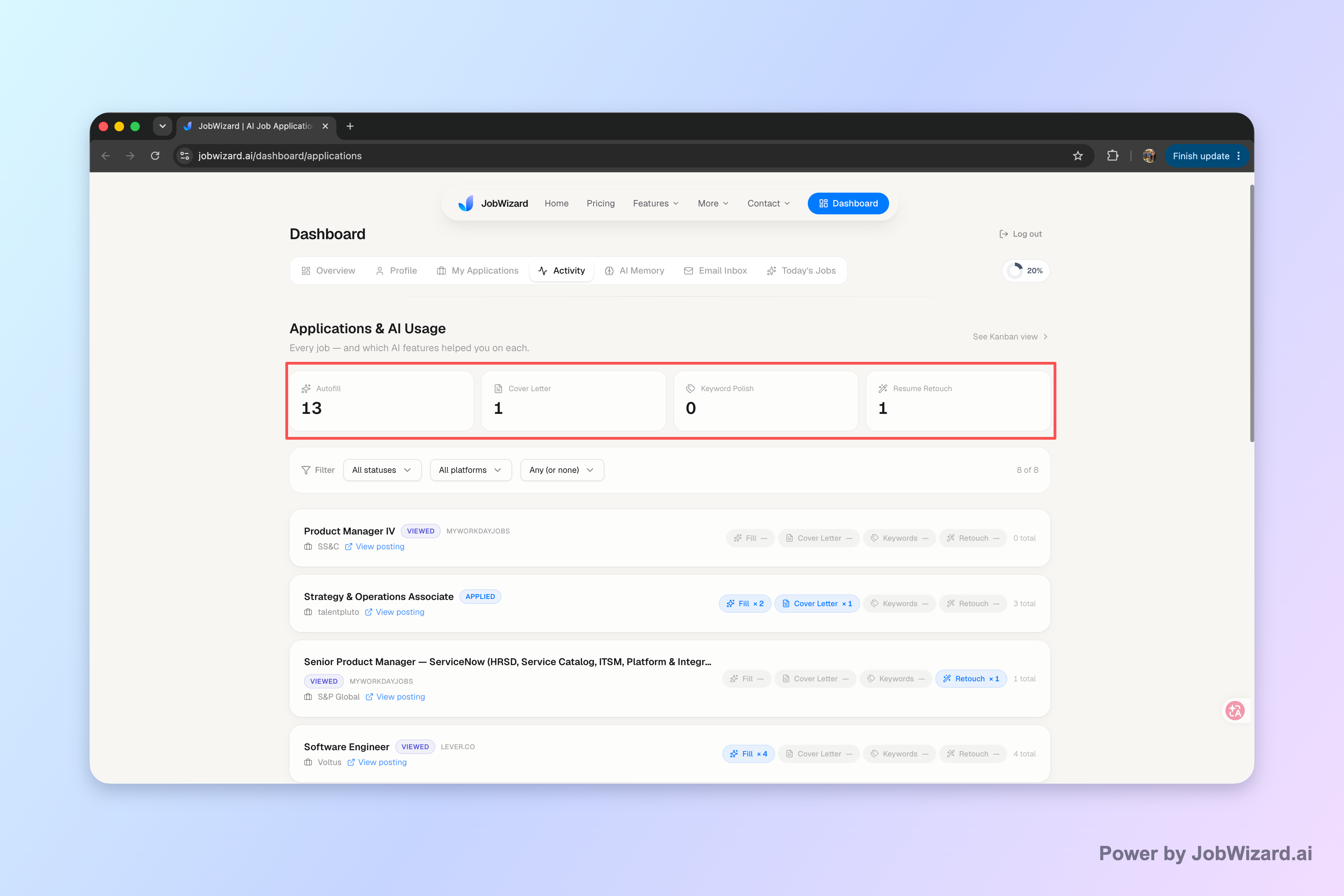
What JobWizard’s Activity / Job Track view shows
It shows application status and which JobWizard tools were used for each role. That means when you check application status later, you can connect what you did (and when) with where the application is now.
Key takeaway: Use an activity view to turn “Where was that application?” into a quick, repeatable check.
Should you follow up after checking application status—and when is it too soon?
The right follow-up timing is “after enough time for progress,” not “immediately after logging in.” Even if you just checked and the portal still says “In Progress,” you generally shouldn’t bombard the recruiter with updates the same day.
Instead, base your follow-up on two things: what the portal already signals and whether your last meaningful update has had time to land.
Follow-up email template (copy/paste)
Subject: Re: {{Role Title}} — Application Follow-Up
Hi {{Recruiter Name}},
I hope you’re doing well. I’m following up on my application for the {{Role Title}} position submitted on {{Date}}. I remain very interested in the role, especially {{one specific detail from the job description}}.
If there’s any additional information I can provide, I’d be happy to share. Thank you for your time and consideration.
Best regards, {{Your Name}} {{Phone}} | {{LinkedIn (optional)}} | {{Portfolio (optional)}}
Key takeaway: Your follow-up should be short, specific, and value-focused—not a “status check” with no new context.
How to create a simple system for checking application status across Workday, Greenhouse, and more
Use a consistent workflow: check the portal, log the status wording, then decide on your next action. If you’re applying across multiple ATS platforms, you’ll see different labels even when the underlying meaning is similar.
JobWizard can help you keep those checks from turning into scattered notes by centralizing your application activity in one place.
A practical status-check checklist
- Step 1: Re-check the portal label (exact wording matters: “In Progress” vs. “Not Retained”).
- Step 2: Capture the date you last saw it (so you know whether anything changed).
- Step 3: Match status to action using the table above.
- Step 4: Decide follow-up vs. prep vs. pivot based on finality (especially for “Not Retained”).
- Step 5: Update your tracker so you don’t re-do the same work mentally.
Why this matters for workflow (not just knowledge)
Application pipelines move in bursts. A day might show “nothing,” then you get a request for an interview shortly after. A tracker helps you notice real changes and respond quickly.
JobWizard’s Activity / Job Track view is built to help you do that by keeping your status and tool usage visible in one activity view for each role.
Key takeaway: A lightweight system beats memory—log what you see and take action based on whether the status is final or not.
How to check application status using an activity view vs. only relying on email
Email-only checking is easy to miss—activity views help you spot updates that never trigger an inbox notification. Some systems send confirmations when you apply, but they don’t always send every subsequent status change.
An activity view can fill the gaps by showing the current label and where the application stands, so you don’t need to keep hunting for messages.
What to do if you’re only getting “we’ve received your application” emails
- Go back to the portal and check the current status label.
- Verify your contact details in the account profile (so follow-up emails can reach you).
- Track the last visible change so you can decide when to follow up.
Key takeaway: Use email as context, but treat the portal status as your source of truth for checking application status.
Do this automatically with JobWizard
Skip the manual work — JobWizard's Application Tracker handles this for you. On these platforms: Workday autofill.
FAQs about how to check application status
How can I check application status after I apply?
Start with the portal you applied through (Workday/Greenhouse/Ashby/Lever) and look for an Application Activity/track feature or the application confirmation email link. If you use JobWizard, open your Activity/Job Track view to see where each application stands and what tools were used—then review any custom questions before submitting follow-ups.
What does “In Progress” mean on Workday, and what should I do next?
On Workday, “In Progress” usually means the hiring team hasn’t completed the screening decision yet and your application is still moving through the process. Use the status page to confirm whether anything changed (e.g., pending updates or disposition timing), then prepare for a possible interview while you send a polite follow-up if the posting allows it.
Is “In Process” the same thing as “In Progress”?
They’re often similar in everyday language—both suggest your application is actively being handled—but they can represent different stages depending on the ATS and the company’s workflow. Treat them as “not finished yet,” double-check the status page for related notes, and use your tracker to record the date you last saw it change.
What does “Not Retained” mean after applying, and can I still do something?
“Not Retained” typically indicates the company will not move forward with your application at that time. You can still check whether there’s an alternate pathway mentioned in the portal (or another role/job posting you might fit), update your resume/keywords, and apply to new openings rather than repeatedly following up on the same disposition.
How long does it take to hear back after I check application status?
There’s no universal timeline because each employer and ATS workflow differs. Use the status as your best available signal, then set a realistic internal follow-up window for yourself (for example, after a period of no movement) and keep your tracker updated so you don’t miss opportunities or repeat the same message.
Should I email a recruiter to follow up on application status?
Only if you can do it professionally and with value. Before emailing, confirm your status on the application page (and look for any portal notes), then write a short message that references the role and shows you’re still interested. If you want a copy-paste option, use the template in this guide.
How do I use an application activity tracker to avoid missing updates?
Use an activity view that lists each application and its current status in one place. In JobWizard, the Activity/Job Track view shows application status and which JobWizard tools were used for each role, so you can follow up consistently and review any autofill/sponsored answers before you submit anything new.
Can JobWizard help me track application status across multiple jobs?
Yes—JobWizard’s Activity/Job Track view is designed to keep each application and its next step in one activity view. It also shows where each application stands and which JobWizard tools were used for each role, helping you check status without juggling multiple tabs.
What should you do after you check application status—wait, follow up, or pivot?
After you check application status, your decision is simple: wait if it’s still in progress, follow up if it’s time, and pivot if it’s “Not Retained.” Most applicants waste energy by treating every portal change the same.
Use the table above to interpret what you see, then keep your follow-ups and next steps organized in one place.
Recommended next reading (so you can act faster)
- How to Track Job Applications: A Practical System (JobWizard + Beyond)
- What Does Application Status In Progress Mean? Here’s How to Check Updates and Next Steps
- In Progress Application Status: What It Means, How to Check Updates, and What to Do Next
- “What Does Not Retained Mean” After Applying? How to Check Status and Next Steps
Key takeaway: The goal isn’t “check forever”—it’s “check, decide, and move.”
JobWizard CTA
Keep your applications and next steps in one place. Try JobWizard’s Activity / Job Track view to check application status across roles without juggling tabs—so each application’s current step is always ready when you need it.
Frequently Asked Questions
Track all your applications in one place
JobWizard auto-tracks status changes across Workday, Greenhouse, and every major job site — free.