Application Status Application: How to Decode Every Update (and Follow Up at the Right Time)
If your “application status application” page is confusing, use a clear tracking map to understand what each stage means—and exactly when to follow up. Learn the next-step actions for common statuses like Under Review, Viewed, In Process, and Not Retained.
Free Chrome extension
Track all your applications in one place
JobWizard auto-tracks status changes across Workday, Greenhouse, and every major job site — free.
Application status application: what should you do when you see an update?
You applied for a role, you check the portal, and you see a status like Under Review or Viewed—but you’re not sure what it means or what to do next. If you’re searching “application status application,” you’re trying to translate that wording into a real plan: track what changed, then follow up at the right moment.
In this guide, you’ll learn what common status phrases usually mean and how to build a repeatable tracking workflow. You’ll also see how JobWizard’s Activity view can help you keep each job’s “status + next step” in one place.
Quick scenario (so the steps make sense)
Imagine you applied to two roles on different days. One portal shows In Process; the other shows Not Retained. If you don’t log those outcomes, you can accidentally follow up on the wrong one—or keep waiting when the employer has already closed the loop.
What does “application status application” mean on a job portal?
Application status application usually refers to whatever the portal (or employer’s ATS) shows about where your submission sits in their workflow. These are not standardized across every employer, so the same idea may appear under different labels.
As a practical matter, you should treat each update as one of three buckets:
- Still moving: statuses like Under Review, In Process, In Progress.
- Seen but not decided: statuses like Viewed or Application Viewed.
- Disposition decided: statuses like Not Retained/Not Selected.
Key takeaway: Don’t obsess over exact wording—map every status to a “next action” so you always know what to do after you check.
What does “Under Review” mean in application status application tracking?
Under Review typically means someone (or an internal workflow) is assessing your application. It usually doesn’t confirm interview selection, but it indicates your file has moved beyond initial intake.
Recommended action depends on whether the employer provides timing cues. If there’s no stated timeline, your safest move is to track your “Under Review” date and prepare a short follow-up after a reasonable internal review window.
- Track it: save the date you saw “Under Review.”
- Follow up politely: ask about next steps or timing.
- Don’t double-apply: follow the portal’s process first.
Key takeaway: “Under Review” is a progress signal—so your follow-up should be about next steps, not about why you haven’t heard back yet.
What does “In Process” mean on the application status application page?
In Process generally suggests your application is actively moving through a workflow step, often review or internal processing. It’s closer to “in motion” than “queued,” but it still may not mean an interview is scheduled.
The most useful thing you can do with “In Process” is treat it as a prompt to watch for change—while keeping your next follow-up date planned in advance.
- Check for additional notes: some portals show “last updated” timestamps or hints.
- Update your tracker: record the “In Process” date in your activity log.
- Follow up once: then wait for a response rather than repeatedly messaging.
Key takeaway: “In Process” means the employer is handling your file—so follow up with one clear, professional question about timing.
What does “In Progress” mean in application status application tracking?
In Progress is usually similar to “In Process”: your application is actively being worked on. Different employers use different labels, but the intent is comparable—movement is happening internally.
Because this status can linger for different lengths of time depending on the role, your plan should stay consistent: confirm the latest portal status, update your log, and avoid making your follow-up sound reactive.
- Log the status date: note when you first saw “In Progress.”
- Prepare your follow-up: keep it short and role-specific.
- Review your application materials: be ready to reinforce your fit in one or two sentences.
Key takeaway: Treat “In Progress” like a working stage—track it, then follow up once with a timing check.
What does “Viewed” mean on my application status application?
Viewed generally indicates that your application was opened/seen by the employer or surfaced within their ATS workflow. It can be a positive sign, but it doesn’t necessarily mean you’re being considered for interviews.
Your best next step is to follow the same principle: document the date you saw “Viewed,” and set yourself up to send a short follow-up if nothing changes after a reasonable period.
- Don’t assume rejection: “Viewed” is an engagement signal.
- Use the follow-up to add value: reference one relevant accomplishment.
- Keep it concise: your message should be scannable.
Key takeaway: With “Viewed,” your follow-up should reinforce fit and ask about next steps—not re-state your whole resume.
What does “Not Retained” mean in application status application outcomes?
Not Retained typically means the employer did not keep your application for further consideration. In other words, the hiring team chose not to move your file forward.
This outcome doesn’t mean you “failed”—it often reflects budget, role needs, or competitive fit. The practical move is to update your tracker and pivot your effort.
- Update your log: include the exact status phrase.
- Move on fast: apply elsewhere where your matching keywords and experience align.
- Adjust your approach: refine the resume summary or role-specific bullet points.
Key takeaway: “Not Retained” is a disposition—your best action is to stop waiting and start optimizing your next applications.
How do I build an application tracker for application status application updates?
Application tracker best practices are simple: record the role, the date, the exact status text you saw, and what you did next. When that’s all in one place, “what do I do now?” becomes obvious.
Use this structure every time you check the portal. Consistency beats complexity, especially when you’re juggling multiple applications.
- Job/role: company + title + (if available) req ID.
- Status phrase: copy the exact wording from the portal.
- Date seen: when you first noticed the update.
- Next action: follow up, prepare materials, or move on.
- Notes: keep any employer emails or instructions.
Key takeaway: If your tracker doesn’t tell you the next action, it’s not doing the job of application status application tracking.
How does JobWizard’s Application Activity help you track application status application?
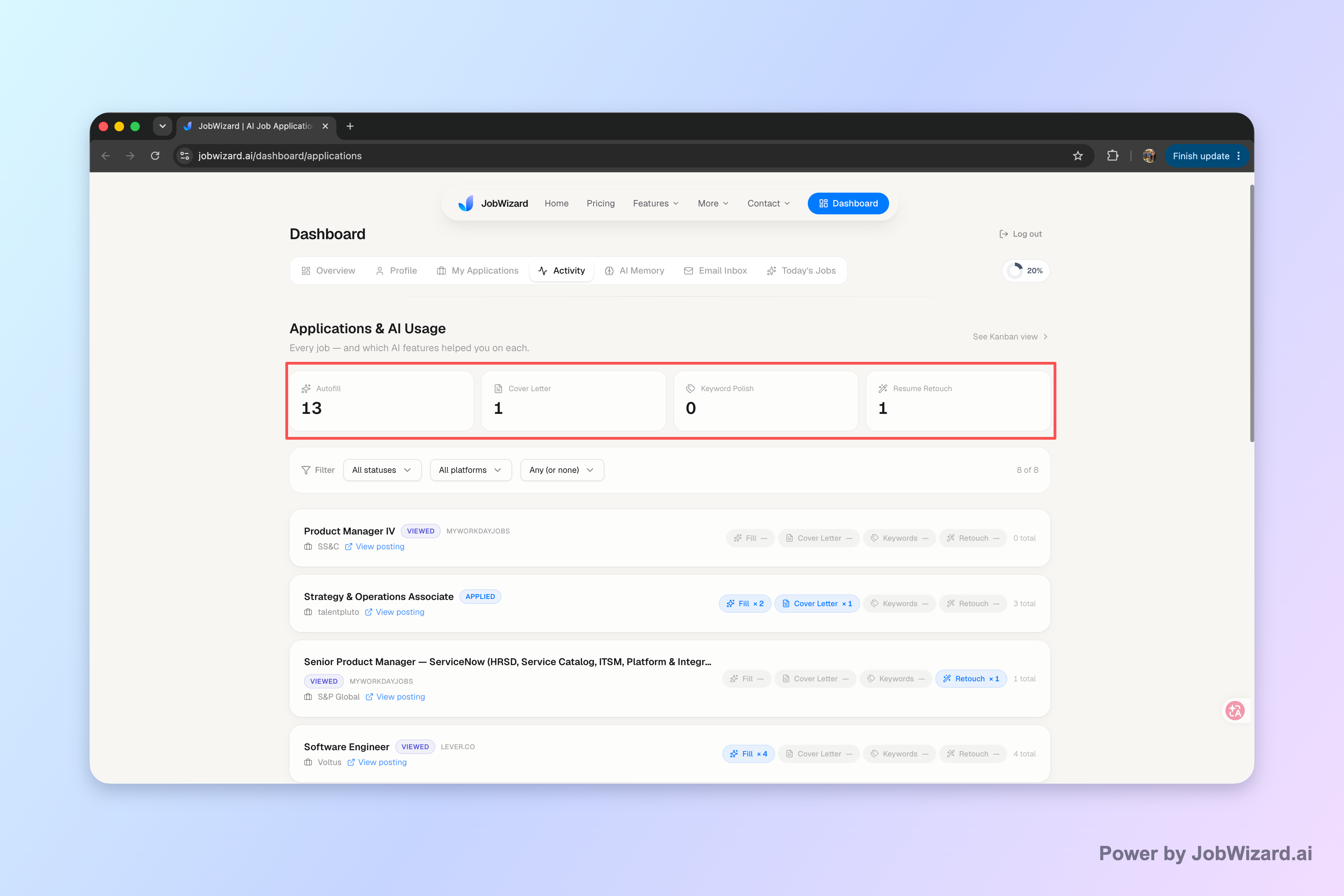
JobWizard’s Activity view is designed to keep your application workflow organized by showing application status alongside the JobWizard tools used for each role.
The Activity view shows application status and which JobWizard tools were used for each application, so you can connect “what the portal says” with “what you did to submit.” That makes it easier to decide whether you should follow up—or move on—based on the latest stage you’re seeing.
| Application status (what you see) | Meaning (how to interpret it) | Recommended next action | When to follow up |
|---|---|---|---|
| Under Review | Your application is being assessed. | Track the date; prepare a short next-steps question. | After a reasonable review window if nothing changes. |
| In Process | Your application is actively moving through steps. | Update your tracker; check for portal notes. | Once you’ve waited for progress, then send one follow-up. |
| In Progress | Your application is actively being handled. | Log the latest status date; avoid repeated messaging. | After a reasonable period with no update. |
| Viewed | Your application was opened/seen. | Reinforce fit with one specific accomplishment. | Plan a polite check-in if status doesn’t change. |
| Not Retained | Your application wasn’t kept for further consideration. | Update your tracker; pivot to new roles. | No follow-up needed unless the employer invites it. |
Key takeaway: Use your activity view to pair “portal status” with “what you did”—so you follow up with context, not guesswork.
Template: follow-up email you can copy (stage-matched)
Subject: Follow-up on [Role Title] application
Hi [Hiring Manager Name/Team],
I’m following up on my application for the [Role Title] position submitted on [Date]. I’m excited about the opportunity, and I’d love to understand whether there are any next steps or timing updates you can share.
In particular, my experience with [1 relevant strength] and [1 related strength] aligns well with what you’re looking for. If there’s anything else I can provide to support your review, I’m happy to share it.
Thank you for your time, [Your Name] [Phone] | [LinkedIn/Portfolio]
How do I follow up on an application status application update without overdoing it?
Follow-up works best when it’s timely, specific, and aligned to the stage you see in the portal. If you follow up too soon, it can sound impatient; if you follow up too late, you may miss your chance while the file is still active.
To avoid overdoing it, base your message on the status bucket (moving, seen, or disposition). Also, keep a record of what you sent and when.
- Check the exact status wording: copy it into your tracker.
- Send one clean follow-up: ask about next steps or timing.
- Wait and monitor: update again when the portal changes.
- Pivot when you hit “Not Retained”: don’t keep chasing that outcome.
For more on building a tracking workflow, see How to Track Job Applications: A Practical System (JobWizard + Beyond). If you’re specifically stuck on what the next portal message means, read “Application Status Under Review” — What It Means and How to Track Every Next Step. And if you already know the role is pending but you don’t know what to say, use How to Follow Up Your Application Status When You Don’t Hear Back (Step-by-Step).
If you applied through Jobvite and the portal shows statuses like “Viewed,” “Under Consideration,” or “Not Retained,” this guide can help: Jobvite Application Status: How to Track “Viewed,” “Under Consideration,” and “Not Retained” with a Clear Follow-Up Plan.
Key takeaway: One well-timed follow-up beats repeated messages—especially when your “application status application” tracker tells you exactly where you are in the pipeline.
Do this automatically with JobWizard
Skip the manual work — JobWizard's Application Tracker handles this for you.
FAQ
What does “application status application” mean on a job portal?
It usually refers to the site’s update about where your submission sits in their workflow—often something like Viewed, Under Review, In Process, Interviewing, or Not Retained. The exact wording varies by employer and ATS, so you’ll want to pair the status text with the portal’s “timeline” or next-step notes if available.
How do I track my application status application without losing the next step?
Use a single application tracker (or Activity view) that logs each role plus the status you see, the date you applied, and what you did next (like a follow-up). The goal is to keep “what happened” and “what you should do next” connected so you don’t have to re-check multiple pages later.
What does “Under Review” mean, and when should I follow up?
“Under Review” typically means a reviewer is in the process of assessing your application, but it doesn’t guarantee movement to interviews. A good rule is to wait until the employer has had time to progress internally, then follow up with a short, specific note—without sounding impatient.
What does “Viewed” or “In Progress” mean in application status application tracking?
“Viewed” generally indicates your application was opened/seen by the employer or ATS workflow. “In Progress” usually means your file is actively moving through steps—often review or processing—rather than being finished. In both cases, your best next action is to confirm any stated timelines on the portal and prepare a polite follow-up if nothing changes.
What does “Not Retained” (or “Not Selected”) mean?
“Not Retained” generally indicates the employer didn’t keep your application for further consideration. You can still use it as a data point: update your tracker with the outcome and focus your effort on new roles that match your strengths more closely.
Should I re-apply if my application status application doesn’t change?
In most cases, the better move is to follow the employer’s process rather than submitting duplicate applications immediately. Start by tracking what you already submitted, check whether there’s an “application still active” note, and use a targeted follow-up—especially if the portal doesn’t show that your submission closed.
How can I write a follow-up email that fits the stage in my application status application?
Match your message to the stage you see. For example: with “Under Review,” ask whether they can share any next-step timing; with “Viewed,” reiterate your fit and ask if they need anything else. Keep it short, reference the role, and end with a simple request for next steps.
Can I track application status application across different ATS systems?
Yes—what matters is that you record the same core fields (role, date, status text, and next action) regardless of where you applied. If you use a tool that centralizes tracking in an activity view, you’ll be able to see each application’s status and the tools you used along the way, even when employers use different ATS platforms.
Ready to stop guessing? Track every application status application in one place with JobWizard.
If you want less confusion and more momentum, start by keeping every role’s status and next step connected. JobWizard’s Activity view helps you organize application status alongside the JobWizard tools used for each job—so your follow-ups are timely and your pipeline stays clear.
Try JobWizard and keep your application tracking workflow tight from “Applied” to your next step.
Frequently Asked Questions
Track all your applications in one place
JobWizard auto-tracks status changes across Workday, Greenhouse, and every major job site — free.