Jobvite Application Status: How to Track “Viewed,” “Under Consideration,” and “Not Retained” with a Clear Follow-Up Plan
Jobvite application status updates like “Viewed,” “Under Consideration,” and “Not Retained” can be confusing. Here’s how to track each step and follow up without guessing—using JobWizard’s activity view.
Free Chrome extension
Track all your applications in one place
JobWizard auto-tracks status changes across Workday, Greenhouse, and every major job site — free.
You checked your applicant portal for the jobvite application status—it says “Viewed,” but you’re not sure whether that’s good news or just the first step. A week later it shifts to something like “Under Consideration,” then you hit the wall at “Not Retained” with no explanation. If you’re applying across multiple roles, the hardest part isn’t applying—it’s figuring out what to do next.
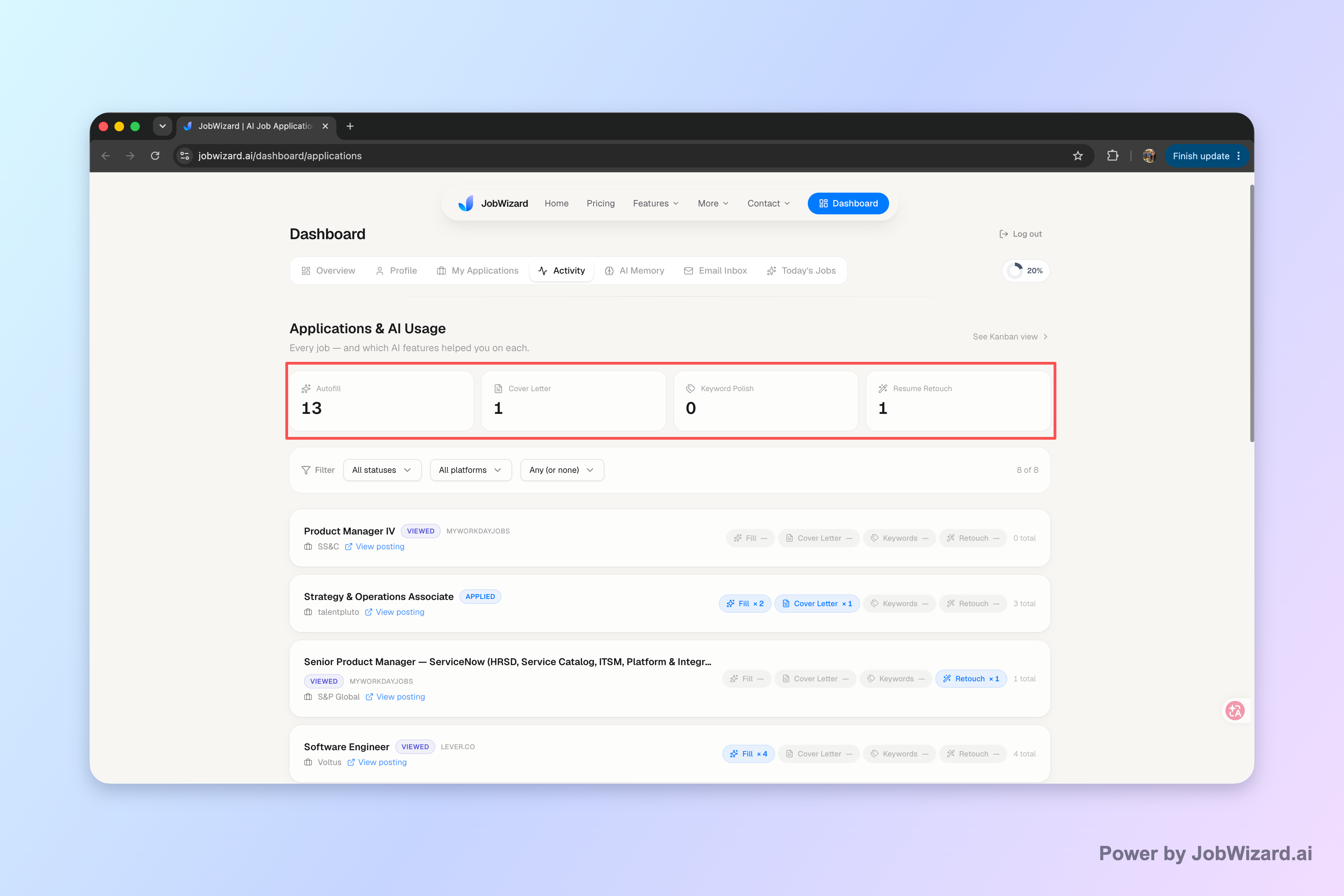
This guide helps you decode common Jobvite-style status updates and turn them into a clear follow-up plan. You’ll also see how JobWizard’s Activity view supports your jobvite application status tracking workflow so you always know the next step.
What does “Viewed” mean for a jobvite application status?
“Viewed” usually means your application has been opened/seen, but it doesn’t guarantee you’re moving forward. Think of it as “the process started,” not “an interview is scheduled.”
At this point, focus on evidence that you’re a fit: your resume is already submitted, but you may still need to tailor a short follow-up message that references the role and reiterates a relevant strength.
Key takeaway: “Viewed” is early progress—respond with one thoughtful follow-up only if your timeline has slipped.
- Wait for your internal timeline: If the posting lists a timeframe, use it as your default follow-up trigger.
- Don’t spam multiple emails: One message is enough while the review is ongoing.
- Keep notes in one place: Record the status date so you can tell whether anything changed.
What does “Under Consideration” mean on jobvite application status updates?
“Under Consideration” typically signals your application is still actively being reviewed by the hiring team. It’s often closer to “in the running” than “viewed,” but it still isn’t a promise.
Your best move is to stay patient while preparing for the next milestone. If you’re asked for an interview, availability, work samples, references, or supplemental questions, you want to respond fast and accurately.
Key takeaway: Treat “Under Consideration” as “still in play”—prepare, then follow up once if needed.
- Document the current status date: This helps you know when it’s reasonable to check back.
- Prepare a role-specific talking point: One sentence about why you match the job’s requirements.
- Use a tracker for multiple roles: Avoid mixing up which email went to which recruiter.
What does “Not Retained” mean, and should I apply again?
“Not Retained” generally means your application wasn’t selected to move forward for that specific role. It’s a disposition-style update—unfortunate, but not uncommon.
In practice, you should stop trying to “appeal” that decision for the same posting. Instead, apply your learnings: adjust your resume keywords, strengthen your portfolio/metrics, or wait for a new posting that better matches your target.
Key takeaway: “Not Retained” usually means that role is closed for you—use it to improve the next application.
- Don’t reapply to the same job ID: If the posting is still open, follow the instructions given there.
- Refresh your strategy: If you see recurring resume gaps, update your materials before the next submission.
- Track outcomes: Your tracker should record status history so you can compare patterns across roles.
If my jobvite application status is “In Process,” what should I do next?
“In Process” usually indicates internal workflow movement—your application is being processed behind the scenes and hasn’t reached the next decision point yet.
When you see “In Process,” you don’t need to add extra follow-ups immediately. Instead, verify you have everything ready in case the company requests additional info.
Key takeaway: “In Process” means work is underway—be ready to respond, not to chase.
- Confirm your contact details: You don’t want to miss a request for interview or documents.
- Prepare a quick availability reply: Have your “best times” and time zone handy.
- Set one check-in date: Use your tracker instead of repeating emails.
What does “Application Viewed” or “Application Received” imply?
“Application Viewed” / “Application Received” typically means the system has recorded your application and/or a reviewer has taken an initial look.
These early statuses are often the most ambiguous because they can happen quickly. The key is to watch for the next meaningful change—like “Under Consideration,” “In Process,” “Interview,” or a final disposition such as “Not Retained.”
Key takeaway: Early receipt/view statuses are checkpoints—track dates and wait for the next milestone.
| jobvite application status | What it generally suggests | Recommended action |
|---|---|---|
| Viewed / Application Viewed | Initial review or opening by the hiring team | Wait; prepare a brief follow-up only if your timeline has passed |
| Under Consideration | Your application is in the active review pool | Prepare for next steps; follow up once if needed, then pause |
| In Process | Internal workflow is ongoing | Be responsive; set one check-in date and avoid repeat emails |
| Not Retained | Not selected for further consideration for that role | Stop chasing that role; refine and target future postings |
How do I check application status across multiple Jobvite applications without confusion?
Tracking across roles is where most applicants lose time—statuses arrive in different rhythms, and follow-ups get delayed or duplicated.
Set up an “application activity” workflow that includes: the role title, the status you last saw, the date it changed, and the last message you sent (if any). JobWizard’s Activity view is designed to keep your application status and context together.
Key takeaway: Use a single application tracker so every status update points to one clear next action.
- One row per role: Keep each application separate so you don’t mix recruiters or job IDs.
- One next step per role: If the status is “Viewed,” your next step might be “wait until date X,” not “send three emails.”
- Keep your message aligned: Reference the status milestone and role, but don’t over-interpret it.
- Review-before-submit: JobWizard fills repetitive fields fast, but you review the content and submit yourself.
For a broader system you can adapt, read How to Track Job Applications: A Practical System (JobWizard + Beyond). If you prefer a quick workflow centered on follow-ups and next steps, see Follow Up on Job Application Fast: Use a Job Tracker to See Status, Then Email the Right Next Step.
What should I include in a follow-up email when my jobvite application status changes?
A good follow-up email is short, specific, and focused on the role—not a demand for certainty about your chances.
Use the most recent status as context (“I noticed the update”) and ask for a next step, not an explanation. If the status is “Under Consideration,” your goal is to stay on their radar without sounding impatient.
Copy-paste follow-up template (adjust the brackets): Subject: Update on [Job Title] application Hi [Recruiter Name/Team], I applied for the [Job Title] role on [Date]. I noticed my application status is currently showing as “[Current Status].” I’m still very interested in the position and believe my experience with [Relevant Skill/Project] could help the team with [Role-Relevant Need]. If there’s any additional information I can provide, or if you anticipate next steps in the hiring process, I’d appreciate any guidance. Thank you for your time, [Your Name] [Phone] | [Email] | [LinkedIn/Portfolio]
Key takeaway: Follow-up should ask for a next step, not try to force a decision.
- Keep it to one purpose: “Any next steps?” is better than “What’s happening?”
- Match the status tone: “Viewed” = early; “Under Consideration” = active; “Not Retained” = probably stop for that role.
- Proofread for accuracy: Role title and dates must match what you submitted.
How does JobWizard help with jobvite application status tracking (without blind auto-submitting)?
JobWizard helps you track and manage your application activity so you know where each role stands and what you did along the way.
JobWizard’s Activity view shows application status and which JobWizard tools were used for each role. This keeps your workflow organized: you can review what was filled or generated, confirm everything looks right, and then submit yourself.
Key takeaway: Use JobWizard to pair “status visibility” with a review-before-submit workflow.
- Application Activity / Job Track: See status and tool usage per role in one activity view.
- Review-before-submit: JobWizard supports autofill for repetitive fields, but you review and submit.
- Tracking limitation to remember: Don’t assume every update is detected automatically or that tracking alone improves hiring outcomes.
If you want to see how status interpretation works on specific systems, you may find How to Check Application Status: Workday “In Progress,” “In Process,” and “Not Retained” helpful as a comparison—many applicants see similar language across platforms.
Do this automatically with JobWizard
Skip the manual work — JobWizard's Application Tracker handles this for you.
FAQ: jobvite application status questions job seekers ask most
What does “Viewed” mean for a jobvite application status?
“Viewed” usually means your application has been opened or received by the hiring team, but it doesn’t confirm you’re being considered for an interview yet. Treat it as progress and follow up with a polite note if you’re beyond the company’s stated timeline.
What does “Under Consideration” mean on jobvite application status updates?
“Under Consideration” generally indicates your application is still in the active review pool. The next step is to keep your application tracking organized and follow up once—then wait for the next milestone like an interview invite.
What does “Not Retained” mean, and should I apply again?
“Not Retained” typically means you were not selected to move forward for that role. For that specific job posting, you usually shouldn’t reapply, but you can watch for future openings that match your qualifications and re-submit if there’s a new posting.
If my jobvite application status is “In Process,” what should I do next?
If the status shows “In Process,” your application is moving through internal workflows, often before the hiring decision. Do a quick check of your tracking notes, prepare any supplemental info you might be asked for, and avoid multiple follow-ups in a short window.
How can I track multiple jobvite applications without losing the next step?
Use an application tracker that keeps each role’s current status plus your follow-up date in one place. JobWizard’s Activity view is designed for this: it shows application status and which JobWizard tools were used for each job, so you can review-before-submit and keep the next action clear.
How often should I follow up on a jobvite application status update?
A safe default is one follow-up after the status has had time to change, and then stop after you’ve asked once. Follow the company’s stated timeline if available, and use your tracker to avoid sending repeated emails for the same role.
Does JobWizard automatically submit applications after a jobvite status change?
No. JobWizard fills repetitive fields to speed up your application flow, but you review the AI-generated or autofilled content and submit yourself. The product supports tracking so you can see status and decide the next step.
Where should I look for jobvite application status updates?
Check the confirmation email and your Jobvite account/applicant portal for the role you applied to. If the portal doesn’t show updates clearly, keep your own application tracker with timestamps and status notes, then use a follow-up email template when appropriate.
Ready to stop guessing your next move? Start using JobWizard’s Activity view to keep each job’s jobvite application status, your dates, and your follow-up plan in one place—so you can review-before-submit and follow up with confidence.
For a lightweight workflow, also see Job Tracker App Free: A No-Fluff System to Track Application Status and Follow Up.
Frequently Asked Questions
Track all your applications in one place
JobWizard auto-tracks status changes across Workday, Greenhouse, and every major job site — free.