Follow Up on Job Application Fast: Use a Job Tracker to See Status, Then Email the Right Next Step
Learn how to follow up on job application updates using an application tracker—so you email the right person with the right timing. Includes review-before-submit guidance.
Free Chrome extension
Track all your applications in one place
JobWizard auto-tracks status changes across Workday, Greenhouse, and every major job site — free.
If you want to follow up on job application updates the right way, the hardest part isn’t writing an email—it’s knowing what to say next based on the real status of your submission. A lot of applicants guess, resend, or email too early, which makes it easier to lose track of which roles you applied to and when.
JobWizard’s workflow helps you keep your follow-ups grounded in your actual application activity, so you can choose the right timing and wording. The key is to track the role, then review the next step before you contact the employer.
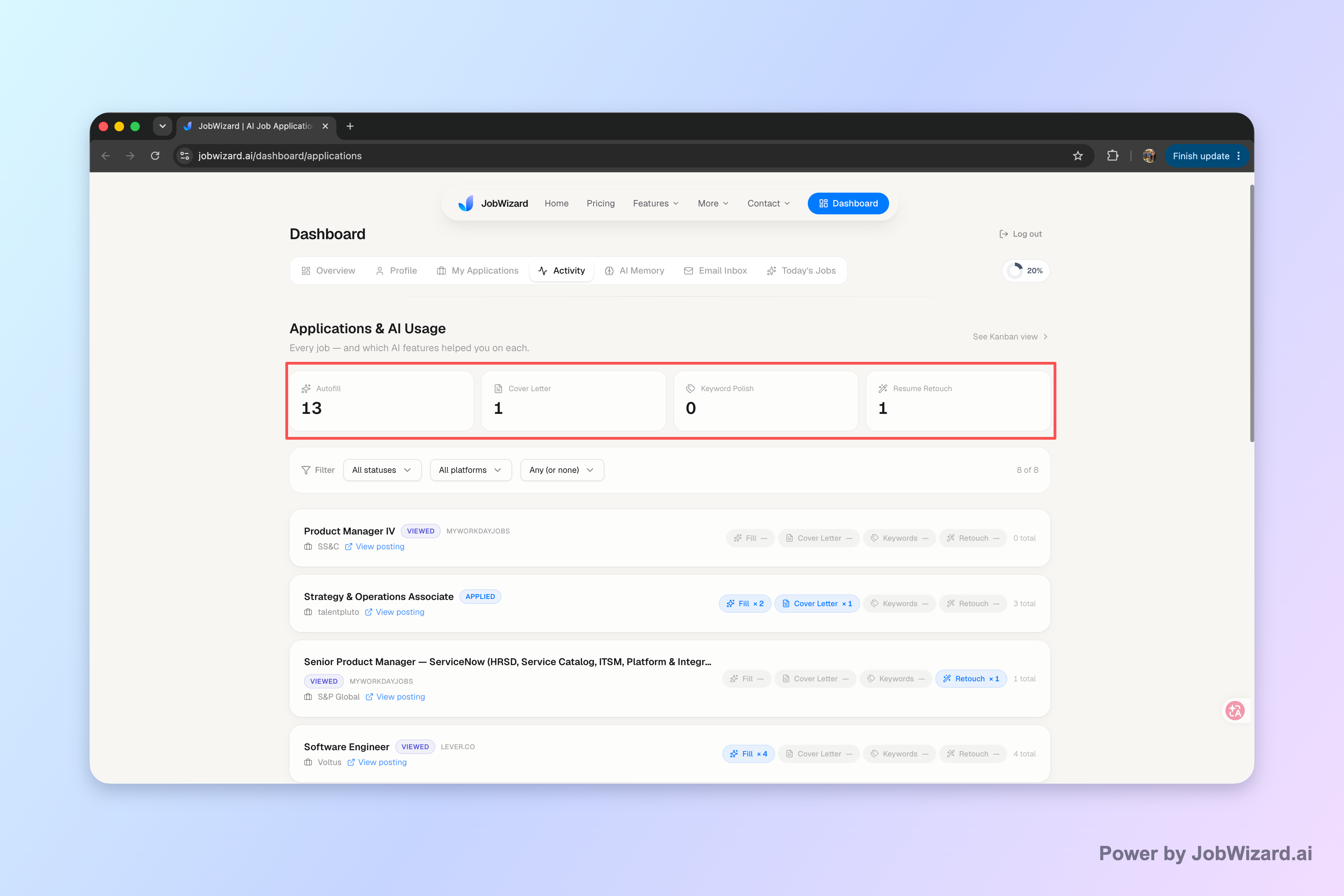
To make follow-ups less emotional and more accurate, start with your job tracker / application activity view, which shows application status and which JobWizard tools were used for each role.
Set up an application tracker so you can follow up with confidence
Your first goal when you follow up on job application submissions should be simple: know where each application stands. Without a tracker, “I applied to three roles last week” turns into guesswork by day ten—especially if you used different portals.
Use a single place to record each role’s basic facts and any signals you receive. The “minimum viable” tracking fields are:
- Role + company (as shown in the posting)
- Date you submitted (or the date you completed the form)
- Status signals (example labels like “under review,” “in process,” “not retained,” or “pending approval” when you see them)
- What you used (which tools handled repetitive parts, if applicable)
JobWizard’s Activity view is built for this exact workflow: it shows application status and which JobWizard tools were used for each role, so you’re not trying to recreate your timeline from memory.
Use status signals to decide whether to wait, email, or update
When you follow up on job application messages, the most useful skill is matching your outreach to the stage the employer is in. A “submitted” follow-up and an “interview scheduled” message should feel like different conversations.
Here’s a practical decision guide you can use in your tracker:
- Newly submitted / no movement yet → Wait, then send one short follow-up after a reasonable interval.
- Under review / in process / under consideration → Send a brief email reinforcing fit, not a demand for answers.
- Pending approval / in progress → Keep your message concise; offer availability and reiterate interest.
- Application viewed (if you receive that signal) → Follow up politely and keep the next step clear.
- Not retained / dispositioned → Don’t keep pinging; archive and move to similar roles.
Important: don’t treat every tracker update as guaranteed accuracy. A tracker can help you stay organized, but it can’t promise that every hiring-system change is detected automatically, or that tracking alone improves hiring outcomes.
Follow up without re-submitting—use a review-before-submit mindset
Many applicants unintentionally make things harder when they try to “fix” a submission by re-entering the form. If you’re trying to follow up on job application status, the safer approach is to avoid blind resubmitting and only make changes when the portal clearly allows it.
Use a review-first workflow for any forms that use autofill. JobWizard autofills repetitive fields and still leaves the sponsorship/salary/EEO/custom questions for you to review before you submit. That reduces avoidable mistakes—without turning your application into a “set it and forget it” process.
To keep your follow-up aligned with what’s already been submitted, pair two habits:
- Update your tracker immediately after you apply (or when you see a status change).
- Review before you submit if you ever need to edit or resubmit through a portal.
Write follow-up emails that match the next step (and avoid sounding generic)
Your follow-up email should be specific enough that a busy recruiter can connect it to your original application in seconds. If it’s vague, you’ll blend in with everyone else who “just checking in.”
Start with a simple structure: reference the role, reference the date, then add one line that proves fit. If you have a relevant update (completed a course, shipped a project, earned a certification), include it once—then stop.
For templates and a reply-first checklist, use this guide:
And if you want a system to ensure you’re emailing at the right times for each role, these resources help you track status consistently:
- How to Track Job Applications: A Practical System (JobWizard + Beyond)
- Job Tracker App Free: A No-Fluff System to Track Application Status and Follow Up
Build a repeatable “follow up” workflow using your activity view
The fastest way to follow up on job application updates is to run a consistent workflow every week, so you don’t have to think from scratch.
Try this weekly loop:
- Open your activity view to see which roles have updated statuses and which tools were used for each submission.
- Sort by stage (under review, pending approval, application viewed, not retained) so each email matches the situation.
- Pick one next action per role: wait, send one email, or archive if it’s clearly not moving.
- Send a reply-first follow-up using a template, and keep it short.
- Record the outcome (reply, no reply, interview invite, or new status signal) so next week’s follow-up gets smarter.
If you’re also looking for a more “autofill + track” approach to reduce repetitive work during applications, pair your workflow with:
This matters because the volume of applications can be high. In our database, JobWizard has been used for 720,000+ applications submitted and 600,000+ autofill sessions. The point isn’t blind automation—it’s that repetitive fields can be filled quickly while you still review the items that must be verified before you submit.
Follow-up principle: Use your tracker to decide what to do next, then keep your email focused on fit and clarity—not pressure.
Do this automatically with JobWizard
Skip the manual work — JobWizard's Application Tracker handles this for you.
FAQ: follow up on job application
How soon should I follow up on a job application?
In most cases, wait until the employer’s stated timeline (if any) has passed, then follow up once with a concise, professional message. If the posting says “no response” or “no calls,” still send an email and keep it short.
What’s the best way to track application status so I don’t lose track?
Use an application tracker (or a single job activity view) to record each role, the date you applied, and any signals like “under review” or “not retained.” Then update it whenever you receive an email, interview invite, or portal change so your follow-up stays accurate.
Should I send a follow-up email even if I didn’t get a confirmation?
Yes—assuming the role still appears active. Send one polite follow-up referencing the position and date you applied, and focus on your interest rather than asking for guarantees. If the posting provides an application reference/contact method, use that.
How can I follow up on job application portals without messing up my application?
Avoid blind re-submitting. If you need to make changes, review what’s already been entered and submit updates only if the portal allows it. For autofilled forms, use a review-before-submit workflow so sponsorship/salary/EEO/custom questions remain your verified inputs.
What should I include in a job application follow-up email?
Include the role title, the date you applied, and one line that reinforces fit. Then add a single clear ask (e.g., whether they’re still considering candidates) and close with gratitude. If you have a relevant update since applying, mention it once and keep the message brief.
Ready to follow up on job application updates without guessing? Start by keeping each role and its next step in one activity view—then use review-before-submit guidance for any portal edits. Try JobWizard today and keep your job search organized so your follow-ups are timely, accurate, and confident.
Frequently Asked Questions
Track all your applications in one place
JobWizard auto-tracks status changes across Workday, Greenhouse, and every major job site — free.