Job Application Tracker Chrome Extension: An Autofill-First Workflow to Follow Up Confidently
Learn how to use a job application tracker chrome extension with an autofill-first workflow—fill repetitive fields fast, then review every answer before submitting and track status in one place.
Free Chrome extension
Track all your applications in one place
JobWizard auto-tracks status changes across Workday, Greenhouse, and every major job site — free.
You’re not alone if your job search feels like a blur: multiple tabs, repeated forms, and then the same question a week later—“Did I apply to this role, and what stage is it in?” That’s exactly where a job application tracker chrome extension can help, especially when it pairs tracking with an autofill-first workflow.
Below is a practical way to use JobWizard as your application tracker + execution layer: you let the extension fill repetitive fields, you stay in control of the final answers, and you keep every role’s next step visible in one activity view.
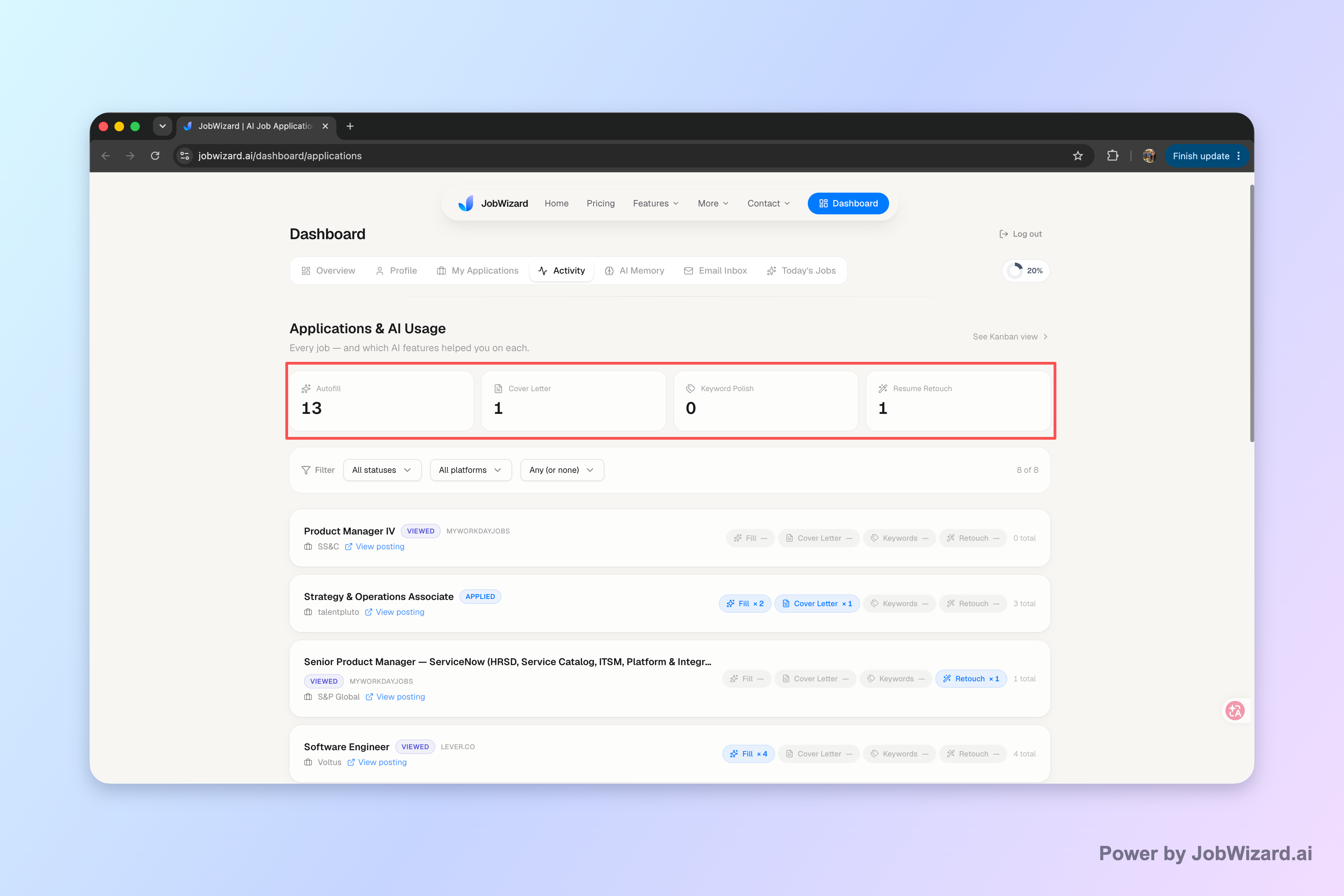
If you’ve tried tracking before, you know the hard part isn’t “having a system”—it’s remembering which tool you used and what the current status is. JobWizard’s Activity view is designed to keep that context together.
Why a job application tracker chrome extension beats “tabs + vibes”
A tracker only works if it answers one question quickly: “What’s the status of this specific application right now?” With JobWizard, the Activity view shows application status and which JobWizard tools were used for each role—so your tracking doesn’t lose meaning the moment you open a new tab.
In practice, this reduces the most common failure points:
- Duplicate applications: when you can quickly confirm whether you already applied, you’re less likely to re-submit the same job later.
- Unclear next steps: you’re not forced to guess whether to follow up or wait.
- Broken memory: the activity record captures the “how” (which tools you used) along with the “what” (status).
And if you prefer visual pipelines, you can still combine approaches. For example, use a kanban-style workflow alongside your tracker so your follow-ups move through stages intentionally. (If you want that setup, see how to track job applications with a Kanban board chrome extension.)
If you’re currently using a spreadsheet, it’s also worth keeping it—just make sure it doesn’t become a second system you forget to update. (This template can help you keep it follow-up-ready: google sheets job application tracker template for a follow-up-ready pipeline that stays organized.)
Use an autofill-first workflow: fill fast, review every answer
The fastest way to burn time on applications is the same way you burn time on taxes—re-entering the same details into different forms. A job application tracker chrome extension works best when it’s paired with Smart Autofill so you reduce the repetitive steps before you submit.
With JobWizard’s Chrome extension, Smart Autofill uses saved profile and resume data to fill detected fields on supported application pages. Crucially, you review the populated fields and submit the application yourself—so you’re not relying on blind automation.

Here’s what that “control + speed” looks like in practice: the extension fills the repetitive parts, then leaves the final review for you to verify everything before submission.
Step-by-step: your “track + autofill + review” loop
- Open the application and start at the point where the form requests repeated info.
- Let Smart Autofill populate fields using your saved profile and resume data.
- Scan for required items and any answers that must be accurate to your story (e.g., custom responses, eligibility notes).
- Jump to the matching question if JobWizard identifies a required field that still needs attention.
- Review everything before submit—sponsorship, salary expectations, EEO, and any custom questions should be confirmed by you.
- Keep status visible in the Activity view so follow-ups don’t become guesswork.
Example workflow you can copy
Let’s say you apply to two roles this afternoon—one on Workday and one on a different platform. Instead of treating each application like a fresh start:
- Use Smart Autofill to handle the repeated sections (education, contact info, employment history fields where available).
- When the review screen shows something that still needs attention, update it directly and jump to the corresponding question if prompted.
- After you submit each application, check the Activity view to confirm the application status tracking is where you expect it to be.
This is also why the Activity view matters alongside autofill: it turns your “application happened” moment into an actionable “application is now at status X, so here’s the next move.”
Reality check (based on verified usage): Across 720,000+ applications submitted and 600,000+ autofill sessions, JobWizard fills an average of ~18 repetitive fields per application (typically 11–23). And for applications submitted through it, ~65% are on Workday, ~19% Greenhouse, ~12% Ashby, ~4% Lever—Workday is where it saves the most time.
Note: those stats reflect autofill + review-before-submit workflow, not blind auto-submission. You still review the filled fields and submit yourself.
What to look for in a chrome extension tracker (beyond “it saves time”)
A good tracker extension should help you make decisions after you apply—not just speed up form filling. Here are the checks that matter if your goal is consistent follow-up.
1) Status visibility you can trust
Look for a view that shows application status and connects it to what you did. With JobWizard, the Activity view shows application status and which JobWizard tools were used for each role.
2) Autofill that keeps you in control
If the extension claims “automatic apply,” slow down. The safer pattern is autofill + review-before-submit. JobWizard’s Smart Autofill fills detected fields using saved profile/resume data, and you review populated fields before submitting. It can also identify required fields needing attention and help you jump to the relevant question.
3) Enough structure to plan follow-ups
Tracking isn’t only for logging—it’s for choosing your next action. For example, you may decide to follow up sooner for roles that move to “under review” versus “pending approval.” Your system should make those decisions easy, not hidden behind multiple spreadsheets or browser notes.
4) Room to combine with your preferred workflow
If you like CRM-style organization, you can still layer tools together. For Chrome extension CRM options, see how to track job applications with a Chrome Extension CRM. And if you want a broader system design, start with How to Track Job Applications: A Practical System (JobWizard + Beyond).
Do this automatically with JobWizard
Skip the manual work — JobWizard's Application Tracker handles this for you.
FAQ: job application tracker chrome extension questions
What does a job application tracker chrome extension actually track?
With JobWizard, the Activity view shows application status and which JobWizard tools were used for each role, so you can keep “where things stand” in one place while you decide your next step.
Will autofill submit applications automatically?
No—JobWizard Smart Autofill fills detected fields on supported application pages using your saved profile and resume data, and you review the populated fields before you submit yourself.
How do I handle required fields that still need attention?
If a required field still needs attention, JobWizard can identify it and let you jump to the matching question so you can fill it accurately during your review step.
Is a tracker better than a spreadsheet?
A spreadsheet can work, but an in-extension activity view is designed to keep application status and tool usage together while you apply—so you spend less time reconciling notes and more time planning your next follow-up.
How should I use tracking to plan follow-ups without guessing?
Create a simple next-step rule: after you submit, log what you did and then follow your workflow based on status—e.g., when a role changes to “under review,” set a reminder to check in on a realistic timeline and tailor your message to what stage you’re in.
Ready to make your job search feel organized instead of chaotic? Try JobWizard’s autofill-first workflow next time you apply, then keep every role’s status and tool usage together in the Activity view—so follow-ups are based on tracked reality, not memory.
Frequently Asked Questions
Track all your applications in one place
JobWizard auto-tracks status changes across Workday, Greenhouse, and every major job site — free.