Workday Meaning for Job Seekers: Application Statuses, Timeframes & What to Do Next
If you’ve seen “workday meaning” in your application email, you’re probably wondering what Workday statuses like “In Progress” really mean and what actions you should take next.
Free Chrome extension
Track all your applications in one place
JobWizard auto-tracks status changes across Workday, Greenhouse, and every major job site — free.
Last week, you applied to a role and got an email that basically said “Workday received your application.” A few days later, you checked the applicant portal and saw a status update—but it didn’t explain what it actually means. That’s the real “workday meaning” question: not just the word “Workday,” but what the status labels mean for your next steps.
In this guide, we’ll translate common Workday recruiting statuses into plain English, show you the actions to take when something looks stuck or incomplete, and share a practical way to apply faster with Smart Autofill—with review-before-submit so you don’t miss required answers.
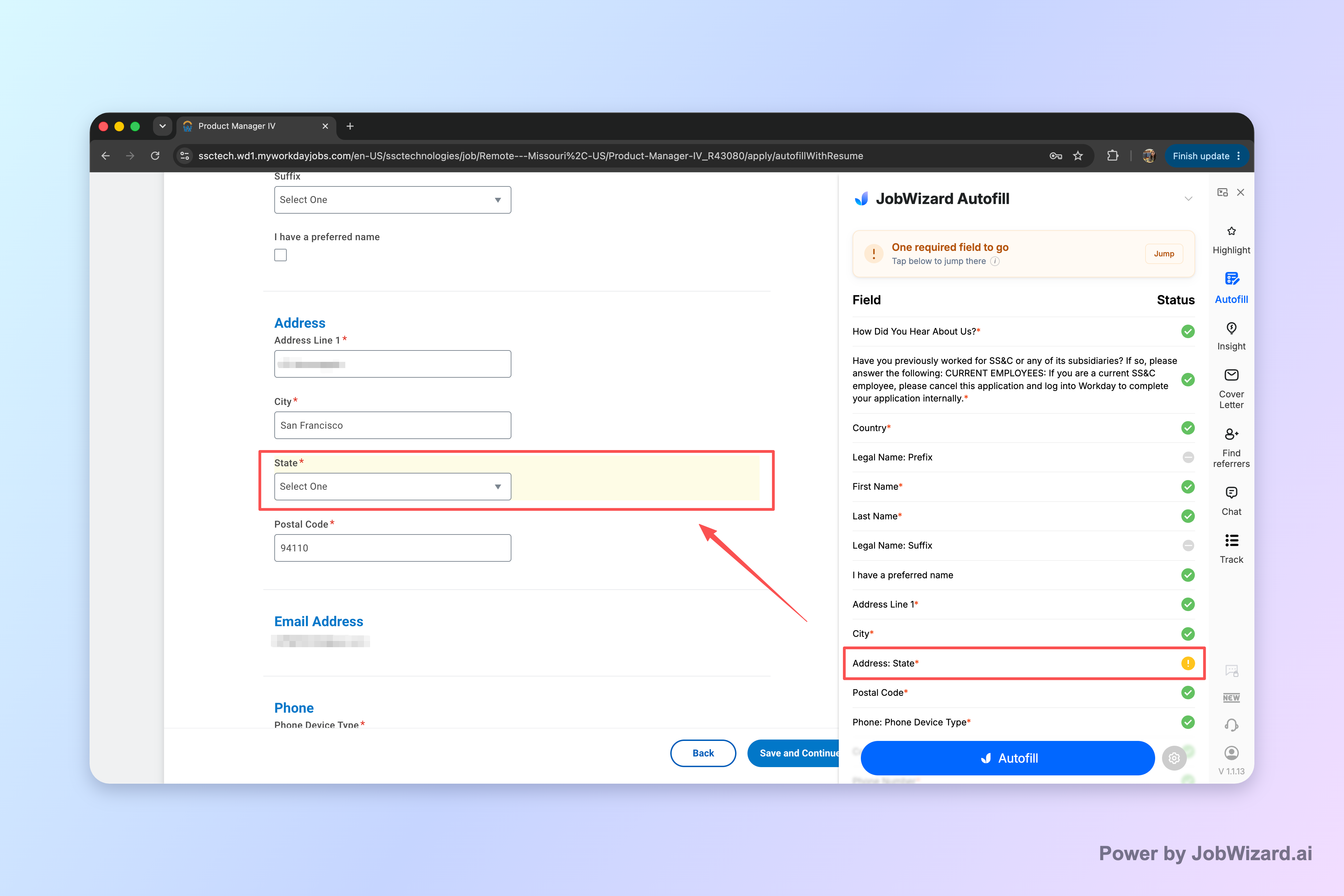
Key stat context: JobWizard has enabled 720,000+ applications submitted and 600,000+ autofill sessions run. It fills ~18 repetitive fields on average per application, then you review everything before you submit.
What does “Workday meaning” actually refer to when you see it in recruiting?
When job seekers search for workday meaning, they’re usually reacting to one of two situations:
- You applied and the confirmation or portal mentions Workday.
- You’re tracking your application and Workday displays status labels that look vague.
In most cases, “Workday” refers to the employer using the Workday platform for recruiting—storing applicant data, managing application flow, and showing status updates in an applicant portal.
Practical takeaway: For you, “workday meaning” is less about a literal definition of the word and more about what each status implies about your place in that employer’s process.
Key takeaway: Treat Workday as the employer’s tracking system—your job is to understand the status label and respond to any requests or missing required fields.
What does “In Progress” mean in Workday?
“In Progress” typically indicates your application is still being handled—often meaning it hasn’t reached a final decision stage yet. It can reflect recruiter review, internal processing, or steps that aren’t visible to applicants.
Recommended action:
- Double-check required items if your portal offers any “update” or “review” link.
- Monitor email for messages about interviews, additional questions, or document requests.
- Keep applying—status movement may lag behind your submission date.
Key takeaway: “In Progress” usually means “not decided yet,” so focus on completeness and staying responsive.
What does “Under Review” mean in Workday?
“Under Review” generally means the employer (or hiring team) is reviewing your application materials. This is often a recruiter-driven phase.
Recommended action:
- Ensure your resume and answers match what you’re best suited for in that role.
- If you receive a follow-up question, respond quickly and keep your answers consistent with your submitted details.
- If you previously had gaps (employment dates, education details, work authorization, etc.), be ready to clarify them if asked.
What not to assume: “Under Review” doesn’t always guarantee an interview is next; it means you’re in the queue of people being considered.
Key takeaway: “Under Review” is a good sign of engagement, but your best move is to prepare to respond to any requests immediately.
What does “Application Submitted” or “Received” mean in Workday?
“Application Submitted” or “Received” is typically a confirmation that your application made it into the employer’s system. Sometimes it means the employer received your submission exactly as entered.
Recommended action:
- Look for confirmation emails (and save them).
- Check the portal for any “missing” prompts or required follow-up sections.
- If there’s an option to edit, use it only if needed—and keep edits accurate and consistent.
If you’re trying to understand workday meaning from a “did I actually apply?” perspective, this is the phase you want to reach—assuming your application is complete.
Key takeaway: “Submitted/Received” usually means you’re in the system—next you confirm you didn’t miss required fields.
What does “Incomplete” or “Missing Information” mean in Workday?
An “Incomplete” or “Missing Information” label usually means the application can’t be fully processed because some required details are missing, incorrect, or left blank. Sometimes that happens when forms are long and there are required fields that are easy to overlook.
Recommended action:
- Open the application and locate the highlighted required items.
- Correct the missing data and re-submit (or complete the required step), if the portal supports it.
- Confirm the status changes afterward.
This is where applying faster without skipping required answers matters. Tools like JobWizard Smart Autofill are designed to help with repetitive fields—while still requiring you to review before submitting.
Key takeaway: “Incomplete/Missing Information” usually means you need to fill a required field so your application can move forward.
What does “Interview” mean in Workday?
When a status indicates “Interview,” “Interview Scheduled,” or similar language, your application has moved into a stage where the employer intends to meet with you.
Recommended action:
- Read any attached interview instructions carefully.
- If you have scheduling options, confirm your attendance promptly.
- Prepare by reviewing the job description and updating your talking points so they match the employer’s priorities.
Common real-world nuance: Sometimes the status is updated before calendar logistics are fully confirmed in your inbox. Rely on the latest email instructions when they conflict with portal text.
Key takeaway: Treat interview status as “active,” and respond immediately to scheduling and instructions.
What does “No Longer Under Consideration” mean in Workday?
“No Longer Under Consideration” usually indicates the employer has decided not to continue with your application for that specific role. While it’s disappointing, it’s clearer than silence.
Recommended action:
- If the employer shares feedback, use it to improve your next submissions.
- Move on quickly—continue applying to roles that match your strengths.
- If you still want that employer, look for other openings that better match your background.
Key takeaway: “No Longer Under Consideration” typically means a final decision for that role—use it as direction, not a stop sign for your job search.
What does “Rejected” mean in Workday?
“Rejected” is generally a direct final outcome. Your application will typically not proceed for the role.
Recommended action:
- Save the role details so you can reference what didn’t align (if you later pursue a similar job).
- Check whether there are future or alternate roles where your experience fits better.
- Update your resume to emphasize the most relevant keywords and outcomes for the next target.
Note: Different employers use different final-status phrasing. If your portal uses unusual wording, look for nearby details (dates, next-step instructions, or the presence of feedback forms).
Key takeaway: “Rejected” is usually final for that job posting—optimize your next applications and keep momentum.
What does “Hired” or “Offer” mean in Workday?
“Hired” or “Offer” indicates the employer advanced someone—likely the selected candidate—and the role is nearing completion in their system.
If you’re seeing this status and you’re not the selected candidate, don’t interpret it as “your application is still processing.” It typically reflects that the posting has moved beyond the stages you can influence.
Recommended action:
- Apply to other roles promptly.
- If you want to stay connected, consider professional outreach that references your interest and asks about future opportunities (only if the employer allows follow-up).
Key takeaway: “Hired/Offer” usually means the role is close to completion—time to focus on new applications.
What should you do when your Workday application status doesn’t change?
One of the most stressful parts of any job search is checking your portal repeatedly and seeing the same label. If you’re looking for the meaning behind “no movement,” here’s the most helpful way to interpret it:
- Meaning: your application may be waiting in an internal queue, or decision steps may take time.
- Reality: many employers update portal statuses irregularly (sometimes only when a major step happens).
Recommended action checklist:
- Verify completeness: confirm you didn’t miss required fields or follow-up questions.
- Keep your job search active: continue targeting roles that match your experience.
- Respond fast to outreach: if an email requests clarification, schedule, or documents, act immediately.
- Consider a polite follow-up if you have a clear reason to ask (only after appropriate time has passed and only if you have contact instructions).
Key takeaway: No change doesn’t always mean bad news—verify completeness, stay responsive, and keep applying.
How can you avoid “missing required fields” when applying through Workday?
When people search for workday meaning, they’re often trying to solve a puzzle: “If the portal is confusing, how do I make sure my application is actually complete?” The answer is to design your submission workflow so you catch required fields before you finalize.
JobWizard’s Smart Autofill is built for exactly this moment. It uses saved profile and resume data to fill detected fields on supported application pages. Then you review everything that was populated and submit the application yourself—so you remain in control.
If a required field still needs attention, JobWizard can identify it and let you jump directly to the matching question so you can fix it before submitting.
Important limitations to keep in mind:
- Smart Autofill does not automatically submit applications.
- Don’t assume perfect coverage or instant completion—required fields can vary by employer and by role form setup.
- Auto-fill support can vary by website and application page.
Copy-paste template: quick follow-up email after you submit (or after you notice you had to complete missing info)
Subject: Application Follow-Up — [Job Title]
Hello [Hiring Manager/Team],
I recently submitted my application for the [Job Title] role via the Workday applicant portal. I’m very interested in the opportunity to contribute to [1–2 role-specific priorities].
If there’s any additional information I can provide, I’d be happy to share. Thank you for your time and consideration.
Best regards,[Your Name][Phone] | [LinkedIn/Portfolio]
Key takeaway: Faster forms are great—just pair automation with review-before-submit and a quick scan for required fields.
Workday application status reference: what each item likely means and what to do next
Because employers use different Workday recruiting configurations, you may see slightly different wording. This table translates common labels into the most useful “Workday meaning” for job seekers: what it likely indicates and what you should do next.
| Workday status / label you might see | What it likely means (plain English) | Recommended action |
|---|---|---|
| In Progress | Your application is still being processed; no final decision yet. | Check completeness, monitor email, and keep applying. |
| Under Review | A recruiter or hiring team is reviewing your application. | Be ready to respond quickly to follow-ups; ensure your details are accurate. |
| Application Submitted / Received | The employer has your submission in their system. | Confirm any portal prompts are completed; save confirmation emails. |
| Incomplete / Missing Information | Required fields were not fully completed, so the application can’t progress. | Open the application, find required items, correct them, and resubmit if prompted. |
| Interview / Interview Scheduled | You’ve moved to a stage where an interview is planned. | Review scheduling instructions, confirm promptly, and prepare for role-specific questions. |
| No Longer Under Consideration | The employer has decided not to proceed with your application for that role. | Move on to other applications; use any feedback to improve your next target. |
| Rejected | A final outcome for your application on that role. | Optimize resume/cover letter for similar roles and keep momentum. |
| Hired / Offer | The role has progressed to completion (typically not your next step unless you’re selected). | Focus on new opportunities; consider future postings with better fit. |
Key takeaway: Status labels matter most when you pair them with action—confirm completeness, respond quickly, and don’t stall your search.
Do this automatically with JobWizard
Skip the manual work — JobWizard's Application Tracker handles this for you. On these platforms: Workday autofill.
Frequently asked questions about workday meaning
What does “Workday” mean for job applications?
“Workday” usually refers to the company using the Workday platform to run recruiting and track applications. The workday meaning for you is mainly about how your application status will be labeled and where you may be asked to respond to missing or required fields.
What does “In Progress” mean in Workday?
“In Progress” generally means your application is still being processed by the employer and hasn’t reached a final stage (like “Hired” or “Rejected”). The recommended action is to monitor your email and Workday applicant portal and make sure any required information is complete.
What does “Under Review” mean in Workday?
“Under Review” typically means a recruiter or hiring team is looking at your application. The best next step is to keep your materials ready (and follow any instructions sent to you) while staying responsive to requests for additional information.
What does “Application Submitted” or “Received” mean in Workday?
“Application Submitted” or “Received” generally confirms the employer has your application in their system. If you submitted through a form, the key follow-up is to check for confirmation emails and ensure there aren’t any missing required fields or follow-up questions.
Why would my Workday application say “Incomplete” or “Missing Information”?
That label usually means the employer couldn’t fully complete required parts of your application (for example, a required field wasn’t provided). You should open the application, find the missing required item, and submit corrected details.
What does “No Longer Under Consideration” mean in Workday?
“No Longer Under Consideration” generally means the employer has decided not to proceed with your application for the role. The action is to take the feedback if provided, and focus your energy on other applications while tailoring your resume and cover letter.
What should I do if my Workday application status doesn’t change?
If nothing changes for a while, the workday meaning is often that the employer is still working through internal steps. The recommended action is to verify you completed every required field, then continue applying and consider a polite follow-up message if appropriate.
How can I apply faster on Workday without missing required fields?
Use Smart Autofill to populate detected fields from your saved profile and resume data, then review every populated answer before submitting. If a required field still needs attention, Smart Autofill can identify it and let you jump directly to the matching question so you don’t miss it.
Ready to apply with clarity and fewer form-mistakes? Try JobWizard’s Smart Autofill on your next application: it fills repetitive fields faster, then you review every answer and submit yourself—so your application stays complete even when Workday forms get long.
Frequently Asked Questions
Track all your applications in one place
JobWizard auto-tracks status changes across Workday, Greenhouse, and every major job site — free.