Workday Application Status Under Review Meaning: What To Do Next (and How To Track It)
If your Workday application status shows “Under Review,” this guide explains what it usually means, what to do next, and how to track updates without overreacting. Learn the “workday application status under review meaning” and your best next steps.
Free Chrome extension
Track all your applications in one place
JobWizard auto-tracks status changes across Workday, Greenhouse, and every major job site — free.
You applied to a role on Workday, checked back a few times, and now your status reads: “Under Review.” The message is encouraging—but it also raises a real question: workday application status under review meaning and what you should do next so you don’t waste time (or accidentally miss something)?
In this guide, you’ll learn what “Under Review” typically signals, how to interpret it alongside other Workday updates, and the most useful follow-up workflow—plus how to keep every application’s context organized.
What does “Under Review” mean in Workday application status?
When a Workday application shows Under Review, it generally means your application has moved past the earliest stages and is being considered by the hiring team. In other words, your materials are no longer just sitting in a basic submission/receipt state—someone is evaluating candidates.
That’s good news. But it’s also not the same thing as “you’re definitely moving forward.” Many applicants can be under review while the company compares resumes, schedules interviews, and requests next steps.
Key takeaway: “Under Review” usually means your application is in the evaluation pipeline—so your job becomes staying ready, monitoring for messages, and following up professionally when appropriate.
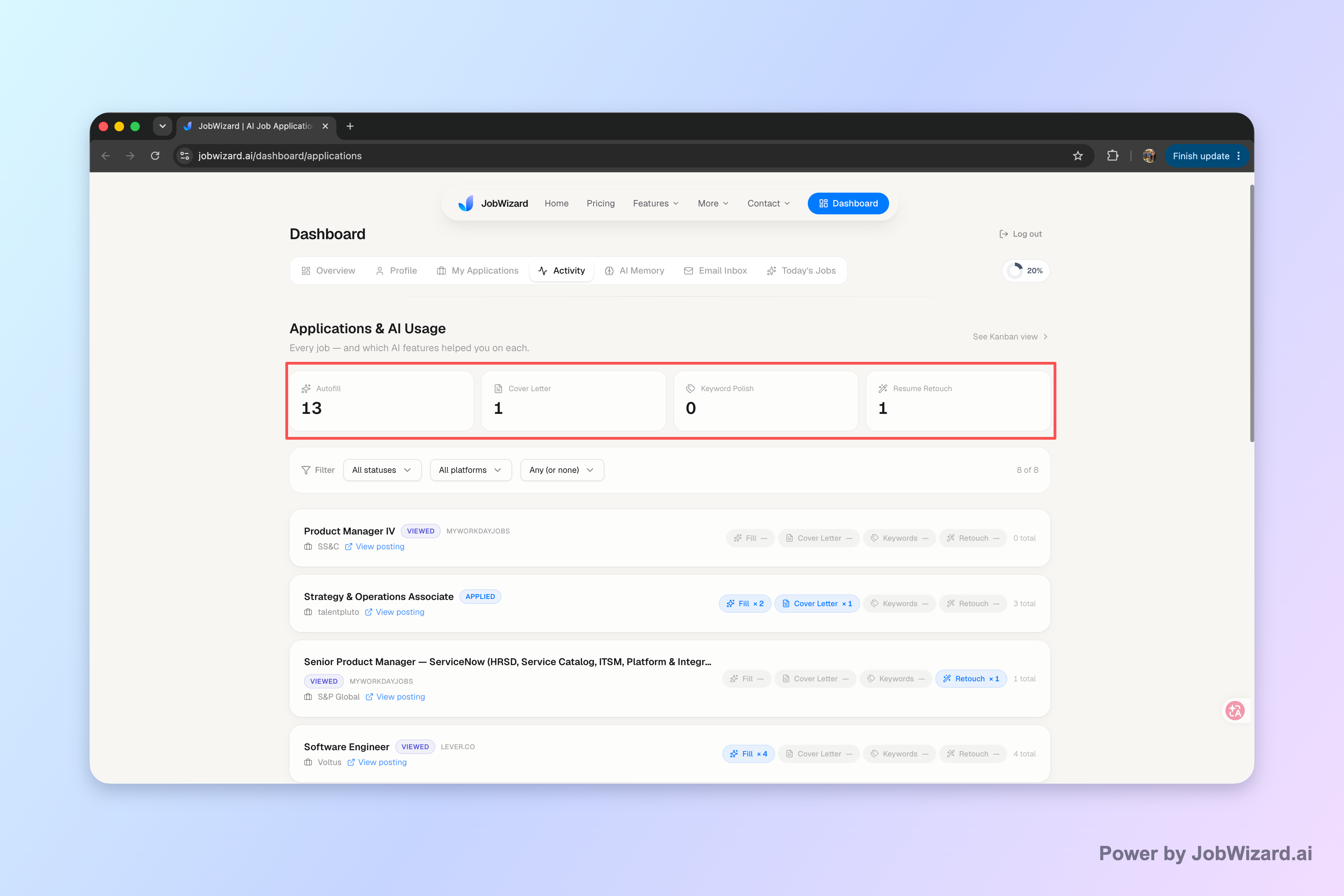
How do I track Workday application status under review meaning with an application activity view?
Even when your status says “Under Review,” you still need visibility into what happened after you applied: whether you completed required steps, whether the application you submitted matches the role you’re watching, and whether any follow-up messages came in.
JobWizard’s Application Activity / Job Track is designed to help you keep that context in one place. The Activity view shows application status and which JobWizard tools were used for each role, so you can confirm you’re tracking the right application and understand what you submitted.
Use this approach:
- Open the activity view to see the role and current status at a glance.
- Check for messages (email + Workday notifications) in case the employer sends next-step requests.
- When you follow up, include the role title and a consistent reference point (like the date you applied) rather than reacting to a single status label.
Key takeaway: Tracking isn’t just “what it says now”—it’s keeping the whole timeline so you can act decisively when something changes.
What does it mean if my Workday application status changes from “Submitted” to “Under Review”?
A change from “Submitted” to “Under Review” typically indicates progress in the internal process. Many Workday-enabled employers separate stages like submission confirmation, initial checks, screening, and then human review.
Practically, the best interpretation is:
- Your application was received and passed the immediate system gate.
- Now it’s in consideration—the evaluation portion starts or intensifies.
- No extra action is required immediately unless the employer requests more information.
Key takeaway: Treat the status change as movement forward, not as a call to repeatedly re-apply or obsessively refresh.
What should I do after Workday says “Under Review”?
After Under Review, the most effective next steps are simple and disciplined. You’re aiming to (1) stay reachable, (2) respond quickly to requests, and (3) follow up appropriately—without spamming.
Use this action checklist:
- Make sure your email is ready: check spam/junk and set alerts if you can.
- Confirm your Workday account notifications (so you don’t miss an “action required” prompt).
- Keep notes: role title, location, date you applied, and any recruiter name if shown.
- Prepare a follow-up draft (so you can respond quickly if you decide to reach out).
- Re-check later, but avoid daily refresh cycles that add stress without new information.
Key takeaway: Your goal is not to “make the status change”—it’s to stay responsive and professional while the team evaluates candidates.
Should I follow up if my Workday status is “Under Review”?
Yes—sometimes. A follow-up can be appropriate when you’ve waited a reasonable amount of time and you haven’t received any next steps. The key is to keep it short, relevant, and respectful of the process.
Below is a copy-paste template you can adapt:
Subject: Follow-up on [Job Title] application
Hi [Hiring Manager/Recruiter Name],
I hope you’re doing well. I’m writing to follow up on my application for the [Job Title] role submitted on [Date]. I remain very interested in the position and would welcome the opportunity to provide any additional information that could be helpful.
Thank you for your time and consideration.
Best regards,[Your Name][Phone] | [Email] | [LinkedIn/Portfolio]
Key takeaway: A good follow-up improves clarity, not pressure—keep it concise and aligned to the specific role.
How long should I wait when my Workday application status is “Under Review”?
Workday status labels don’t always come with a guaranteed timeline. “Under Review” usually indicates evaluation is underway, but the hiring process can vary widely by employer, role seniority, and internal scheduling.
So instead of treating “Under Review” like a countdown, use a practical rule:
- If the job posting lists a timeline, follow it.
- If there’s no timeline, wait long enough to show patience, then follow up politely if you still haven’t heard back.
- If the status changes to a different label that implies action required, respond immediately.
If you’re already seeing a long wait, you may find this scenario-specific guide useful: Workday Application Still Under Review After a Month: What To Do Next.
Key takeaway: “Under Review” tells you evaluation is happening—but it doesn’t promise a specific timetable.
What does “Under Review” mean compared to “In Progress” or “Screening” in Workday?
Different employers configure Workday statuses differently, so the exact labels can vary. That said, a helpful way to interpret the labels is by how far along the process has moved:
- Earlier labels (like “In Progress”) often represent internal processing or early workflow steps.
- “Screening” typically implies initial review (often by recruiters, automated filters, or both).
- “Under Review” usually indicates the next phase—more direct evaluation by the hiring team.
For a deeper comparison of multiple Workday labels, cross-check with: Workday Application Status Meanings: What Each Update Really Means and Workday Application Status Meaning — Decoding Each Stage.
Key takeaway: Think in terms of “stage depth,” not just wording—then follow the recommended action for that stage.
Which Workday actions should I take if my application is still “Under Review”?
If “Under Review” persists, your best move is to verify there isn’t something you need to do. Sometimes candidates assume the system status is enough—but interviews, assessments, or requests can arrive via email, Workday prompts, or recruiter outreach.
Here are the highest-signal actions to take:
- Check for missing/requested information (resume updates, work authorization documents, or short questionnaires if sent).
- Confirm the role and application match (especially if you applied to multiple positions).
- Keep your follow-up consistent and role-specific.
- Continue applying elsewhere—a single “Under Review” status doesn’t replace active job searching.
Also, if your workflow involves repeating application forms, you may want to streamline what you can—then review before submitting. That’s where JobWizard’s autofill workflow helps most.
Key takeaway: Persistent “Under Review” usually calls for verification + professional follow-up—not frantic re-submissions.
Workday application status “Under Review” meaning: quick reference table (what to do next)
Use this table to translate common Workday labels into actions. If your status is specifically “Under Review,” start with the row below and adjust based on any additional prompts you receive.
| Workday status label | Meaning (typical) | Recommended action |
|---|---|---|
| Under Review | Application is being considered/evaluated by the hiring team. | Wait, monitor email/Workday notifications, and follow up politely after a reasonable period if no updates arrive. |
| Submitted / confirmation state | Application has been received; early processing may still be happening. | Keep records of submission; stay alert for requests, but avoid unnecessary repeat actions. |
| In Progress (varies by employer) | Internal workflow is moving forward; not necessarily final evaluation yet. | Monitor for status changes and messages; follow the action guidance for the new label when it changes. |
| Screening (varies) | Initial review stage, often recruiter and/or preliminary filters. | Ensure your profile and answers align with the role; prepare for possible outreach. |
| Action Required / questionnaires | The employer needs something from you. | Respond immediately; update answers carefully and submit as instructed. |
| Interview Scheduled (label varies) | Next steps are confirmed. | Prepare thoroughly and reply promptly to scheduling emails/links. |
Key takeaway: The right action depends on the label—and whether the employer has messaged you requesting something specific.
How can JobWizard help with Workday application status and follow-up planning?
JobWizard is built to help you apply faster and stay organized while you wait. Two features are especially relevant to the “workday application status under review meaning” question—because they support the work you can control: accurate submissions and clean tracking.
How does Smart Autofill help you complete Workday applications?
JobWizard’s Smart Autofill uses a Chrome extension with your saved profile/resume data to fill detected fields on supported application pages. You still review the populated fields and submit the application yourself, which helps you avoid blindly sending incorrect details.
If a required field still needs attention, JobWizard can identify it and let you jump directly to the matching question—so you can finish without hunting for what’s missing.
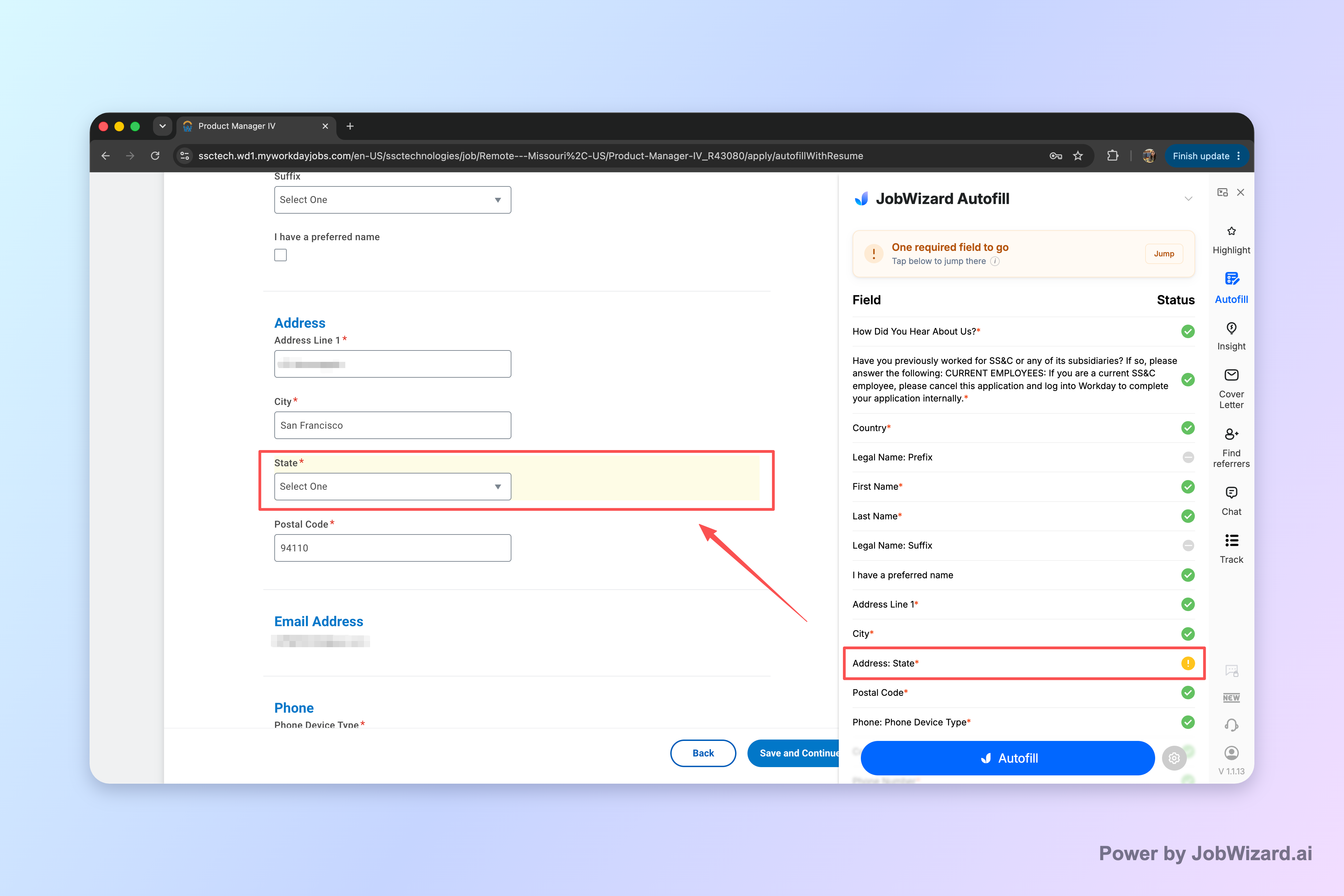
That matters because a common reason candidates get stalled is incomplete or mismatched application answers. With autofill, the repetitive parts get handled quickly while you keep control over the final content.
Important: Smart Autofill is not automatic submission, and it may not fill every field instantly or for every site.
Key takeaway: Filling repetitive fields faster is only half the value—reviewing before submitting is what protects your accuracy.
What do the application stats say about real-world use of JobWizard autofill?
In our latest aggregate usage refresh, JobWizard has powered 720,000+ applications submitted and 600,000+ autofill sessions. Users typically autofill about ~18 repetitive fields per application (often 11–23). Most submissions are on Workday (~65%), with additional usage on Greenhouse (~19%), Ashby (~12%), and Lever (~4%).
These numbers reflect autofill + review-before-submit, not blind auto-apply. The repetitive fields are filled quickly, while sponsorship/salary/EEO/custom questions are left for the user to review before submitting.
Key takeaway: The workflow is designed for review-before-submit accuracy while reducing the repetitive busywork that happens before “Under Review.”
How to combine Workday status checks with smart follow-up (so you don’t lose momentum)
When your status is Under Review, your goal is to keep momentum without overreacting to one static label. The best strategy combines three layers:
- Track the right application so you know what’s being evaluated.
- Respond quickly to any employer requests.
- Follow up professionally if time passes and you haven’t heard back.
If you want to reduce friction for future applications, use this step-by-step workflow: How to Autofill Job Applications (Step-by-Step with JobWizard).
Key takeaway: Don’t treat “Under Review” as a finish line—treat it as a checkpoint in an ongoing, organized application process.
Do this automatically with JobWizard
Skip the manual work — JobWizard's Smart Autofill handles this for you. On these platforms: Workday autofill.
FAQ
What does “Under Review” mean in Workday for a job application?
“Under Review” generally means your application has moved past initial screening and is being considered by the hiring team. Your best next step is to wait for updates while making sure any pending steps (like requested information) are completed if you receive them.
How long should I wait after Workday says “Under Review”?
Use it as a “decision is in progress” signal rather than an exact timer. If a job posting includes specific timelines, follow those; otherwise, wait a reasonable period and then follow up politely if you still have no update.
Does “Under Review” mean I’m guaranteed an interview?
No. “Under Review” indicates consideration, not a guarantee. Many applicants can be under review while the team compares candidates and schedules later steps selectively.
What should I do if my Workday status stays “Under Review” for weeks?
First, double-check your email and Workday account for any requests or messages. Then consider a brief, professional follow-up to reiterate interest. If you applied to multiple roles, compare each status so you don’t treat every “under review” as the same stage.
Can I track Workday application status updates automatically?
You can use an application tracker view to see where each application stands and which tools were used along the way. However, don’t assume every update is captured automatically—always review the status shown and any messages you receive.
Should I submit another application if I see “Under Review”?
In general, don’t spam applications. If the same role is still open, you can review whether anything material changed (availability, portfolio updates) before applying again. If your status is already under review, focus on a thoughtful follow-up rather than duplicating submissions.
What’s the difference between “Under Review” and other Workday statuses like “In Progress” or “Screening”?
Workday labels vary by employer and configuration, but the practical difference is often how far your application has moved: “Under Review” usually indicates the hiring team is evaluating it, while earlier statuses may represent initial system processing or screening. To be sure, use a Workday status meanings reference and follow the recommended action for that specific label.
How can JobWizard help me manage Workday applications after I apply?
JobWizard supports faster form completion and helps you keep each application’s next step in one activity view. Autofill fills detected repetitive fields, and you review everything before submitting; then you can track and follow up without losing context.
Next step: If you’re applying through Workday and want a smoother “apply → track → follow up” workflow, try JobWizard and keep each role’s status organized in one activity view—while autofill helps you complete repetitive fields faster and with review-before-submit control.
Start using JobWizard to manage your next batch of applications with less busywork and clearer follow-up timing.
If it has been two weeks with no update
A long “Under Review” status is common, and a polite nudge is fine once you have waited a while. If you have already interviewed, send a short and sweet follow-up email after the interview. If it has been two weeks or more, use this reply-ready follow-up email for after two weeks.
Frequently Asked Questions
Track all your applications in one place
JobWizard auto-tracks status changes across Workday, Greenhouse, and every major job site — free.