Workday Application Status Meaning: What “In Progress,” “Under Review,” and Other Updates Actually Mean
Confused by Workday application status meaning? Learn what common Workday updates mean and what to do next—plus how JobWizard helps you track and fill missing fields before you submit.
Free Chrome extension
Track all your applications in one place
JobWizard auto-tracks status changes across Workday, Greenhouse, and every major job site — free.
You applied through a Workday job page, saw the confirmation screen, and then waited. A few days later, the workday application status meaning you see looks like “In Progress” or “Under Review,” but it doesn’t tell you what will happen next.
This guide breaks down the most common Workday status updates, what they typically signal, and what you should do—so you can follow up at the right time and keep your applications organized with JobWizard.
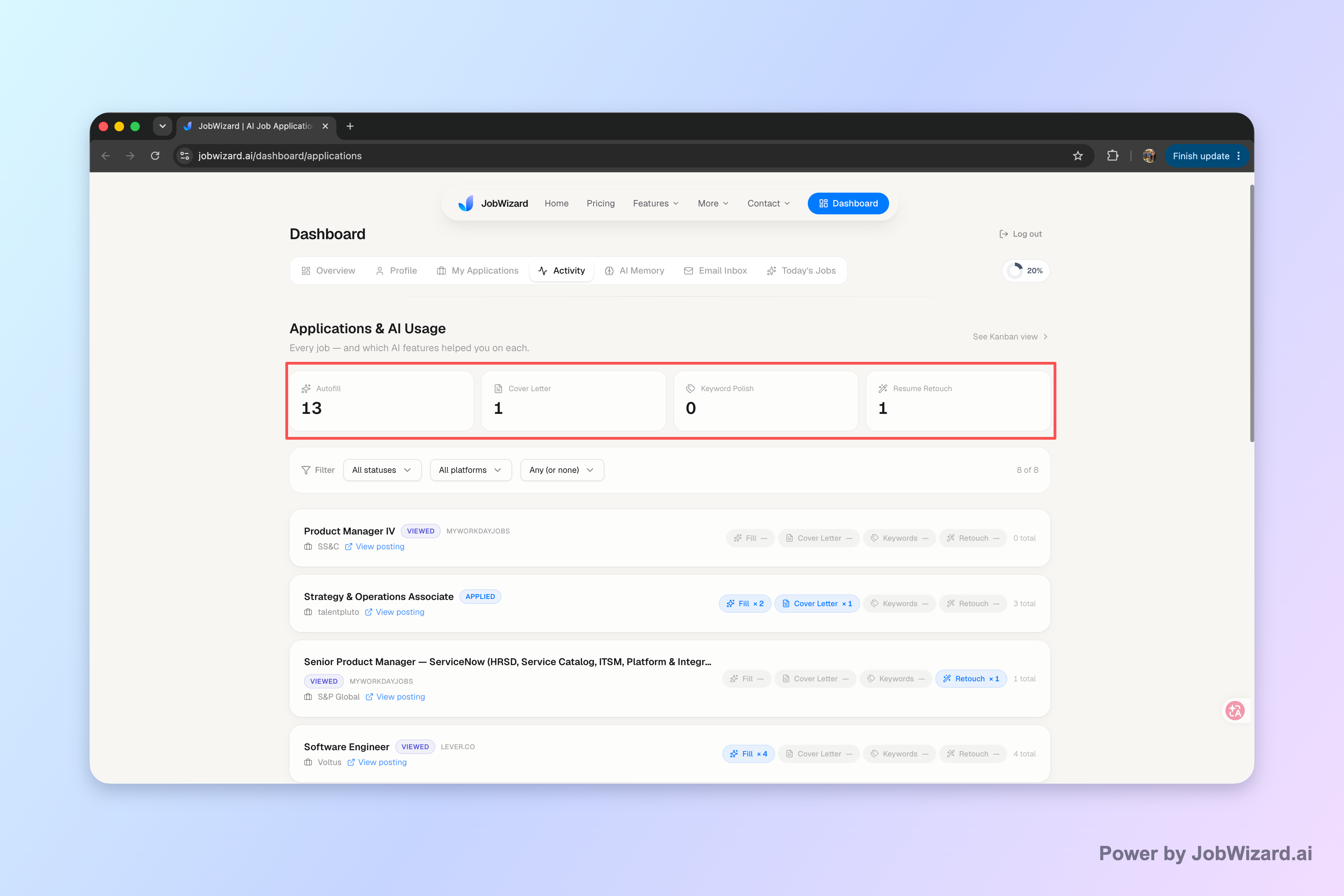
If you’re juggling multiple applications, JobWizard’s Activity view shows your application status and which JobWizard tools were used for each role—so you can track progress without losing the thread.
What does “Under Review” mean in Workday application status?
Under Review usually means a recruiter or hiring team has your application and is considering it.
In most hiring flows, “Under Review” is a checkpoint state—your application is no longer just in the initial intake stage. Sometimes this stage can still include sorting, screening, and panel handoffs, so it may not change quickly.
Key takeaway: Treat “Under Review” as a “they have it” status—your job is to stay prepared and only follow up if your timeline suggests it’s appropriate.
- Next step: Wait while keeping your resume and answers ready (for screening, recruiter calls, or assessments).
- Follow-up timing: If there’s a posted timeline or you’ve passed a reasonable waiting window, send a short check-in.
- Don’t overreact to silence: Many Workday updates happen in batches or after internal meetings.
What does “In Progress” mean in Workday application status?
In Progress typically means your application is moving through an internal step, but it’s not yet in an explicit decision or review stage.
Depending on the company, “In Progress” can mean your submission is being processed, routed to the hiring workflow, or queued for the next step. It’s common for this state to show up early, or after you submitted supplemental information.
Key takeaway: “In Progress” often means “not decided yet”—verify completion and keep applying broadly.
- Next step: If you suspect you missed something on the application form, revisit your materials and be ready to provide clarifications.
- Keep momentum: Continue applying to other roles while you wait.
- Organize your follow-ups: Use a tracker (JobWizard Activity view) so you don’t lose which roles you already asked about.
What does “Submitted” or “Completed” mean in Workday application status?
Submitted/Completed generally indicates your application was successfully sent and received in the system.
This is usually the best kind of “stuck” status, because it confirms the application made it past the form submission step. From here, the company may take time to review, schedule screens, or request additional details.
Key takeaway: If your status says “Submitted” or “Completed,” focus on waiting and staying ready—not re-submitting repeatedly.
- Next step: Monitor for changes and save any confirmations you received.
- Prepare for transitions: Be ready for resume verification, screening questions, or a potential recruiter message.
- Avoid duplicate spam: Don’t submit the same application multiple times unless the process explicitly allows it.
What does “Application Received” mean in Workday application status?
Application Received usually means Workday has logged your submission and it’s in the intake pipeline.
This can appear right after submission (or shortly after), before any human review. It’s essentially “we got it,” not “we’re reviewing it.”
Key takeaway: “Application Received” is a confirmation of intake—your best move is to keep applying and refine for future stages.
- Next step: Treat it as early-stage; continue your job search while you wait for review-related statuses.
- Be ready to respond: Some companies move quickly from intake to a recruiter screen.
- Track carefully: Keep notes on what you submitted so you can answer questions consistently later.
What does “Screening” mean in Workday application status?
Screening typically means your application is being evaluated against role requirements or screening criteria.
Screening can be automated (keyword or eligibility checks) or manual (review by a recruiter or hiring coordinator). Either way, it signals a step closer to human decision-making.
Key takeaway: “Screening” means someone—or something—is assessing fit, so align your materials to the job’s requirements.
- Next step: Ensure your resume and LinkedIn “match the story” of the job description.
- Prepare examples: Gather 2–3 concrete stories that map to key requirements (projects, metrics, impact).
- Don’t panic: Screening stages can take time if the role receives many applicants.
What does “Interview” mean in Workday application status?
Interview generally indicates the hiring team has moved beyond initial review and expects the next step.
This status can appear alongside scheduling communications, or it may be updated first and followed by an email or calendar invite. If you see this state, act quickly if you get additional instructions.
Key takeaway: Once you see “Interview,” respond fast to scheduling requests and prepare immediately.
- Next step: Check email and spam folders for messages tied to the application.
- Prepare: Review the job description and prepare targeted talking points.
- Clarify logistics: Confirm time zone, format (phone/video/in-person), and interview panel if included.
What should I do after Workday application status changes?
When your status changes, the key is to treat it as a signal of where you are in the process—and adjust your follow-up and prep accordingly.
Instead of checking constantly, create a simple routine: note the date the status changed, then follow up only when it makes sense. This keeps you professional and avoids unnecessary churn.
Key takeaway: Don’t just watch the status—use it to schedule your next action.
- Record the date: When you first see the update, note it in your tracker.
- Match action to stage: Under Review = wait; Screening = prep; Interview = respond quickly.
- Follow up with purpose: Ask for the next step or whether they need anything else.
- Keep applying: Status changes can take weeks; your pipeline should stay active.
How do I interpret Workday application status meanings when they don’t change?
Stagnant statuses often reflect internal timing rather than rejection—especially when the company uses periodic workflow updates.
It’s tempting to read every day-to-day update as “good” or “bad,” but Workday statuses are frequently updated in chunks. The safest approach is to watch for stage changes, not daily flickers.
Key takeaway: If it hasn’t changed, wait—but set a reasonable follow-up point and keep your search moving.
- Use a timeline: If the posting includes deadlines, use those as anchors for follow-ups.
- Target next actions: You can follow up once; then focus on other applications until you get a response.
- Stay ready: If they reach out, you’ll want answers immediately.
What work should I do if I want to apply faster in Workday?
Workday application status meaning questions usually come after you’ve already submitted—so speed up the submission step carefully.
JobWizard’s Chrome extension uses saved profile and resume data to fill detected fields on supported application pages. The key point: you review the populated fields and submit the application yourself—especially for anything required or custom.
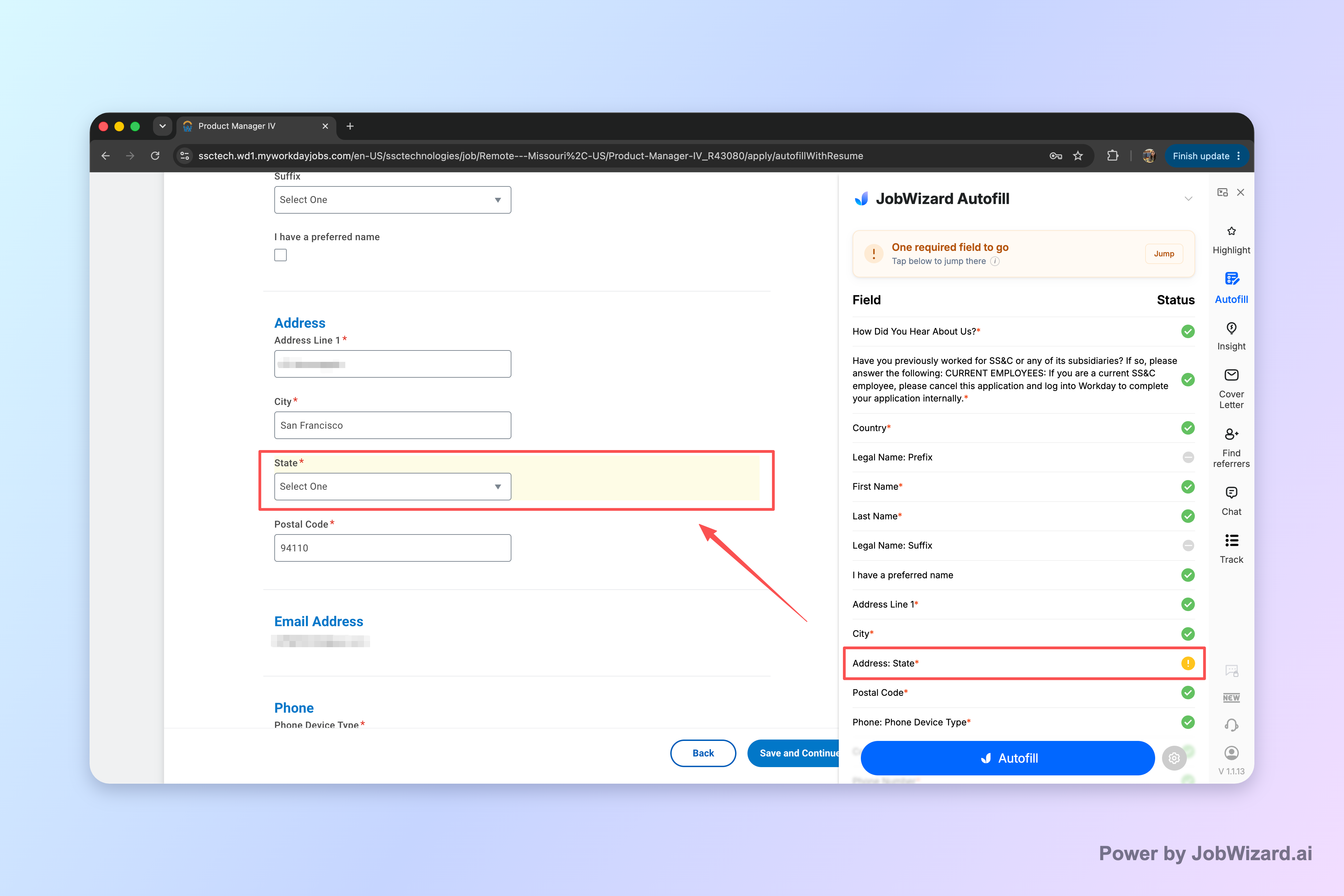
When a required field still needs attention, JobWizard can identify it and let you jump directly to the matching question, so you can correct or complete it before you submit.
Key takeaway: Autofill is for drafting, not blind submission—review everything before you hit submit.
- Autofill repetitive fields: Save time on the “same everywhere” inputs.
- Review before submitting: Make sure details are accurate and up to date.
- Fix required gaps: If something is missing, use the jump-to prompt to complete it.
Workday application status meaning checklist: what action should you take?
Use this action checklist to turn status updates into clear next steps.
| Workday status (what you see) | Meaning (what it usually signals) | Recommended action |
|---|---|---|
| Under Review | Recruiter/hiring team has access and is considering your application. | Wait; prep for screening; follow up only if timing fits. |
| In Progress | Your application is moving through internal steps; not yet at a decision/review checkpoint. | Verify completion; keep applying; track the role/date. |
| Submitted / Completed | Application successfully sent and logged. | Monitor for updates; avoid duplicates; stay ready. |
| Application Received | Intake confirmed; early pipeline stage. | Continue applying; prepare to respond quickly if contacted. |
| Screening | Eligibility/fit assessment is underway. | Align your resume story; prepare 2–3 strong examples. |
| Interview | Next step scheduled or imminent. | Respond fast; prep interview answers and logistics. |
Key takeaway: Pick an action that matches the stage—waiting, prep, or follow-up—not panic.
If you want deeper, role-specific guidance, you can also review:
- Workday Application Status Under Review Meaning: What To Do Next (and How To Track It)
- Workday Application Status Meanings: What Each Update Really Means
- Workday application status meaning — Decoding Each Stage
And if you’re actively applying and want a cleaner workflow, How to Autofill Job Applications (Step-by-Step with JobWizard) can help you set up a faster, more consistent submission routine.
What should I write for a Workday follow-up email when the status doesn’t change?
When your Workday status meaning doesn’t budge, your follow-up email should be short, specific, and respectful of the hiring timeline.
A good follow-up doesn’t demand answers—it asks for the next step or whether they need anything additional. If you keep it under a few paragraphs, you’ll sound professional without sounding impatient.
Copy-paste follow-up template (adjust role + date):
Subject: Follow-up on [Job Title] application (submitted [Date])
Hello [Recruiter Name or Hiring Team],
I hope you’re doing well. I wanted to follow up on my application for the [Job Title] role submitted on [Date]. I’m very interested in the position and the team’s work in [1 specific area from the job description].
If there’s anything else I can provide to support my application, I’d be happy to share it. Thank you for your time and consideration.
Best regards, [Your Name] [Phone] | [LinkedIn]
Key takeaway: Follow up with clarity and one specific reference—not with pressure.
Do this automatically with JobWizard
Skip the manual work — JobWizard's Smart Autofill handles this for you. On these platforms: Workday autofill.
Workday application status meaning FAQ
What does “Under Review” mean for a Workday application?
“Under Review” usually means a recruiter or hiring team has access to your application and is actively considering it. Your next step is to wait, keep your materials ready, and only follow up if your timeline allows it.
What does “In Progress” mean in Workday application status?
“In Progress” typically means your application hasn’t reached an explicit decision stage yet. It may still be moving through internal steps, so your best action is to verify your application is complete and keep applying to other roles.
Should I email the recruiter if my Workday status isn’t changing?
If your status has been stuck for a while and the job has a published timeline, a short, polite follow-up can be appropriate. Use a specific subject line, reference the role, and ask whether they need anything else from you.
What should I do if JobWizard finds a missing required field?
JobWizard can identify a required field that still needs attention and help you jump to the matching question. Review the autofilled content, complete the required field, and submit yourself.
Does JobWizard automatically submit or blindly auto-apply for Workday jobs?
No. JobWizard autofills repetitive fields so you can review and submit yourself. It’s designed for autofill + review-before-submit, not automatic submission.
Where can I track my Workday application status updates?
JobWizard’s Activity / Job Track view shows application status and where JobWizard tools were used for each role, so you can keep the next step clear without hunting for updates across sites.
What does “Completed” or “Submitted” usually mean in Workday?
“Completed” or “Submitted” generally indicates your application has been sent successfully. Your next step is to monitor for updates, prepare for possible screening, and follow the role’s stated timeline for follow-ups.
How often should I check Workday application status?
Check periodically rather than constantly—especially if the job uses batch updates. If you have a clear posted hiring timeline, align your check-ins and follow-ups to that schedule.
Ready to track Workday updates and apply faster (without losing accuracy)?
Get control of your workday application status meaning by pairing clear stage-based actions with JobWizard’s tracking and autofill workflow.
Try JobWizard for your next application: keep each role’s next step in one place using Activity / Job Track, and use Smart Autofill to draft repetitive fields—then review every answer before you submit.
Frequently Asked Questions
Track all your applications in one place
JobWizard auto-tracks status changes across Workday, Greenhouse, and every major job site — free.