Workday Application Status Meaning — Decoding Each Stage
Decode Workday application status meanings, understand common stages, and learn what to do next so you can follow up and improve your chances....
Free Chrome extension
Track all your applications in one place
JobWizard auto-tracks status changes across Workday, Greenhouse, and every major job site — free.
Workday application status meaning: how to decode every stage (and avoid mistakes)
If you’re trying to understand Workday application status meaning, you’re not alone. Workday can show similar-sounding labels—sometimes with little context—so it’s hard to know whether you’re being considered, stalled, or simply passed over. In this guide, you’ll learn what common Workday application status stages usually mean from a job seeker’s perspective, what to do next for each one, and how to move faster using JobWizard.
We’ll also cover practical ways to keep your application strong (especially when Workday asks for extra fields) and how to follow up without hurting your chances. By the end, you’ll have a clear “if you see X, do Y” plan.
How Workday status updates usually work (from your side)
Workday is often used by employers to collect and manage applications inside their hiring workflows. The applicant-facing status you see may reflect internal steps like “received,” “under review,” “screening,” or “interview scheduled.” Since each company configures Workday differently, the exact wording can vary—but the intent usually maps to a predictable set of phases.
Think of Workday status meaning as a signal about where your application is in the process, not a guarantee. Even “still reviewing” can sometimes mean “waiting on a reviewer,” while “in progress” can mean different things depending on the role and team.
Quick mindset: treat Workday statuses as checkpoints. Then take the next practical action that improves your chances—fast, accurate, and tailored.
Common Workday application status meanings (and what to do next)
Below are the most common status labels job seekers run into. Use them as a guide to decide your next move. If your screen shows a slightly different phrase, look for the closest meaning.
Application Received / Submitted
This typically means your application successfully entered the system. You may not hear anything right away because the employer is building a shortlist or waiting for a hiring manager to review candidates.
- What to do: double-check that your resume details (email, phone, location, work authorization, dates) match what you entered.
- Follow-up timing: wait at least 5–7 business days before reaching out for a status update (unless the posting has a specific timeline).
In Progress
“In progress” often indicates your application is moving through at least one stage—like initial screening, recruiter review, or basic eligibility checks.
- What to do: make sure any required supplemental answers were completed accurately. Many Workday forms include fields that ATS parsing may not interpret well.
- Pro tip: if you applied to multiple roles, confirm you submitted each to the correct job—Workday can reuse forms across positions.
Under Review
“Under review” usually means a human or team is actively looking at your application, or it’s queued for review. This is a good sign, but it doesn’t necessarily mean you’ll move forward soon.
- What to do: tailor your resume/cover letter to the job description if you didn’t already. Even small alignment changes can improve your match.
- Optional action: if you have strong, specific accomplishments, prepare a short follow-up message your recruiter would actually want to read.
Screening
Screening generally means the employer is filtering applicants—sometimes using automated checks, sometimes using a recruiter’s quick review of fit signals (experience, skills, location, seniority, keywords).
- What to do: revisit the job posting and ensure your resume clearly reflects the key requirements in plain language.
- Helpful habit: keep your resume keyword coverage aligned with the posting (not keyword-stuffed—just accurate and specific).
Shortlisted / Referred / Candidate Review
When you see wording like shortlisted or referred, that usually means the employer thinks you match the role well enough to consider you for the next step.
- What to do: prepare for interview-style questions based on the job description. If the role is technical, plan how you’d explain your projects in 3–5 crisp stories.
- Stay ready: keep an eye on email (including spam) because Workday updates and scheduling links can arrive quickly.
Interview Scheduled / Interview
This is one of the clearest stages. It typically means you’ve passed screening and the employer is moving you into interviews.
- What to do: confirm time zone, interview format, and who you’ll meet. If you can, skim the team’s background or recent work before the call.
- After interviews: send a concise thank-you message with 1–2 specific points you discussed.
On Hold
“On hold” often means the process paused—maybe due to internal scheduling, budget approvals, headcount changes, or the hiring manager being unavailable.
- What to do: be patient but proactive. If it’s been a couple weeks, send a polite, value-focused check-in.
- Signal to watch: if the posting remains active, the company may still be evaluating more candidates.
No Longer Under Consideration / Rejected
These usually mean you won’t move forward for this specific role at this time. It’s disappointing, but it’s also data. The goal now is to learn and apply smarter next time.
- What to do: compare your resume bullets to the job description. Identify 2–3 missing alignment points and adjust before applying elsewhere.
- Next step: apply to similar roles faster with better matching so you’re not rebuilding everything from scratch.
Withdrawn
If you see “withdrawn,” it typically means you (or the employer) removed the application. Sometimes it happens if you submitted multiple applications and one was replaced.
- What to do: review your application history (if the platform shows it). If you didn’t withdraw, contact recruiting support if appropriate.
Reminder: Workday application status meaning can be company-specific. If you’re unsure, focus on patterns: received → review → screening → interview → decision. Any pause stage usually means “process timing,” not necessarily “no.”
How to respond to each Workday status (without overdoing it)
The biggest mistake job seekers make isn’t checking too often—it’s sending follow-ups that don’t add value. Your goal is to be clear, professional, and helpful. Here’s a simple approach you can use for most Workday statuses.
Follow-up checklist you can reuse
- Keep it short: 4–6 sentences is plenty.
- Reference the role: include the job title and (if available) the requisition ID.
- Add one concrete value point: one accomplishment tied to the job requirements.
- Ask a simple question: “Is there anything else you need from me?” or “What’s the expected timeline for next steps?”
When to follow up (a practical timeline)
Use this general rule so you’re not waiting forever or bothering the team too soon:
- After “Application Received”: wait about 5–7 business days.
- After “Under Review” or “Screening”: wait 7–10 business days, especially if the posting says it may take time.
- After “On Hold”: wait 2–3 weeks, then check in politely.
- After an interview: follow up within 24 hours with a thank-you.
Want to make sure you’re not doing extra work each time you apply again or apply to a similar role? That’s where faster, form-friendly workflows help.
For example, you can autofill Workday applications so your details don’t need to be retyped across similar roles—reducing errors and saving time while you wait for statuses to update.
Use ATS-friendly formatting so Workday can parse you correctly
Workday often pulls information from your application form and resume text. If your resume is hard to parse—like heavy tables, images, or inconsistent formatting—your application may appear incomplete to screening systems or to reviewers scanning quickly.
ATS-friendly resume basics (that actually help you)
- Use standard section headings: “Experience,” “Education,” “Skills,” “Projects” (if relevant).
- Keep dates consistent: month/year formats are usually best.
- Avoid text in images: logos, icons, and screenshots should stay out of the resume file.
- Match skill names to the job posting: spell out tools and technologies the way the employer does.
When Workday asks extra fields
Workday application forms often include fields that aren’t always obvious—like work authorization, location preference, years of experience, or specific questionnaires. If you leave these blank or answer loosely, it can slow your progress even if your resume looks strong.
This is where one-click autofill can be a game-changer. JobWizard helps you quickly populate forms using your resume data so you spend time tailoring your content—not retyping the same details.
And remember: JobWizard never auto-submits. You’ll always review everything before you hit submit.
Speed up applications while you track Workday status meaning
Waiting for updates is normal—but passively waiting can cost you opportunities. Most roles have multiple review steps, and timing matters. When you understand Workday application status meaning, you can decide whether to wait, follow up, or start applying to similar roles while this one progresses.
Here’s a smart “while you wait” routine:
- Apply to 2–4 roles per week that are closely matched to your experience.
- Track statuses in a simple spreadsheet or notes app (job title, date submitted, current status, follow-up date).
- Use autofill to prevent retyping errors and speed up repetitive fields.
- Optimize your resume for each job by aligning your bullets to the posting’s top requirements.
If you want a practical way to handle repetitive Workday forms and keep your applications consistent, start with JobWizard. You can get started free and use it to autofill, improve application matching, and generate cover letters when you need them.
Track sub-status changes without daily portal checks
Sub-statuses like “In Progress” and “Under Review” change quietly, and each company's Workday portal is a separate login. JobWizard's Activity view keeps the status of every application and the tools you used for each role in one list. Not every update is detected automatically — that depends on the employer — but you stop losing track of where each application stands.
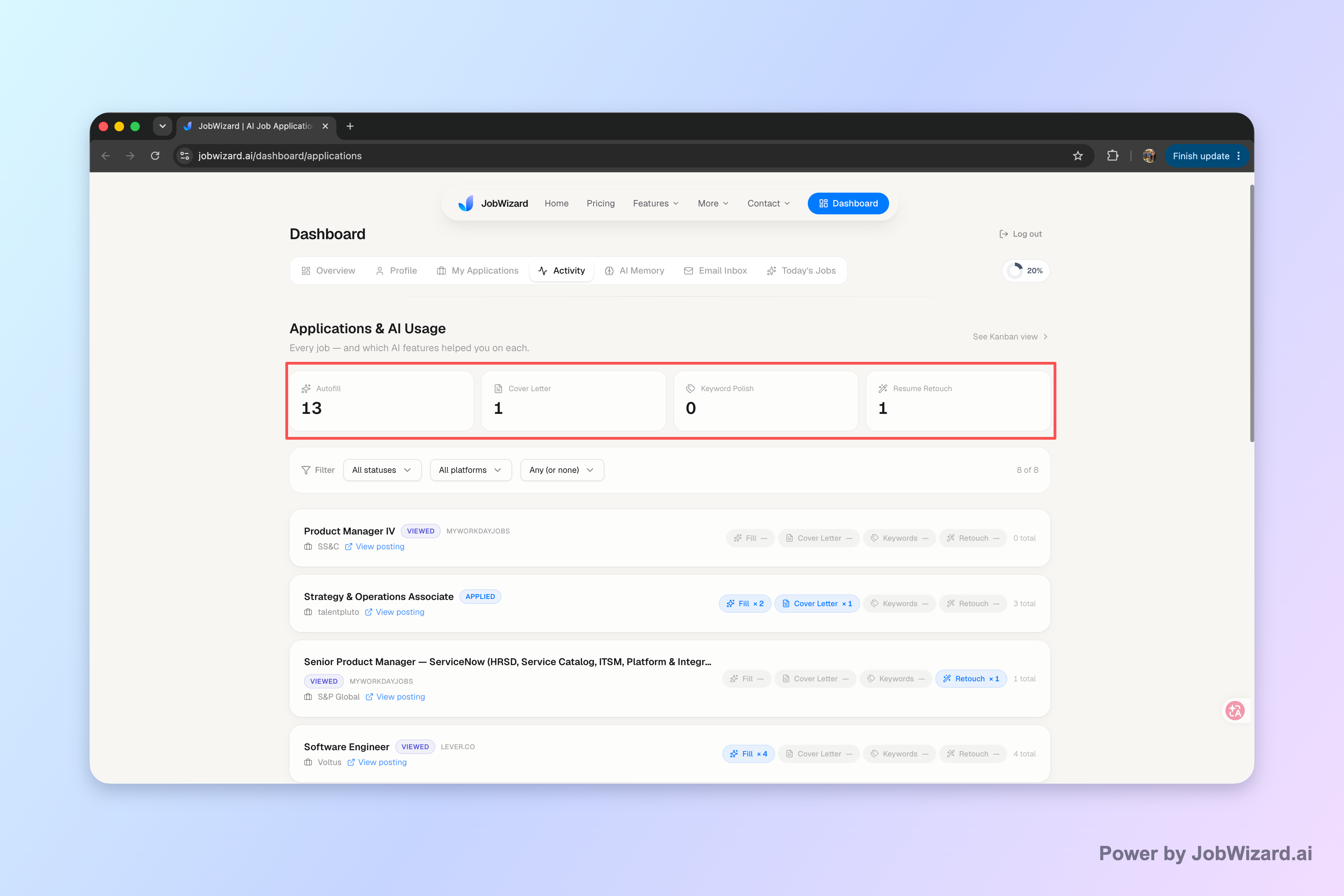
Put your applications and their next steps in one activity view instead of a spreadsheet.
Do this automatically with JobWizard
Skip the manual work — JobWizard's Smart Autofill handles this for you. On these platforms: Workday autofill.
FAQ: Workday application status meaning
What does “Under Review” mean in Workday?
Usually it means your application is being examined by the employer—either by a recruiter/hiring team or as part of a review queue. It doesn’t guarantee an interview, but it typically indicates your application hasn’t been rejected yet.
How long does Workday take to update an application status?
It varies by company and role. Some updates happen within days, while others can take weeks. If you see no movement for a while, a polite follow-up after about 7–10 business days is reasonable.
Does “In Progress” mean I got the job?
No. “In Progress” generally means your application is moving through steps (like screening or reviewer review). It’s a positive sign, but you still need to wait for clearer stages like interview scheduled or decision.
What should I do if my Workday status shows “On Hold”?
Treat it as a timing pause. Wait a bit (often 2–3 weeks), then send a short check-in message that reiterates interest and adds one relevant value point.
Can I speed up Workday applications without making mistakes?
Yes. Tools like JobWizard can help with fast one-click autofill so you don’t retype your information incorrectly. Just remember: JobWizard helps you fill forms faster, but you review everything before submitting.
Ready to move faster? Use JobWizard to streamline Workday forms with autofill, improve how well your resume matches each posting, and keep applying while you wait for status updates. get started free today.
Frequently Asked Questions
Track all your applications in one place
JobWizard auto-tracks status changes across Workday, Greenhouse, and every major job site — free.