What Does Interview Stage Mean in Workday Application Status
Learn what “Interview” means in Workday, what it doesn’t guarantee, and the next steps to take when your application status changes....
Free Chrome extension
Track Workday status changes automatically
JobWizard watches your Workday apps and keeps every status update in one place.
What “Interview” means on a Workday application status (and what it doesn’t)
If you’re seeing an “Interview” stage on your Workday application status, it usually means the hiring team has progressed your application beyond review and is actively moving toward an interview step. In other words, Workday is reflecting a process milestone, not necessarily a guaranteed offer or even a confirmed interview time. To interpret it correctly, you need to understand both (1) how Workday labels stages and (2) how your application activity might be updated over time.
This guide helps you decode what “Interview stage” likely means, what common follow-up steps to take next, and how to reduce confusion when statuses change across different systems. You’ll also learn how to use JobWizard to keep each Workday application status and next action in one place and to handle missing fields quickly when you re-apply or complete follow-up forms.
How Workday interview stages typically map to real hiring steps
Workday doesn’t publish a single universal “interview stage” definition. Instead, each employer configures its own workflow, and the stage name you see may represent different internal steps. However, from a job seeker’s perspective, “Interview” usually falls into a few common buckets.
- Interview scheduled: You may be waiting on an email or calendar invite from the recruiter or coordinator, even if Workday already shows “Interview.”
- Interview process in progress: Some teams start with a recruiter screen, then a panel, then a technical round. “Interview” can mean you’re somewhere inside that sequence.
- Interview readiness or final review: In some workflows, “Interview” can appear when the application is approved to proceed, but scheduling isn’t finalized yet.
- Candidate pool / shortlisting: Rarely, “Interview” label may be used loosely for shortlisting, especially when the system is updated before logistics are confirmed.
Key limitation: Don’t assume “Interview” means you will receive an offer. Stages indicate progress in the process, but they are not proof of outcome. If you want confirmation, the hiring team’s email communication is the source of truth.
What to do next when your Workday application status says “Interview”
Once you see “Interview,” your goal is to respond quickly, stay organized, and avoid missing small steps that can delay scheduling. Even if the job posting has ended, your application may still require additional details (availability, interview availability windows, or follow-up forms).
Step 1: Check your inbox and spam filters for scheduling emails
Many interview-related updates arrive by email rather than through Workday. If you see “Interview” on your dashboard, treat that as a prompt to be on alert for a calendar invite, scheduling request, or recruiter note.
Step 2: Prepare your “fast response” package
Interview scheduling can move quickly. Before you hear back, gather common details you may need to confirm right away:
- Your availability windows
- Time zone and preferred interview format (phone/video/in-person)
- Resume versions and links (if requested)
- Any documents the employer asked for earlier
Step 3: Follow up professionally if there’s no contact after a reasonable window
If your Workday application status shows “Interview” but you don’t hear anything for a while, a polite follow-up can help. Use the most recent contact you received (often the recruiter) and reference the role clearly. Keep it short, and ask whether they need anything from you to move scheduling forward.
Practical tip: If Workday status changes again (for example, from “Interview” to a different label), don’t panic. Companies sometimes update stages at different points in the interview pipeline.
How to track Workday application progress without losing context (JobWizard Activity)
One reason job seekers feel confused about “Interview stage” labels is that they forget what happened last for each role. Workday status can change while your notes, emails, and any re-application steps are scattered. JobWizard’s application activity / job track is built to help you keep those details together.
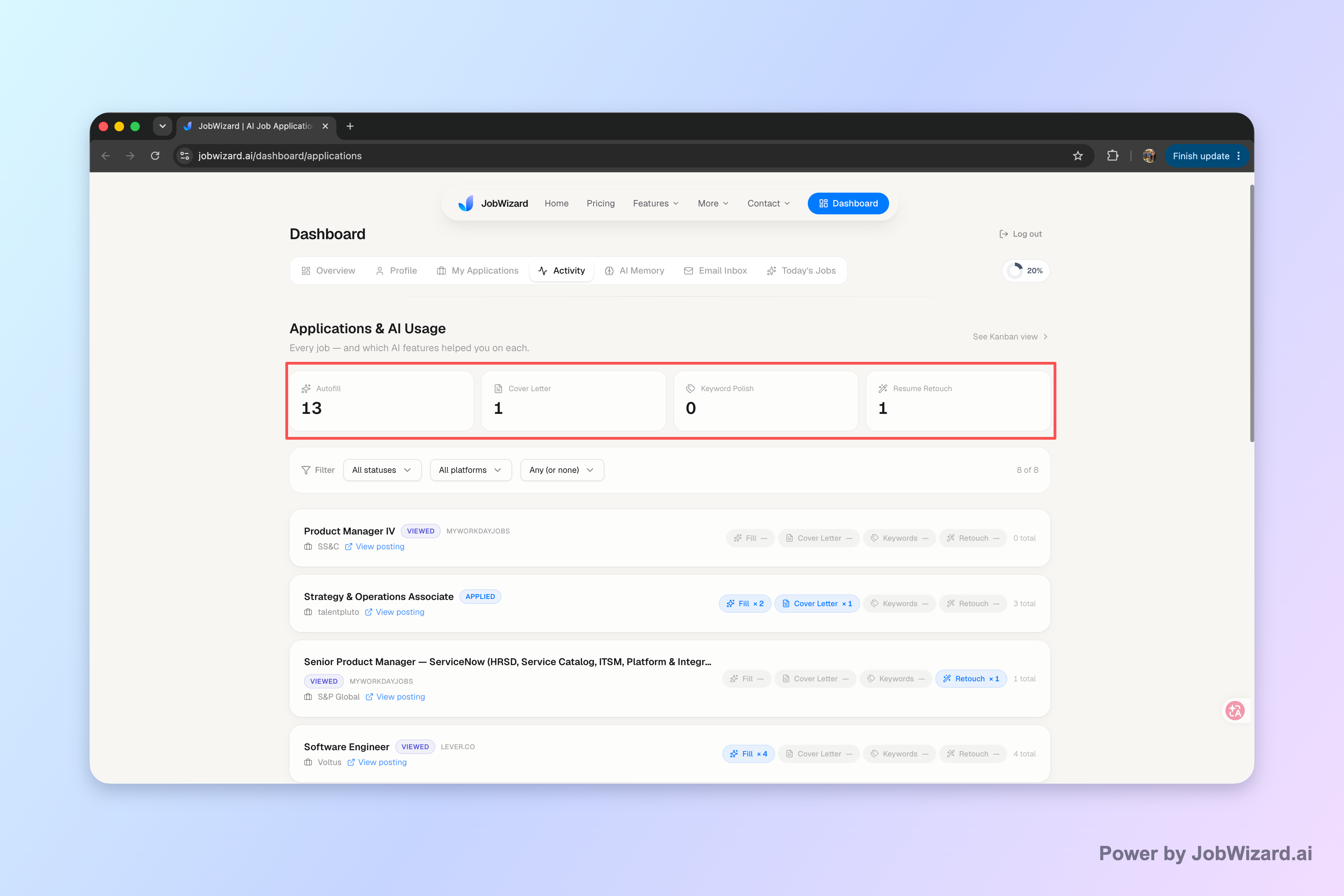
Verified fact: The Activity view shows application status and which JobWizard tools were used for each role.
Here’s the workflow to use it effectively:
- Open the Activity view and locate the role in question.
- Confirm what your current Workday application status shows for that job.
- Review what actions you already took (for example, whether you completed an autofill flow or jumped to a missing question).
- Use the “next step” mindset: if the status is “Interview,” your next move is usually readiness and follow-up—not another full re-application.
Important limitation: Don’t assume that every status update across different systems will be detected perfectly or that tracking automatically improves hiring outcomes. Use tracking to reduce your confusion and to make sure you follow up at the right time.
When you organize your work like this, you stop guessing. Instead of asking, “What does interview stage mean in Workday application status?” you ask, “What’s the next step for this role based on what I already did?”
Handle Workday forms faster during the interview pipeline (Smart Autofill)
Sometimes “Interview stage” triggers follow-up steps you must complete through the application system (or through an interview scheduling form connected to the application). If you encounter any required fields—especially on a Workday application page—JobWizard’s Smart Autofill can help you move faster while staying in control.
Verified fact: The Chrome extension uses saved profile and resume data to fill detected fields on supported application pages. The user reviews the populated fields and submits the application themselves.
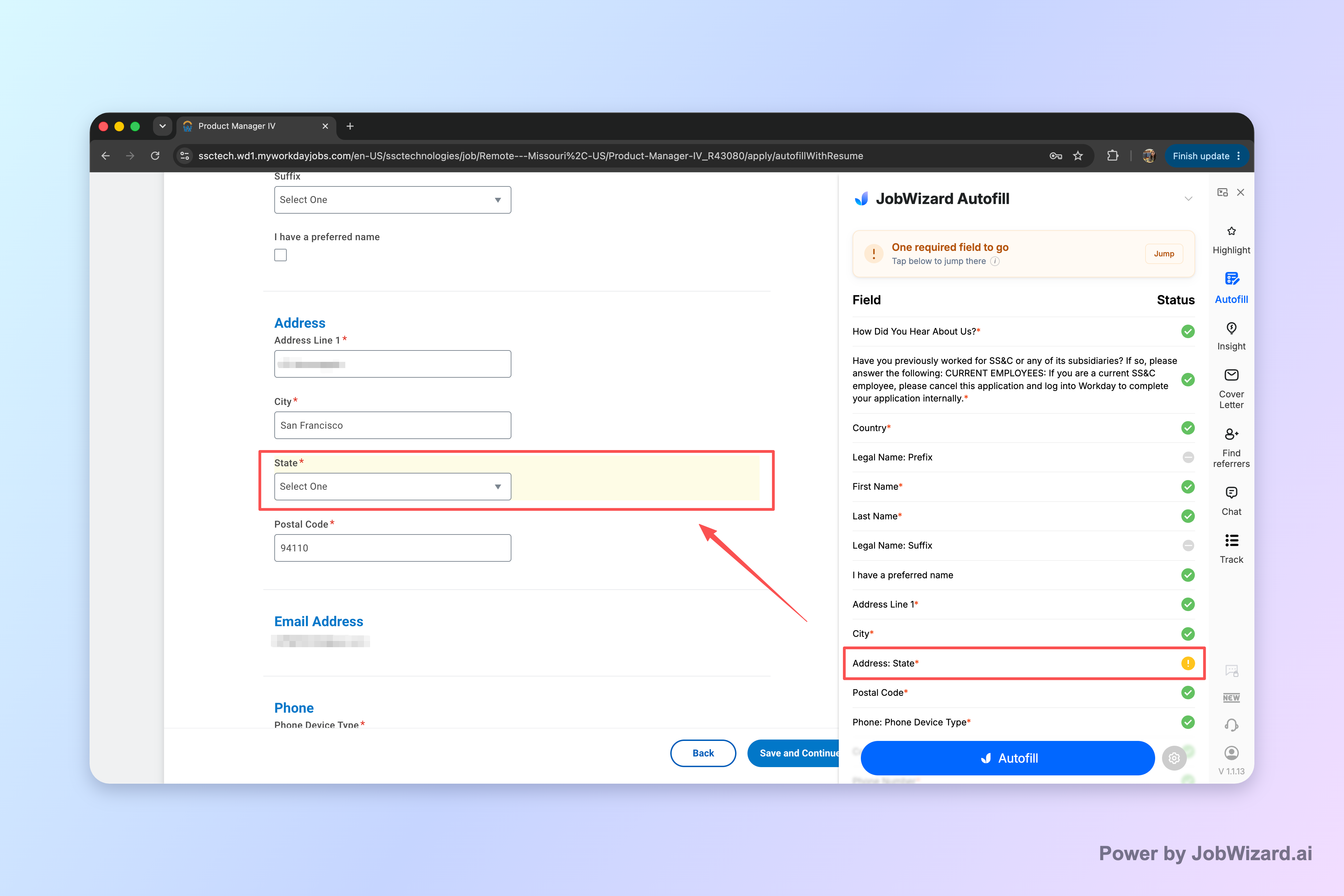
Verified fact: When a required field still needs attention, JobWizard can identify it and let you jump to the matching question.
How to use Smart Autofill safely (so you don’t miss details)
- Review every answer before submitting. Autofill can reduce typing, but it can’t replace your accuracy checks.
- Focus on required fields first. If something is missing or doesn’t match your background, correct it immediately and continue.
- Jump directly to what’s missing if the extension highlights a required field. This prevents you from scrolling back and forth and accidentally missing a question.
Important limitations: Don’t assume Autofill will complete every field perfectly, instantly, or on every site. Also, don’t expect automatic submission—JobWizard is designed so you still review and submit.
For a job seeker, this matters because interview-stage workflows often come with time pressure. If you’re preparing for interviews, the last thing you want is to get stuck on one required field that delays scheduling.
Do this automatically with JobWizard
Skip the manual work — JobWizard's Smart Autofill handles this for you. On these platforms: Workday autofill.
Common questions when interpreting “Interview” on Workday application status
If you’re trying to interpret a Workday application status stage, you’ll likely run into uncertainty. These clarifications can help you decide your next action.
- Does “Interview” mean I’m guaranteed to be contacted? No. “Interview” generally indicates progress, but outcomes aren’t guaranteed.
- Will Workday always update when scheduling happens? Not necessarily. Many scheduling events are communicated by email or calendar invites rather than stage changes.
- Should I follow up immediately when it shows “Interview”? Usually the best immediate action is readiness (availability, documents, and being reachable). If there’s no communication for a while, then follow up politely.
- Should I apply again if I still see “Interview”? Generally, avoid duplicate submissions unless the employer explicitly asks for additional steps. Use tracking to understand what you already did.
For job seekers specifically, the best approach is to treat the stage label as a signal and your actions as the anchor: confirm your readiness, watch for communications, and keep your role timeline organized.
What does “Interview” mean on Workday application status?
It usually means your application has progressed toward an interview step in the employer’s workflow. However, it doesn’t guarantee an offer, and scheduling details may arrive separately by email.
If my Workday status is “Interview,” should I expect a calendar invite?
Often, yes, but not always. Many companies coordinate interviews through email and scheduling tools, so your Workday stage may change before or without reflecting the invite.
Why does Workday show “Interview” but I haven’t heard anything?
Scheduling can take time, and Workday labels can be updated at different points in the process. A professional follow-up is reasonable if you’ve waited without hearing from the recruiter.
How can I keep track of what “Interview stage” means for multiple jobs?
Use an application tracker approach. With JobWizard Activity, you can view application status per role and see which JobWizard tools you used along the way, so you know your next best action.
What should I do if a Workday interview-related form has required fields?
Use Smart Autofill to populate detected fields from your saved profile and resume, then review every entry. If a required field needs attention, JobWizard can identify it and help you jump directly to the matching question.
Next step: Keep each role’s progress and next action in one place—open JobWizard and use the Activity view to track where each application stands and what you’ve done so far.
What to send after the interview
Once you reach the interview stage, a quick note can keep you top of mind. Use this short and sweet follow-up email after an interview (sample), and if you have heard nothing for two weeks, send a confident check-in email after two weeks.
Frequently Asked Questions
Track Workday status changes automatically
JobWizard watches your Workday apps and keeps every status update in one place.