Workday Candidate Stages Explained: From “In Progress” to “Offer” (and “No Longer Considered”)
If you’re tracking workday candidate stages and wondering what each status means, this guide breaks down common Workday labels and what to do next—plus how to apply with fewer missed fields using JobWizard.
Free Chrome extension
Autofill your next job application
JobWizard is a free Chrome extension that fills applications, tracks statuses, and optimizes your resume.
Last week, you checked your email after submitting a job application—and then you noticed the status in workday candidate stages didn’t match what you expected. Maybe it says “In Progress”, or it moved to something like “In Interview Process”, and you’re stuck guessing what’s really happening behind the scenes.
This guide translates the most common Workday labels into plain English, explains what to do next for each stage, and shows how to reduce the “oops, I left a required field blank” problem with JobWizard’s Autofill + review-before-submit workflow.
What does “In Progress” mean in Workday for a candidate stage?
“In Progress” usually means your application is actively being processed rather than being finalized, rejected, or closed.
In Workday-based hiring workflows, “In Progress” commonly reflects that your application is moving through screening or internal review steps. That doesn’t necessarily mean anyone has contacted you yet—it often means the company hasn’t made a final decision.
What you should do: keep your materials ready (resume, answers for common questions), monitor email, and prepare for the possibility that the next step could be scheduling or a recruiter message.
Key takeaway: “In Progress” is typically a processing status—focus on readiness and responsiveness, not on assuming rejection or acceptance.
What does “Under Review” mean on a Workday candidate status?
“Under Review” generally indicates your application is currently being evaluated by the hiring team.
This stage often means your resume and application responses are being checked for role fit. Depending on the organization, “Under Review” can be applied during first-pass screening or more detailed review rounds.
- Action: double-check that your application details align with your resume (dates, job titles, locations, and key skills).
- Action: if you applied with a cover letter or optional notes, make sure your messaging is consistent.
- Watch for: interview scheduling emails or requests for additional information.
Key takeaway: Treat “Under Review” as an evaluation window—your goal is to stay easy to reach and keep a clean, consistent narrative.
What does “In Interview Process” mean in Workday?
“In Interview Process” typically means you’ve moved beyond screening and the employer has started interviews.
This label often appears once the hiring manager (or recruiters) begin scheduling, running, or coordinating interviews. Even if you haven’t booked a calendar invite yet, the stage suggests the process has progressed.
Action checklist:
- Confirm logistics: check email and calendar for scheduling or location/video link details.
- Prepare a short story: be ready to explain your most relevant experience and why you want this role.
- Review your answers: compare what you entered in your application with what you’ll say in interviews.
- Send gratitude: after interviews, send a brief thank-you message (as appropriate for the stage).
Key takeaway: “In Interview Process” is a signal to shift from waiting to preparation and active engagement.
What does “Interview Scheduled” mean in Workday candidate stages?
“Interview Scheduled” means the next step has a confirmed time and logistics.
When you see this, the company has gone from planning to execution. Some organizations update the status as soon as they finalize scheduling, while others wait until the calendar invite is actually delivered.
What to do next: treat it like an official commitment—rehearse, test your tech (if video), and plan around the interview date. If anything changes (conflicts, travel), communicate quickly.
Key takeaway: “Interview Scheduled” is your cue to prioritize preparation and timely communication.
What does “Offer” mean when it appears in Workday?
“Offer” generally means the process has progressed to an offer stage.
At this point, details like start date, compensation components, and paperwork are usually handled through HR processes that go beyond the candidate portal itself. The status can appear once the decision is made, while the formal offer letter may arrive by email or through workflow documents.
Action: monitor your email closely, respond promptly, and keep an eye out for any document requests or verification steps.
Key takeaway: “Offer” is a major advancement—stay responsive and follow the HR instructions exactly as provided.
What does “No Longer Considered” mean for Workday candidate stages?
“No Longer Considered” generally means the employer has stopped considering you for that specific role.
This doesn’t always reveal why. Sometimes it’s a final decision, sometimes it’s candidate pool changes, and sometimes it reflects that the hiring team moved forward with another applicant. It’s still useful feedback: you now know that your application didn’t proceed in that pipeline.
What to do next:
- Update your job search: apply to similar roles where your experience matches more tightly.
- Improve the application: mirror job requirements in your resume bullet points and your application responses.
- Prevent future “hidden issues”: focus on clarity and completeness for required questions.
Key takeaway: “No Longer Considered” is closure for this role—use it as a prompt to refine your materials and keep moving.
Why would my Workday status change even if I didn’t do anything?
Workday statuses can change as the employer completes internal steps, even when you don’t take action.
Candidate stages can update for reasons like review cycles ending, interview coordination happening, or HR workflow steps being recorded. In other words, your application is being processed on the employer’s side, and Workday is reflecting that progress.
Common reasons it shifts:
- Internal review: first-pass or second-pass evaluation completed.
- Scheduling: interviews booked, rescheduled, or coordinated between teams.
- Decision workflow: offer approvals, rejection decisions, or workflow closures.
Key takeaway: Status movement usually reflects employer-side workflow—don’t panic if you didn’t change anything.
How can I avoid getting stuck on required fields in a Workday application?
JobWizard Autofill + review-before-submit helps you populate supported application fields fast, so you’re less likely to miss required inputs.
When you’re applying to Workday postings, there are often repetitive fields—education details, work history, contact information, and answer sections that many people retype the same way across applications. JobWizard’s Chrome extension uses your saved profile and resume data to fill detected fields on supported application pages.
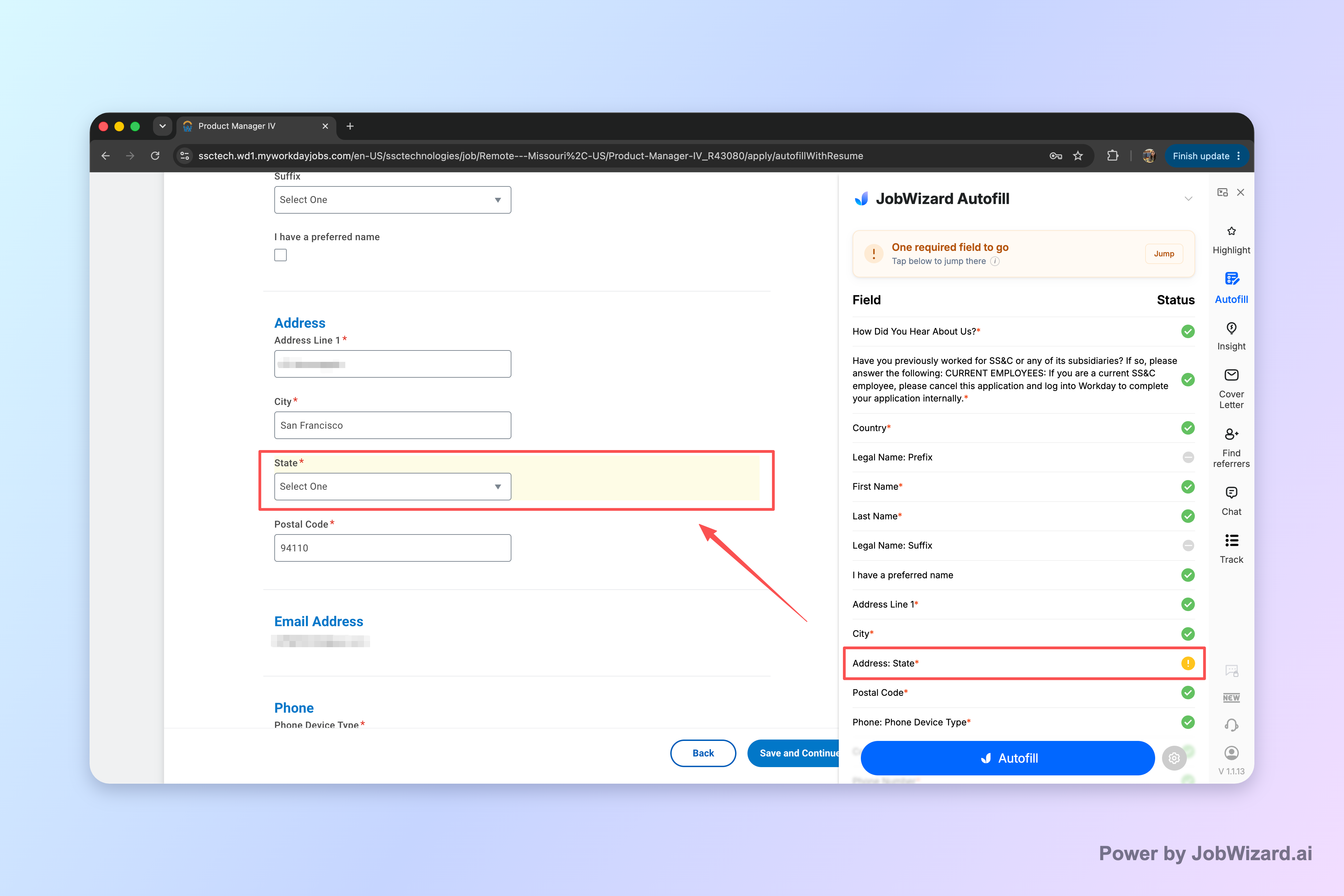
Just as important: you review every answer before submitting. If a required field still needs attention, JobWizard can identify it and let you jump directly to the matching question—so you can correct it quickly rather than searching through the form.
What you should do every time:
- Autofill: let the tool populate detected fields on the application page.
- Review: verify all autofilled content for accuracy and role fit.
- Fix required items: if a field still needs attention, use the jump-to question to handle it immediately.
- Submit yourself: remember that Autofill doesn’t replace your final check—always submit intentionally.
Real-world scale (why this matters): across JobWizard usage, people have submitted 720,000+ applications and run 600,000+ autofill sessions. JobWizard typically autofills an average of ~18 repetitive fields per application (typically 11–23), while job seekers still review sponsorship/salary/EEO/custom questions before submitting.
Key takeaway: Use JobWizard to speed up repetitive form entry, then rely on your review to keep required fields complete and accurate.
What action should you take after each Workday candidate stage?
Use this mapping to choose the right next step when your Workday stage updates.
| Workday candidate stage (example label) | What it usually means | Recommended action |
|---|---|---|
| In Progress | Application is actively being processed (not finalized). | Stay responsive; prepare for potential next steps. |
| Under Review | Hiring team is evaluating your materials. | Confirm your info is consistent; monitor email for follow-ups. |
| In Interview Process | Interviews have begun or are underway/scheduled. | Shift to interview prep; be quick to respond. |
| Interview Scheduled | Next interview has confirmed timing/logistics. | Rehearse, test tech (if remote), plan for the date. |
| Offer | Decision has progressed to an offer stage. | Watch for HR emails/documents; respond promptly. |
| No Longer Considered | Employer is no longer considering you for that role. | Update search strategy and refine application quality. |
Quick follow-up rule: follow up when you have something actionable to add (availability, continued interest, or a clear question), and keep it brief and respectful.
Key takeaway: Don’t treat Workday stages as “good” or “bad” only—use each label to decide what to do next.
When should you follow up after submitting on Workday?
Follow up when enough time has passed since you applied or after interviews—especially if Workday doesn’t show timing.
Many candidates worry that following up will hurt their chances. In practice, a well-timed, polite message can help your application stay top-of-mind and can confirm whether there’s an expected decision timeline.
Copy-paste follow-up email template:
Subject: Follow-up on [Job Title] application
Hi [Hiring Manager/Recruiter Name],
I hope you’re doing well. I’m following up on my application for the [Job Title] role submitted on [Date]. I remain very interested in the position, and I’d be glad to provide any additional information that would be helpful.
If there’s an anticipated timeline for next steps, I’d appreciate any update when possible.
Thank you for your time and consideration,
[Your Name]
[Phone Number]
Before you hit send:
- Personalize: reference the job title and the specific stage if you know it.
- Keep it short: recruiters move quickly; your message should be easy to scan.
- Stay professional: don’t pressure for an instant answer.
Key takeaway: A short, respectful follow-up can clarify next steps when Workday candidate stages don’t show timelines.
Do this automatically with JobWizard
Skip the manual work — JobWizard's Smart Autofill handles this for you. On these platforms: Workday autofill.
FAQ about Workday candidate stages
Here are the most common questions job seekers ask when trying to interpret Workday candidate statuses.
What does “In Progress” mean in Workday for a candidate stage?
“In Progress” usually means your application is actively being processed—often screened or moving through internal review steps rather than being rejected or closed.
What does “Under Review” mean on a Workday candidate status?
“Under Review” generally indicates that a recruiter or hiring team is currently looking at your application materials as part of an evaluation cycle.
What does “In Interview Process” mean in Workday?
“In Interview Process” typically means you’ve moved beyond screening and the hiring team has started or scheduled interviews; your next step is usually to prepare and stay responsive.
What does “Offer” mean when it appears in Workday?
“Offer” indicates the hiring decision has progressed to an offer stage. At this point, timing and next steps depend on the role and HR workflow, so you should watch for emails and respond promptly.
What does “No Longer Considered” mean for workday candidate stages?
“No Longer Considered” generally means the opportunity has moved on for you—either you weren’t selected or the role’s hiring needs changed. It’s a signal to update your approach and apply elsewhere.
Why would my Workday status change even if I didn’t do anything?
Workday candidate stages can change as the employer completes internal steps (review rounds, interview scheduling, decision updates) or if they request/record new information.
How can I avoid getting stuck at a required field during a Workday application?
Use an Autofill tool to populate fields on supported application pages, then review every answer before submitting; if a required field still needs attention, it can help you jump directly to the matching question.
Should I follow up if my Workday candidate stage hasn’t changed?
Yes—when appropriate. If a reasonable amount of time has passed since you applied or after an interview, a brief, polite follow-up can confirm interest and prompt any timeline you can’t see in Workday.
Next step: if you’re applying through Workday and want to move faster without skipping required details, try JobWizard’s Autofill on your next application—and then review every answer before you submit.
Frequently Asked Questions
Autofill your next job application
JobWizard is a free Chrome extension that fills applications, tracks statuses, and optimizes your resume.