Workday Candidate Profile: How to Autofill Smarter and Fix Missing Fields Before You Submit
Learn how to use a workday candidate profile workflow with review-first autofill so you fill the repetitive parts fast, then verify everything before you submit.

Free Chrome extension
Autofill your next job application
JobWizard is a free Chrome extension that fills applications, tracks statuses, and optimizes your resume.
Workday candidate profile applications often feel slower than they should because you keep re-entering the same information—and one missing required field can stall your momentum at the worst time. This guide shows you a practical, review-first workflow to fill what’s repetitive fast, then jump straight to what still needs your attention before you submit.
If you’ve ever stared at a Workday form wondering, “Which section do they actually require?”, this article is for you. You’ll learn how to prepare your candidate profile content for autofill, how to handle missing required fields without losing time, and how to stay in control instead of relying on blind auto-apply behavior.
What “workday candidate profile” means in real applications
A workday candidate profile is the set of fields you’re asked to complete as part of a Workday job application, typically including information like contact details, work history, and other required inputs. Even if Workday has a profile concept, each job application can still require specific answers that must be completed at submission time.
That’s why your workflow matters. If you treat every application like a fresh manual form, you waste time repeating the same entries. If you skip review entirely, you risk submitting incorrect or incomplete information—especially for answers that can’t be guessed (for example, custom questions or role-specific details).
- Speed bottleneck: repeating the same fields across applications.
- Submission bottleneck: required fields that still need attention.
- Quality bottleneck: verifying custom questions, eligibility items, and any employer-specific prompts.
Use Smart Autofill to populate the repetitive parts (then verify)
Smart Autofill helps by using saved profile and resume data to fill detected fields on supported application pages. The key point is that you don’t “hand it off” to submit automatically—you review what was populated and submit the application yourself.
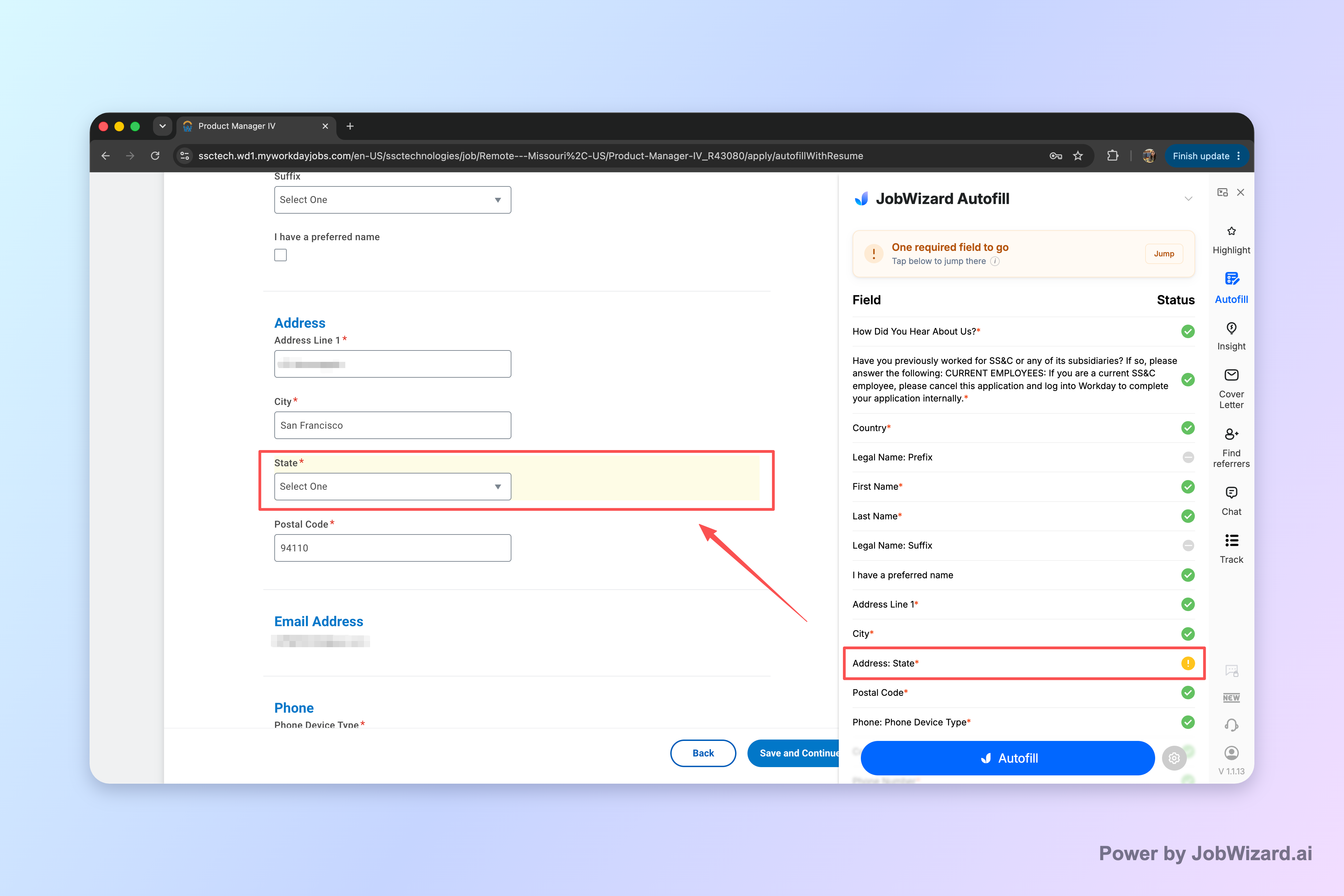
When a required field still needs attention, JobWizard can identify it and let you jump directly to the matching question—so you fix the gap and keep going instead of hunting through the form.
To make this work smoothly, think of your candidate profile like a checklist you’re reusing—not like content you’re retyping. Here’s how to run the workflow consistently:
- Autofill the repeatable fields: Let the tool populate what it can from your saved profile and resume data.
- Scan for required field gaps: Don’t assume every field is correct just because it was filled.
- Review before submit: Confirm every answer you can see, especially anything role-specific or employer-specific.
- Complete what’s missing: Fill required fields that still need your input before you submit.
Autofill + review-before-submit is the difference between “fast forms” and “rushed mistakes.” It’s also aligned with how Workday-style applications typically behave: you can move quickly, but submission still depends on accurate completion of what’s required.
How to handle missing required fields without losing time
Missing required fields are the most common reason job applications slow down—even when the majority of the form looks filled in. Your goal is to close those gaps quickly and confidently.
Use a simple decision rule: if the system flags a required field (or you can’t confirm the answer), don’t keep clicking around. Go directly to the question that needs attention.
- Fast recovery: if something required is incomplete, jump to the matching question and fix it immediately.
- Accuracy first: treat anything ambiguous as something you must confirm before submit.
- Keep momentum: avoid re-reading the entire form once you’ve identified what’s missing.
This matters because Workday forms often mix “straightforward” fields with “custom prompts.” Your repeatable candidate profile content can speed up the straightforward sections, but custom or role-specific answers still need human confirmation.
Prepare your candidate profile for faster Workday autofill
Your workday candidate profile will autofill best when your saved profile and resume data are organized and consistent. If you’ve got multiple versions of your experience (or inconsistent dates/titles), you’ll spend more time reviewing.
Before you apply, do a quick preflight check. Think of it like tightening the few pieces that commonly cause review issues:
- Titles and dates: Make sure your job titles and employment dates match what you’d enter into a form.
- Contact consistency: Verify email/phone fields are current.
- Work authorization / eligibility items: Confirm you’re able to answer them as required.
- Custom questions: Expect role-specific prompts that can’t be fully standardized across jobs.
Also remember the coverage reality: JobWizard fills detected fields on supported application pages, but you shouldn’t assume perfect completion or universal website support. The safe approach is always: let autofill do the repetitive work, then review everything before submitting.
What to expect: autofill speed, but review keeps you in control
Autofill + review-before-submit is built for speed without surrendering control. Across submitted applications, JobWizard runs 18 repetitive fields on average per application—typically those 11–23 fields you’d otherwise retype each time.
JobWizard autofills repetitive fields quickly, while sponsorship/salary/EEO/custom questions are left for you to review before submitting.
That’s a practical balance for Workday applications: you reduce the time spent on the “copy and paste” parts, while you still confirm the answers that must be accurate. If you’re comparing tools or considering auto-apply approaches, this review-first behavior is what helps prevent the most common failure mode: submitting before you’ve verified required and role-specific details.
Want to speed up your next Workday candidate profile application? Try JobWizard’s Autofill on your next application and review every answer before submitting—and when a required field still needs attention, jump directly to the matching question so you can finish without getting stuck.
Do this automatically with JobWizard
Skip the manual work — JobWizard's Smart Autofill handles this for you. On these platforms: Workday autofill.
FAQ about Workday candidate profile + autofill
What is a workday candidate profile, and why does it matter when applying?
A Workday candidate profile is the set of fields you’re asked to complete as part of a job application (often including contact info, work history, and other required details). It matters because Workday applications may pause on specific required fields, so the profile needs to match what the system is asking for when you submit.
Can JobWizard automatically submit a Workday application for me?
No. JobWizard is designed for Smart Autofill where you review the populated fields and submit the application yourself. If a required field still needs attention, JobWizard helps you jump to the matching question so you can complete it before submitting.
How do I handle missing required fields in a Workday application?
Start with autofilling the repetitive parts, then watch for the required fields that still need your attention. JobWizard can identify a required field that needs input and jump you directly to the matching question so you can fill it in and keep momentum.
Will autofill work on every Workday job posting?
JobWizard supports supported application pages using saved profile and resume data to fill detected fields, but you shouldn’t assume universal coverage. Always review each answer before submitting, especially for sponsorship, salary, EEO, and custom questions that vary by employer and role.
What’s the fastest safe workflow for applying on Workday?
Use an “autofill + review-before-submit” workflow: autofill the repetitive application fields quickly, then review every populated answer for accuracy and fill any remaining required/custom questions yourself before submitting.
Frequently Asked Questions
Autofill your next job application
JobWizard is a free Chrome extension that fills applications, tracks statuses, and optimizes your resume.