How Does Workday Work? A Job Seeker’s Guide to Applying Faster (Without Missing Required Fields)
Wondering how does Workday work from a job seeker’s perspective? Learn how Workday-style applications flow—and how JobWizard Smart Autofill helps you move faster while you review every answer before submitting.
Free Chrome extension
Autofill your next job application
JobWizard is a free Chrome extension that fills applications, tracks statuses, and optimizes your resume.
Trying to understand how does workday work as a job seeker? The confusing part isn’t the name—it’s the application form experience: you click “Apply,” you’re asked a set of questions, and you only find out what matters (especially required fields) after you’ve already started typing.
In this guide, you’ll learn how Workday-style applications typically work, what you should watch for as you complete the form, and how JobWizard’s Smart Autofill can help you fill in repetitive fields quickly—while you review every answer before submitting.
How does workday work for job seekers? The application flow in plain English
Workday works by collecting your application through a web form that’s configured for a specific role and may include both required and optional questions. When you apply, the careers experience takes you through a structured set of fields, then you submit your responses to the hiring team through Workday’s recruiting workflow.
Most Workday applications follow a similar pattern: you enter or confirm contact and profile details, then provide background information (often work history and education), then answer job-specific questions. Some fields are required, and those are the ones you must complete before submission.
Required vs. optional fields: what you should expect
To understand how does workday work in a practical sense, focus on required fields. Required fields are enforced by the application page, so if anything is missing, submission can’t complete until you correct it.
- Required fields: Anything the form must have before it allows submission.
- Optional fields: Questions that may strengthen your application but typically aren’t blocking submission.
- Custom questions: Role-specific prompts that can include eligibility, tools used, availability, or other screening items.
Why the form can feel “long” even when it’s standard
Workday-style forms are built to capture structured data, but they also try to be flexible for different jobs. That means two job postings can both be “Workday applications” yet still ask different custom questions, so you can’t treat every application as identical.
What you can do: streamline the repetitive parts (like contact, education, and standard profile details) while keeping a careful eye on the job-specific questions you truly need to answer yourself.
Where Smart Autofill fits: speeding up repetitive entries (without blind auto-apply)
Smart Autofill is designed to help you move faster on the form—then you review and submit. Instead of retyping the same details across multiple applications, the Chrome extension uses saved profile and resume data to fill detected fields on supported application pages.
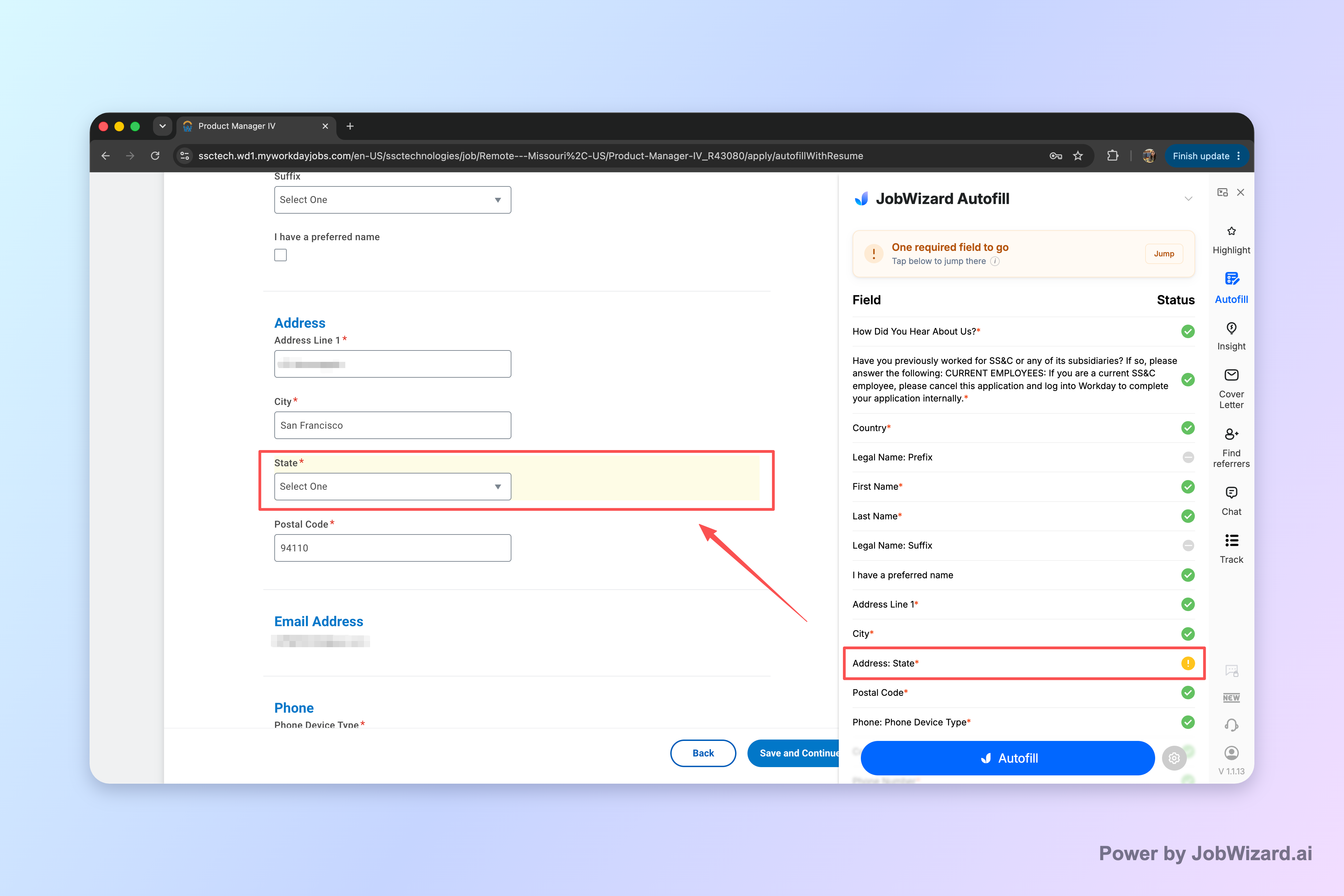
Once fields are populated, you review the answers and submit the application yourself. If the application still has required fields that need attention, JobWizard can identify them and help you jump directly to the matching question.
Example workflow: applying to a Workday posting
Here’s a realistic step-by-step example of how you’d use Smart Autofill during a Workday job application.
- Open the job and start the form: Begin the application and wait for the required fields to appear.
- Trigger Autofill via the extension: Detected fields are populated using your saved profile/resume data.
- Scan for accuracy: Check each populated answer—especially anything that could vary by role (dates, titles, eligibility statements).
- Handle remaining required fields: If a required field still needs attention, Smart Autofill identifies it and lets you jump to the matching question.
- Submit yourself: You review every answer before submitting the application.
What Smart Autofill will and won’t do
It’s not automatic submission and it isn’t “instant perfection.” Smart Autofill helps fill detected fields, but you remain responsible for reviewing the populated content and completing any questions that still need your attention.
- Approved capability: Fills detected fields using your saved profile and resume data on supported application pages.
- What you do: Review populated fields and submit the application yourself.
- Required-field support: If a required field needs attention, JobWizard can identify it and let you jump to the matching question.
- Not guaranteed: Don’t assume every field is always filled, every required field will be perfectly matched, or that every website experience is universally supported.
How to avoid the most common “Workday gotchas” when you apply
Most Workday application issues come from required fields and mismatched details rather than from the platform being “hard.” If you know what tends to go wrong, you can reduce rework and avoid missing what the form actually requires.
Gotcha #1: A required field you didn’t realize was required
Workday-style forms can include required fields embedded among role questions. If you breeze through quickly, you can end up thinking you’ve finished—only to be blocked later by a missing required answer.
Smart Autofill helps here because it can identify a required field still needing attention and let you jump straight to that exact question, so you can fix it fast instead of scrolling and guessing.
Gotcha #2: “Correct” details that don’t match the job
Autofilled entries can be helpful, but a detail that’s accurate for one application may be wrong for another. Titles, dates, location, or descriptions sometimes vary depending on the job’s context or your intended experience.
Before you submit, do a quick accuracy check on anything that could plausibly differ by role. Treat autofill as a starting point, not final truth.
Gotcha #3: Custom questions that require real input
Even when repetitive fields are handled, most job postings include screening questions that demand your judgment. This might include “why this role,” “availability,” “tools you’ve used,” or “work authorization.”
- Answer in your own words: Especially for motivation and experience questions.
- Keep it consistent: Match your answers across the form (e.g., tools mentioned in questions vs. resume experience).
- Re-check requirements: Don’t assume a “simple” question is optional.
What the hiring volume tells you: why autofill + review-before-submit matters
When you apply to many roles, repetition is the enemy—while review is the safeguard. JobWizard data shows 720,000+ applications submitted and 600,000+ autofill sessions run through JobWizard. The real advantage is not “blind auto-apply”—it’s autofill for repetitive fields followed by review-before-submit.
On average, JobWizard autofills ~18 repetitive fields per application (typically 11–23), then you review every answer before submitting.
This matters for how does workday work because Workday applications often include the exact kinds of repetitive inputs that slow you down (profile details, education, and similar structured fields). Faster completion helps you keep momentum—without sacrificing the human check that required fields and custom questions demand.
Platform reality: Workday appears often
Across applications submitted through JobWizard, ~65% are on Workday. That’s why a Workday-focused workflow—autofill first, review next, submit yourself—fits the jobs most seekers run into.
In practice: you fill repetitive fields quickly, then you spend your attention on the pieces that are truly job-specific and must be correct.
How to apply faster on Workday: a practical checklist
Use this checklist to apply faster on Workday while protecting your accuracy. It’s built around the same principle as Smart Autofill: accelerate repetitive fields, then review what matters before submission.
- Prepare your core details: Make sure your saved profile and resume information is up to date.
- Start the application: Enter the form and let required fields load.
- Autofill detected fields: Use Smart Autofill so repetitive entries are populated quickly.
- Review every populated answer: Confirm dates, titles, eligibility-related fields, and anything role-specific.
- Jump to remaining required fields: If something is still missing, Smart Autofill can identify it and take you to the matching question.
- Submit yourself: Final submission is your responsibility—review-before-submit is the point.
If you want to understand how does workday work in a way that helps you get more done, this checklist is the mindset shift: treat Workday as a structured intake form, and use tools to reduce repetitive typing while you stay in control of correctness.
Do this automatically with JobWizard
Skip the manual work — JobWizard's Smart Autofill handles this for you. On these platforms: Workday autofill.
FAQ: How does workday work and how should you apply?
How does workday work for job seekers when you apply online?
When you apply through a Workday-style careers site, you fill out an online application form that includes both required and optional questions. The form can include things like profile details, work history, education, and custom questions tied to that specific job—so you’ll usually need to review what you enter before submitting.
Is Workday smart enough to “auto-submit” your application for you?
No—Workday is a hiring platform that collects the application you submit. With JobWizard Smart Autofill, fields can be populated for you, but you still review the populated answers and submit the application yourself, which helps reduce the chance of skipping something required.
What happens if I miss a required field on a Workday application?
If a required field still needs attention, JobWizard Smart Autofill can identify it and let you jump directly to the matching question so you can fix it before submitting. You remain in control and review every answer prior to submission.
Does Smart Autofill support Workday job pages?
Smart Autofill works by using saved profile and resume data to fill detected fields on supported application pages, including Workday job pages when available. After autofill, you review the populated fields and then submit the application yourself.
Ready to apply faster on your next Workday job? Try JobWizard’s Autofill on your next application, let it populate repetitive fields, and review every answer before you submit—especially any required questions it flags for you.
Frequently Asked Questions
Autofill your next job application
JobWizard is a free Chrome extension that fills applications, tracks statuses, and optimizes your resume.