How to Autofill Workday Job Applications: A Review-Before-Submit Workflow with JobWizard
Learn how to autofill workday job applications with JobWizard using Smart Autofill—so your repetitive fields fill fast while you review every answer before submitting.
Free Chrome extension
Autofill your next job application
JobWizard is a free Chrome extension that fills applications, tracks statuses, and optimizes your resume.
If you’re trying to how to autofill workday job applications, you’re probably tired of retyping the same details—again and again—while Workday keeps you in form pages and required fields. The good news: you can speed up the repetitive parts without turning your applications into “bot-submits.”
In this guide, you’ll learn a practical, review-before-submit workflow for Workday with JobWizard Smart Autofill. You’ll see how the tool fills detected fields, how you verify the important parts, and what to do when a required question still needs attention.
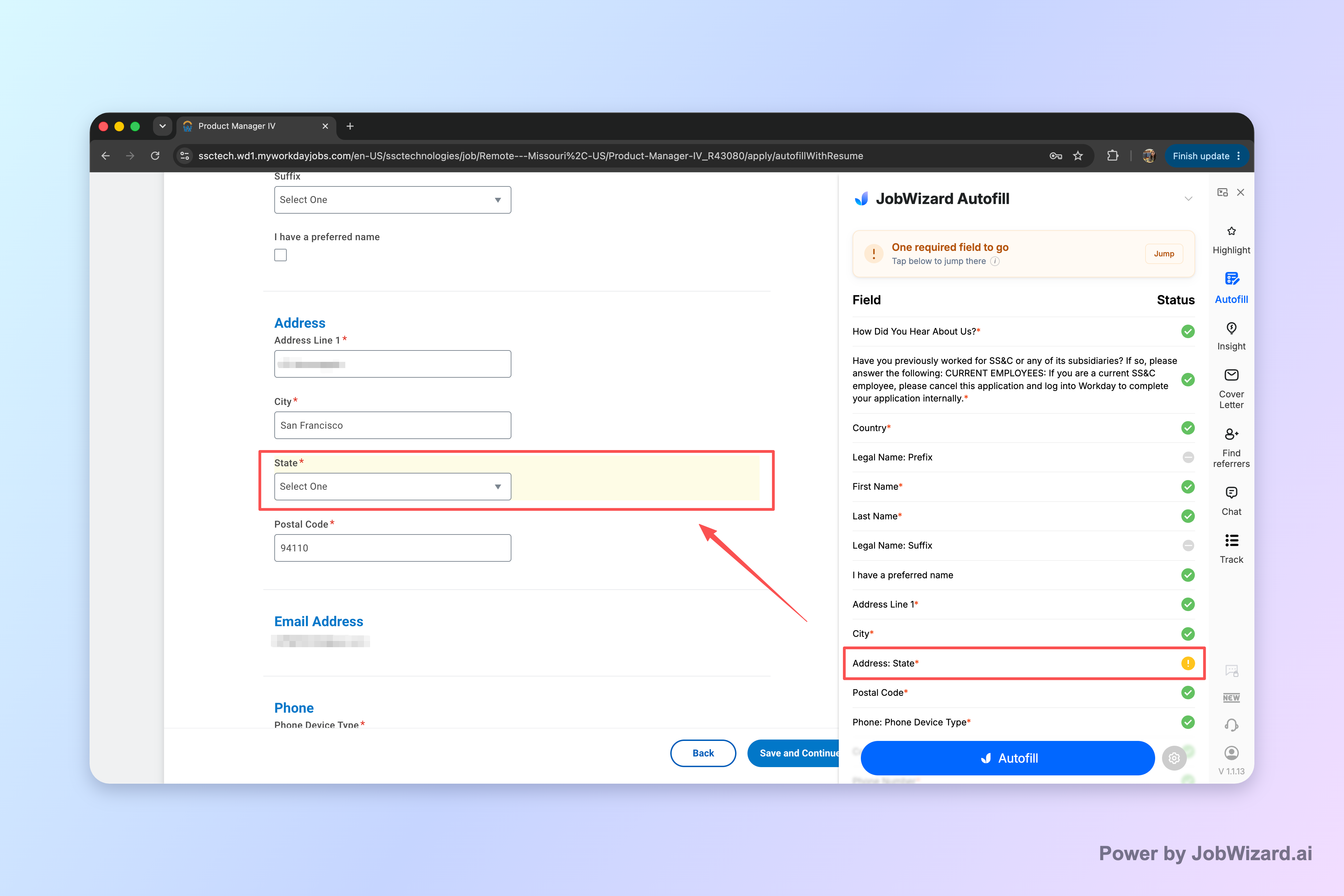
When Workday shows a required field you still need to answer, JobWizard helps you jump to it directly—so you fix the specific question instead of hunting through the form.
How JobWizard Smart Autofill speeds up Workday without losing control
JobWizard Smart Autofill fills repetitive fields fast, but you stay in charge of reviewing and submitting the application yourself. That distinction matters because the goal isn’t blind auto-apply—it’s draft-and-review.
Here’s what typically happens in the flow: JobWizard uses saved profile and resume data to fill detected fields on supported application pages. Then you review what was populated, make any necessary edits, and submit the application yourself. If a required field still needs attention, JobWizard can identify it and let you jump to the matching question.
- Draft-first: autofill creates a starting point so you’re not retyping everything.
- Review-before-submit: you verify every populated answer before submitting.
- Jump-to-fix: missing required items can be surfaced so you can correct them quickly.
If you’ve ever had to redo your experience dates, education, or contact details across multiple roles, this “fill what you can, verify what matters” approach is designed to reduce friction while keeping you accountable for accuracy.
Step-by-step: how to autofill Workday job applications the review-before-submit way
Follow this exact sequence to autofill Workday applications with JobWizard and still submit only when everything is correct.
- Open the Workday job posting: get to the application form page where Workday starts asking for details.
- Start your application draft: begin the form so the fields are visible and JobWizard can detect what to fill.
- Run Smart Autofill on the form: let it populate the fields it can detect using your saved profile and resume data.
- Scan the required sections first: focus on anything marked required, especially early-page identity/contact fields and core job-specific questions.
- Jump to any highlighted or missing required question: if something still needs attention, go directly to that matching prompt.
- Edit custom answers: confirm role-specific items, custom questions, and anything that might have changed between applications.
- Review “must-be-accurate” fields: double-check sponsorship, salary/comp preferences, EEO responses, and any free-text or nuanced answers.
- Submit manually: when everything looks right to you, submit the application yourself.
Think of Smart Autofill as speeding up the typing—not replacing your judgment. The tool helps with repetitive fields, and you handle anything that should reflect you accurately at that moment.
Concrete example: fixing a required Workday question fast
Required-field surprises are normal on Workday forms, but you don’t have to scroll endlessly. In the workflow above, you run Smart Autofill, then you check required items.
If Workday flags a required question that wasn’t fully answered from your saved data, JobWizard can identify what needs attention and let you jump directly to the matching question. That means you update the specific response and keep moving—without re-checking every section from scratch.
Concrete example: when “autofilled” still needs personalization
Not every answer should be copied blindly. Even if JobWizard fills many fields, you should still personalize and confirm items like:
- Free-text prompts (if the form includes them)
- Role-fit narratives (Workday applications often include motivation or experience questions)
- Any details that may have changed since your resume was last updated
- Eligibility or preference questions tied to sponsorship/comp/EEO-style responses
This is also where the “review-before-submit” workflow protects you. You don’t just submit what the tool drafted—you verify it as if you typed every word yourself.
Workday speed hacks that matter (and what to verify every time)
Autofilling is only step one; the best results come from a consistent verification routine so you don’t miss important questions.
Job applications across platforms can include different question layouts, required fields, and custom prompts. Smart Autofill is designed to fill detected fields, but it doesn’t claim perfect coverage or instant completion of every field. Your job is to confirm what matters before submitting.
Your “verification checklist” before clicking submit
Use this quick scan each time you finish autofilling a Workday form:
- Required fields: confirm each required item has a complete and correct answer.
- Custom questions: ensure the response matches the specific job you’re applying to.
- Sponsorship / eligibility: make sure your status is accurate for this application.
- Salary/comp and preference questions: verify they reflect what you intend to submit.
- EEO-style questions (if present): ensure the answers are correct and consistent with your intent.
- Anything that looks “too general”: if an answer seems generic or out of date, edit it.
Tip: Treat autofill as a fast draft, not a final submission. You still review every populated answer before submitting.
What to expect from Smart Autofill on Workday
Autofill works best when the fields are detectable and your saved profile/resume data maps cleanly to the form inputs. If a required field needs attention, JobWizard can identify it and help you jump directly to the matching question.
It’s also worth remembering a common misconception: “autofill” is not the same as “auto-submit.” JobWizard autofills fields, and you submit yourself—so you stay the final decision-maker.
How JobWizard fits into your broader job search workflow
Autofilling Workday applications works best when you systemize your job hunt, not when you treat each application as a one-off scramble.
JobWizard has been used at scale for applications and autofill sessions—720,000+ applications submitted and 600,000+ autofill sessions run through JobWizard. That means many job seekers are using the same core concept: autofill repetitive fields quickly, then review-before-submit.
On the major ATS platforms observed in usage, a large portion of applications go through Workday (~65%), with other common targets like Greenhouse (~19%), Ashby (~12%), and Lever (~4%). Workday is where autofill can save the most time because many of the forms share repeated field patterns.
In the process, JobWizard autofills an average of ~18 repetitive fields per application (typically 11–23). This reinforces the best practice: use autofill to reduce retyping, then verify the rest so your submission still reflects you.
Where to use JobWizard in your day
- During application bursts: when you’re applying to multiple roles and repeating the same personal details.
- When Workday forms feel repetitive: the layout stays consistent enough to benefit from draft-and-review.
- When you want speed plus accuracy: autofill drafts while you confirm sponsorship/EEO/custom prompts before submit.
If you want a wider approach that includes other application form workflows, you may also find it helpful to compare this with:
- How to Autofill Job Applications (Step-by-Step with JobWizard)
- How to Autofill Workday Job Applications in 2026 (Stop Retyping Everything)
Do this automatically with JobWizard
Skip the manual work — JobWizard's Smart Autofill handles this for you. On these platforms: Workday autofill.
FAQs about how to autofill Workday job applications
Quick answers to the most common questions about autofilling Workday applications with JobWizard.
Is autofilling Workday applications with JobWizard really “automatic” auto-submit?
No—JobWizard autofills fields and flags what needs attention, but you still review the populated answers and submit the application yourself.
What happens if a required Workday field is missing or needs different info?
If a required field still needs attention, JobWizard can identify it and let you jump directly to the matching question so you can update it before submitting.
How do I avoid sending incorrect or outdated information when autofilling Workday?
Treat autofill as a draft: review every answer before you hit submit, especially anything tied to sponsorship, salary/comp details, EEO questions, and custom prompts.
Will Smart Autofill handle every Workday job posting perfectly?
No. JobWizard doesn’t claim every field will fill instantly or perfectly on every site or posting—use the review-before-submit workflow to catch anything incomplete or inaccurate.
What’s the fastest safe workflow for Workday applications using JobWizard?
Autofill to draft, then scan for required fields: check the top sections first, jump to any flagged missing items (like required questions), update custom prompts, and submit only after you confirm everything is correct.
If you also want to explore browser-extension options and general autofill setups, compare approaches like How to Auto-Fill Workday Applications with the Best Chrome Extension—then choose the workflow that keeps you reviewing before submit.
Try JobWizard’s Smart Autofill on your next Workday application
Stop retaping the same Workday fields—use JobWizard Smart Autofill to generate a draft quickly, then review every populated answer before submitting.
Want even more detail? Start here for a Workday-focused walkthrough, then apply the review-before-submit checklist from this article to your next application.
Frequently Asked Questions
Autofill your next job application
JobWizard is a free Chrome extension that fills applications, tracks statuses, and optimizes your resume.