Workday Autofill That Actually Helps: A Review-First Workflow for Faster Applications
Workday autofill can speed up repetitive application fields, but the real value is review-before-submit. Learn how to autofill efficiently and avoid missing required questions.

Free Chrome extension
Autofill your next job application
JobWizard is a free Chrome extension that fills applications, tracks statuses, and optimizes your resume.
Workday autofill is only useful when it speeds up repetitive fields and keeps you in control.
If you’ve ever stared at a Workday application form and thought, “I just need to repeat the same basics again,” you already know what workday autofill should solve: repetitive data entry. The catch is that the best workflow isn’t blind auto-apply—it’s autofill + review-before-submit, so you can move fast without losing accuracy.
JobWizard’s Smart Autofill is designed to fill detected fields using your saved profile and resume data on supported application pages. You still review the populated fields and submit the application yourself. In other words: speed comes from reducing typing, not from removing your judgment.
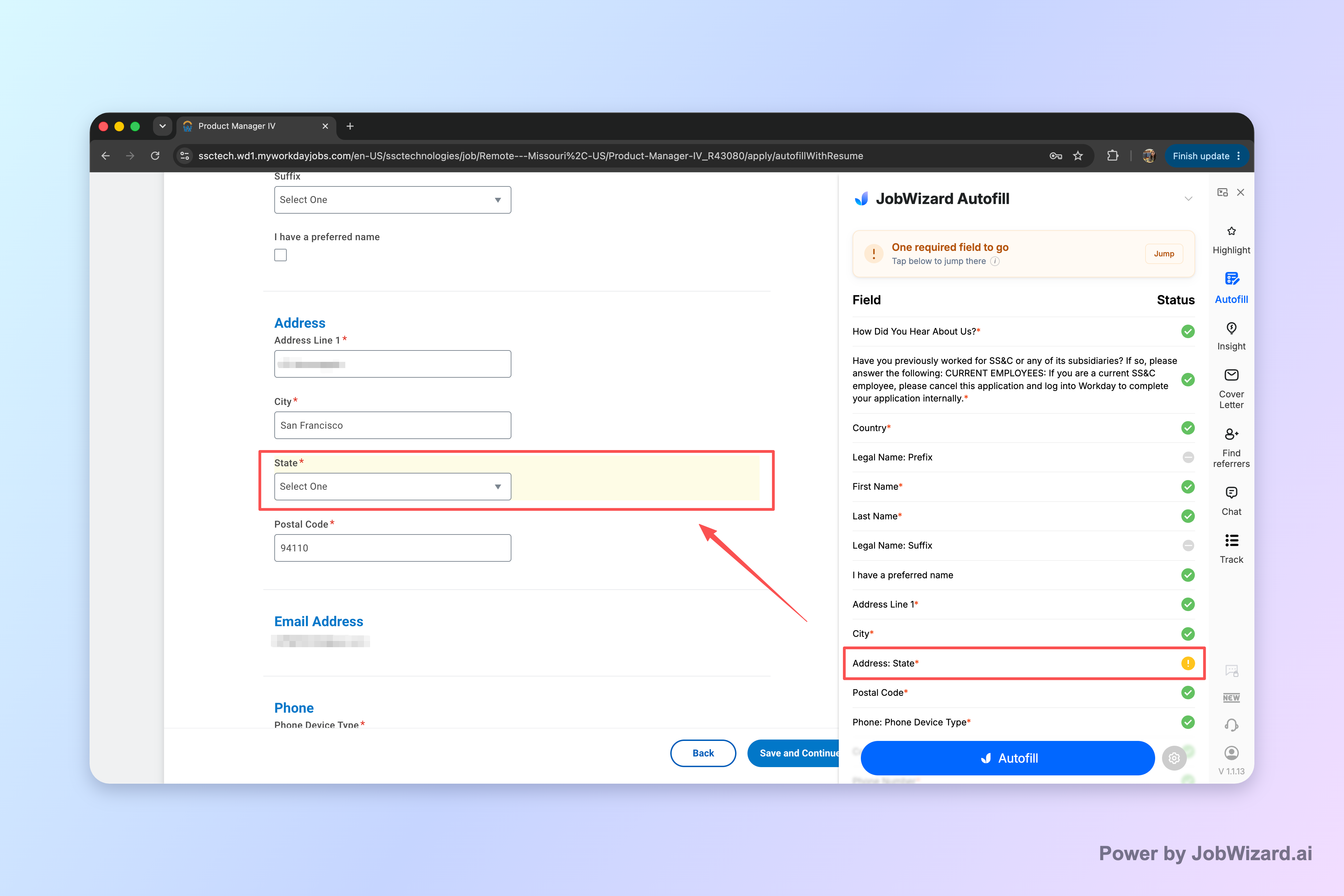
If a required question doesn’t have a reliable value, you shouldn’t have to hunt. JobWizard can identify what still needs attention and help you jump straight to the matching question so you can fix it.
Why Workday applications feel so repetitive (and why that matters for autofill)
Most Workday forms reuse the same categories: contact details, education history, work experience basics, and typical screening-style questions. Even when job-specific questions vary, the “core” profile info tends to repeat.
That’s exactly where workday autofill helps: you can fill a stack of repetitive fields quickly, then focus your attention on the job-specific and compliance-sensitive answers that truly require your review.
What to autofill on Workday—and what to review before you submit.
A safe Workday autofill workflow starts with knowing which fields benefit from autopopulation and which fields must be verified.
Autofill-first fields (typically low risk)
Autofill is best when the form is asking for data you already provided consistently in your profile/resume. In practice, this usually includes:
- Basic profile fields like name, email, phone, location, and similar contact details.
- Education entries (school name, degree title, graduation date) when your resume is up to date.
- Work history blocks where roles/dates/locations match your resume data.
The goal isn’t “set-and-forget.” The goal is to remove copy/paste effort while you remain the decision-maker.
Review-first fields (where mistakes can cost you)
Even with good autofill, you should always review anything that could differ per job posting. Common examples include:
- Any custom job questions that change by role or department.
- Sponsorship-related questions where your eligibility status may be time-sensitive.
- Salary or compensation preferences if the posting includes them.
- EEO and compliance questions where wording may be sensitive and specific.
- Anything you’re unsure about (if it’s ambiguous, treat it as review-required).
Use a field-by-field checklist (fast, not perfect)
You don’t need a long checklist—just a consistent scan order. Try this approach on every Workday submission:
- Scan the autofilled blocks (profile/education/experience) to confirm dates/titles match your most recent resume.
- Spot-check job-specific questions you haven’t seen before.
- Verify any compliance items (EEO/sponsorship) word-for-word.
- Confirm required fields that may need human attention before submit.
Workday autofill checklist you can copy
Want a quicker mental script? Use this:
- “Repetitive = autofill, sensitive = review.”
- Then: if any required field looks wrong or blank, fix it immediately.
For a deeper breakdown of what to autofill vs. what to review, see Workday Application Field Cheat Sheet What To Autofill and What To Review (By JobWizard).
How JobWizard’s Smart Autofill supports a Workday-friendly workflow (without blind auto-apply).
JobWizard’s Smart Autofill is built around detected fields on supported application pages, then a user review step before you submit.
How it works in the simplest terms
- It fills detected fields using saved profile and resume data.
- You review the populated answers before submitting the application yourself.
- If something required still needs attention, it can identify the problem field and let you jump to the matching question.
Important limitations to understand up front
Autofill should reduce typing, not create false confidence. Keep these expectations aligned with what the tool can (and can’t) do:
- It does not perform automatic submission. You must submit the application yourself after reviewing.
- It may not complete every field. Some answers require your judgment, the form may ask unique questions, or the field may not be supported as autofill-ready.
- Accuracy isn’t guaranteed to be perfect. It depends on the quality and recency of your saved profile/resume data and the exact questions shown on the page.
- Website/app coverage may vary. Not every website or page format behaves the same.
Why the “review-before-submit” approach matters for Workday
Workday applications often include job-specific screening content and compliance questions. If you treat autofill like “set it and forget it,” you’re more likely to submit inconsistent details.
With workday autofill done right, you use autofill for repetitive fields and then validate the sensitive portions—especially anything that could change role to role.
Want to see the end-to-end steps?
If you’d like a step-by-step walkthrough for completing autofilled applications (including review tactics), read How to Autofill Job Applications (Step-by-Step with JobWizard).
Workday autofill speed: what to expect and what to measure for yourself.
You should measure autofill by reduced typing time and fewer missed required fields—not by “instant completion.”
Across JobWizard’s usage, applicants submit 720,000+ applications, and 600,000+ autofill sessions are run through the platform. On average, JobWizard autofills roughly ~18 repetitive fields per application (typically 11–23). And this effort is framed as autofill + review-before-submit, not blind auto-apply/auto-submit.
Key idea: autofill fills repetitive fields fast, while sponsorship/salary/EEO/custom questions are left for you to review before you submit.
Where workday autofill tends to save the most time
Based on aggregated usage, Workday is where JobWizard saves the most time: about ~65% of autofill-supported applications are on Workday (with additional volume on other platforms as well). That makes Workday a prime use case when you’re targeting roles on Workday-hosted pipelines.
How to evaluate whether your workflow is working
Try tracking these simple signals for your next few applications:
- Typing reduction: Are you spending less time entering basic profile/education/experience fields?
- Fewer blanks on required questions: Did you notice and fix missing required fields without wasting time searching?
- Review consistency: Are you consistently checking custom questions and compliance items?
- Fewer submit mistakes: Did you catch anything inconsistent during your review scan?
Common “speed traps” to avoid
Speed can backfire if you rush review. Avoid these patterns:
- Submitting immediately after autofill without reading job-specific questions.
- Leaving required fields unverified because they “look filled.”
- Assuming all fields map cleanly from your resume/profile to the form’s exact wording.
Which autofill tool fits your Workday workflow: choose by control, not hype.
The best fit is the one that matches how you want to apply—fast repetitive entry, then you review and submit.
JobWizard vs. other Workday-focused autofill tools
Some tools emphasize automation, others emphasize analysis, and others emphasize broad coverage. The right choice depends on your comfort level with review and the specific ATS flows you’re targeting.
| Tool angle | What to look for on Workday forms | How JobWizard approaches it |
|---|---|---|
| Control & review-first | Can you review autofilled answers before submitting? | JobWizard fills detected fields, then you review and submit yourself. |
| Missing required fields | If a required field can’t be filled, can you quickly find it? | JobWizard can identify a required field needing attention and let you jump to the matching question. |
| Workday coverage | Does it handle common Workday application page layouts? | Workday is a primary area where JobWizard sees time savings in practice. |
Compare the Workday + Greenhouse autofill experience
If you’re deciding between tools specifically for Workday and Greenhouse, read JobWizard vs Simplify for Workday and Greenhouse Autofill: Which Autofill Fits You?.
If you want a “safety-first” workday autofill process
For a workflow that emphasizes review-before-submit (no auto-apply), use Safe workday autofill: Review Before Submit, No Auto-Apply (JobWizard Workflow).
Do this automatically with JobWizard
Skip the manual work — JobWizard's Smart Autofill handles this for you. On these platforms: Workday autofill.
FAQ about workday autofill (review-first, missing required fields, and safe submission).
Is workday autofill the same as auto-apply?
No—Workday autofill fills detected fields on the form, but you still review the populated answers and submit the application yourself.
What if an important required field is missing after autofill?
If a required field still needs attention, JobWizard can identify it and let you jump directly to the matching question so you can fix it before submitting.
Will workday autofill complete every field instantly or perfectly?
No. You should expect that not every field will be completed automatically, and accuracy depends on the data in your saved profile/resume and the specific questions shown on the application page.
How do I use workday autofill safely on any job posting?
Use an intentional review flow: let autofill populate repetitive fields, then carefully check sponsorship/salary/EEO/custom questions and anything you’re not 100% sure about before you submit.
Ready to use workday autofill the review-before-submit way?
Try JobWizard’s Smart Autofill on your next Workday application. Autofill repetitive fields quickly, then review every answer before submitting—especially anything sensitive or role-specific.
Start your workday autofill workflow with JobWizard and make “apply faster” mean “apply better.”
Frequently Asked Questions
Autofill your next job application
JobWizard is a free Chrome extension that fills applications, tracks statuses, and optimizes your resume.