Simplify Alternatives for Workday Autofill: A Review-First Workflow That Actually Fits
Looking for Simplify Alternatives for Workday Autofill? Learn how to speed up repetitive fields while keeping full control of custom questions, EEO, and required inputs before you submit.

Free Chrome extension
Autofill your next job application
JobWizard is a free Chrome extension that fills applications, tracks statuses, and optimizes your resume.
Workday job forms can feel designed to slow you down: repetitive profile fields, duplicated sections, and required questions you can’t afford to miss. If you’re searching for Simplify Alternatives for Workday Autofill, the key is finding a tool that speeds up filling while still keeping you in control of what gets submitted.
In this guide, you’ll get a practical review-first workflow (not blind auto-apply) and a tool-first checklist for Workday. We’ll focus on what to look for, how to use it correctly, and how to handle the “missing required field” moments that derail fast applications.
What to look for in Simplify alternatives for Workday autofill (beyond “faster”)?
A good alternative is not just about speed—it’s about reliable, reviewable autofill on application forms and clear handling of required fields. When you choose Simplify Alternatives for Workday Autofill, prioritize workflows that fill repetitive data quickly while keeping you responsible for custom questions and final accuracy.
Here are the checks that matter most when you’re comparing Workday autofill approaches.
- Review-before-submit, not auto-submit: the tool should populate fields, then you review and submit yourself.
- Field detection that matches the form: it should fill detected fields from saved profile/resume data on supported application pages.
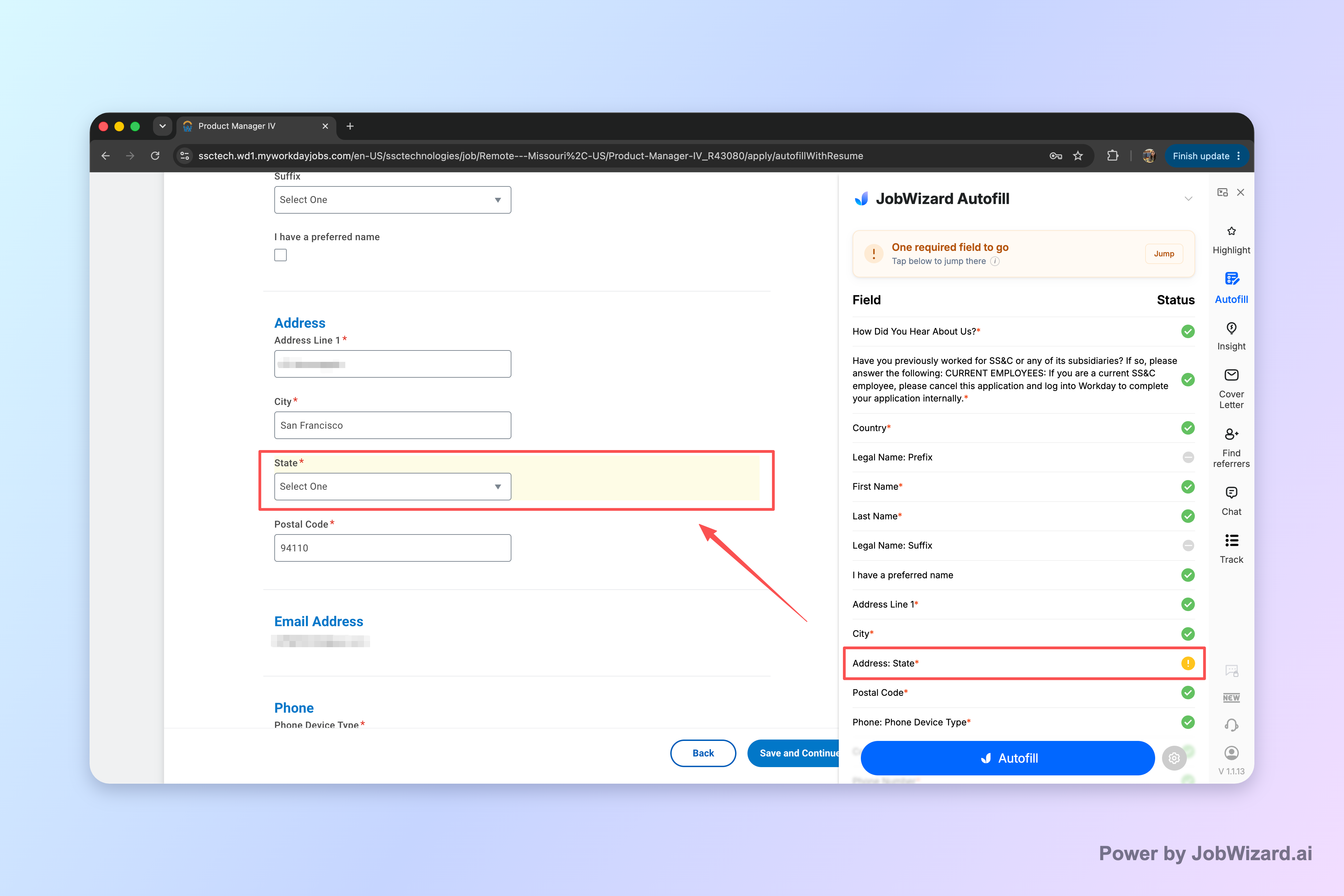
- Missing required field visibility: if a required field needs attention, you should be able to jump directly to the matching question.
- Support for the reality of application forms: sponsorship/salary/EEO/custom questions may require your judgment, so the workflow should keep them surfaced for review.
Reality check: autofill tools are strongest for repetitive fields; the parts that require your judgment (and sometimes are required) are where review protects you.
The review-first Workday workflow that prevents “almost done” submissions
If you want speed without sloppy outcomes, use a repeatable flow: autofill → scan → fix required gaps → submit yourself. This approach is the backbone of Simplify Alternatives for Workday Autofill that prioritize control instead of automation.
- Start the application normally: open the Workday job you want and begin the form until the tool can detect fillable fields.
- Trigger autofill: let the Chrome extension fill detected fields using your saved profile/resume data.
- Do a “required field” scan: look for any fields that still need attention—especially required inputs you might overlook.
- Fix custom/sensitive items: review sponsorship/salary/EEO and custom questions before submitting, since these often require your choices.
- Submit only after verification: confirm what will be submitted, then complete the Workday submit step yourself.
One practical reason this workflow matters: Workday forms often include required fields embedded in later sections. If you only skim the top, you can miss something required that blocks submission or creates avoidable errors.
That’s exactly why a “jump to the matching question” capability is so useful for Workday autofill—when a required field still needs attention, it saves you from scrolling blindly.
Where JobWizard fits as a Workday autofill alternative (and where review matters)
JobWizard positions itself as autofill + review-before-submit on job application forms, including Workday—so you get speed from filling repetitive fields while keeping control over what’s actually submitted.
Here’s how that looks in practice, based on how Smart Autofill works.
- Smart Autofill fills detected fields: the Chrome extension uses saved profile and resume data to fill fields it detects on supported application pages.
- You review the populated fields: after autofill, you confirm the content and submit the application yourself.
- It helps you handle required gaps: when a required field still needs attention, JobWizard can identify it and let you jump to the matching question.
This matters because the “last mile” of a Workday submission isn’t just typing speed. Many application systems include questions tied to eligibility, disclosure, preferences, or location details—areas where review prevents you from submitting incorrect or outdated information.
If you’re specifically trying to replace Simplify’s workflow for Workday, the most meaningful question isn’t “does it autofill?” It’s “does it keep me in the loop for required inputs and custom questions before I hit submit?”
How to map your Workday pain points to the right workflow
Use this quick mapping when you’re choosing a Simplify alternative for Workday autofill. The goal is to pick a tool that matches your bottleneck.
| What slows you down on Workday | What you should look for | Why it helps |
|---|---|---|
| Repeating profile/contact fields across jobs | Autofill that uses saved profile/resume data on detected fields | Reduces repetitive typing while you stay in control |
| Required field missed in later sections | Ability to identify required fields needing attention and jump to the matching question | Prevents “almost done” dead ends |
| Custom questions, EEO, sponsorship, or salary prompts | Review-before-submit workflow that keeps you responsible for final answers | Avoids accidental submissions based on outdated assumptions |
Want a deeper walkthrough of a complete autofill setup and what to check before submitting? Start with How to Autofill Job Applications (Step-by-Step with JobWizard).
Comparison lens: simplifying Workday autofill without blind automation
When people ask for Simplify Alternatives for Workday Autofill, they often mean “something that’s fast like Simplify, but with fewer surprises.” A fair comparison focuses on workflow safety and what you still control, not on marketing promises.
Below is a comparison lens you can use across autofill tools. Because Workday forms vary, the best strategy is the one that consistently preserves review of sensitive/custom items and makes missing required fields easy to correct.
| Tool behavior you should verify | Why it matters for Workday | What “good” looks like |
|---|---|---|
| Autofill vs. auto-submit | Workday submissions often include required disclosures and custom answers | Autofill fills fields, but you review and submit yourself |
| Handling missing required fields | Required items can appear later and block completion | The tool identifies what needs attention and helps you jump there |
| Custom question ownership | Some answers shouldn’t be guessed | Review is explicit, and you confirm final values |
| Form coverage | Different ATS ecosystems present fields differently | Support for the sites you use most (Workday is a primary case) |
For Workday specifically, it’s also worth comparing workflows rather than just features. These reads can help you tighten your process:
- Workday Autofill That Actually Helps: A Review-First Workflow for Faster Applications
- Safe Workday Autofill: Review Before Submit, No Auto-Apply (JobWizard Workflow)
- JobWizard vs Simplify for Workday and Greenhouse Autofill: Which Autofill Fits You?
If your goal is “reduce time typing while keeping quality,” these are the two levers that usually get you there: (1) autofill for repetitive fields and (2) a disciplined review-before-submit step that focuses on required gaps and custom answers.
Do this automatically with JobWizard
Skip the manual work — JobWizard's Smart Autofill handles this for you. On these platforms: Workday autofill, JobWizard vs Simplify.
FAQ: Simplify Alternatives for Workday Autofill
Here are direct answers to the most common questions when you’re evaluating Workday autofill alternatives.
Is JobWizard basically an alternative to Simplify for Workday autofill?
JobWizard is built for autofill + review-before-submit on application forms, including Workday. It fills detected fields using your saved profile/resume data, but you still review everything and submit yourself—especially for custom questions, sponsorship/salary/EEO, and any required fields that need attention.
How does JobWizard handle missing required fields on Workday?
If a required field still needs attention, JobWizard can identify it and let you jump directly to the matching question so you can correct it before submitting. This helps you avoid “almost complete” applications caused by overlooked required inputs.
Will Workday autofill automatically submit my application?
No. The workflow is autofill plus review-before-submit. JobWizard does not call for automatic submission; you review the populated fields and submit the application yourself.
What should I do after autofill on Workday to avoid mistakes?
After autofill, skim each section and especially double-check any custom questions, EEO/sponsorship/salary-related items, and fields marked as needing attention. Then confirm the final answers in Workday before you hit submit.
Ready to speed up Workday applications without losing control? Try JobWizard’s Smart Autofill on your next application—let it fill detected fields, then review every answer (and fix required gaps) before you submit.
Frequently Asked Questions
Autofill your next job application
JobWizard is a free Chrome extension that fills applications, tracks statuses, and optimizes your resume.