Workday Application Tracking System: A Review-First Autofill Workflow to Apply Faster (and Stay in Control)
A workday application tracking system can be fast—but only if your application forms are. Learn a review-first workflow using JobWizard Smart Autofill so your answers stay accurate before you submit.
Free Chrome extension
Track all your applications in one place
JobWizard auto-tracks status changes across Workday, Greenhouse, and every major job site — free.
Workday application tracking system: what it does and how you can work with it
If you’re applying through Workday, your “workday application tracking system” is the ATS where your application gets recorded, routed, and updated—so the bottleneck is rarely the system itself, it’s the form you have to complete correctly.
Your goal shouldn’t be “fastest submit at all costs.” It should be fast, accurate completion before you submit, because Workday workflows depend on the details you enter (and recruiters often review what’s already captured in the system).
In practice, most job seekers get tripped up by repetitive fields: name and contact info, work authorization, education dates, locations, and the standard “tell us about your experience” prompts that show up again and again. When those are missing, inconsistent, or mistyped, you can end up spending extra cycles fixing things—or simply waiting longer while recruiters sort through applications.
That’s why a review-first workflow matters: you can move quickly on the parts you repeat, while keeping full control over the answers that must be tailored to the role.
Use review-first autofill for Workday forms (not bot-style auto-apply)
A review-first workflow helps you fill a Workday application faster without giving up control over what actually gets submitted.
JobWizard’s Smart Autofill is designed around a simple loop: it uses saved profile and resume data to fill detected fields on supported application pages, then you review the populated fields and submit the application yourself.
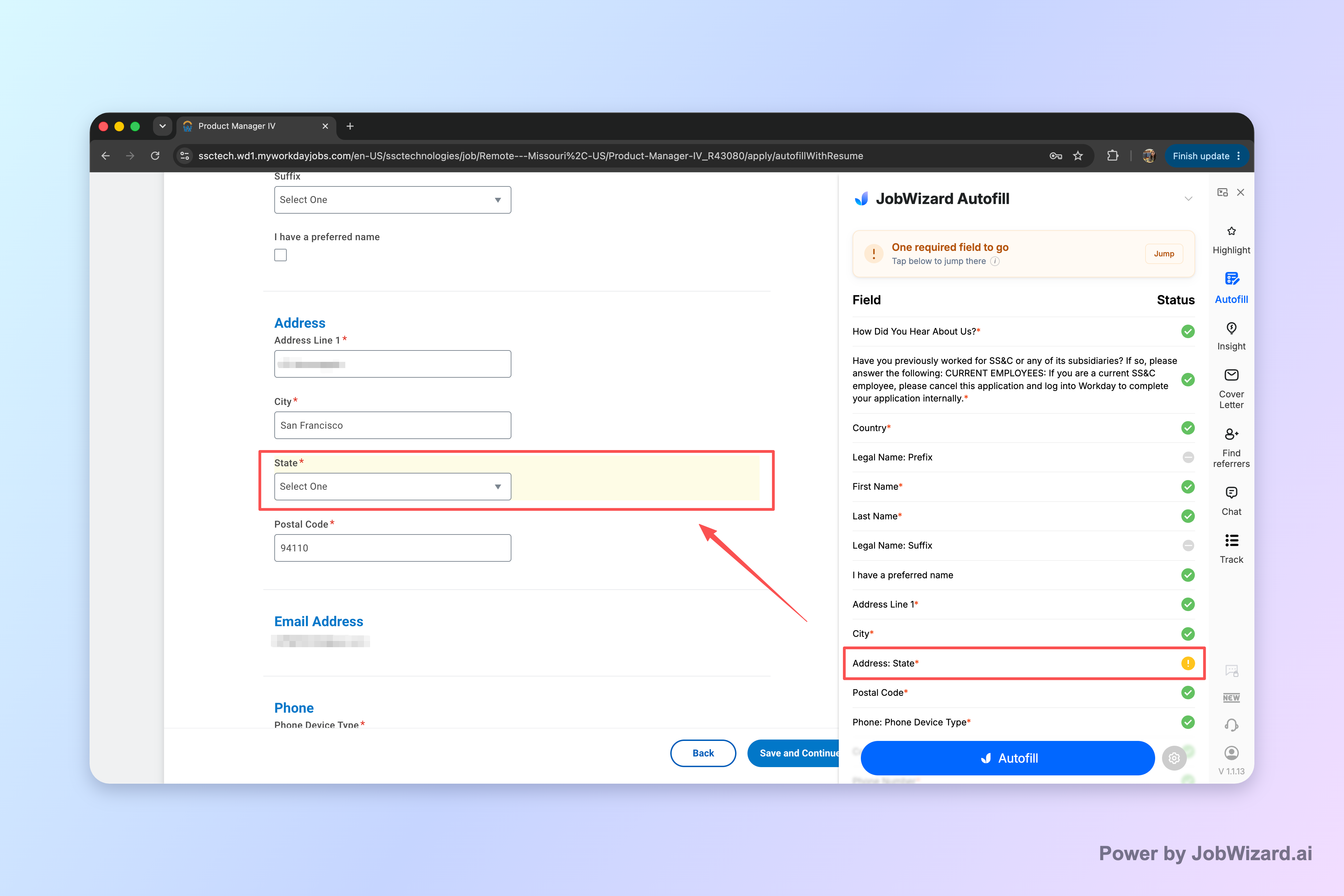
When a required field still needs attention, JobWizard can identify it and let you jump to the matching question—so you don’t have to hunt through the form guessing what you missed.
This “autofill + review-before-submit” approach is especially useful for Workday because the form can be long and the consequences of incorrect entries are frustratingly hard to undo after the fact.
What “review-first” looks like in real time
Think of your session like a checklist, not an autopilot. Here’s a practical flow you can follow on any Workday application page:
- Scan the form section-by-section to spot the questions that are role-specific.
- Start autofill for detected fields to quickly populate the repetitive information.
- Jump to required items that still need attention if something is missing.
- Review and edit tailoring answers (experience summaries, custom questions, or anything that needs your exact story).
- Submit only when you’re satisfied that the final entries match what you want the ATS to record.
This approach also keeps you safer from the classic failure mode of “bot apply” systems: getting stuck with incorrect information, generic responses, or missing required fields that you only discover after submission.
And it’s aligned with the way JobWizard is intended to be used: you control the final submission, while the tool accelerates the repetitive parts.
How to tailor without rewriting everything
Autofill won’t magically personalize every response—and you don’t want it to. Instead, use it to reduce the manual work so you can focus your attention where it matters.
- Keep your core resume facts consistent (dates, titles, locations, and education details).
- Rewrite the “why this role” or custom prompts in your own words, based on the job description.
- Confirm every required field before submitting—especially those that are often overlooked (work authorization details, contact preferences, or education completion information).
If you want to see the full step-by-step process for autofilling applications end-to-end, use this guide to autofill job applications step-by-step with JobWizard.
Workday status updates: how to interpret what’s happening after you apply
A workday application tracking system doesn’t just store your application—it often produces status updates you can use to decide your next move.
For example, you’ll commonly see states like “In Progress” or “Under Review,” but the meaning of each label can vary by employer configuration and workflow rules. The practical takeaway: treat statuses as signals, not guarantees.
Use status meanings to plan your follow-up (instead of spiraling)
When you interpret statuses correctly, you avoid two extremes: repeatedly submitting the same application or ignoring the opportunity to follow up at the right time.
- “In Progress”: often means the company has started processing your application, but it may not be at the recruiter review stage yet.
- “Under Review”: usually indicates someone is looking at it or the application is in a review queue.
- Other updates: can reflect internal workflow steps, routing, or cleanup actions.
If you want a detailed breakdown of what Workday statuses like “In Progress,” “In Process,” and “Not Retained” typically mean, read Workday Application Status Meaning: What “In Progress,” “Under Review,” and Other Updates Actually Mean.
And if you specifically want guidance on what to do when you see “Under Review,” see Workday Application Status Under Review Meaning: What To Do Next (and How To Track It).
What to do when you’re applying through Workday repeatedly
If you’re submitting multiple applications to Workday, the smartest workflow is the one that reduces mistakes while keeping your answers honest.
Job searching gets noisy fast—especially when you’re applying to roles with similar requirements. A repeatable system can help you keep quality high without turning applications into a full-time manual project.
Create a “fast lane” and a “review lane”
Separate the work into two lanes so you know what should be quick and what should be careful.
- Fast lane: fields that rarely change across roles (contact details, consistent education history, standard work authorization info).
- Review lane: anything job-specific (custom questions, “tell us about your experience” sections, salary-related or eligibility questions, and any prompts that require role context).
JobWizard’s Smart Autofill is built to support the fast lane: it fills detected fields using your saved profile and resume data. Then the review lane remains yours to finalize.
Turn missing required fields into a checklist habit
Missing required fields are one of the most common reasons job applications feel “hard” even when you have a resume ready.
Because JobWizard can identify required fields that still need attention and let you jump to the matching question, you can build a consistent habit: when something looks incomplete, don’t guess—navigate directly to the missing prompt.
That simple behavior reduces the risk of leaving blank fields that you would otherwise only notice at the end.
When JobWizard fits—and when you should focus on different tactics
JobWizard fits best when your biggest time sink is repetitive form completion and you want a review-before-submit workflow.
Based on how Smart Autofill works, it’s especially helpful for application pages where you repeatedly enter the same foundational information. It uses saved profile and resume data to fill detected fields, supports jumping to required questions still needing attention, and keeps you in the driver’s seat for the final submission.
What it is not: it doesn’t replace your judgment, and it isn’t automatic submission. Job applications still require your review because custom questions, sponsorship or salary details, and other nuanced items must be checked by you before anything is submitted.
Why this matters specifically for Workday
Workday’s strength is managing applications. Your strength is ensuring your application content is accurate. When you combine them with a review-first approach, you get the best of both worlds: fewer manual errors, faster completion, and cleaner records in the ATS.
If you want to see the exact Workday-oriented workflow approach (including how to keep review-first habits while moving quickly), start with Workday Autofill That Actually Helps: A Review-First Workflow for Faster Applications.
Get started on your next Workday application
Ready to spend less time typing and more time tailoring? Try Smart Autofill on your next Workday application, then review every answer before submitting—especially required fields and role-specific questions.
CTA: Start using JobWizard’s Smart Autofill on your next application, let it fill the repetitive fields, and then review-before-submit so your Workday application tracking system receives accurate details.
Do this automatically with JobWizard
Skip the manual work — JobWizard's Smart Autofill handles this for you. On these platforms: Workday autofill.
FAQ: workday application tracking system questions job seekers ask most
Is a workday application tracking system the same thing as a job board?
No. A workday application tracking system is the recruiting platform a company uses to collect and manage your application, while job boards are where you discover roles. Workday (the ATS system) typically records updates like “In Progress” or “Under Review,” which you can track after you apply.
Will JobWizard automatically submit my Workday application?
No. JobWizard Smart Autofill fills detected fields using your saved profile and resume data, then you review the populated fields and submit the application yourself. The workflow is “autofill + review-before-submit,” not blind auto-apply.
What if a required Workday field is missing or incorrect after autofill?
JobWizard can identify required fields that still need attention and let you jump directly to the matching question. You then provide or edit the right details before submitting.
How should I use Workday application status updates to decide what to do next?
Use status updates as a trigger for your next step. For example, if you see statuses like “In Progress” or “Under Review,” focus on monitoring and targeted follow-up rather than repeatedly reapplying. If you want a clearer meaning of specific Workday statuses, use the guides linked below to interpret what each update usually indicates.
Frequently Asked Questions
Track all your applications in one place
JobWizard auto-tracks status changes across Workday, Greenhouse, and every major job site — free.