Workday Application Field Cheat Sheet What To Autofill and What To Review (By JobWizard)
Use this Workday Application Field Cheat Sheet to know exactly what JobWizard Smart Autofill can populate and what you must review—so you avoid missing-field issues and submit confidently.

Free Chrome extension
Autofill your next job application
JobWizard is a free Chrome extension that fills applications, tracks statuses, and optimizes your resume.
Workday Application Field Cheat Sheet: what to autofill vs what to review
If you’ve ever stared at a Workday application form thinking, “Did I miss a required question?”, you’re not alone. The Workday Application Field Cheat Sheet What To Autofill and What To Review below is designed for a fast, low-stress workflow: use Smart Autofill to populate the repetitive fields quickly, then review every job-specific and policy-sensitive answer before you submit.
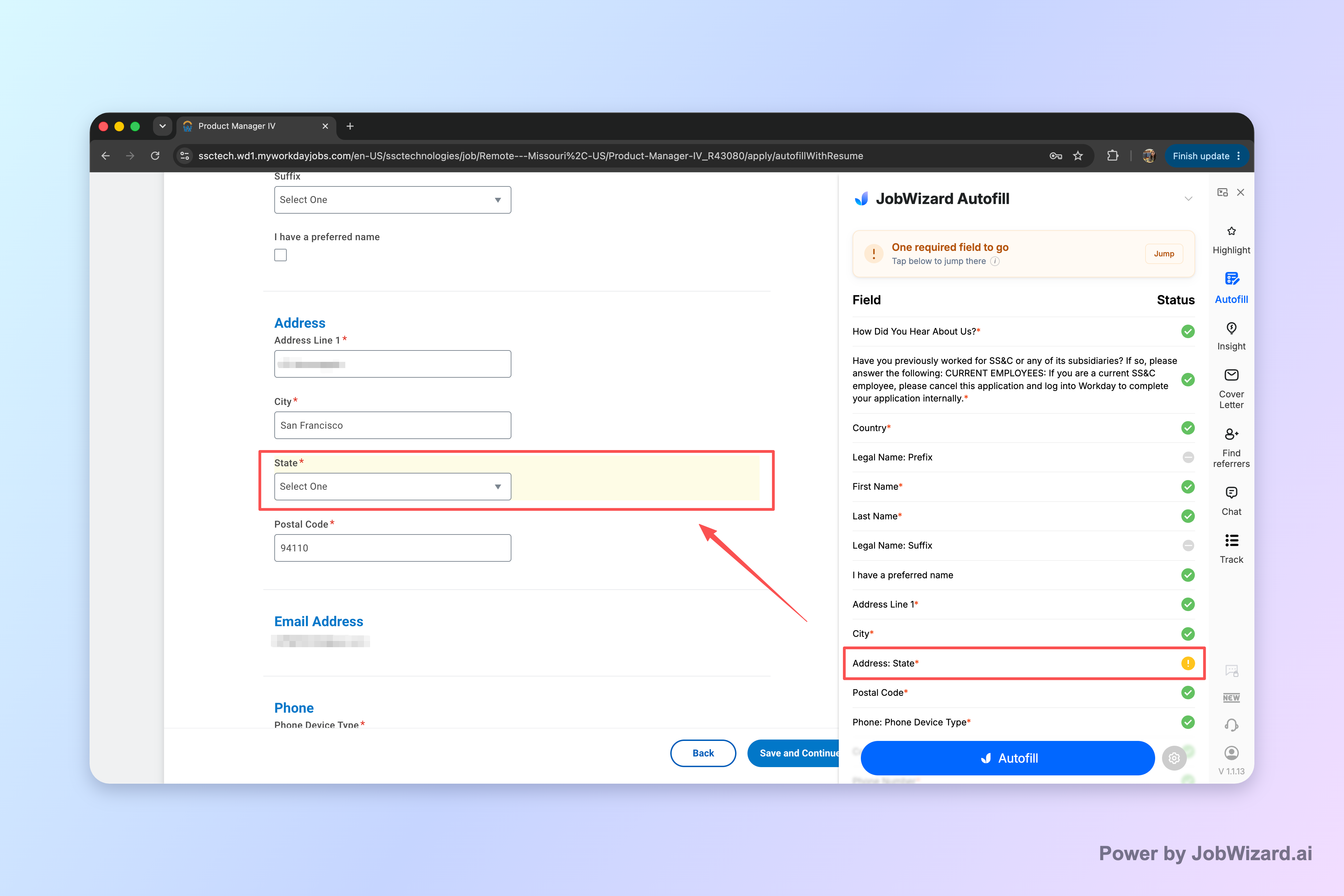
JobWizard’s approach is autofill + review-before-submit. Smart Autofill uses saved profile and resume data to fill detected fields on supported application pages, but you remain in control—if a required field still needs attention, JobWizard can identify it and help you jump to the matching question.
Quick rules of thumb (use these for Workday forms)
- Autofill: fields that map cleanly to your resume and basic profile (e.g., contact info, standard employment history, education entries).
- Review: anything that depends on the specific job, employer policies, eligibility, timing, or custom questions.
- Watch for required fields: after autofill, scan for anything that’s blank or flagged so you don’t submit with missing answers.
What to autofill on Workday (high-confidence, resume/profile-based fields)
Think of autofill as “get me to the next section faster.” For Workday applications, the best candidates are the fields that are usually consistent across jobs and directly derived from your existing resume/profile. If the form looks like it’s repeating information you already maintain, it’s a great target for autofill.
Autofill candidates: typically safe to populate
- Personal contact info: name, email, phone, address (when your resume/profile has it).
- Education: school name, degree/program, and key dates—especially when your resume has them formatted similarly.
- Employment history basics: job titles, employer names, employment dates, and location where your resume includes those items.
- Core skills / keywords: when the form offers a skills list that matches resume content (you still review what’s actually inserted).
- Standard form sections: anything labeled like “Profile,” “Work History,” or “Education” that appears to be a direct import of your resume/profile data.
Why these fields work well with Smart Autofill
Smart Autofill is built to populate detected fields using saved profile and resume data. That means it tends to perform best on structured, repetitive fields where your information is stable across applications. The moment you see questions that are clearly employer-specific (or legal/policy-related), switch into review mode.
Mini-workflow: autofill in the right order
- Start Smart Autofill on the application page.
- Let it fill the repetitive fields (you’ll usually see contact info, education, and employment details populate).
- Immediately scroll and scan for required indicators, blank answers, or sections that didn’t populate.
- Jump into the job-specific questions while the form is still fresh in your mind.
- Only submit after review—Smart Autofill doesn’t remove your responsibility to confirm accuracy.
What to review on Workday (job-specific, policy-sensitive, and custom questions)
Autofill saves time, but it doesn’t replace judgment. On Workday, the questions that most often cause issues are the ones that change by employer and require precise, truthful answers. Use this section to decide what you must read and confirm—no skipping.
Review-first categories (where mistakes are most costly)
- Work authorization / sponsorship questions: confirm that the response matches your actual status and any eligibility language used by the employer.
- EEO-related or protected characteristic responses: review carefully and answer exactly as the policy asks.
- Compensation and salary expectations: verify numbers (if provided) or select the correct range option tied to the role.
- Availability and scheduling: confirm start date, notice period, and shift/lifecycle questions.
- Custom “Why this role” or questionnaire prompts: ensure tone and content match the role—not just what’s in your resume.
- Role-specific qualifications: confirm the details align with the job description (tools, certifications, seniority, or scope).
- Any required question that remains blank: treat it as a hard stop. If Smart Autofill can identify required fields that need attention, use that jump-to support to finish them.
How to review without getting stuck
After autofill, your goal is not to re-read your entire resume. Instead, do targeted checks that match the risk level of the question.
- Fast verification scan (30–60 seconds per section): confirm dates, titles, and locations look right.
- Then go deep on policy questions: work authorization, EEO, and any required eligibility disclosures.
- Confirm custom answers last: these should reflect the specific posting.
Common Workday scenarios (and what to do)
Use these examples to decide quickly what to autofill and what to review.
- Scenario: Workday asks for “Employment Type” or “Reason for Leaving.”Autofill may not cover these. Review the section, answer based on truth and your job history, and don’t assume “employment dates” is enough.
- Scenario: The form includes a “Government ID / Legal compliance” style question.Review carefully. Treat any legal/policy question as review-only.
- Scenario: “Will you now or in the future require sponsorship?”Even if you’ve answered similar questions before, confirm the exact wording and answer consistently with your actual circumstances.
- Scenario: A required “Custom Question” appears at the bottom of the application.Don’t skip. If required fields still need attention, JobWizard can help identify them and let you jump to the matching question.
Workday “autofill + review” comparison: what to do in each phase
The Workday Application Field Cheat Sheet What To Autofill and What To Review becomes even easier when you separate the application flow into two phases: speed (autofill) and accuracy (review).
Phase-by-phase checklist
| Phase | Goal | What to focus on | What to avoid |
|---|---|---|---|
| Autofill | Fill repetitive fields quickly | Contact info, education entries, employment history basics, standard structured fields | Assuming job-specific or legal questions are correct without reading them |
| Review before submit | Confirm accuracy and completeness | Work authorization/sponsorship, EEO questions, salary expectations, availability, custom prompts, required blanks | Submitting with unanswered required fields |
Why this approach matters (autofill isn’t “set it and forget it”)
Smart Autofill fills detected fields using saved profile and resume data, then you review the populated fields and submit the application yourself. That’s the key difference between “getting through the form faster” and “making decisions for you.”
Learn more about autofill vs auto-apply
If you’re using Workday and other ATS-style portals, it helps to understand the difference between autofill and auto-apply. For a broader explanation of how the workflows differ, read What Is the Difference Between Job Application Autofill and Auto-Apply?.
Make Workday applications faster with JobWizard (and stay confident)
When you apply to multiple roles on Workday, the same pattern repeats: repetitive fields get filled, then you hit the parts that require judgment. This is exactly where the Workday Application Field Cheat Sheet What To Autofill and What To Review helps—pair it with Smart Autofill so your time goes to the answers that matter.
Best-practice workflow for a Workday application
- Use Smart Autofill on the first page you can—let it populate the repetitive fields.
- Review section by section, starting with the required policy questions (work authorization, EEO) and any role qualification checks.
- Confirm custom answers so your application reflects the specific role.
- Do a final required-field sweep before submitting. If a required field still needs attention, JobWizard can identify it and help you jump to the exact question.
How JobWizard fits into other ATS checklists
If you’re also applying through other systems (like Greenhouse), you’ll recognize the same concept: autofill the repetitive data, then review custom questions and required fields. See Greenhouse Application Checklist: Autofill, Review, and Submit Without Missing Required Fields for a similar checklist structure you can adapt across platforms.
Automation vs quality: keep your review step non-negotiable
Smart Autofill helps you move faster, but it does not replace your responsibility to review and submit accurate answers. Always check the final review step, especially for anything that can vary by employer: sponsorship, availability, salary expectations, and custom questions.
Reality check: JobWizard is designed for autofill + review-before-submit—it fills repetitive fields quickly, while you verify sponsorship/salary/EEO/custom questions before submitting.
Need a next-step plan after you submit?
If you submitted through Workday and you’re waiting for updates, it helps to know what to do next based on timelines and best practices. For guidance on following up, read Workday Application Still Under Review After a Month: What To Do Next.
Want the full “autofill setup” guide?
For a step-by-step walkthrough of the complete process, use How to Autofill Job Applications (Step-by-Step with JobWizard).
Do this automatically with JobWizard
Skip the manual work — JobWizard's Smart Autofill handles this for you. On these platforms: Workday autofill.
FAQ: Workday application fields (autofill vs review)
What should I autofill on a Workday application?
Autofill the repetitive fields where your resume/profile data matches the form—like contact info, education entries, employment dates/titles, and standard address fields. Then review every populated answer before you submit, especially anything that asks about qualifications, eligibility, or work authorization details.
Which Workday fields should I always review (even after autofill)?
Always review anything that can vary by job posting or employer, such as work authorization/EEO responses, sponsorship or availability questions, salary expectations, and any custom or role-specific questions. If a required field still needs attention, JobWizard can identify it and take you to the exact question.
Does JobWizard Smart Autofill automatically submit my Workday application?
No. Smart Autofill fills detected fields using saved profile and resume data, but you review the populated fields and submit the application yourself.
How do I avoid missing required fields on Workday forms?
Use a workflow: (1) start Smart Autofill, (2) scan for required indicators and unanswered questions, (3) confirm role-specific and legal/custom questions, and (4) only then submit. If a required field needs attention, JobWizard can identify it and let you jump directly to the matching question.
What’s the difference between application autofill and auto-apply on Workday?
Application autofill fills repetitive form fields for speed, while you still review the populated answers and submit manually. Auto-apply attempts to submit automatically; even when it exists, you still need to verify role-specific and policy questions to reduce the risk of wrong or incomplete answers.
Try this on your next application: use JobWizard Smart Autofill to populate the repetitive Workday fields, then do a final review on sponsorship, salary, EEO, and custom questions—so you submit with confidence and without missing required answers.
Frequently Asked Questions
Autofill your next job application
JobWizard is a free Chrome extension that fills applications, tracks statuses, and optimizes your resume.