Job Tracker Software That Keeps Your Follow-Ups From Falling Through
Job tracker software should tell you what’s happening with each application—and what you do next. Here’s a practical system using JobWizard’s Activity view so you can track application status and follow up with confidence.

Free Chrome extension
Autofill your next job application
JobWizard is a free Chrome extension that fills applications, tracks statuses, and optimizes your resume.
If your job search feels chaotic after you click submit, the problem usually isn’t your resume—it’s that your system can’t answer one question fast: “Where is my application right now, and what should I do next?” That’s where job tracker software earns its keep. The best tools help you track applications end-to-end, so follow-ups don’t get lost between emails, portals, and browser tabs.
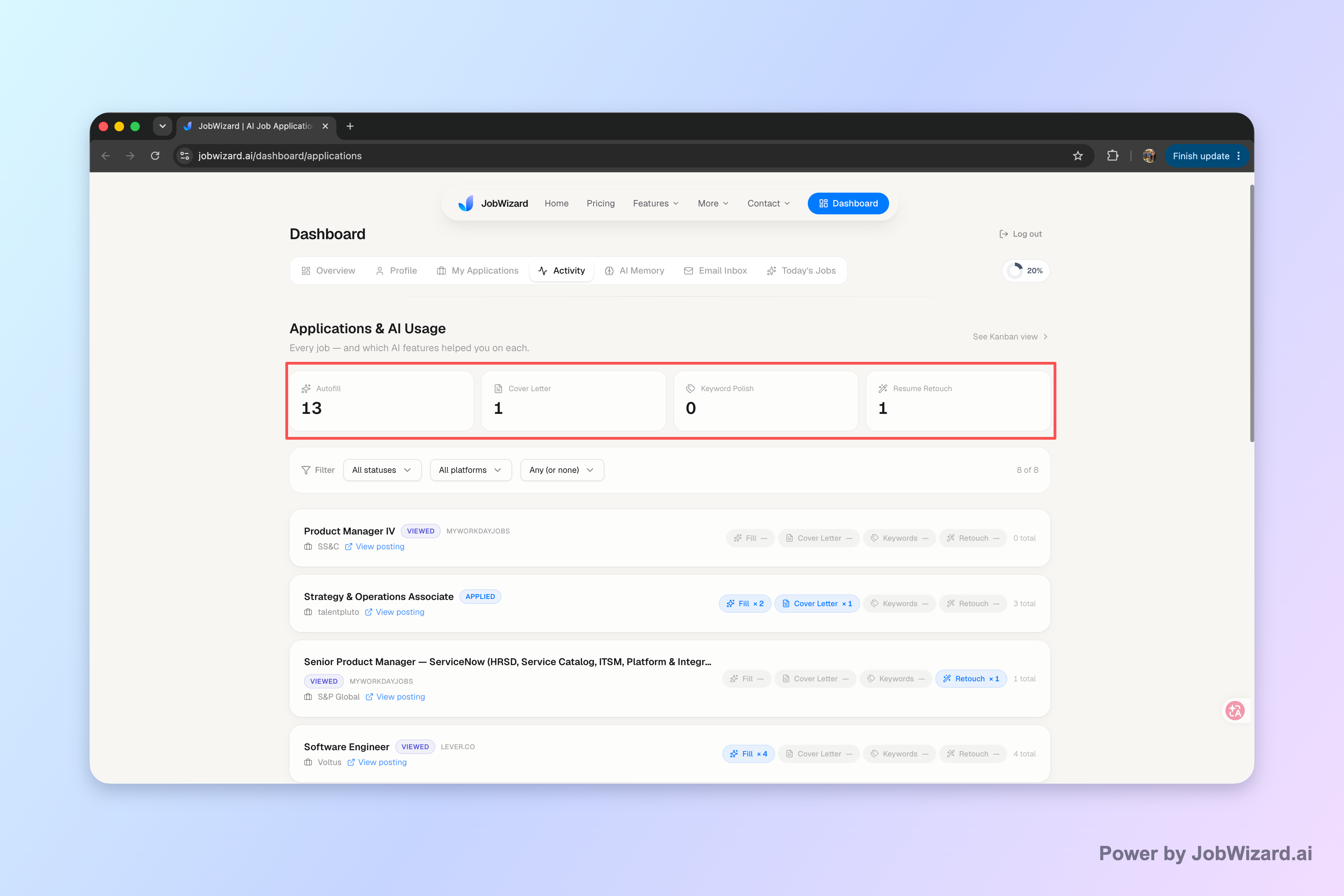
In JobWizard, you can use the Activity view to quickly see where each role stands and what tools you used along the way. This keeps your application activity and next steps in one place instead of scattered across accounts and notes.
Job tracker software should answer two questions: status and next step
When you evaluate job tracker software, don’t start with aesthetics or “nice to have” fields—start with decisions. You need to know (1) the current application status and (2) the action you’ll take next. If your tracker can’t reduce uncertainty, it won’t reduce stress either.
Practically, that means your tracker should make status visible and actionable. A good workflow includes:
- Application status you can trust: “In process,” “under review,” “not retained,” “interview status,” or similar stage labels—whatever your process uses.
- Discipline on follow-ups: a follow-up date (and ideally a short reminder of what you planned to say).
- Proof of what happened: which channel you applied through and when.
- Where you are with the role: notes on next steps like waiting for recruiter feedback or preparing for an interview.
JobWizard’s Activity view is built for this kind of clarity. It shows application status and which JobWizard tools were used for each role, so you can connect “what stage I’m in” with “what I did to get there.”
Use JobWizard’s Activity view to keep application status visible
The Activity view is designed to help you stay oriented while you’re actively applying—especially when multiple roles move at different speeds. Instead of guessing, you can review your application activity by role and see the status alongside the tools used.
What makes this useful isn’t that it replaces your judgment—it helps you review faster and act sooner. You can still decide what to change (if anything) and you’re responsible for reviewing any AI-generated or autofilled content before submitting applications. In other words, automation supports your workflow, and you keep control of what gets sent.
Here’s a simple “Activity-first” routine you can run weekly:
- Check the board: open Activity and scan roles by status.
- Pick the next action: choose the applications with the closest upcoming follow-up date.
- Verify details: confirm you have the right company name, role title, and the last-known stage you saw.
- Execute one follow-up: draft or reuse a short check-in tied to the role.
This is especially valuable because most job seekers apply across several platforms and pipelines. If you’re juggling Workday, Greenhouse, Ashby, or Lever roles, you still want one consistent place to track where each application stands. JobWizard usage reflects how often applicants submit and then continue managing that activity; in our aggregated data, JobWizard has supported 720,000+ applications submitted and 600,000+ autofill sessions, reflecting the real “apply and manage status next” pattern rather than one-and-done applying.
Tip: Treat the tracker as your “application activity log.” Even when a portal doesn’t clearly show changes, your process can still track what you know, what you did, and when you’ll check back.
Choose the right tracker fields (and avoid messy status labels)
If you want job tracker software to actually help, your fields must match how hiring moves. Otherwise, you’ll end up with confusing labels like “sent” that don’t tell you anything about follow-up timing.
Use this practical field set as a starting point. You can tailor names to match your style, but keep the meaning consistent:
| Field | Why it matters | Example value |
|---|---|---|
| Status | Shows what you should do next | Under review |
| Date applied | Anchors your timeline and follow-ups | 2026-08-14 |
| Application source | Helps you find the right portal or contact path | Workday / Recruiter referral |
| Next follow-up date | Turns “sometime soon” into a plan | 2026-08-22 |
| Notes | Prevents you from forgetting context | “Asked about team timeline; waiting” |
Now the important part: status labels. Try to keep them limited and meaningful. If you use too many variations (for example, “waiting,” “sent,” “received,” “queued,” “checked”), you’ll lose time deciding what they mean. A tighter set of stages makes your tracker more reliable—and reduces the mental load when you review application status.
If you prefer a DIY setup, you can still build an effective pipeline. For example, these templates can help you maintain a consistent follow-up-ready system:
- How to Track Job Applications: A Practical System (JobWizard + Beyond)
- Job Application Tracker Excel: Build a Simple, Follow-Up-Friendly System (Without Losing the Thread)
- Job Application Tracker Google Sheets: Build a Status + Follow-Up System You’ll Actually Use
- google sheets job application tracker template for a follow-up-ready pipeline that stays organized
Keep control: autofill + review-before-submit, not blind auto-apply
The biggest reason applicants feel “out of control” is when a tracker—or an applying tool—encourages blind clicking. A strong job tracker software workflow should support speed without removing your responsibility to review.
JobWizard’s approach fits that model: autofill sessions can quickly populate repetitive application fields, but you still review before submitting. That matters because the details that can change from role to role—like sponsorship, salary expectations, EEO questions, and custom prompts—require your judgment.
In our aggregated product data, JobWizard autofills an average of ~18 repetitive fields per application (typically 11–23). And for context on application ecosystem coverage, ~65% of applications submitted through JobWizard are on Workday, ~19% Greenhouse, ~12% Ashby, and ~4% Lever—where Workday is where it saves the most time. The key takeaway for you: the system is optimized for fast, repeatable form filling, while your review-before-submit step keeps you in charge.
So the right mental model is:
- Track activity: know what stage each application is in.
- Apply faster with review: autofill where it’s safe and review everything else.
- Follow up with confidence: use your next-follow-up date and status to choose your action.
When you combine clear tracking with review-before-submit discipline, your tracker becomes a command center—not a graveyard.
Do this automatically with JobWizard
Skip the manual work — JobWizard's Application Tracker handles this for you.
FAQ: job tracker software
What should job tracker software track besides job titles?
Beyond the company and role, track the application date, current application status (for example: in process or under review), where you applied (portal or referral), and your next follow-up date or draft message notes so nothing disappears after you click submit.
Will job tracker software automatically update my application status?
Some tools help organize status, but you should treat updates as something to verify. In JobWizard, the Activity view shows application status and which JobWizard tools were used for each role, while you still review any AI autofill content before submitting.
How do I decide when to follow up on an application?
Use your tracker as the source of truth: set a realistic follow-up date right after you apply, then adjust based on the last status you saw (for example, if it moved to under review). If you haven’t received a response by your next date, send a short, role-specific check-in.
Is it worth using a job tracker software tool instead of a spreadsheet?
If you want one place that’s faster to update while you apply, job tracker software can reduce friction—especially when it organizes application activity and keeps your next step visible. A spreadsheet can work well too; the key is that you consistently maintain it and can quickly see what’s pending and what to do next.
What’s the fastest way to get my job tracker under control?
Start with a clean “Status + Next follow-up date” system. Pick a small set of status stages, enter your current applications with date applied and stage, then schedule your next follow-up for each role. From there, update only what changes and review your tracker on a consistent cadence.
Ready to keep your applications organized? Use JobWizard to manage your application activity in one Activity view—so you can track application status, review before you submit, and follow up at the right time.
Frequently Asked Questions
Autofill your next job application
JobWizard is a free Chrome extension that fills applications, tracks statuses, and optimizes your resume.