Job Application Tracker Excel: Build a Simple, Follow-Up-Friendly System (Without Losing the Thread)
Turn your spreadsheet into a job application tracker excel that keeps statuses, next steps, and follow-ups in one place—so you never miss what to do next.

Free Chrome extension
Track all your applications in one place
JobWizard auto-tracks status changes across Workday, Greenhouse, and every major job site — free.
Job application tracker excel: what it should do (and why it beats “notes in a doc”)
A job application tracker excel should be your job-search command center: it records what you applied to, where each application stands, and the next follow-up action—so you never lose track mid-week. If you’ve ever opened a spreadsheet and realized you don’t remember the role, the date, or what you still need to do, that’s the exact problem a structured tracker solves.
Instead of treating tracking as “extra work,” make it lightweight: capture the basics immediately after you apply, then update status and next steps when you get a signal (portal update, email, call, or interview request). This keeps your workflow accurate without requiring you to predict hiring decisions.
Design your Excel columns: the minimum data that keeps follow-ups on track
The simplest way to build a job application tracker excel is to start with a small set of columns you’ll actually use every time. Keep it scannable—your future self should be able to look at the sheet and instantly know what’s pending.
Below is a practical column set. You can add more fields later (like compensation expectations or role-specific notes), but this baseline prevents the most common failure mode: missing the next action.
| Column | What to enter | Why it matters |
|---|---|---|
| Company | Exact company name | Lets you sort/search quickly when you hear back |
| Role title | Job title from posting | Avoids confusion when titles are similar |
| Job URL | Link to posting or portal | Makes it easy to verify details later |
| Date applied | When you submitted | Anchor point for follow-up scheduling |
| Current status | Submitted / In review / Interview / Rejected / No response yet | Prevents “guessing” and keeps updates honest |
| Next action | e.g., “Follow up email draft,” “Check portal,” “Prepare interview answers” | Turns status into a to-do list |
| Follow-up date | Your chosen date to reach out/check | Stops follow-ups from relying on memory |
| Contact / recruiter | Name or email if you have it | Improves targeting for messages |
| Documents / versions | Which resume/cover letter versions you used | Helps you tailor quickly if you need a refresh |
| JobWizard note (optional) | What tool/step you used (or just “tracked in JobWizard”) | Creates a bridge between “submission” and “review” |
Use “status + next action” together, not separately
The easiest way to keep your job application tracker excel accurate is to treat “Current status” as the last verified state and “Next action” as the response you’ll take. When you only track status, you still have to decide what to do next. When you track next action too, the workflow is automatic—even if you’re busy.
Build a workflow you’ll actually follow:
The value of a job application tracker excel comes from consistent use, not from complicated formulas. Set a repeatable routine so your tracker becomes part of applying, not an afterthought.
Use this workflow for each application:
- Log the basics immediately: Create a new row with company, role title, job URL, and date applied right after submission.
- Set a next step: Choose a follow-up date and write a next action (e.g., “Send follow-up email” or “Check portal for updates”).
- Update when you get signals: Only change “Current status” when you have evidence (email, portal update, or interview scheduling).
- Refresh your documents if needed: If you revise your resume/cover letter, note which version you used for that specific role.
Example: a follow-up-ready row
Here’s a realistic snapshot of what a row might look like after applying:
- Company: “ExampleCo”
- Role title: “Product Analyst (Entry-Level)”
- Date applied: “2026-08-01”
- Current status: “Submitted”
- Next action: “Follow up email draft (check spelling of role title + add 1 line about relevant project)”
- Follow-up date: “2026-08-12”
- Contact / recruiter: “— (not provided)”
This is what keeps you moving: when the follow-up date arrives, you’re not trying to reconstruct the application—you already know what to do.
Where JobWizard fits with your Excel tracker (so reviews don’t get skipped)
Before you build the workbook, know that JobWizard already includes an application tracker board that fills itself: apply with the extension and the application lands under Applied with the company, role, location, and date, then you move it to Interviewing or Offered in one click. It is free on every plan, so Excel becomes optional rather than required.
JobWizard can complement a job application tracker excel by helping you handle repetitive application fields faster, while you keep control of what’s submitted and what gets tracked next.
In practice, JobWizard autofills repetitive fields during the application flow and then you review-before-submit—so sponsorship / salary / EEO / custom questions (and other role-specific items) remain yours to check and confirm. Across JobWizard usage, people submit and track through it frequently, including 720,000+ applications submitted and 600,000+ autofill sessions run through JobWizard. JobWizard autofills an average of ~18 repetitive fields per application (typically 11–23).
Key point: JobWizard is for autofill + review-before-submit, not blind auto-submit—your Excel tracker remains the system of record for “next action” and verified status.
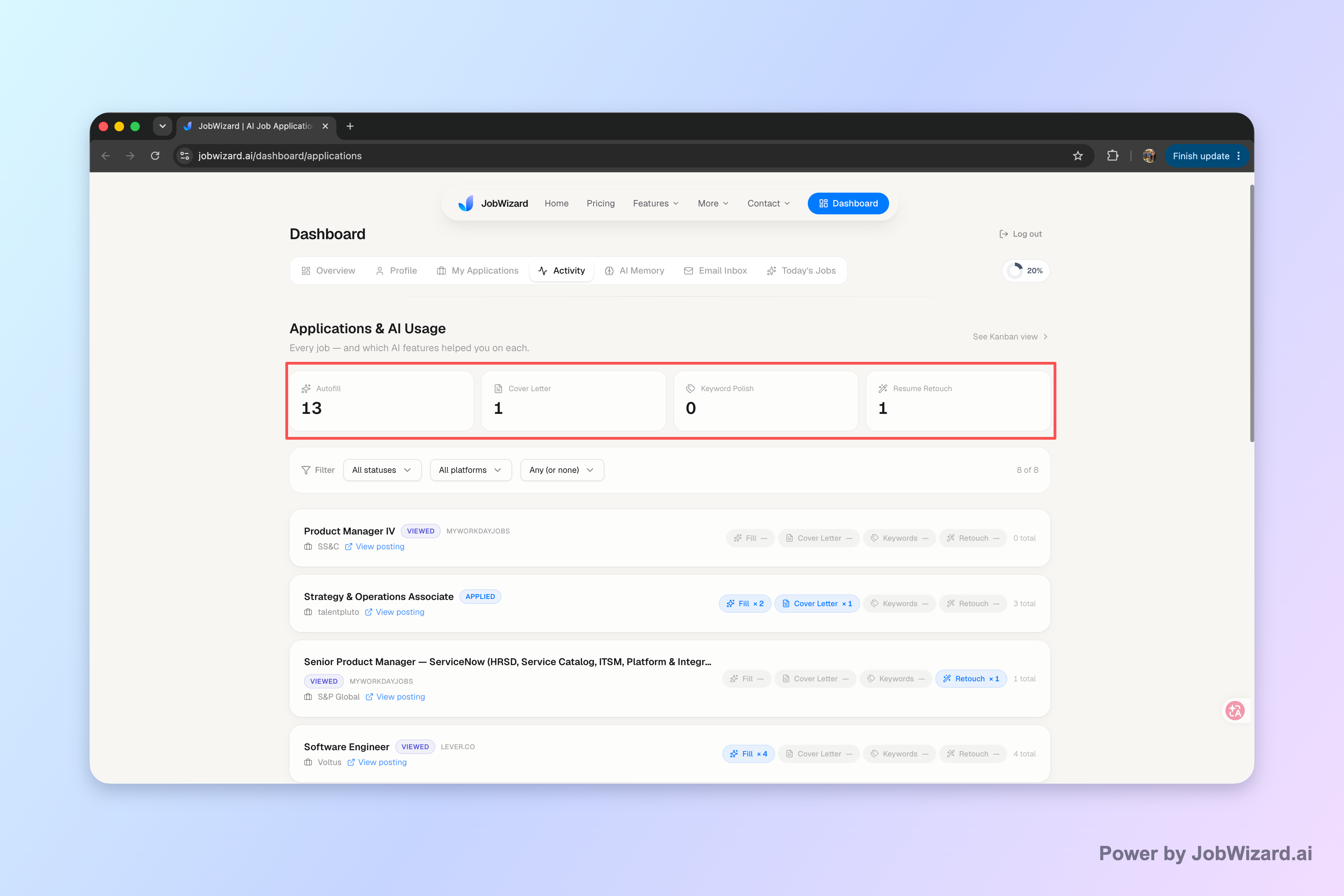
Use the Activity view to confirm what happened
As you manage roles in your spreadsheet, it helps to have a place that shows application status and which JobWizard tools were used for each role. JobWizard’s Activity view shows where each application stands and which JobWizard tools were used along the way, so you can update your spreadsheet with confidence.
And because “next action” is the real goal, use the Activity view as your check step: after an application submission, confirm the role and status, then update your Excel row with the next follow-up date and action.
Adopt a simple naming convention for your spreadsheet tabs
If you want your job application tracker excel to scale beyond a handful of applications, use tabs like:
- Today’s actions: rows due for follow-up
- In progress:
- Interviews:
- Rejections / closed:
- Archive (optional):
Then, when you’re doing follow-ups, you’re working from a focused view—not scanning every row.
Excel features to add next (without making your tracker fragile)
Once your basic job application tracker excel is working, add just a few features that support clarity and consistency, not complexity.
Here are upgrades that typically help without turning your spreadsheet into a maintenance project:
- Sort by follow-up date: Use a simple “due soon” view so outreach stays timely.
- Color-code current status:
- Use drop-downs for status:
- Freeze header row:
- Add a “Last updated” date:
Keep your status labels consistent. If you change the vocabulary every month (e.g., “In review,” “Screening,” “Recruiter review”), you’ll lose the ability to filter and summarize quickly.
Don’t confuse “no response” with “rejected”
The best job application tracker excel workflows separate “No response yet” from negative outcomes. “No response yet” is a scheduling state, not a verdict. When you follow up and still don’t get information, you can set a new follow-up date and keep going.
Do this automatically with JobWizard
Skip the manual work — JobWizard's Application Tracker handles this for you.
FAQ: Job application tracker excel
What columns should I use in a job application tracker excel?
Use columns for: company, role title, job URL, date applied, current status, next action (e.g., “prepare follow-up email”), follow-up date, recruiter/hiring manager contact (if any), and links to your resume/cover letter versions for that role. If you use JobWizard, also keep a note of which step/tool you used for the application so you can quickly review what was submitted.
Should I use automation in a job application tracker excel, or just update it manually?
Start by updating your tracker manually after each application submission, because you’ll want to review any autofilled or generated fields before you submit. Automation can help you fill repetitive details faster, but your tracker should still record the final decisions you made (like answers to custom questions) and the next action you plan to take.
How do I track application status without guessing what happened?
Record statuses you can verify: “Submitted,” “In review” (only if the platform shows it), “Interview scheduled,” “Rejected,” and “No response yet.” When you’re not sure, keep the last known status and add a next follow-up date rather than assuming. The goal is to create a follow-up workflow, not to predict hiring decisions.
When should I follow up after applying?
A good approach is to set a follow-up date relative to your application date (for example, 7–14 days for the first check, then adjust based on the company’s signals). Use your tracker’s “Next action” and “follow-up date” fields so you’re not relying on memory. If an employer provides a timeline or portal updates, update the status and shift follow-up accordingly.
How can JobWizard fit into an Excel job application tracker workflow?
Use JobWizard to fill repetitive application fields faster, then review-before-submit, and keep your Excel tracker as the system of record for next steps. The key is to connect “where the application stands” with “what you plan to do next.” JobWizard’s Activity view shows application status and which JobWizard tools were used for each role, so you can quickly confirm what happened and update your spreadsheet.
If you want a ready-to-use starting point, read Job Application Tracker Template: Build a Simple Workflow to Track Status, Next Steps, and Follow-Ups and then use this article’s “status + next action” approach to make it yours. You can also compare with Job Tracker Spreadsheet: Build a Simple System to Track Applications and Follow Up and Job Tracker That Actually Helps: Track Applications, Autofills, and Follow-Ups, or go deeper with How to Track Job Applications: A Practical System (JobWizard + Beyond).
CTA: Want fewer mistakes while you track? Try JobWizard and keep your process tight: use autofill to handle repetitive fields, review before submitting, and then update your job application tracker excel with the next action using JobWizard’s Activity view.
Frequently Asked Questions
Track all your applications in one place
JobWizard auto-tracks status changes across Workday, Greenhouse, and every major job site — free.