Easy Apply on LinkedIn: Apply Faster Without Losing Control
Learn what Easy Apply on LinkedIn does, how to complete an application carefully, and how to keep your search organized. This guide also covers ways to personalize outreach and speed up repetitive application fields without skipping your review.

Free Chrome extension
Find someone to refer you — automatically
JobWizard spots employees at your target companies who can refer you, right from the job page.
What Easy Apply on LinkedIn does—and what it doesn’t
Easy Apply on LinkedIn lets you apply to some jobs without leaving the platform for the employer’s application site. For job seekers, that can make submitting an application feel more straightforward, especially when a listing asks for basic information and a resume. But a shorter form is still an application: you need to check what you are sending.
Easy Apply is a feature on eligible listings, not a promise that every employer uses the same process. A listing may ask for additional details, and some applications instead direct you to an employer’s website. Read the job post and follow the route the employer provides.
What is easy apply on linkedin?
It is LinkedIn’s in-platform application option for eligible jobs. Rather than being redirected to a separate company site for the whole application, you provide the information requested through LinkedIn. The specific fields and steps depend on the listing.
Do not confuse an easier submission path with an automatic hiring decision or a guarantee that the employer will review a particular item. Your goal is to make a complete, accurate application that clearly connects your experience to the role.
Easy Apply versus an employer application
The main difference is where you complete the application. An in-platform form may be more convenient, while an employer’s site may ask for information through its own process. Neither route removes your responsibility to answer accurately.
- LinkedIn route: Complete the application fields shown for the listing and verify the resume or profile information included.
- External route: Follow the employer’s instructions, check whether you need to create or access an account, and review the final application before submitting.
- Either route: Confirm the role, location, work arrangement, and any required questions before you send your materials.
For a broader workflow that covers repetitive fields across application sites, see the complete guide to autofilling job applications. It explains how to use autofill as a way to prepare answers while keeping the final review in your hands.
How to use Easy Apply on LinkedIn carefully
Use a repeatable check: confirm the role, complete the requested fields, then review every answer before submitting. A few deliberate checks can catch a mismatched resume, an outdated contact detail, or a response that needs context.
- Check the listing. Read the title, company, location, work arrangement, and responsibilities. Make sure the opportunity matches what you want before starting.
- Choose the right resume. Select a version that reflects the role and contains the experience you want the employer to see. Do not assume a previously used document is the right one for this application.
- Complete each requested field. Use current contact information and give clear, truthful answers. If a question is unclear, pause and interpret it rather than guessing.
- Review your materials. Check the resume, profile details, and any responses for accuracy, consistency, and missing information.
- Submit only when ready. Make sure the answers represent you and that you are comfortable sending them to the employer.
Pay special attention to questions that cannot be answered well by copying a standard profile field. Sponsorship, salary expectations, equal employment opportunity (EEO) questions, and custom prompts may need a considered response. Review what the employer is asking and choose your answer yourself.
Keep a simple application record after submitting. Note the company, role, date, resume version, and any follow-up you want to make. This helps distinguish similar listings and makes it easier to prepare if the employer contacts you.
Speed up repetitive fields without skipping your review
JobWizard can autofill repetitive application fields while leaving important answers for you to review. That gives you a way to reduce repeated typing without treating an automated form fill as permission to submit without checking.
JobWizard has supported 720,000+ applications submitted and 600,000+ autofill sessions. It autofills an average of ~18 repetitive fields per application (typically 11–23); sponsorship, salary, EEO, and custom questions are left for the user to review before submitting.
The distinction matters: autofill is not blind auto-apply or auto-submit. JobWizard fills repetitive fields, then you review the answers that require your judgment and submit the application yourself. Check the completed form against the job listing and your materials before taking that final step.
On applications submitted through JobWizard, ~65% are on Workday, ~19% Greenhouse, ~12% Ashby, and ~4% Lever. These are aggregate shares of applications submitted through the product, not a measure of all jobs on LinkedIn or a promise that every listing follows the same form.
Use this kind of assistance when it addresses a specific bottleneck, such as re-entering familiar details across multiple applications. Keep a careful hand on the parts that are personal, sensitive, or specific to the position.
- Let autofill handle repetition: Verify standard fields like contact details rather than retyping them from memory.
- Review judgment calls yourself: Consider each sponsorship, compensation, EEO, or custom question in context.
- Check the whole application: Confirm the resume and the completed answers align with the job you intend to apply for.
For a closer look at why auto-submitting can create avoidable mistakes and what a review-first approach looks like, read our review of LinkedIn auto-apply and the review-first alternative. The core idea is simple: use tools to reduce repetitive work, not to replace your final judgment.
Make a stronger application with relevant outreach
A relevant, personalized message can add context to your application, but it cannot guarantee a referral or a reply. If you choose to contact someone at the company, make the reason for reaching out specific and truthful rather than sending a generic request.
Start by identifying people whose roles or backgrounds connect to the opportunity. For example, someone who works in the team you are applying to or shares a relevant alumni connection may be a useful person to consider. Choose whom to contact yourself, and do not imply that a shared connection means the person knows you.
JobWizard’s Referral Finder organizes relevant employees by match type, including role and alumni context, and prepares an outreach draft you can review and personalize. You decide whether the person is appropriate to contact and should add an honest, specific reason for your message.
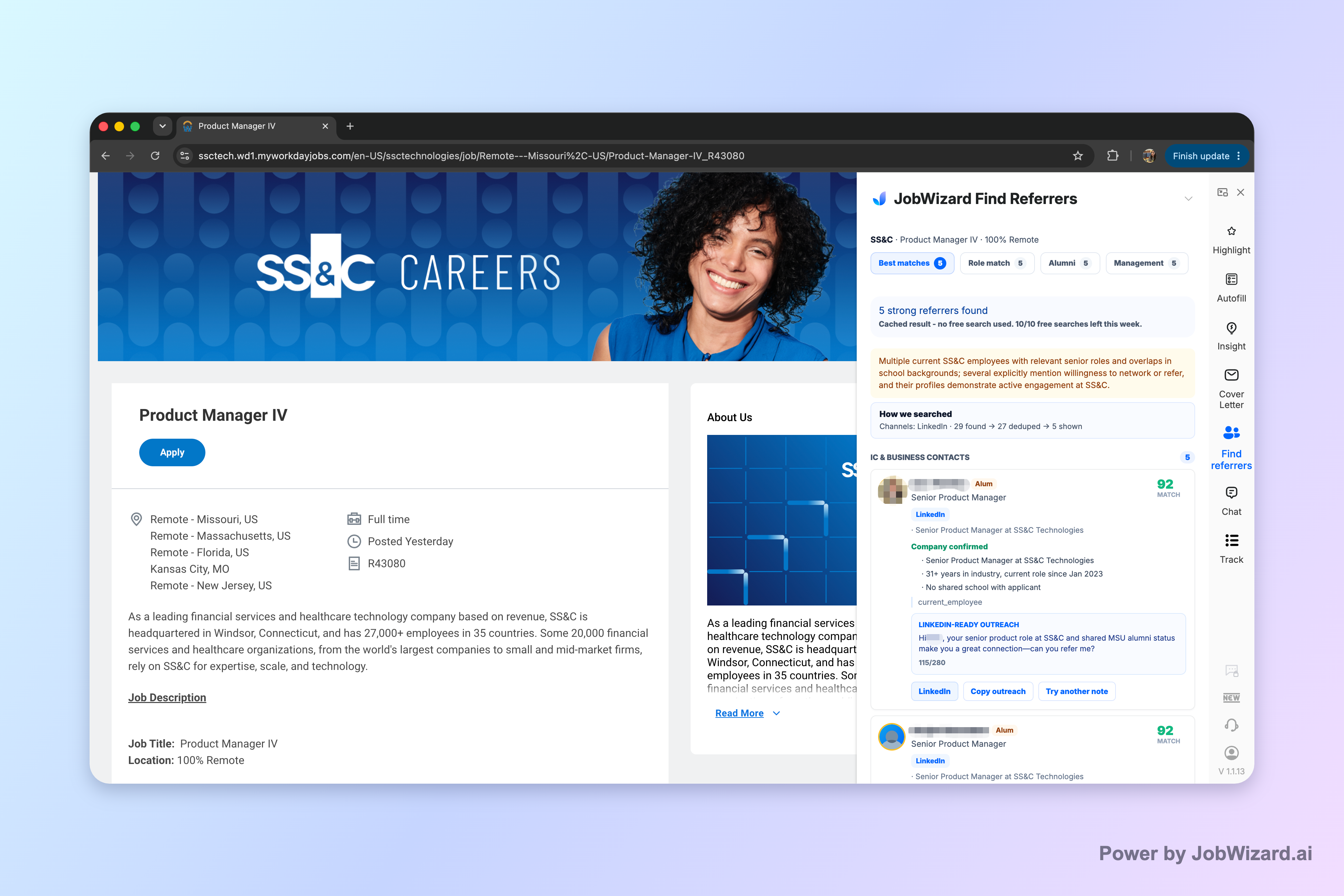
A useful note is short and easy to answer: introduce yourself, explain the connection to the role, and ask a focused question or request a brief conversation. Before sending, remove anything that sounds like a claim you cannot support or an expectation that the person will refer you.
Keep outreach separate from application follow-through. Record when you applied and whom you contacted, then give the person room to respond. A considerate message can help you start a professional conversation, but the hiring team’s process remains separate.
Choose the right pace for a LinkedIn job search
A useful application pace is one that leaves enough time to verify each submission. Applying to more listings is not automatically better if you are sending the wrong resume or overlooking important questions.
Before opening another listing, check whether it is a genuine fit on the criteria that matter to you. A quick screen can include the core responsibilities, required qualifications, location, and compensation information if provided. If the role is not a match, skip it rather than spending time on a low-quality application.
For a step-by-step approach to increasing application volume while keeping a review step, see how to mass apply for jobs on LinkedIn without bot-submit mistakes. The focus is not simply on sending more forms; it is on building a manageable workflow that preserves accuracy.
You can also compare different job-search tools and approaches in our review-first guide to job-search apps with Easy Apply. Consider which parts of your process you actually want help with: finding roles, completing repetitive fields, organizing applications, or preparing outreach.
- Set a fit threshold: Apply when the role’s core work and requirements make sense for your experience and goals.
- Keep materials distinct: Track which resume and answers you used for each opportunity.
- Reserve time to review: Do not let a faster form-filling process remove the final accuracy check.
- Follow up thoughtfully: Contact people only when you have a relevant reason and a message you can personalize.
Try JobWizard when repetitive application fields are taking up time. Use its autofill to prepare those fields, review sponsorship, salary, EEO, and custom questions yourself, and submit only after you have checked the completed application. If networking is part of your approach, use Referral Finder to identify relevant people and personalize an outreach draft before deciding whether to contact anyone.
Do this automatically with JobWizard
Skip the manual work — JobWizard's Smart Autofill handles this for you.
Easy Apply on LinkedIn: frequently asked questions
What is Easy Apply on LinkedIn?
Easy Apply is a LinkedIn job application option that lets you submit an application through LinkedIn rather than being sent to an employer’s external application site. The exact steps and requested information can vary by listing.
How do I use Easy Apply on LinkedIn without rushing past important details?
Open the listing, review the employer and role, complete the requested fields, and check your resume and answers before submitting. Treat prefilled information as a draft to verify, not as proof that every response is correct.
Can I use JobWizard to help with Easy Apply on LinkedIn?
JobWizard can autofill repetitive application fields, then leave sponsorship, salary, EEO, and custom questions for you to review before submitting. You remain responsible for checking the application and submitting it yourself.
Should I message someone at the company after applying?
You can consider a thoughtful, relevant outreach message, but a referral or response is not guaranteed. Choose someone whose role or background is relevant and personalize your note with a truthful reason for contacting them.
Frequently Asked Questions
Find someone to refer you — automatically
JobWizard spots employees at your target companies who can refer you, right from the job page.