Does LinkedIn Easy Apply Work? The Practical Answer + How to Apply Faster With JobWizard
Does LinkedIn Easy Apply work? It can help you move quickly, but the quality still depends on what you review before you submit. Here’s the fast “autofill + review” workflow JobWizard uses.
Free Chrome extension
Find someone to refer you — automatically
JobWizard spots employees at your target companies who can refer you, right from the job page.
Does LinkedIn Easy Apply work? Yes—if you use it as a speed tool, not a shortcut
So, does LinkedIn Easy Apply work? It can—because it reduces friction and helps you submit faster. But “working” really depends on whether you still review the answers that affect your fit, accuracy, and eligibility before you hit submit.
Easy Apply is best when you’re applying at volume and want to spend your limited time on what matters: role-specific responses, truthfully detailed background, and any questions that change your application’s meaning. That’s the same mindset behind JobWizard’s approach: autofill the repetitive parts, then review everything before submitting.
When Easy Apply is a good fit (and when it’s not)
Easy Apply tends to work best for roles where the application form is straightforward and the employer doesn’t require long-form essays upfront. If the process mainly asks for standard info, you’ll usually benefit from the speed.
However, Easy Apply can disappoint if the application requires careful role-specific tailoring but the UI encourages rushing. If you’re tempted to submit without adjusting custom questions or role-relevant details, you’ll likely lose momentum even if you submit quickly.
Use Easy Apply when you can answer quickly and accurately
- Your core details are consistent (work history dates, education, location preferences, and skills you can back up).
- You have strong “evidence” ready (project bullets, specific tools used, measurable outcomes you can describe).
- You can review fast (so you catch mismatches before submission).
Be careful when the app needs tailoring
- Custom prompts matter—the ones that ask “why this role,” “tell us about…” or eligibility-related specifics.
- Any sponsorship/EEO/custom questions exist—you want correct answers, not approximations.
- The role differs from your resume—if the job description is specialized, you’ll need to align your application details.
The “autofill + review” workflow that makes Easy Apply practical
If you want the speed of Easy Apply without losing control, use an autofill + review workflow: fill repetitive fields quickly, then personally verify the rest before submitting.
JobWizard’s workflow is built around that principle. Across submissions, JobWizard has 720,000+ applications submitted and 600,000+ autofill sessions run through it. On average, it autofills ~18 repetitive fields per application (typically 11–23). The key is that you still review-before-submit—especially the parts that require accuracy and personalization.
Quick reality check: JobWizard fills repetitive fields fast, then you review content like sponsorship/salary/EEO/custom questions before you submit. It’s not blind auto-apply.
What “review-before-submit” means in practice
- Autofill the repetitive fields (contact details, standard employment/education fields, and similar info).
- Scan the sections that change the meaning (eligibility, sponsorship, salary expectations where applicable, EEO items, and custom prompts).
- Adjust any role-specific answers so they reflect the job description and your real experience.
- Submit yourself once you confirm everything is accurate.
This workflow is a big reason JobWizard can save time—especially on Workday, where ~65% of applications submitted through JobWizard are on that platform. (For context: ~19% are on Greenhouse, ~12% on Ashby, ~4% on Lever.) The practical benefit is that repetitive data entry shrinks, but you keep ownership of the answers that matter.
How JobWizard’s Referral Finder adds a second “application advantage”
Speed alone doesn’t win everything—visibility does too. JobWizard’s Referral Finder helps you pursue relevant people for outreach after you apply.
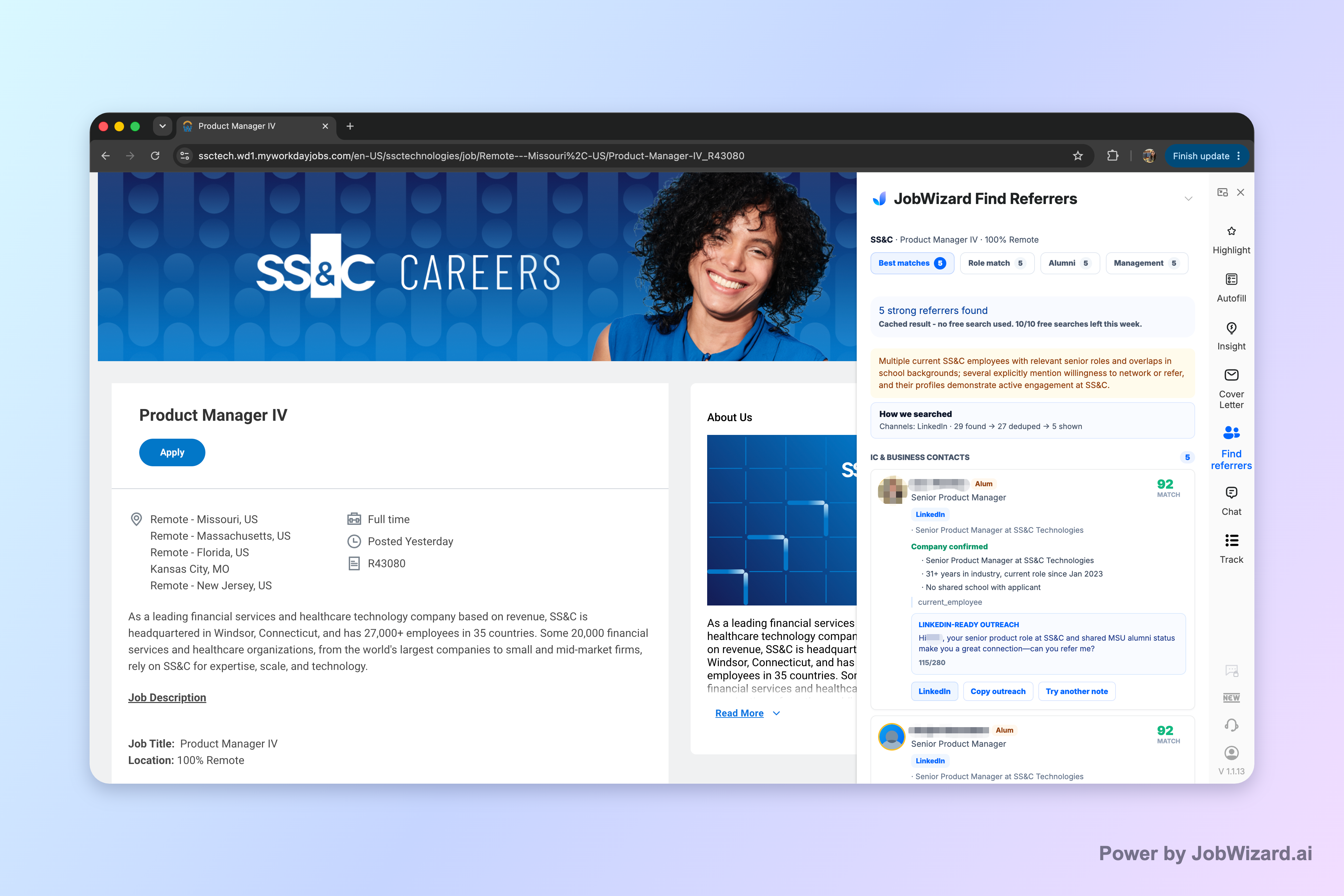
JobWizard’s Referral Finder organizes relevant employees by match type, including role and alumni context, and prepares an outreach draft the job seeker can review and personalize. Importantly, it does not guarantee contact accuracy or response success, and you choose whom to contact with a truthful, specific reason for reaching out.
Why this matters when answering “does LinkedIn easy apply work”
Easy Apply can help you get your application in quickly. Referral-style outreach can help ensure the right people see it. Together, they turn “apply fast” into “apply fast and increase the odds your application gets a human look.”
What to do with the Referral Finder draft
- Personalize the draft with a specific reason you’re reaching out (not a generic “I applied” note).
- Match the person to the context shown in your matches (role and alumni context).
- Decide who to contact based on your real connection and the job you applied for.
If you want to connect this to the rest of your process, you can also tighten follow-up timing and tracking so you’re not guessing what happened after you submit.
Track, follow up, and interpret status updates so your next move is smarter
Even when Easy Apply works, you still need a system for what happens after submission. The fastest application in the world doesn’t help if you can’t track where you are in the process.
For example, keep a simple log of the role, date submitted, and the current status wording. Then use status phrasing to decide your next action instead of checking randomly.
- Use status meanings to prioritize: learn what “not retained” means after applying and how to check next steps.
- Know Workday status language: interpret “no longer under consideration” so you don’t waste time waiting for a role that’s already moved on.
- Follow up with a proven timing plan: send your email at the right moment using a structured approach.
For a full system, use How to Track Job Applications: A Practical System (JobWizard + Beyond). If you’re seeing confusing phrases, read “What Does Not Retained Mean” After Applying? How to Check Status and Next Steps and What Does No Longer Under Consideration Mean in Workday? (Fix It Fast). And when it’s time to follow up, use Follow Up Email After Applying: The 3-Step Timing + Copy Framework That Gets Replies.
Do this automatically with JobWizard
Skip the manual work — JobWizard's Application Tracker handles this for you.
FAQ: Quick answers to “does linkedin easy apply work”
Does LinkedIn Easy Apply work if I’m applying to many roles quickly?
Yes—but only if you still review and tailor the parts Easy Apply doesn’t make meaningful. Use a fast workflow for repetitive fields, then check sponsorship/EEO/custom questions and any role-specific prompts before you submit.
What should I double-check before I hit submit on an Easy Apply application?
Confirm any custom questions, salary/sponsorship/EEO items (where present), and the specific details that prove fit (projects, key skills, work authorization details, and anything you’d want a recruiter to read). If anything is vague or mismatched, edit it first.
How is an “autofill + review” approach different from blind auto-apply?
In an autofill + review workflow, repetitive fields are filled quickly while the user reviews the application content before submitting. That means you keep control over the parts that need accuracy and personalization.
Can JobWizard help me reach out to the right people after applying?
Yes. JobWizard’s Referral Finder organizes relevant employees by match type (including role and alumni context) and prepares an outreach draft you can review and personalize before contacting anyone.
How should I track results after I apply on LinkedIn?
Track each application and its current stage, then follow up at the right time if you haven’t heard back. A practical system is to log the role, date submitted, and status, then check key status phrases to decide your next step.
Ready to apply faster without losing control? Start using JobWizard to handle repetitive form fields with autofill + review, then use Referral Finder to personalize outreach—so your time goes to accuracy and networking, not data entry.
Frequently Asked Questions
Find someone to refer you — automatically
JobWizard spots employees at your target companies who can refer you, right from the job page.