linkedin job search app that finds warm contacts and streamlines applications
A strong linkedin job search app isn’t just about auto-filling forms. Learn how to combine warm outreach with review-before-submit applications using JobWizard.
Free Chrome extension
Find someone to refer you — automatically
JobWizard spots employees at your target companies who can refer you, right from the job page.
Why a linkedin job search app needs both outreach and reviewed applications
If you’re using a linkedin job search app, the real problem is usually bigger than form-filling: you need a way to identify the right people to contact and still submit applications with your own accurate answers.
Many job seekers try to “speedrun” applications with bots that fill everything automatically. That can create avoidable issues when questions require nuance (or when your information must be truthful and specific). A better approach is to pair fast data entry with a review step—so you keep control of the content that matters.
JobWizard supports this “autofill + review-before-submit” mindset while also helping you do outreach thoughtfully through its Referral Finder. In practice, that means you can move faster without skipping the parts of the job search that benefit from human specificity: your reasons, your priorities, and your personal messages.
Before we get into tactics, a quick reality check: JobWizard autofills an average of ~18 repetitive fields per application (typically 11–23). Across submitted applications, the majority go through Workday (~65%), followed by Greenhouse (~19%), Ashby (~12%), and Lever (~4%)—and Workday is where the time savings tend to be greatest.
Use Referral Finder to turn LinkedIn network into warm, tailored outreach
The fastest way to make LinkedIn networking feel productive is to use Referral Finder to organize relevant employees and draft outreach you can personalize.
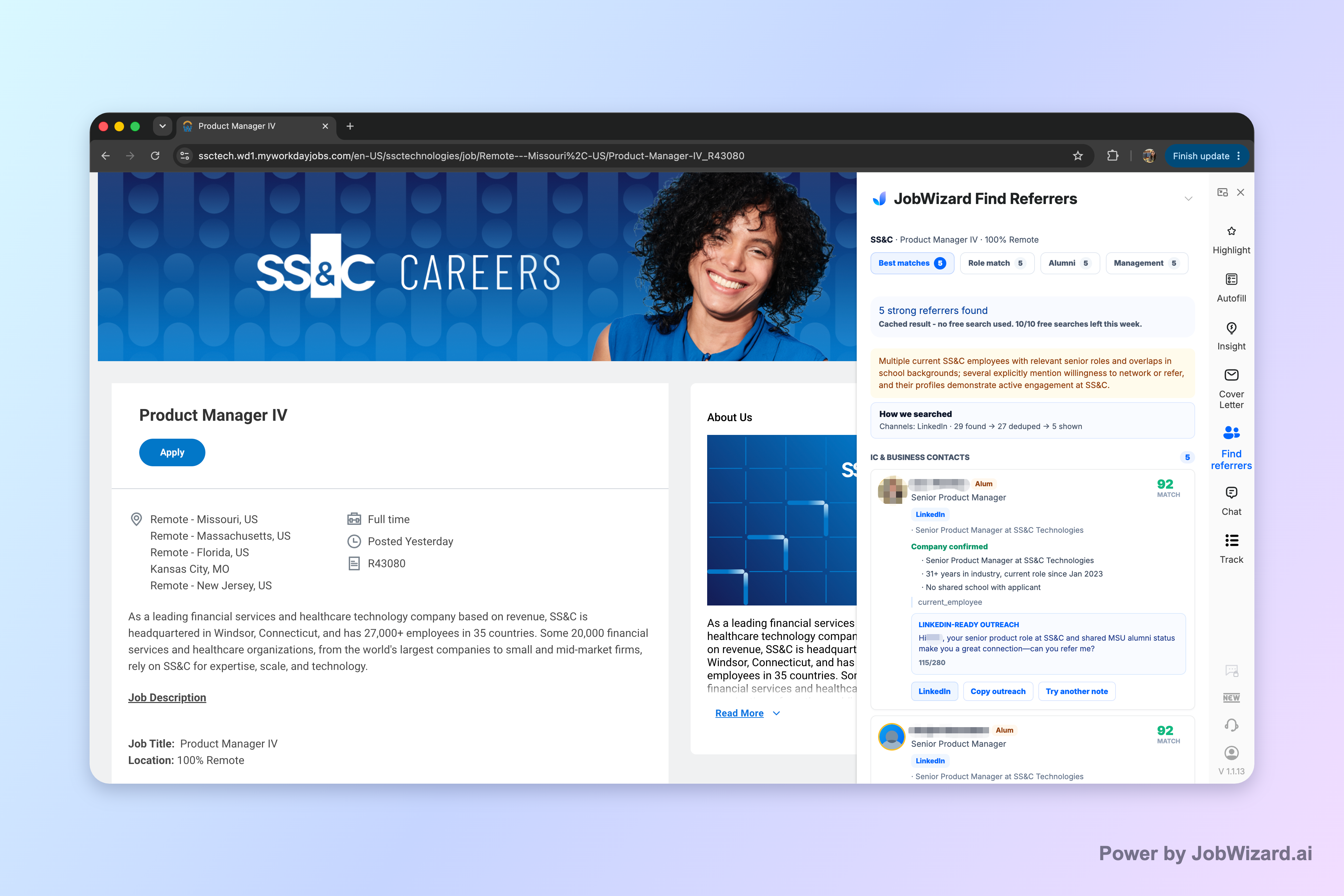
Referral Finder organizes relevant employees by match type, including role and alumni context, and then prepares an outreach draft that you can review. The key point: the draft is a starting point—not something you should send as-is.
You choose whom to contact, and you must add a truthful, specific reason for reaching out. This matters because a generic “Can you refer me?” message often reads like spam, while a specific note signals you did your homework.
What “match type” means for message quality
Instead of hunting manually, Referral Finder groups people so you can decide which message angle fits best—depending on how close they are to the role and team.
- Role-aligned contacts: good for messaging that references the job’s focus and your fit.
- Alumni/context matches: often work well when you can connect to shared experience or background.
- Networking approach: choose an angle that feels natural for the person, not just the one you want to contact.
How to personalize the outreach draft (without overthinking it)
When you get a draft, treat it like a template. Your job is to swap in details that only you can supply—your reason, your proof, and your ask.
- Replace the “why you” line with a truthful, specific reason tied to the employee’s context.
- Add one concrete credential (project, achievement, or relevant experience) that maps to the role.
- Make a low-friction ask: ask for guidance on the hiring process or whether they’d be open to passing along your resume.
- End with a clear next step (e.g., “If helpful, I can share a brief note with my resume and why I’m interested.”).
Referral Finder helps you organize and draft outreach; it doesn’t guarantee accuracy, responses, or referrals. Your choices and truthful context are what make the outreach work.
Pair autofill with review-before-submit to avoid common bot-apply problems
A linkedin job search app should save you time on repetitive fields while you personally review the parts that require judgment—this is the core “autofill + review-before-submit” workflow.
JobWizard’s approach is built around speed in the fields that are typically repetitive, followed by your review before submission. That reduces the chance of sending incorrect details for questions that depend on your experience or circumstances.
It’s also a practical way to maintain quality when you apply quickly, because you can’t scale your job search if each application takes an hour of copy/paste and manual re-entry.
What you should never fully delegate to automation
Even when a tool fills repetitive data, you still need to own the answers that depend on truth, nuance, or your personal circumstances.
- Sponsorship and eligibility questions: you must answer based on your actual status.
- Salary or compensation preferences: customize to what you’re willing to accept.
- EEO-related questions: answer accurately and thoughtfully.
- Custom application questions: these usually determine whether you seem like a real fit.
This is exactly why the review-before-submit step is non-negotiable: it’s where you prevent avoidable mismatches between your real background and what gets submitted.
A sample workflow you can repeat every week
Here’s a concrete routine designed for consistency—especially if you’re applying while also sending outreach.
- Identify targets: pick roles you genuinely want and build a short list.
- Run autofill for speed: let the tool populate repetitive fields so you’re not retyping the same information.
- Review before submit: check the parts that require your specific answers.
- Submit yourself: confirm everything looks right, then submit.
- Do targeted outreach: use Referral Finder to pick a few warm contacts per role and personalize the draft.
To be clear, the goal isn’t “apply as fast as possible.” The goal is “apply consistently without sacrificing accuracy,” while outreach increases your chances of standing out.
How to choose the right linkedin job search app features for your goals
Not every linkedin job search app is built for the same workflow, so choose based on what you’re trying to improve most: outreach quality, application speed, or both.
Feature set that matches a serious LinkedIn strategy
If your goal is to land interviews, you need an experience that supports both sides of the job search: (1) being found by recruiters and (2) creating credibility with hiring teams.
- Referral Finder-style outreach: helps you identify relevant employees and draft a message you can personalize.
- Autofill + review-before-submit: helps reduce repetitive work while keeping your judgment in the loop.
What “good” looks like in practice
When you use a linkedin job search app well, you’ll notice changes that aren’t just about speed. Your outreach becomes more specific, your applications become more consistent, and your weekly process becomes easier to sustain.
- Fewer copy/paste errors because repetitive fields are handled systematically.
- Better messages because your reasons and proof get inserted into the outreach draft.
- Higher confidence because you personally review before submitting.
Realistic expectations: speed matters, but accuracy and context decide outcomes
If you’re looking for a linkedin job search app, set expectations around what tools can and can’t do.
JobWizard supports speed in repetitive application fields and helps you plan outreach with Referral Finder. But it can’t guarantee contact accuracy, responses, or referrals—and no tool can responsibly promise those outcomes.
Also, application volume alone isn’t the win; it’s application quality at a sustainable pace. When you combine autofill with review-before-submit, you reduce friction without turning your job search into guesswork.
What success looks like for you (not for the tool)
- Your outreach becomes credible because you personalize with truthful specifics.
- Your applications become consistent because you don’t keep retyping critical details.
- Your submissions stay intentional because you review before clicking submit.
So the practical takeaway is simple: use a linkedin job search app to remove repetition, then use your judgment to remove ambiguity.
Do this automatically with JobWizard
Skip the manual work — JobWizard's Referral Finder handles this for you.
FAQ: linkedin job search app questions job seekers ask before switching
Is a linkedin job search app only useful for auto-applying?
No. The best workflow is “autofill + review-before-submit” so repetitive fields are filled fast, while you personally handle sponsorship/salary/EEO/custom questions and any required context.
How does Referral Finder work inside JobWizard?
Referral Finder organizes relevant employees by match type (including role/alumni context) and prepares an outreach draft you can review and personalize before contacting anyone.
Will a referral guarantee I get the job?
No. Referral Finder helps you identify people and draft outreach, but you choose whom to contact and must include a truthful, specific reason for reaching out. No tool can guarantee a referral or response.
What should I review before submitting an application after autofill?
Review the parts that require your judgment or accurate details—especially sponsorship/salary/EEO/custom questions and any fields you must answer based on your own experience—so you submit information you’d be comfortable with.
Ready to speed up your LinkedIn job search without sacrificing accuracy? Use JobWizard to run autofill for repetitive application fields and use Referral Finder to draft personalized outreach you can review before contacting anyone.
Frequently Asked Questions
Find someone to refer you — automatically
JobWizard spots employees at your target companies who can refer you, right from the job page.