Sending a Follow-Up Email After No Response Sample: A Reply-First Template + Timing That Gets Seen
Need a sending a follow-up email after no response sample that doesn’t sound pushy? Use this reply-first template, plus a simple application tracker workflow to check status before you follow up.
Free Chrome extension
Autofill your next job application
JobWizard is a free Chrome extension that fills applications, tracks statuses, and optimizes your resume.
You’re not imagining it—most job searches feel like silence after you apply. That’s why a sending a follow-up email after no response sample can be the difference between “did they even see it?” and “thanks—here’s what we need next.”
The key is to follow up in a way that recruiters can respond to quickly. This guide gives you a ready-to-send template, a timing approach, and a practical way to check application status so your email doesn’t feel like spam.
Before you email, use your job tracker to confirm what you already know—especially whether the application is still in process.
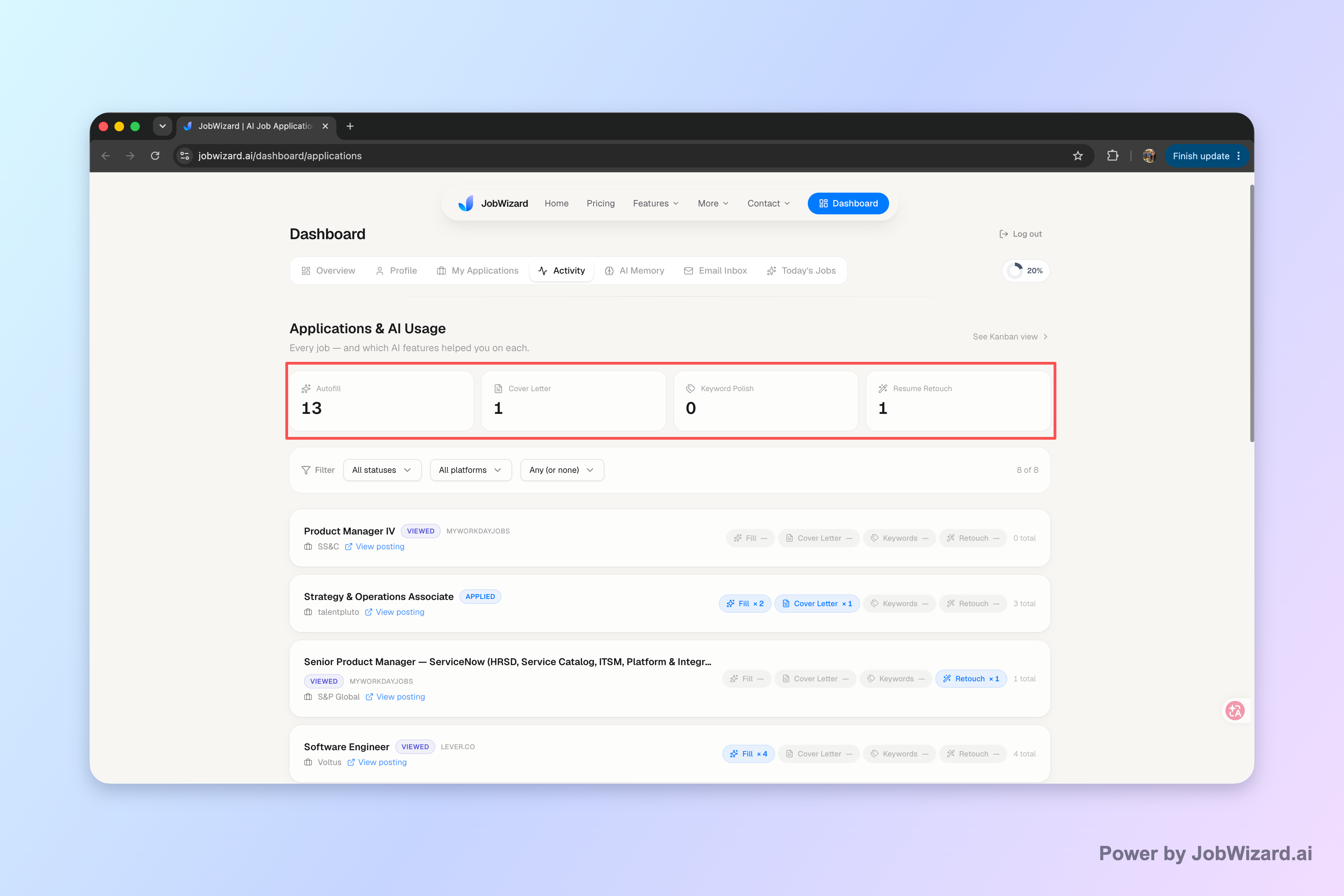
JobWizard’s Activity view helps you see application status and which JobWizard tools were used for each role, so you can follow up based on what’s actually happening—not guesses.
What “after no response” follow-up really means (and why timing matters)
After no response follow-up is less about persistence and more about prompting a reply while the hiring team still has your application in mind.
Most applicants treat “no response” as one single situation. In reality, “nothing heard yet” can mean different stages: the team may be reviewing, comparing internal candidates, or waiting on approvals. If you send a follow-up before your application has moved anywhere, you can accidentally ask them to respond at a time when they’re not able to.
Use two signals when deciding whether to follow up again:
- Status signals: if your application tracker shows it’s still active (e.g., under consideration/in process), follow up gently once.
- Time signals: if it’s been long enough for review, send a short message designed for an easy yes/no reply.
If you’re writing to a recruiter or hiring manager, remember: they’re busy. Your follow-up should make it effortless for them to answer your question in one sentence.
Sending a follow-up email after no response sample (reply-first template)
Here’s a sending a follow-up email after no response sample you can copy and tailor—built to invite a response instead of restating everything you already sent.
Subject line options (pick one):
- Checking in: [Role Title] application
- Question about [Role Title] application
- Re: [Role Title] — following up
Email template:
Hi [Name], I hope you’re doing well. I’m following up on my application for the [Role Title] at [Company], submitted on [Date]. Quick question: is this role still being considered, or is there a next step I should be preparing for? If it helps, I’m happy to share any additional details you need. Thanks for your time—looking forward to your guidance. Best regards, [Your Name] [Phone] | [LinkedIn or Portfolio]
Why this works: it’s short, specific, and it asks a question that’s easy to answer. It also avoids sounding like you’re demanding an outcome.
If you already used a resume follow-up earlier, you may want to align your wording with what you sent before. For role-based variations by status, see Follow Up Email After Sending Resume: What to Write by Status (and When).
How to customize the sample so it doesn’t look copy-pasted
Customization is what turns a template into a credible message the hiring team will actually want to read.
Update these details before you send:
- Role title + company: match the exact posting language if possible.
- Submission date: keep it accurate so your follow-up doesn’t look automated.
- One relevant detail: choose a single line that connects you to the role (a skill, project, or credential mentioned in the posting).
- A clear question: ask about next steps or whether it’s still under consideration—don’t ask “any updates?”
Example of a “one relevant detail” line you can insert (choose one):
- “I’m especially excited about the team’s focus on [specific topic] and my experience with [matching skill].”
- “I believe my background in [domain] aligns well with the work on [mention from the posting].”
If you want a shorter version, you can also adapt your message style. For interview-specific wording, use short and sweet follow-up email after interview sample: 7 ready-to-send notes. (This one is for interviews, but the “short and easy to reply to” principle transfers well.)
Where to check your application status before you follow up again
Checking status first helps you choose the right moment and prevents endless “just checking in” emails.
JobWizard’s Activity view shows you where each application stands and which JobWizard tools were used along the way—so you can plan your next move with less guesswork. And it supports a review-before-submit workflow: you typically fill repetitive fields quickly, but you still review sponsorship/salary/EEO/custom questions before submitting.
Use this simple decision rule:
- If your tracker shows the application is still active/in process, send one follow-up that asks about next steps.
- If you receive a response or the status changes, switch from “follow up” to “respond and act.”
- If your tracker shows the application is no longer active (e.g., not retained/dispositioned), stop emailing that thread and move on to new targets.
To keep everything organized, consider a dedicated system for tracking and follow-ups. This pairs well with How to Track Job Applications: A Practical System (JobWizard + Beyond).
And if you’re building your message around a “reply-first” pattern, this can help you get the tone right too: Example of a Follow Up Email After Application: A Reply-First Message + Timing Rules.
Do this automatically with JobWizard
Skip the manual work — JobWizard's Application Tracker handles this for you.
FAQ: Sending a follow-up email after no response sample
How long should I wait before sending a follow-up email after no response?
Wait long enough that the team has had time to review, then send a brief, single follow-up that asks a question instead of repeating your whole application. If you’re tracking in an activity view, check whether your application is still active (or marked as viewed/in process) before you email again.
What should I say if I don’t know whether my application was received?
Use a “reply-first” line: reference the role title and date you applied, then ask whether it’s still being considered. If you have it, include the submission method or any reference details you received—keep it short and make it easy to respond.
Can I use the same follow-up email for every job?
You can reuse the structure, but you should customize at least the role title/company, your date, and one detail that proves you’re applying for that specific posting. Avoid copy-pasting identical text across companies because it reduces your credibility and can look automated.
Should I attach anything in a follow-up email after no response?
Usually no. First try a short note that prompts a reply. Only attach or re-send documents if the job posting explicitly asks for it or if you previously sent the wrong file.
How do I track applications so my follow-up email timing makes sense?
Keep every application and its next step in one activity view. Check application status there (including which tools you used) so you don’t follow up blindly, and so you can stop when the status changes or you get a response.
Ready to follow up with confidence? Keep each application and its next step in one activity view with JobWizard, so you can check application status before you send—and then write one clean, reply-first follow-up message.
Frequently Asked Questions
Autofill your next job application
JobWizard is a free Chrome extension that fills applications, tracks statuses, and optimizes your resume.