How to Send a Follow Up Email for a Job: A Reply-Ready Plan (No Guesswork)
Wondering how to send a follow up email for a job that actually gets read? Use a reply-ready structure, clear timing, and an application tracker so you never sound redundant.
Free Chrome extension
Autofill your next job application
JobWizard is a free Chrome extension that fills applications, tracks statuses, and optimizes your resume.
If you’re searching for how to send a follow up email for a job, you’re probably stuck on two things: when to email and what to say so you don’t look impatient. The good news is you can make follow-ups feel natural (and recruiter-friendly) with a simple structure and a repeatable process that keeps your context straight.
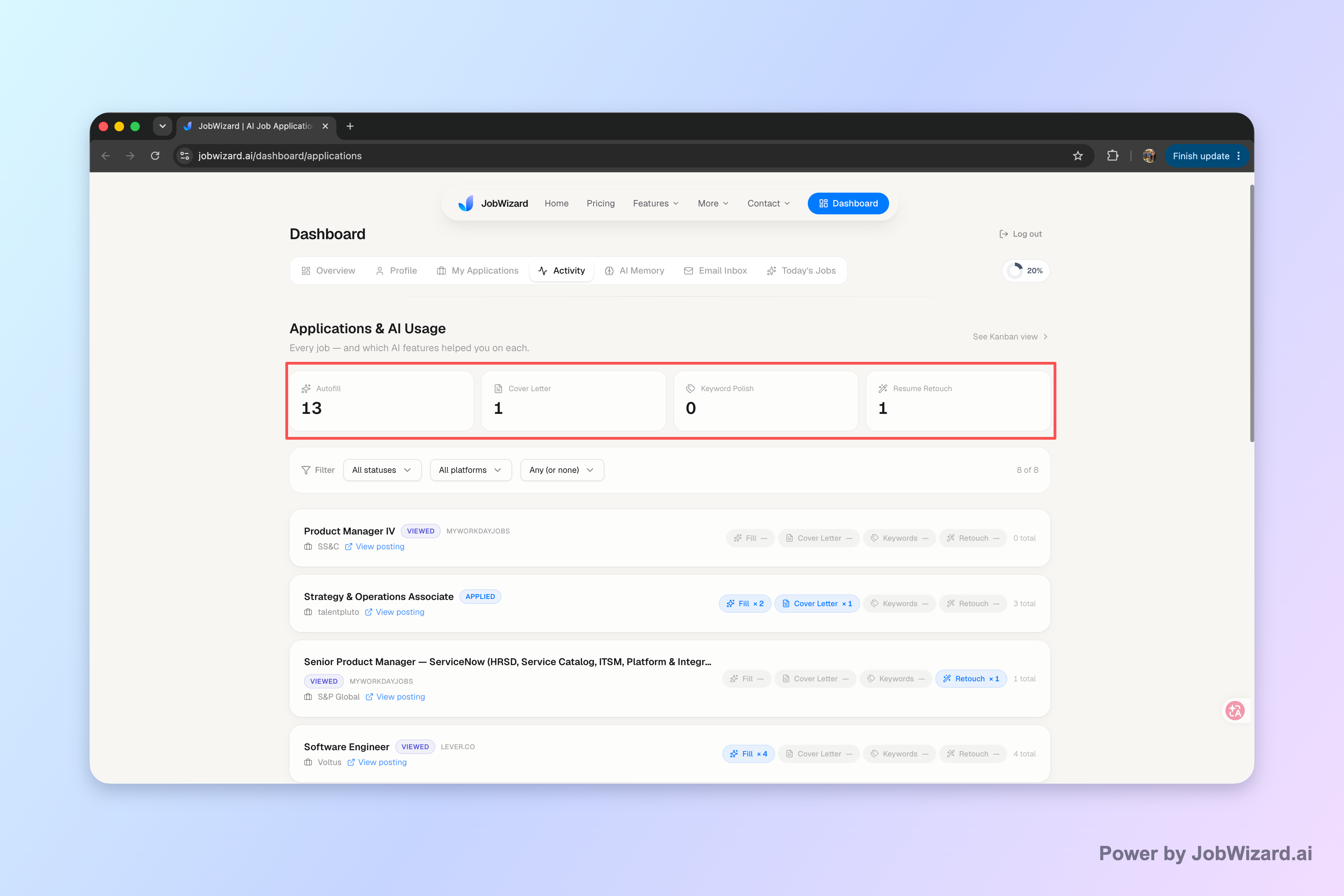
Before you write the email, make sure you know where each application stands. With JobWizard’s Activity view, you can see application status and which JobWizard tools you used for each role—so your follow-up doesn’t contradict what the portal says.
Start with your goal: reply-first follow up, not a new pitch
The fastest way to write a strong follow-up is to decide what you want the employer to do next: confirm receipt, consider your application, or respond with timing. For most “after applying” emails, your goal should be one clear ask—not another full introduction.
Instead of starting from scratch, use a reply-first mindset:
- Re-confirm interest in the role in one line
- Reference your prior submission (role title, date, and any confirmation details)
- Add one relevant point (a project, a metric, or a match to the posting)
- Close politely with a low-pressure question
If you want a ready-to-send starting point, you can also align your tone with this resource: Job Application Follow Up Email Example: Reply-First Notes for After You Apply.
Choose the right timing using the role’s status and your last touch
Timing is what separates “thoughtful follow-up” from “spam.” A practical approach is to send one follow-up after a reasonable window, then stop unless you receive new information or a status change.
Here’s a simple way to time it:
- After applying wait until a decision cycle has started (often a few business days).
- Use status as your cue (e.g., “under review” vs. “pending” calls for different wording).
- Check your last email so you don’t double-contact.
- Follow up once more only if needed—then pause.
If you’re using an activity or job tracker, you’ll avoid a common mistake: sending the same message cadence across roles that are actually at different stages. JobWizard’s Activity view is designed to help you keep that context in one place while you work through multiple applications.
For status-specific wording, this guide helps: Follow Up Email After Interview Status: What to Send for “Pending,” “In Review,” and More.
Write a follow-up email that’s short, specific, and easy to answer
Your follow-up email should be skimmable. Recruiters decide whether to respond in seconds, so make it one page or less and use plain language.
Subject lines that get opened
Keep your subject line direct. You’re not asking for attention—you’re providing context. Examples:
- Following up on [Role Title] — [Your Name]
- Re: [Role Title] application
- Application update for [Role Title]
Email body formula (plug-and-play)
Use this structure and replace the bracketed fields:
- 1st line: remind them what you’re following up on
- 2nd line: confirm interest in one sentence
- 3rd line: add one relevant detail (matching the job description)
- Last lines: ask a low-pressure question and thank them
Example template (after applying):
Subject: Following up on [Role Title] — [Your Name] Hi [Hiring Manager/Team], I’m following up on my application for the [Role Title] position submitted on [Date]. I’m still very interested in the role, especially because [1 specific reason tied to the posting]. If it helps, here’s a quick detail that aligns with what you’re looking for: [one sentence of relevant proof]. Thank you for your time—would you be able to share any updates on the timeline for next steps? Best regards, [Your Name]
If your follow-up is after an interview (different context, different tone), use this companion resource: Get a sample of follow up letter for interview—plus a ready-to-send template.
Tailor the message to the situation: after applying vs. after interview
The content changes based on where you are in the process. The key is to match the reader’s context, so your email feels like a continuation—not a restart.
After you apply (no interview yet)
- Keep it brief: you’re confirming interest and asking for the next update.
- Don’t over-explain: the application already contains the details.
- Offer a small value-add: one relevant project, skill, or outcome.
After an interview
- Reference the conversation: a topic you discussed or a problem you solved.
- Reinforce fit: connect your experience to their goals.
- Ask about timing: “Is there anything else you need from me?”
If you’re trying to send a follow-up after an update like “pending” or “in review,” use the status-specific guidance in Follow Up Email After Interview Status: What to Send for “Pending,” “In Review,” and More so you don’t sound generic.
Use an application tracker so follow-ups stay consistent across roles
When you’re applying to multiple jobs, it’s easy to forget which roles are new, which are under review, and which you already emailed. That’s why tracking beats memory.
JobWizard’s Activity view helps you keep each application and its next step in one place, including application status and which JobWizard tools were used for each role. That means your follow-up email can stay aligned with what the employer has on file.
The Activity view shows application status and which JobWizard tools were used for each role.
To build a repeatable workflow, pair your email templates with a consistent tracking habit. For more on managing the process, use: How to Track Job Applications: A Practical System (JobWizard + Beyond).
Do this automatically with JobWizard
Skip the manual work — JobWizard's Application Tracker handles this for you.
FAQ: how to send a follow up email for a job
When should I send a follow up email after I apply for a job?
A safe rule is to wait until you’d expect a decision cycle to start (often a few business days), then follow up once more if you don’t hear back. If you have an application status like “under review” or “pending,” match the tone to that status and avoid emailing too frequently.
What should I write in the subject line of a follow up email for a job?
Use a clear, low-pressure subject line that ties to the role and your action, such as “Following up on [Role Title] — [Your Name]” or “Re: [Role Title] application.” Keep it consistent with what you submitted (especially if you already received an email confirmation).
Should my follow up email reference my application confirmation or previous message?
Yes—reference what the employer already has, like the role title and any reference number or the fact that you applied on a specific date. If you received a confirmation email, you can “reply” to that thread so the recruiter sees your context faster.
How do I know what wording to use when the job portal shows a status like “In Review” or “Pending”?
Use status-based wording: acknowledge the current state (“I saw the application is in review”) and offer one helpful point (e.g., a specific relevant experience). If it’s “pending,” keep it brief and confirm you’re still interested without sounding demanding.
Is it okay to send a follow up email if I haven’t heard back yet?
Yes, as long as it’s polite and timely. Send one follow up when you’re still within a reasonable window, then stop and wait. If you track application activity, you can tailor your message to each role’s next step instead of sending the same email repeatedly.
Ready to send follow-ups without losing track? Keep every role’s status and your next action in one place with JobWizard’s Activity view, then use the templates above to write clear, reply-ready follow-up emails for each job.
Frequently Asked Questions
Autofill your next job application
JobWizard is a free Chrome extension that fills applications, tracks statuses, and optimizes your resume.