Position Follow Up Email That Gets Replies: The 7-Day Plan to Track, Write, and Send
Learn how to craft a position follow up email that drives replies—plus a simple tracking workflow so you know exactly what to send and when.
Free Chrome extension
Autofill your next job application
JobWizard is a free Chrome extension that fills applications, tracks statuses, and optimizes your resume.
Answer: send a well-timed position follow up email, referencing your application details and the right next step, and keep a lightweight tracker so you never forget.
Most job seekers don’t struggle with “what to say”—they struggle with timing + organization. If you send too early, your message can feel intrusive; if you send too late, the hiring window may already have moved on. This guide gives you a practical 7-day plan plus ready-to-use copy, anchored to a simple job tracker workflow so each message matches where your application actually stands.
If you want a system that makes follow-ups easier, start by keeping each role’s status and next action in one place.
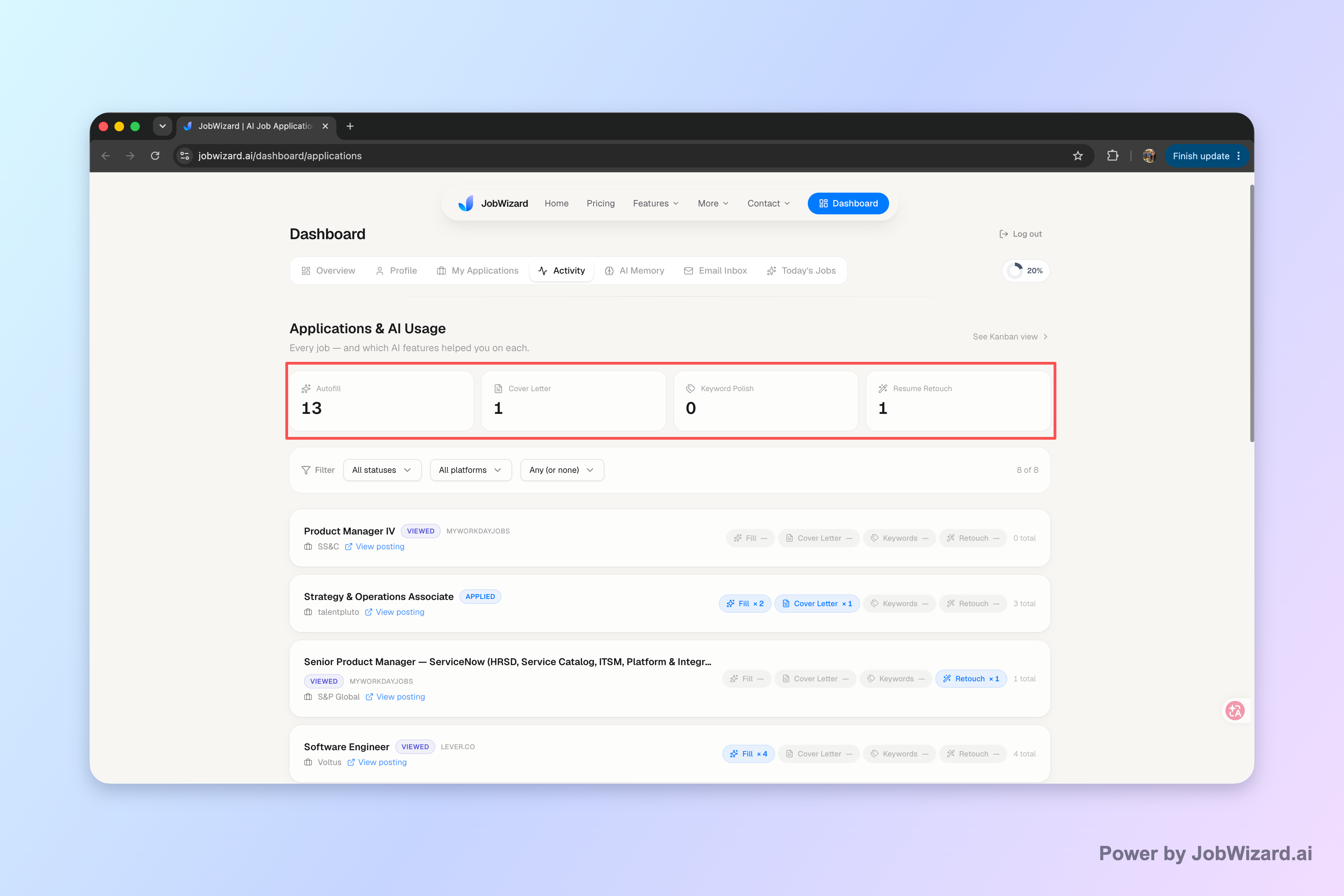
Keep every application’s next step visible in one place. The Activity view shows application status and which JobWizard tools were used for each role, so you can line up follow-ups without guessing where things stand.
Build your follow-up timing using a simple 7-day workflow
A position follow up email works best when it’s scheduled like a sequence, not a one-off.
Use this 7-day workflow as your default. It’s designed for the most common scenario: you applied online and you’re waiting to hear back. You’ll still adjust based on any timeline mentioned in the job posting, but this plan prevents “random pinging” and keeps you from forgetting follow-ups.
- Day 0–1 (prep, don’t send): Save the role title, application date, and any details you want to reference (requirements, keywords, or your relevant experience).
- Day 5–7 (Email #1): Send your first position follow up email to confirm receipt and ask about the next step.
- Day 12–14 (Email #2, if no reply): Send a short reminder that reiterates fit and asks whether the team is still reviewing applications.
- Day 18–21 (Stop or pivot): If you still hear nothing, pause email follow-ups and pivot to networking or targeted outreach (without repeatedly spamming the same inbox).
Key point: treat this as review-before-send. Autocomplete tools can help fill repetitive details fast, but you should still review the message so sponsorship, salary, EEO, or custom questions don’t get sent incorrectly.
Write a reply-focused position follow up email (template + structure)
The goal of a position follow up email is to make replying easy: clear context, clear question, and short length.
Hiring teams are busy. If your email makes them hunt for information, they’re less likely to respond. Use this structure and keep it tight—think “useful update,” not a demand for attention.
The structure that wins responses
- 1) One-line reminder: Role title + the date you applied.
- 2) One-sentence fit: A specific tie to the posting (not a generic “I’m a great match”).
- 3) One clear question: Something the recruiter can answer in one sentence.
- 4) Polite close: Thank them and offer to provide anything else they need.
Template you can copy (and personalize fast)
Subject line options:
- Application Follow-Up: [Position Title]
- Checking in on [Position Title] Application
- Any update on [Position Title]?
Email body template:
Hi [Hiring Manager/Recruiter Name], I hope you’re doing well. I’m following up on my application for the [Position Title] role submitted on [Date]. I’m especially interested because [1 specific reason tied to the job posting]. If the team is still reviewing applications, could you share what the next step looks like? If there’s anything else you need from me, I’m happy to provide it. Thank you for your time, [Your Name] [Phone] | [LinkedIn] (optional)
Why this works: your question is low-friction, and your fit statement is concrete. That combination supports replies without sounding pushy.
Personalize your follow-up so it doesn’t read like copy-paste
Personalization for a position follow up email should be small but specific—just enough to prove you mean this role.
Instead of rewriting your entire email each time, keep the same structure and swap only the details that matter. Here are high-impact edits that take minutes.
What to customize (use 2–3 of these)
- Role-specific keywords: Mirror 1–2 phrases from the posting (e.g., “cross-functional collaboration,” “data pipelines,” “customer onboarding”).
- One concrete accomplishment: Add a single result or measurable detail from your experience—only if it’s true and relevant.
- Context from the posting: Reference a requirement (“strong stakeholder management”) or a focus area (“improving reliability”).
- Application-channel detail: If the application asked for something specific, mention it briefly (e.g., portfolio link submitted, work samples attached).
A “second email” that stays polite (and shorter)
Subject line options:
- Re: [Position Title] Application Follow-Up
- Follow-Up #2: [Position Title]
- Quick check-in on my application
Email body (keep it brief):
Hi [Name], Just a quick second follow-up on my application for [Position Title] submitted on [Date]. I remain very interested, especially because [short role-specific reason]. Is the team still reviewing applications for this role, and is there any information that would be helpful from me to move to the next step? Thanks again, [Your Name]
Pro tip: if you’re tracking multiple applications, use your tracker’s “where each application stands” view to decide whether this second message still makes sense.
Use templates and a tracker together (so your follow-ups stay consistent)
Templates save time, but a tracker keeps your position follow up email aligned to the application’s real status.
A reliable workflow looks like this: you draft from a template, then you confirm the role title and application date, then you review the message before sending. Your tracker is the guardrail that prevents you from emailing the wrong recruiter, wrong role, or wrong timeline.
Where JobWizard fits in your process
- Track each role’s status: Use the Activity view to see where each application stands and what tools were used along the way.
- Fill repetitive fields faster: JobWizard autofills an average of ~18 repetitive fields per application (typically 11–23), while you review sponsorship/salary/EEO/custom questions before submitting.
- Stay organized across platforms: Of applications submitted through JobWizard, ~65% are on Workday, ~19% Greenhouse, ~12% Ashby, and ~4% Lever—Workday is where it saves the most time.
Reality check: the repetitive parts can be filled quickly, but you still control what you submit—use your review step to keep your follow-ups accurate and your application details correct.
If you want deeper system-building guidance, read: How to Track Job Applications: A Practical System (JobWizard + Beyond).
More follow-up resources (and common mistakes to avoid)
If you want to improve reply rates, focus on clarity, respectful timing, and relevance—not volume.
Here are additional resources that pair well with this plan, plus mistakes to avoid so your position follow up email feels professional.
- How to Write a Follow Up Email After Application (and Get a Real Reply) — if you want more variations and examples beyond this template.
- An Email Template for Job Application That Gets Replies (with Subject Lines + Follow-Up Copy) — for tighter subject lines and different phrasing styles.
- Looking for another word for follow-up? Use these email + hiring tracker phrases (with examples) — for alternatives that keep emails fresh while staying consistent.
Common mistakes that reduce replies
- Sending too many follow-ups: Two polite emails spaced out is usually enough before you pivot to other actions.
- Asking vague questions: “Any updates?” invites a dead-end. Ask a specific next-step question.
- Forgetting personalization: If the email says you’re applying for the wrong role or date, the recruiter may ignore it.
- Long emails: Keep it readable—short paragraphs and one clear question.
When you combine a simple 7-day schedule with a position follow up email template and an application activity view, follow-ups stop feeling random and start feeling intentional.
Ready to get organized before you send? Use JobWizard to keep each application and its next step in one Activity view, so every position follow up email is accurate, on-time, and easy to act on.
Do this automatically with JobWizard
Skip the manual work — JobWizard's Application Tracker handles this for you.
FAQ: Position follow up email
When should I send a position follow up email after applying?
A good default is to send your first position follow up email about 5–7 business days after you apply, then send one more reminder about a week after that if you still haven’t heard back. If the job post lists a specific contact date or timeline, follow that first.
What should I include in a position follow up email to get replies?
Include the basics (role title, when you applied, and how your experience fits), then make it easy to respond by asking a clear, low-friction question (e.g., whether the team is still reviewing applications or what the next step is). Avoid sounding demanding, and keep your message short and specific.
Should I use the same wording every time I send a position follow up email?
No. Reuse the structure, but update the details: the specific role, the date you applied, and any relevant context from the posting (keywords, requirements, or your most relevant experience). Small changes help your email feel relevant instead of copy-pasted.
How do I track applications so I don’t miss follow-ups?
Use an application activity view that shows each application’s status and where each role stands, so you can line up the next email you plan to send. Then, before you hit send, review each email against the application’s current status and any details you already entered.
Is it better to follow up by email or a different channel?
If you applied through the company’s application portal or via email instructions in the posting, email is usually the safest first choice. If the job post explicitly asks for a different channel (like a recruiter’s email or a specific form), follow those instructions for your position follow up email.
Frequently Asked Questions
Autofill your next job application
JobWizard is a free Chrome extension that fills applications, tracks statuses, and optimizes your resume.