
Workday Chrome Extension for Faster Applications: Smart Autofill + Review-Before-Submit
Searching for a workday chrome extension to speed up job applications? Learn how Smart Autofill fills detected fields, then lets you review and submit yourself—without risky auto-apply.
Free Chrome extension
Autofill your next job application
JobWizard is a free Chrome extension that fills applications, tracks statuses, and optimizes your resume.
If you’ve ever stared at a long Workday application form, you already know the real time sink isn’t “thinking”—it’s typing. That’s why the search term “workday chrome extension” keeps coming up: job seekers want faster autofill for repetitive fields, without losing control of what actually gets submitted.
This guide explains how a workday chrome extension workflow should work in practice—what it can fill, what you still need to review, and how to handle required fields that need your attention. (We’ll focus on Smart Autofill behavior on Workday-style forms.)
What a workday chrome extension should do (and what it should not)
A good workday chrome extension workflow fills detected fields, then forces review-before-submit. JobWizard’s Smart Autofill uses saved profile and resume data to fill the fields it detects on supported application pages.
Here’s the key distinction: Smart Autofill is designed for autofill + review-before-submit, not automatic submission. You review the populated fields and submit the application yourself. That matters because application forms often include items that require context or preferences you control.
- Does autofill for repetitive fields: speeds up the “copy from my resume/profile into the form” steps.
- Leaves submission to you: you confirm what’s been filled and then click submit yourself.
- Helps you find what still needs attention: required fields that can’t be confidently completed are flagged for you to review.
Remember: you should not expect perfect accuracy, instant completion, or universal support for every website layout. Smart Autofill fills what it can detect, and your review is the safety net.
Smart Autofill on Workday: fill fast, then jump to what’s required
Smart Autofill can populate Workday fields from your saved data, and it can guide you to missing required inputs. If a required field still needs attention, JobWizard identifies it and lets you jump directly to the matching question.
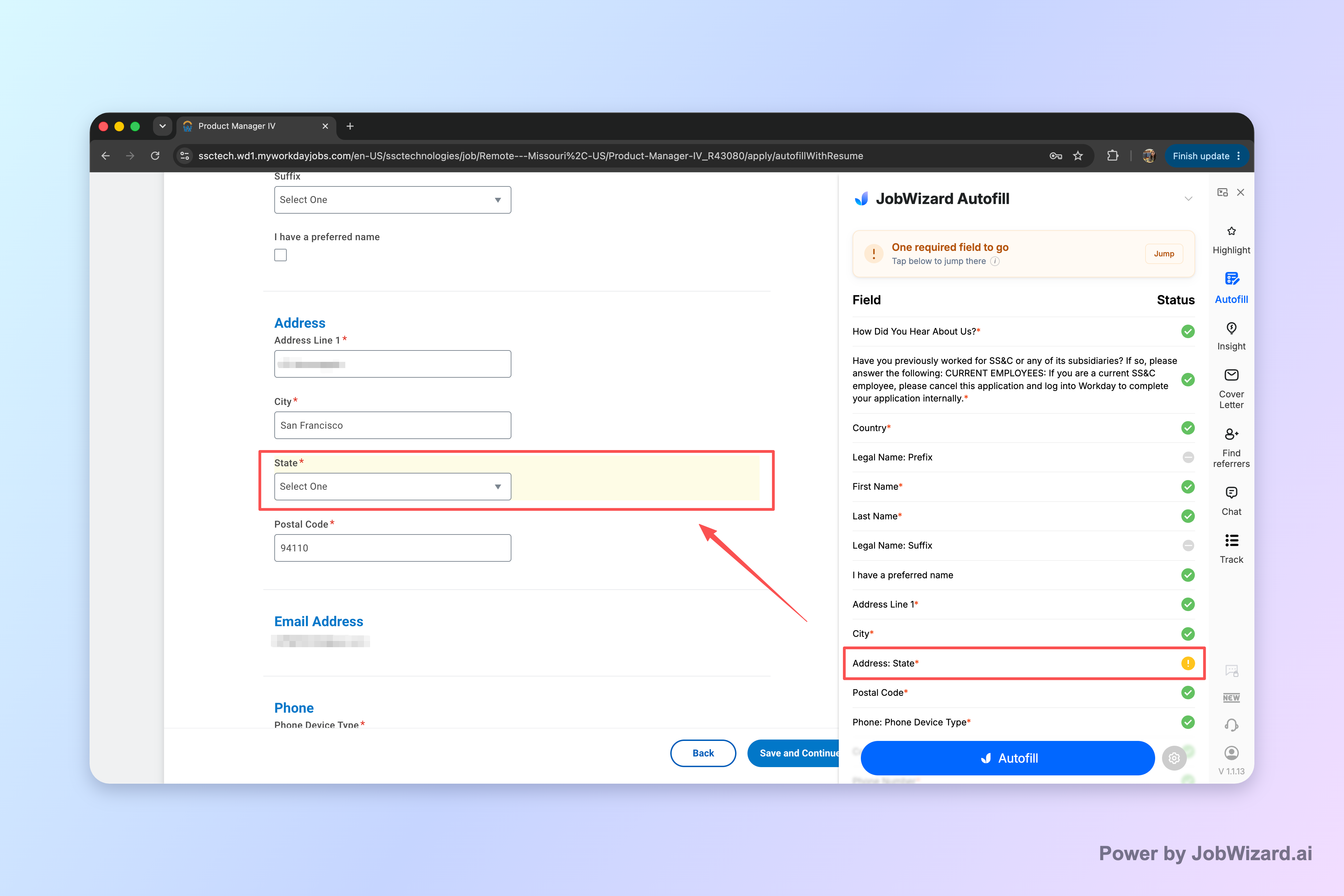
That jump-to behavior is what keeps your application workflow efficient without turning it into an uncontrolled auto-apply. Instead of guessing what you missed, you’re taken to the exact spot that needs your input.
To make this concrete, think through a typical Workday flow:
- Start the application: open the job and begin the form as you normally would.
- Let Smart Autofill populate detected fields: it uses your saved profile/resume data to fill what it recognizes.
- Review every answer: confirm the populated content matches the job and your current details.
- Handle required-field gaps: if anything still needs attention, use the highlighted “jump to” item to complete the matching question.
- Submit yourself: after your review, submit the application.
Bottom line: faster form filling is useful only when you still control the final answers and submission.
Where Workday fits—and why “autofill + review” matters
Workday is a common ATS, and that’s exactly where form repetition becomes painful. In our usage, a large share of applications are on Workday, and the bulk of the time savings comes from filling repetitive fields quickly while the user reviews before submitting.
Across submitted applications, JobWizard automates an average of about ~18 repetitive fields per application (typically 11–23). And while autofill speeds up the form, it’s not “blind auto-apply”—you still review sponsorship/salary/EEO/custom questions and anything else that needs your judgment.
If you’re wondering why this matters, consider two common pitfalls with job “bots” and generic auto-apply tools:
- Wrong or outdated info when profile data isn’t updated or doesn’t match the specific role.
- Missed required questions due to form branching, new fields, or layout changes.
JobWizard’s approach is built to avoid those risks by keeping you in the loop: Smart Autofill fills what it can detect, and the review step is where you confirm everything is correct before submission.
How to use a workday chrome extension workflow on your next application
Use this checklist to get speed from autofill without losing control of your final answers. You’ll get the most value when you treat Smart Autofill as a time-saver for repetitive fields, not as an excuse to skip review.
Here’s a simple, repeatable workflow:
- Prepare your saved profile: keep your resume and profile data up to date so autofill starts from the right baseline.
- Start the Workday application: begin filling the form like you normally would.
- Trigger autofill and scan the filled fields: verify names, dates, locations, education entries, and role-specific details.
- Fix required fields immediately: if something is still missing or needs attention, jump to it and update it.
- Review final submission questions: confirm any custom questions, EEO-related items, and salary/sponsorship responses are accurate.
- Submit yourself: make the final click after your review.
If you want to make this even easier, aim for consistency: use the same core resume, and adjust only the parts that truly change per application (like role-specific highlights or any question that varies by employer).
Try Smart Autofill on your next Workday application—let it handle the repetitive fields, then review every answer before submitting so your application reflects you.
Do this automatically with JobWizard
Skip the manual work — JobWizard's Smart Autofill handles this for you. On these platforms: Workday autofill.
FAQ: Workday Chrome Extension Questions
Does a workday chrome extension automatically submit applications?
No. With JobWizard, Smart Autofill fills detected fields using your saved profile and resume data, but you review the populated answers and submit the application yourself.
What happens if a Workday required field is missing or needs changes?
JobWizard can identify required fields still needing attention and lets you jump directly to the matching question so you can correct it before you submit.
Will this work on every Workday job page?
It supports supported application pages where fields can be detected and filled. You should still expect to review each populated answer, and not assume perfect coverage or instant completion on every site layout.
Is “autofill + review” safer than auto-apply bots?
Yes. The safer workflow is autofill + review-before-submit: JobWizard can speed up repetitive form inputs, while sponsorship/salary/EEO/custom questions remain for you to check and confirm before submitting.
Frequently Asked Questions
Autofill your next job application
JobWizard is a free Chrome extension that fills applications, tracks statuses, and optimizes your resume.