Resume Builder Keywords That Actually Get You Noticed: A Practical Method
Learn how to use resume builder keywords to mirror job description language, close expression gaps, and tailor your resume with JD Highlights and Insight match guidance—without guessing.
Free Chrome extension
See your resume's match score for any job
JobWizard compares your resume to each job description and shows the exact keywords to add — free.
Resume builder keywords are the job-description phrases you translate into your own resume bullets
If you’ve ever searched for resume builder keywords and found conflicting advice, here’s the real issue: job postings describe what they want using specific language, and your resume often describes your experience using different (but still valid) wording. That “language gap” can make your resume harder to match to the role—especially when you’re applying quickly and tailoring is inconsistent.
Job keyword tailoring doesn’t mean inventing credentials or copy-pasting entire sections. It means extracting the role’s most important requirements—like responsibilities, qualifications, and tool names—and then expressing your relevant experience in a way that clearly supports those needs.
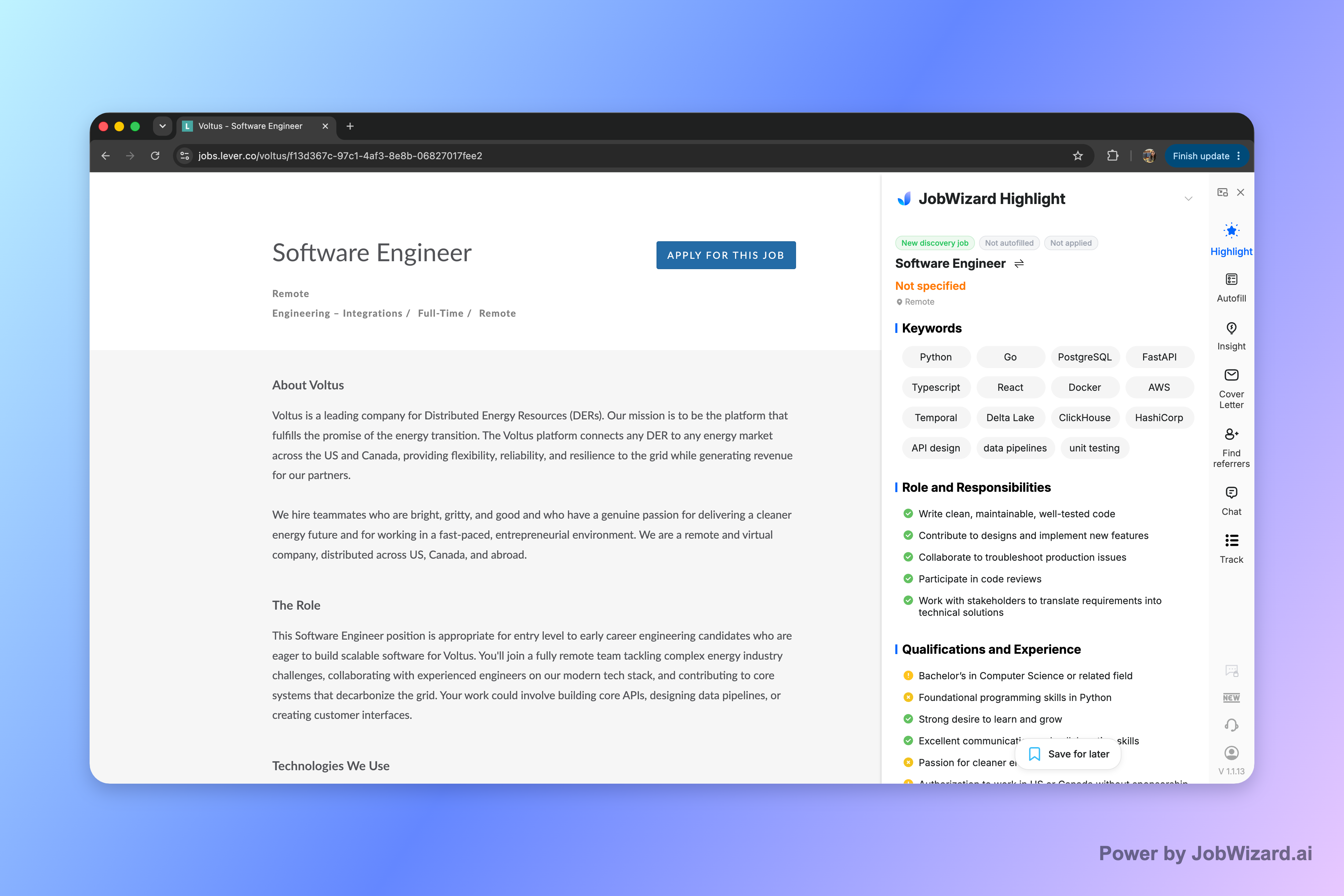
JobWizard’s JD Highlights turns a long job posting into a structured view so you can review keywords, role responsibilities, and qualifications more systematically.
Start with the job description: pull keywords by category, not by vibes
To choose effective resume builder keywords, don’t start with a generic list like “communication” or “hard-working.” Instead, pull from the job description the phrases that represent concrete expectations and qualifications. Then sort them into categories so you know where each one should show up on your resume.
Here’s a simple extraction framework that works for most roles in the US job market:
- Qualification keywords: requirements, certifications, education, years of experience, eligibility criteria.
- Responsibility keywords: what you’ll do day to day (manage, build, analyze, collaborate, implement, design).
- Tool/skill keywords: specific systems, programming languages, platforms, methodology terms.
- Qualification wording: the exact phrases that define “meets requirements” (e.g., “hands-on,” “experience with,” “working knowledge of”).
JD Highlights is built for this exact step: it can organize a job description into keywords, role responsibilities, and qualifications so you can review the requirements more systematically. That matters because many resumes fail tailoring not because candidates lack experience, but because they don’t map their experience to the same categories the employer is evaluating.
As you review, use this quick rule: if the job description uses it to define the role, it belongs in your review. Then later you decide whether you can truthfully support it with your background.
Turn keywords into evidence: map each phrase to an experience bullet
Once you have resume builder keywords from the job description, the next step is translation: convert those phrases into the language of your resume without losing accuracy. The goal is not to repeat the job post—it’s to show that you’ve done the same kind of work.
Use a “keyword-to-evidence” mapping approach:
- Select a keyword: pick one responsibility or qualification phrase that appears to be central to the role.
- Find a matching experience bullet: locate the part of your history where you actually did something comparable.
- Rewrite for clarity: keep your facts, but adjust wording so the keyword is supported by context (scope + action + outcome).
- Keep it honest: if you can’t support the keyword with accurate experience, don’t use it.
Example (rewriting responsibly):
- Job description keyword: “analyze customer behavior”
- Your current bullet (too vague): “Worked on reports and dashboards.”
- Revised evidence bullet: “Analyzed customer behavior using event data to identify drop-off points and recommended dashboard-ready metrics for stakeholders.”
This is how you close “expression gaps.” You’re not fabricating results—you’re making the connection between your experience and the role’s language obvious.
Use match guidance to spot gaps—then review before you submit
Even with a strong process, it’s easy to miss where your resume doesn’t echo the job description. That’s where JobWizard’s Insight can help you work faster without guessing.
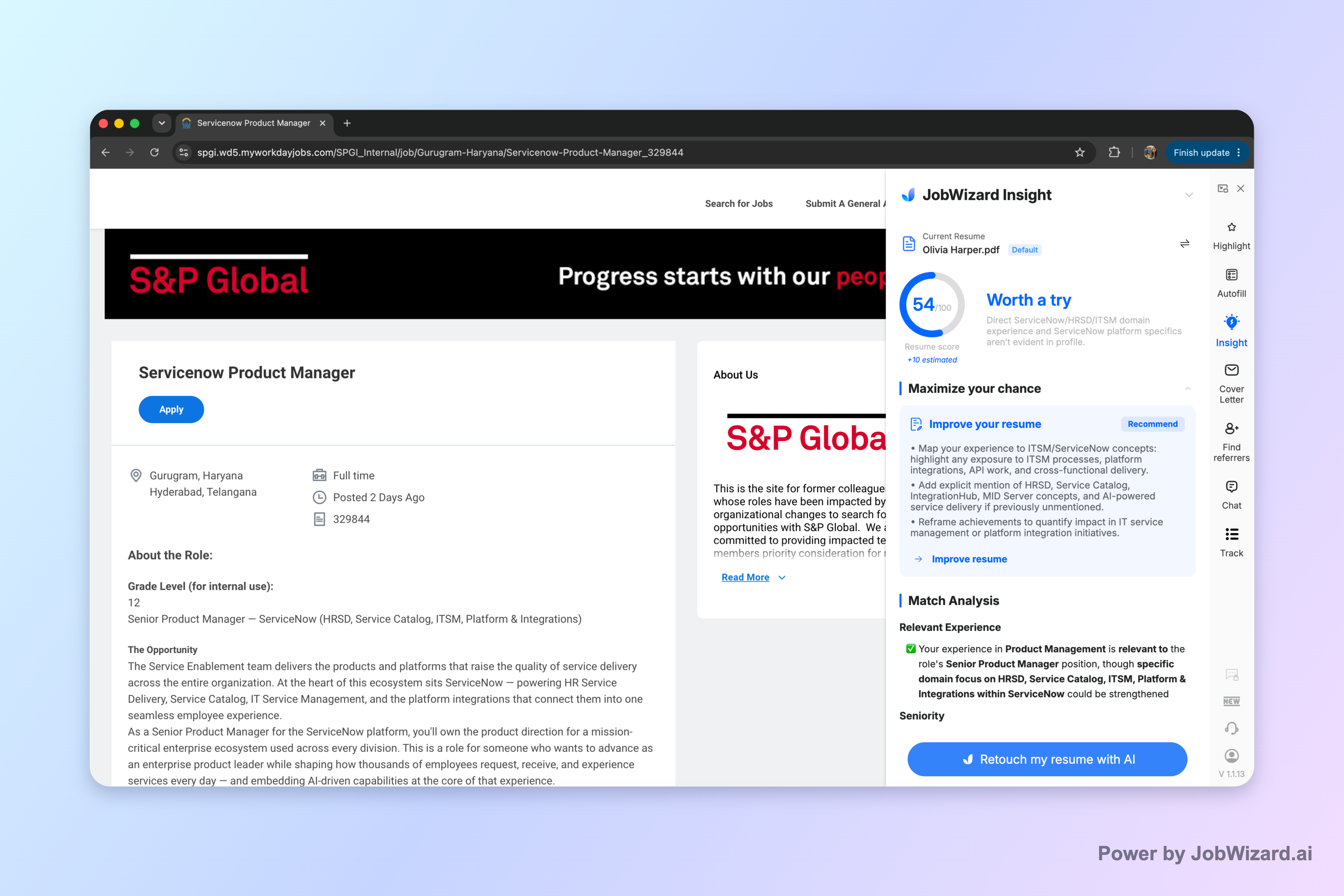
Insight compares your selected resume with the job description and shows a match score, an overall assessment, and improvement suggestions.
Per the product guidance, Insight can also identify resume expression gaps and turn them into an editable resume revision draft based on the JD. That means the workflow becomes less “blank-page tailoring” and more “targeted edits with a reason.”
Important: The match score is not a hiring probability and does not guarantee ATS passage or an interview. You must verify every suggested resume change and keep only accurate experience.
Here’s a practical workflow you can use:
- Load the role’s job description and review the core responsibilities and qualifications.
- Compare your resume to the JD in Insight to see where expression gaps may exist.
- Open the suggested revision draft and treat it like a starting point.
- Verify facts first: make sure every bullet remains truthful and aligned with your real experience.
- Submit yourself: you choose what stays, what changes, and what gets removed.
This “autofill + review-before-submit” mindset keeps keyword use grounded. Across JobWizard usage, there have been 720,000+ applications submitted and 600,000+ autofill sessions run through JobWizard—so it’s common for candidates to move quickly, but the repetitive fields are filled fast while sponsorship/salary/EEO/custom questions are left for user review before submitting. Tailoring still requires your judgment, because accurate experience beats keyword matching every time.
Resume builder keywords by section: where to place them for maximum signal
When recruiters skim, they look for alignment between the role’s requirements and your proof. So your resume should place resume builder keywords where they create the clearest “yes, they can do this” impression.
Use this section-by-section checklist:
| Resume section | Best keyword use | What to avoid |
|---|---|---|
| Professional summary | Role themes + top qualifications (1–2 lines) that match the JD’s focus | Keyword stuffing with no context |
| Skills / Core competencies | Tool/skill keywords that you can support in experience bullets | Listing every tool you’ve ever touched, even if unrelated |
| Experience | Responsibility keywords in action verbs and project scope (what you did, how, and for whom) | Copy-pasting JD sentences without tying them to your work |
| Projects (if applicable) | JD-relevant outcomes + methods + specific responsibilities | Generic project blurbs that don’t reflect required skills |
| Education / Certifications | Exact credential keywords that match qualification requirements | Implying credentials you don’t have |
One more practical rule: prioritize what repeats in the job description. If a responsibility shows up multiple times (directly or via synonyms), it likely represents something the employer screens for. Your edits should reflect that emphasis.
If you want a tighter tailoring loop, use Insight as your “spot the mismatch” tool—then rewrite bullets until your resume expresses the requirements in a way you can verify.
Do this automatically with JobWizard
Skip the manual work — JobWizard's Smart Autofill handles this for you.
FAQs about resume builder keywords
What are resume builder keywords, and how do I find the right ones for a job?
Resume builder keywords are the phrases a job posting uses to describe responsibilities and qualifications—like specific tools, skills, and expectations. Start by pulling keywords from the job description, then map each keyword to a relevant, truthful experience bullet on your resume. If you use JobWizard, JD Highlights organizes the job description into keywords, role responsibilities, and qualifications so you can review requirements more systematically. Then use Insight to compare your resume against the job description and review improvement suggestions before you submit.
Will using resume builder keywords guarantee my resume passes ATS or gets me an interview?
No. Using resume builder keywords can help your resume reflect the job description, but the match score and keyword-based suggestions are not a hiring probability and don’t guarantee ATS passage or an interview. You should always verify every suggested resume change and keep only accurate experience. Treat keyword tailoring as a way to reduce expression gaps, not as a guarantee of outcomes.
How should I use resume builder keywords in my resume sections (summary, skills, experience)?
Use keywords where they naturally fit and where they prove value: (1) In the summary, reference the most relevant role themes (e.g., “customer-focused” + “data-driven” + domain). (2) In the skills section, list tools and competencies that match the job requirements, keeping them specific. (3) In experience bullets, include the keyword in the context of what you did (scope + action + result) so the phrase is supported by your actual work. If you want a tighter match, use Insight’s gap diagnosis to turn missing expressions into an editable revision draft you can review.
What’s the difference between resume builder keywords and ‘copy-pasting’ the whole job description?
Resume builder keywords are targeted phrases—specific skills, tools, responsibilities, and qualification language—that you incorporate into your own resume bullets. Copy-pasting the whole job description is different because it can include details you can’t verify, dilute your strongest accomplishments, and make your resume read like a template. The safe approach is to extract keywords and then rewrite your experience to match them truthfully. JobWizard’s JD Highlights and Insight support this workflow by helping you organize requirements and identify expression gaps for editing.
How do JD Highlights and Insight help with resume builder keywords without replacing my judgment?
JD Highlights helps you organize a job description into keywords, role responsibilities, and qualifications so you can review requirements systematically. Insight then compares your selected resume with the job description and presents a match score, an overall assessment, and improvement suggestions, including a JD-based diagnosis that can identify resume expression gaps and turn them into an editable resume revision draft. Crucially, you must review and verify everything before submitting—these tools are for faster preparation, not blind auto-apply or guaranteed outcomes.
Ready to tailor faster? Open the target job in JobWizard, use JD Highlights to review keywords and requirements, then use Insight to find expression gaps you can edit—before you submit.
Frequently Asked Questions
See your resume's match score for any job
JobWizard compares your resume to each job description and shows the exact keywords to add — free.