In Review vs Under Review in Workday: What Is the Difference
Learn what In Review vs Under Review means in Workday, how recruiters use each status, and what to do while your application is pending....
Free Chrome extension
See every Workday status in one place
Track updates automatically and autofill Workday forms with your saved details.
If you’re seeing In Review vs Under Review in Workday, you’re not alone—those labels can feel similar, and both can mean you’re in a holding pattern. This guide breaks down how to interpret each status from a job seeker’s perspective, what it likely means for your application, and what you can do next to improve your odds. You’ll also get a practical workflow to keep your application materials accurate as you apply through Workday forms using Smart Autofill.
First: why Workday status labels can mean different things
Workday is used by many companies, but the recruiting team controls how statuses are configured and displayed. That means the exact wording—such as “In Review” or “Under Review”—might not represent the same step at every employer. In practice, most job seekers should treat both statuses as “your materials are being considered,” not as a guaranteed signal of progress or rejection.
Still, you can make better decisions by looking at the context around the status update. Ask yourself: did the status change right after you submitted, or after an interview-related event? Was there any additional movement later (like “Interview Scheduled,” “Screening,” or “Offer”)? Even without knowing the company’s internal definitions, patterns can tell you how active the process is.
“In Review” in Workday: what it usually suggests
When you see In Review, it typically suggests that a recruiter or hiring team has access to your application and is reviewing it. For many employers, this stage is where your resume and answers are compared against the role’s requirements, and where the team decides whether you move to the next step (like screening or interviews).
From a job seeker’s perspective, here’s the decision to make when you see “In Review”:
- Decide whether to continue applying for similar roles. “In Review” can last for varying lengths of time, and you generally shouldn’t pause your job search.
- Confirm your application materials are consistent across applications. If you use different resumes or write different answers each time, it can slow you down and reduce match quality.
- Prepare a quick follow-up strategy if the status stays unchanged for an extended period and the job remains posted.
Also, “In Review” often aligns with the idea that your file is in a queue. That means you may not receive immediate updates; instead, you may see a later status change once someone actively shortlists you.
“Under Review” in Workday: what it usually suggests
Under Review generally indicates that your application is actively being reviewed or is part of an active selection process. In everyday job search terms, it still points to consideration—not an interview, not a rejection. If your application changed from one wording to the other, that might indicate the employer is moving you from “received” into “being worked,” or simply updating the label they use for the same general stage.
Here’s how to interpret In Review vs Under Review in Workday when the labels feel interchangeable:
- Assume both are “not decided yet.” Unless there’s a different status like “Rejected,” “Interview,” or “Offer,” you’re still in the evaluation window.
- Look for additional signals such as email updates, interview calendar invites, or changes in job posting status (still open vs closed).
- Use your time to strengthen your application pipeline instead of waiting passively.
If you’re wondering, “Does ‘Under Review’ mean I’m closer to an interview than ‘In Review’?” the honest answer is: it could, but it’s not reliable across every Workday setup. Treat both as a positive holding stage, and focus on actions you control.
A practical decision workflow: what to do when you see either status
Whether you’re staring at In Review vs Under Review in Workday, the best next step is a repeatable workflow. This helps you avoid the two common mistakes job seekers make: (1) over-reading one label, and (2) letting other applications slip.
Step 1: Confirm you didn’t miss a required field
Sometimes a status is delayed not because you’re a poor fit, but because the application has to be corrected or completed. If Workday supports data validation and required fields, even a small missing item can stall the process until someone fixes it (either automatically or manually).
That’s why it’s smart to double-check what you submitted—especially if you filled forms in a hurry or reused copy/paste answers.
Step 2: Strengthen your next application immediately
Instead of waiting for one outcome, aim for “momentum.” Apply to similar roles, refine your resume to match the job description, and customize your answers so your application reads like a fit—not a generic submission.
If you’re applying through Workday, focus on the things that tend to matter most: role-relevant experience summaries, consistent job titles/dates, and truthful, specific answers aligned with the posting.
Step 3: Choose whether (and when) to follow up
If you’re still seeing In Review vs Under Review in Workday with no movement, a reasonable follow-up can help. The decision isn’t based on the wording alone; it’s based on time and opportunity. For example, if the job closes, you’ll likely stop getting responses anyway. If the posting remains open and you have a strong, role-relevant reason to reach out, a short follow-up may be worth it.
Tip: When you follow up, keep it focused on your fit and availability—avoid sounding like you’re demanding an answer. If you have new material (a portfolio update, a certification, a publication), mention it briefly.
Step 4: Track statuses in a simple way
A spreadsheet or notes app works. Record the job title, company, date submitted, and the last known status label (“In Review” or “Under Review”). Then you’ll know whether a change is a real update or just a UI wording variation.
How JobWizard helps you apply faster on Workday (without skipping your review)
One reason job seekers get stuck in the uncertainty of In Review vs Under Review in Workday is that applications can be time-consuming to complete accurately—especially on long Workday forms. JobWizard’s Smart Autofill helps you fill detected fields using your saved profile and resume data, so you can spend more energy reviewing your answers before submitting.
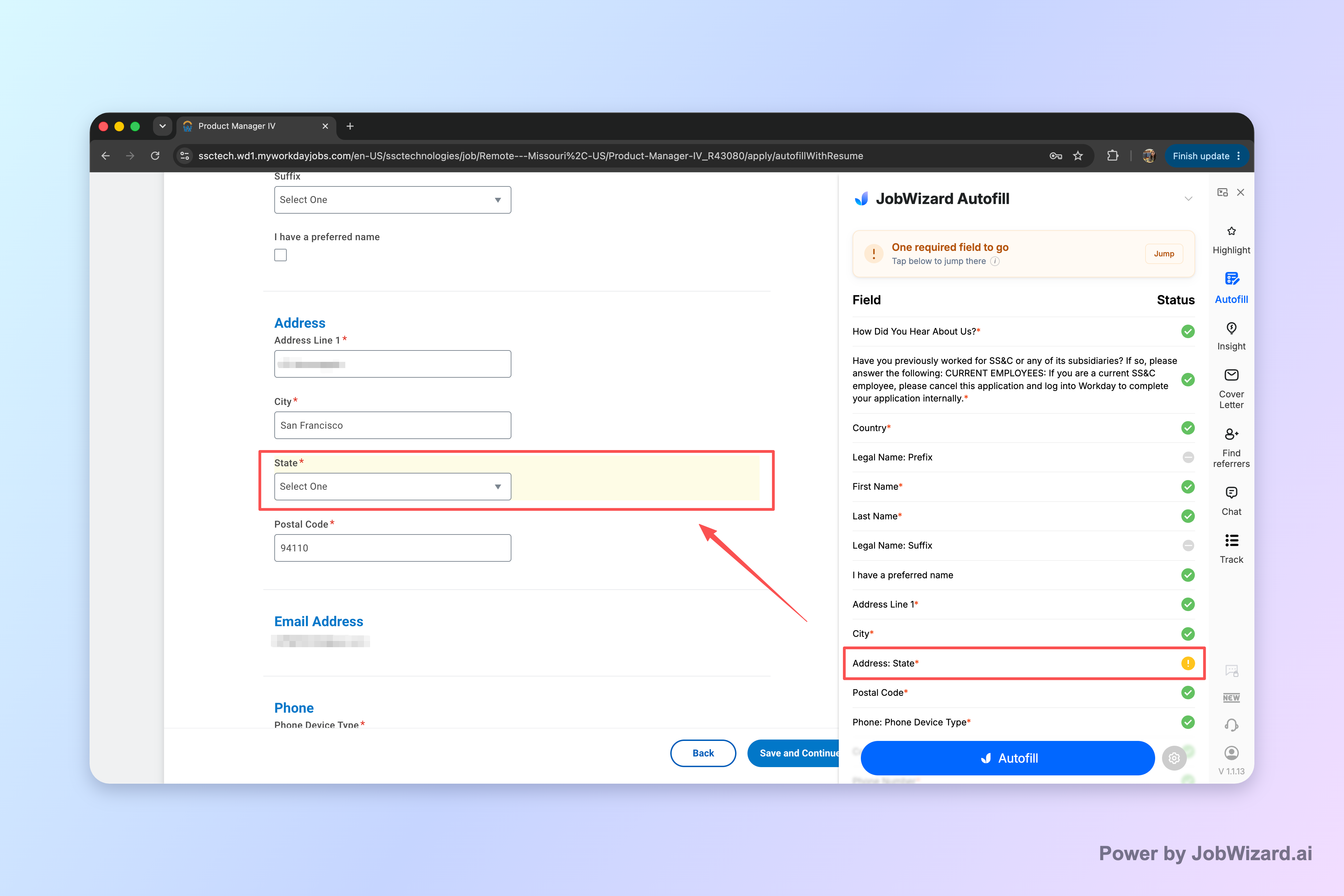
When a required field still needs attention, JobWizard identifies it and lets the job seeker jump directly to the matching question.
What you should expect while using Smart Autofill
JobWizard is designed to help with form completion, not to replace your review. As you apply, the extension fills supported fields and then you review everything before you submit. If a required field is missing or needs correction, JobWizard can help you find it quickly so you don’t miss key details.
That matters because most Workday forms include required sections that can slow down your application if left incomplete. Even if the status updates later, it’s better to submit cleanly on the first attempt.
Limitations to keep in mind (so you don’t get surprised)
While Smart Autofill can speed up application forms, you should not assume that every field will always populate perfectly or that it will work on every website. You’re still responsible for confirming the final content. And you should not treat the extension as “automatic submission”—you submit the application yourself after reviewing.
Common “In Review vs Under Review” questions job seekers ask
Below are the most frequent concerns that come up for job seekers using Workday labels. These answers are practical: they help you interpret the status and decide what to do next.
Does “Under Review” mean I’m more likely to get an interview?
It can be a positive sign, but you can’t reliably treat it as a universal “closer to interview” indicator. Different companies use different wording and different internal steps. The most reliable approach is to pair the status label with the rest of your timeline—did you get an interview request or additional follow-up messages?
How long should I wait before acting?
Instead of waiting based only on the label, manage your time with a pipeline approach. Keep applying to similar roles so you don’t lose opportunities. If you’ve applied to one job and nothing changes for a while, consider a polite follow-up if the listing is still active and you have a good reason to reach out.
Should I submit another application to the same job?
In general, avoid spamming repeated submissions through the same job posting unless the company invites updates or specifically allows re-application. If you have new, meaningful information, a follow-up message is usually more appropriate than reapplying.
What should I do if I suspect I made a mistake?
First, check what you entered and whether the application answers match your resume. Then decide on the least intrusive corrective action, such as a follow-up message to clarify information. If the mistake is in a required field and you already submitted, your ability to correct it may be limited—so being accurate at submission time is the best prevention.
Do this automatically with JobWizard
Skip the manual work — JobWizard's Application Tracker handles this for you. On these platforms: Workday autofill.
Boost your odds: a simple prep checklist before you submit on Workday
Before you hit submit on any Workday application, use this quick checklist. It’s designed to reduce delays and improve consistency across your profile, resume, and application answers.
- Match job titles and dates between your resume and Workday employment fields.
- Check required questions (especially those tied to experience, eligibility, or availability).
- Review keyword-heavy responses that map to the job description.
- Verify contact and location fields so you don’t create avoidable confusion.
- Read the final summary of what you’re submitting, even if you used autofill.
This is the best way to reduce the kind of “stuck” feeling that comes from ambiguous statuses. If you submit a complete, consistent application, your evaluation stage (“In Review” or “Under Review”) is more likely to reflect real hiring decisions—not preventable form issues.
CTA: Try JobWizard’s Smart Autofill on your next application and review every answer before submitting.
Is “In Review” the same as “Under Review” in Workday?
They’re similar in that both typically indicate your application is being considered. However, Workday labels can be configured differently by each employer, so the exact meaning may vary. Use timeline signals and any status changes beyond those labels to interpret your progress.
If my status stays “Under Review” for a long time, what should I do?
Keep applying to other roles to maintain momentum. If the job listing remains active and you have a strong reason to reach out, consider a short follow-up. Don’t rely on the wording alone to predict outcomes.
Can JobWizard help me avoid missing required fields on Workday applications?
Yes. Smart Autofill fills detected fields using your saved profile and resume data, and if a required field still needs attention, JobWizard can identify it and let you jump directly to the matching question.
Does Smart Autofill submit applications automatically on Workday?
No. You review the populated fields and submit the application yourself. Smart Autofill is designed to speed up form completion, not to replace your final review or submission.
Will JobWizard work on every Workday job application page?
It depends on whether the page is supported and whether the required fields can be detected and filled. You should always verify what was filled in before submitting, since not every field may populate perfectly.
Frequently Asked Questions
See every Workday status in one place
Track updates automatically and autofill Workday forms with your saved details.