How to Upload Resume to Handshake and Make Sure the Right Version Is Attached
Learn how to upload resume to Handshake, confirm the file is attached to your profile, and choose the right resume when applying for a job. These steps also help you catch common upload and document issues before you submit.
Free Chrome extension
See your resume's match score for any job
JobWizard compares your resume to each job description and shows the exact keywords to add — free.
How to upload resume to Handshake and verify the right file
To learn how to upload resume to Handshake, sign in, open your profile, locate the resume or documents area, and use its upload option. Then confirm the file appears in your profile and is the version you want employers to see. A resume sitting on your computer is not necessarily attached to your Handshake profile or to a particular job application.
Handshake’s labels and available steps can vary depending on your school and the page you are using. If you are applying to a job, follow the instructions on that specific posting rather than assuming a profile upload has already completed the application.
- Sign in. Open Handshake through your school or the sign-in option your institution provides.
- Open your profile. Look for your profile page and a section labeled for resumes, documents, or related materials.
- Choose the upload option. Select the resume file from your device and wait for the process to finish.
- Verify the result. Confirm the document appears and that its name or preview matches the version you intended to upload.
If you need a broader walkthrough of filling in application forms, see How to Autofill Job Applications (Step-by-Step with JobWizard). For another platform’s upload flow, our guide to How to Upload Resume to Indeed Without Losing the Right Version covers a separate process.
Choose the right resume before you upload
Use the resume that best fits the roles you plan to pursue, and make its filename easy to recognize. If you keep multiple versions, a clear name helps you distinguish the general resume from one tailored to a particular field, internship, or job.
Before uploading, check the document for basic issues that can make it harder to read or identify:
- Use a clear filename. Include your name and a simple label, such as “Jordan-Lee-Resume-Research.pdf.”
- Check the content. Make sure your contact details, education, work history, and skills are current and accurate.
- Review the layout. Open the file and verify that headings, dates, and bullet points display as intended.
- Keep versions organized. If you customize resumes for different roles, label them so you can select the correct one later.
- Follow the posting’s instructions. If an employer asks for a particular file type or document, use the requirements shown in that application.
A profile resume can be convenient, but it is not automatically the best document for every opening. Match the version to the role and take another look at the attachment when you apply.
Attach a resume to a Handshake job application
For a specific opening, start the application from that job posting and follow its document prompts. If Handshake asks you to choose a resume, select the version that fits the role; if it asks you to upload one, choose the file and wait for it to finish processing.
Do not assume that uploading a resume to your profile submits an application. A profile document and an application attachment serve different purposes: the job’s application flow determines what the employer receives and what steps remain.
- Open the job posting. Read the requirements and note any instructions about resumes or additional documents.
- Start the application. Use the application action shown on the posting.
- Select or upload the resume. Choose the role-appropriate version or add the requested file when prompted.
- Review the attachment. Check the filename or any available preview, and confirm you did not select an older or unrelated version.
- Complete the remaining steps. Review the application details and submit only when you are satisfied they are accurate.
When an application form includes additional questions or document fields, review each one before submission. Our guide to Greenhouse Application Autofill: Custom Questions, Resume Upload, and Review Before Submit explains why it is worth checking resume attachments and custom fields in an application flow.
Fix common Handshake resume upload problems
If an upload fails, first check the file, the upload prompt, and whether the document finished processing. Small issues—such as choosing a file that does not meet the instructions or leaving a required field unfinished—can interrupt the process.
- Check the file type. Use a format accepted by the upload prompt, and follow any instructions on the posting or page.
- Wait for completion. Do not navigate away while the upload is still processing; look for a filename, preview, or other confirmation.
- Try a simpler filename. Rename the document with your name and “Resume,” avoiding unusual symbols if the upload continues to fail.
- Confirm the file opens. A damaged or empty document may not upload or display as expected.
- Refresh or try another browser. If the page appears stuck, reload it and try again, while keeping the original document available.
- Ask for help if needed. Your school’s career services office or Handshake support can help with account-specific or platform issues.
If you cannot attach a file in a job application, the cause may be different from a profile upload problem. See Why Can't I Attach My Resume to an Online Application? The Fix for Upload Errors + Hidden Requirements for a troubleshooting checklist that applies to online application forms more broadly.
Improve the resume for a specific job before applying
Compare your resume with the job description, then verify every change before using the revised document. A resume that is uploaded correctly can still need tailoring to make relevant experience and skills easier to spot.
JobWizard Insight compares a selected resume with the current job description and presents a match score, an overall assessment, and suggestions for improvement. Its JD-based diagnosis can identify gaps in how experience is expressed and turn them into an editable resume revision draft.
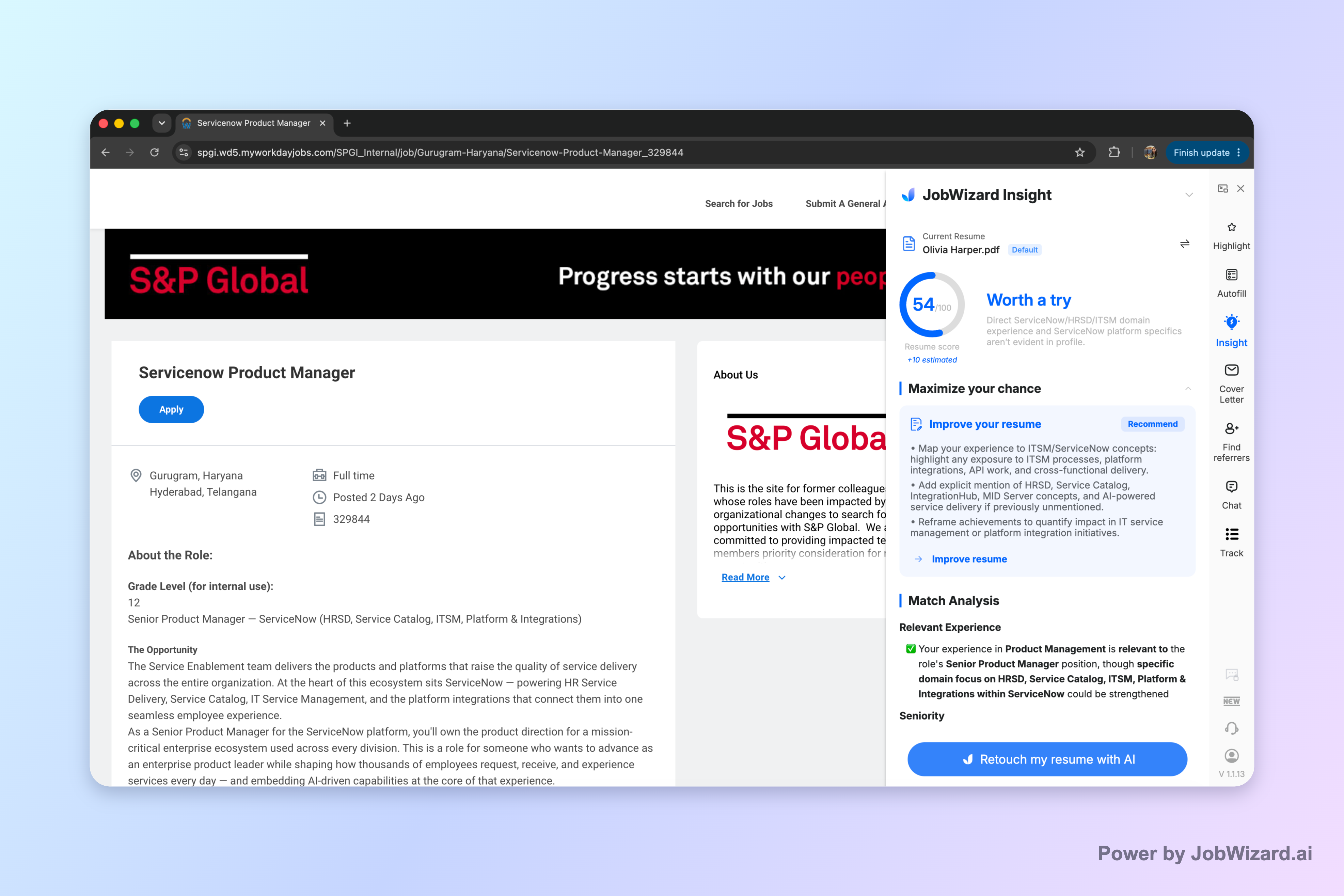
Use the score as a review aid, not a prediction. It is not a hiring probability and does not guarantee ATS passage or an interview. Check every suggested revision and keep only statements that accurately reflect your experience.
Once you have reviewed the tailored resume, save a clearly named copy and select that version when Handshake or another application asks for a document. This helps you keep your profile materials organized while making a deliberate choice for each role.
Compare your resume with the specific job description in JobWizard Insight and review the identified gaps before applying. Keep the final edits accurate, then upload the version you want the employer to receive.
Do this automatically with JobWizard
Skip the manual work — JobWizard's Smart Autofill handles this for you.
Handshake resume upload FAQs
How to upload resume to Handshake from my profile?
Sign in to Handshake, open your profile, find the section for documents or resumes, and use its upload option to select your resume file. Confirm the document appears in your profile and check that the displayed version is the one you intended to add.
How to upload resume to Handshake for one specific job?
Open the job posting and start its application. If Handshake asks you to attach a resume, select the relevant file from the available documents or upload it when prompted. Check the application preview or attachment name before submitting.
Why can’t I upload my resume to Handshake?
Check that the file is in a format accepted by the upload prompt, that it has finished uploading, and that the required fields are complete. If it still fails, try a clearly named PDF or Word document, use another browser, or contact your school’s career services or Handshake support.
Does uploading a resume to my Handshake profile apply me to jobs?
No. Adding a resume to your profile makes it available for profile or application use, but it does not submit an application by itself. Follow the job’s application steps and review the selected resume before you submit.
Frequently Asked Questions
See your resume's match score for any job
JobWizard compares your resume to each job description and shows the exact keywords to add — free.