Why Can't I Attach My Resume to an Online Application? The Fix for Upload Errors + Hidden Requirements
Why can't i attach my resume to an online application? Learn the real reasons upload fails (file rules, required fields, ATS screens) and the best workaround to apply correctly with JobWizard.
Free Chrome extension
See your resume's match score for any job
JobWizard compares your resume to each job description and shows the exact keywords to add — free.
If you’re seeing “attach resume” errors (or the upload button simply won’t let you proceed), you’re not alone—many job portals don’t fail loudly, and that’s exactly why why can't i attach my resume to an online application is such a common question.
In this guide, you’ll learn the most frequent causes (file rules, blocked required fields, and platform-specific resume/CV handling) and a safer workflow to get your application into the system without skipping the “review-before-submit” step.
Why “resume upload” is blocked: the 7 most common causes
Most “can’t attach resume” issues come from rules the portal enforces behind the scenes.
Before you blame your resume, run through these high-impact checks. Think of this as debugging: fix one variable at a time so you can tell what actually causes the block.
- Accepted file types don’t match: Many portals only accept specific formats (often PDF or DOCX). If your file is a different type, the upload may fail.
- File size limit is exceeded: Rich formatting, images, or long PDFs can push you over a max size.
- Your resume is “too many pages” or has heavy formatting: Some systems choke on resumes that include complex columns, embedded graphics, or unusual layout elements.
- Required fields elsewhere aren’t complete: The portal may prevent upload or the “next” step until you finish required items like eligibility, contact info, or specific custom questions.
- The portal expects a different document label: Some applications treat “CV/resume” as a specific field and won’t accept a document if the label is different.
- Session/account state is broken: Logging out and back in, completing the application from the beginning, or using a different browser can resolve state errors.
- Browser behavior conflicts with the upload control: Pop-up blockers, strict privacy settings, or aggressive extensions can interfere with file selection and upload.
If you’ve already tried switching browsers and your file is in common formats, the next best move is to identify whether the issue is “file rules” or “application workflow rules.”
Quick diagnosis: file rules vs. workflow rules
You can narrow the cause fast by isolating what the portal accepts.
- Look for “Accepted formats / Max file size”: If there’s a note near the upload area, follow it exactly.
- Try a smaller, simpler version: Export a lean PDF (fewer graphics, standard margins) and re-test.
- Complete the earlier required steps: If the site has “required” fields, fill them all before retrying the resume upload.
- Retry from the first step: Some portals don’t recover cleanly from partial sessions.
Once you confirm the root cause, you can choose the right workaround—especially if the portal won’t accept uploads at all.
When you can’t upload: a review-first workaround that still matches the job
If the portal blocks attachments, your goal shifts to submitting the right information in the right fields.
Many job seekers get stuck trying to force a resume into the system when the platform really wants structured inputs. That’s where a review-first workflow helps: get the repetitive parts filled quickly, then verify everything that matters before you submit.
JobWizard supports this “autofill + review-before-submit” approach so you can avoid retyping while keeping control of what goes in. In fact, users run 720,000+ applications submitted and 600,000+ autofill sessions through JobWizard, and the autofill focuses on repetitive fields—typically around ~18 repetitive fields per application (often 11–23). The sponsor/salary/EEO/custom questions are still left for your review before submission.
Key principle: the upload failure doesn’t have to derail your application—you can still provide the ATS-relevant content through fields, as long as you review before submitting.
If you want to improve your odds beyond “just getting through the form,” compare your resume to the job description and close the expression gaps.
Use job-description matching to avoid “almost right” submissions
“Good enough” resumes often fail when the portal won’t upload and you must rely on typed fields.
JobWizard’s Insight can compare your selected resume with the job description and present a match score, an overall assessment, and improvement suggestions. It can also identify resume expression gaps and turn them into an editable resume revision draft—so you don’t guess what to change.
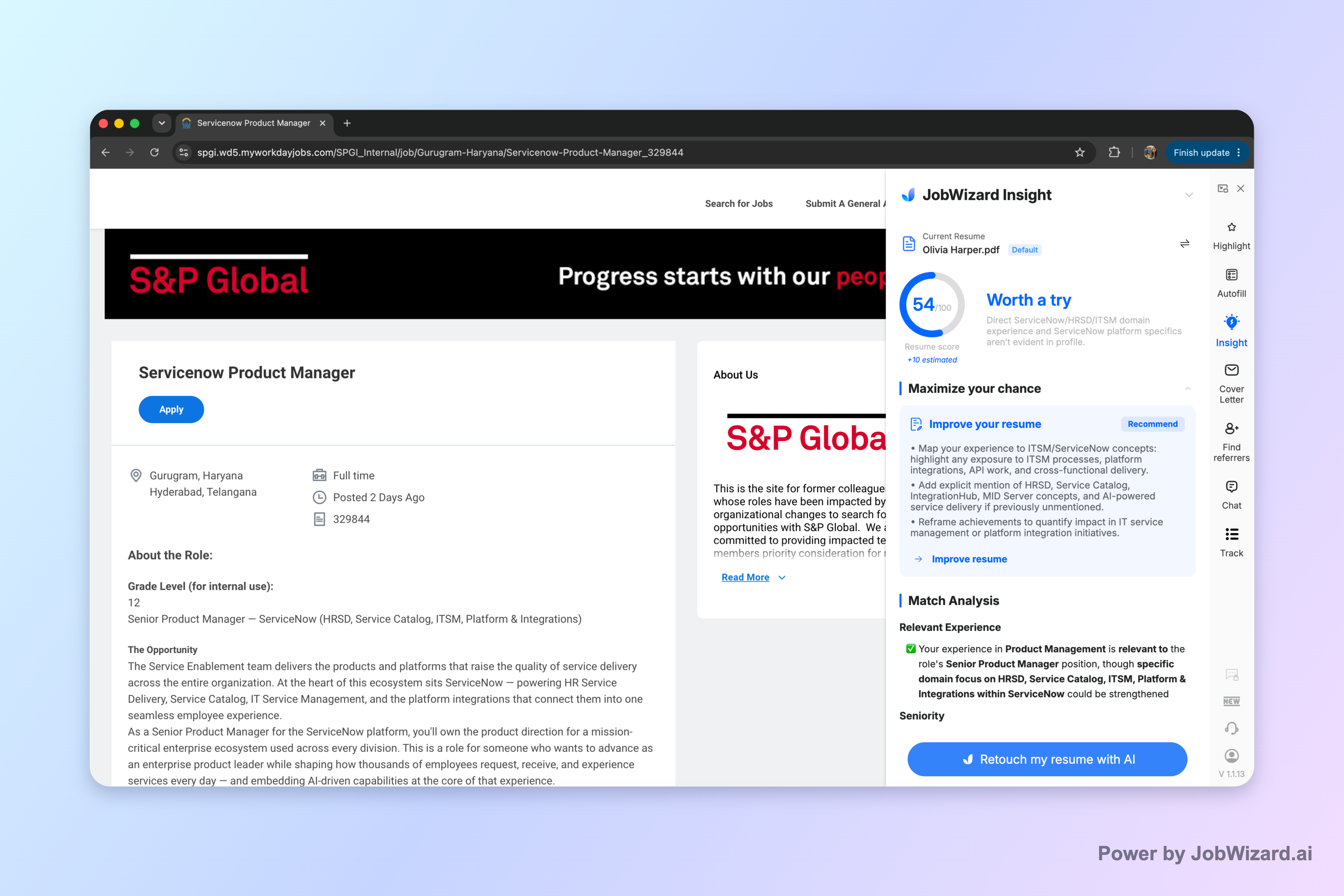
Match score isn’t a hiring probability—it doesn’t guarantee ATS passage or an interview. Also, you must verify every suggested change and keep only accurate experience. The value is in making the “what’s missing?” diagnosis specific so you can edit confidently.
Practical example: suppose the job description repeatedly uses phrasing like “stakeholder management” and “cross-functional collaboration,” but your resume says “working with partners” and “team coordination.” If you can’t upload, your best bet is to update the relevant experience bullets (accurately) and then ensure the application fields reflect that same meaning.
How online portals handle resumes differently (especially Workday)
Some platforms treat resumes as optional while others rely heavily on structured fields.
This is one reason “resume upload doesn’t work” can feel random: the portal might still build a workable application record without a file, as long as your entered information is complete and consistent.
JobWizard’s autofill usage shows that a large share of applications are on Workday (~65% of applications submitted through JobWizard). That matters because Workday frequently presents a structured experience-first form—so if the upload step blocks you, you can still complete the essential fields and proceed after review.
What to do when the portal gives you no clear path
When the UI doesn’t explain the problem, follow a “complete required fields first” workflow.
- Proceed through the form in order and ensure every required input is complete.
- If upload remains blocked, focus on filling the experience/skills/education fields accurately.
- Use job-description matching to update wording where it’s accurate, so the text you submit represents your real background.
If you’re using automation, avoid the “set and forget” mindset. Instead, aim for faster form completion while you retain final control over sponsorship/salary/EEO/custom questions and anything that must be truthful and specific to you.
Compare the right approach: manual upload attempts vs. autofill-then-review
The best strategy depends on whether the portal requires a file or just structured inputs.
Here’s a clear way to decide what to do next, based on what you’re seeing.
| What’s happening | Likely cause | Best next step |
|---|---|---|
| Upload button won’t accept your file | File type/size/format mismatch | Try a supported format and smaller, simpler PDF/DOCX—then re-test after completing required fields |
| Upload works, but “next” fails | Missing required fields elsewhere | Fill all required fields first; then retry the resume step |
| Portal provides no upload path at all | Structured form submission is expected | Enter work/skills/education carefully; compare your resume to the job description and align wording accurately |
| You keep getting blocked mid-application | Session/UI state or browser extension conflict | Restart the application flow and try a different browser with extensions disabled; verify required inputs |
If you’re deciding how to streamline job applications without losing quality, you can start with these related guides:
- How to Autofill Job Applications (Step-by-Step with JobWizard)
- Is Autofill With Resume Bad? A Review-First Answer for Real Applications
And if you want to understand what to watch for when AI helps with submissions, use:
- Automate Job Applications with AI—What Can Go Wrong with Bot Submissions (and the Safer Autofill-Then-Review Way)
- What is the Best AI Chrome Extension for Job Applications? Why JobWizard’s Smart Autofill Stands Out
Do this automatically with JobWizard
Skip the manual work — JobWizard's Smart Autofill handles this for you.
FAQ: why can't i attach my resume to an online application
Here are direct answers to the most common questions behind resume upload blocks.
Why does an online application page say I can’t attach my resume even though the upload box looks real?
Often it’s a hidden requirement: the site is set up for specific file types, a file-size limit, or a separate “resume/CV” field that’s easy to miss. It can also be triggered by an incomplete required field elsewhere on the form—until those required items are completed, the resume upload step may appear blocked.
If the portal won’t accept my resume upload, what’s the safest workaround?
Use a review-first workflow: paste the content manually into the application fields (or use a tool that autofills repetitive fields), then review every experience, dates, and keywords before submitting. If the job platform supports it, also verify any optional “upload later” or “build your profile” path so you still submit an application that matches the job description.
Does using autofill or AI resume matching replace uploading my resume?
Not exactly. A helpful approach is to compare your resume against the job description (so you know what’s missing), then complete the application fields accurately and submit yourself. JobWizard’s Insight can highlight expression gaps and generate an editable draft for improvements—but you still need to review and keep only accurate updates.
Could my resume be rejected by an ATS if the portal doesn’t let me upload it?
If you can’t upload, the ATS impact depends on how you submit. Many systems use the text you enter into fields (work history, skills, education) to populate the ATS record. That’s why you should match the job description’s wording where it’s accurate, and avoid submitting incomplete or conflicting information.
How can I tell whether the real problem is file format/size vs. something in the application form?
Check the site for any visible “Accepted formats” or “Max file size” note near the upload area, then test a small change: try a different supported file type (PDF vs. DOCX) and a smaller file. If the upload still won’t proceed, look for required fields earlier in the form—especially contact info, eligibility, or account steps—because many portals block later steps until those inputs are complete.
Ready to stop getting stuck on resume upload? Use JobWizard to autofill repetitive fields quickly, then review everything before you submit—and use Insight to compare your resume with the specific job description so your application matches even when the upload step fails.
Frequently Asked Questions
See your resume's match score for any job
JobWizard compares your resume to each job description and shows the exact keywords to add — free.