Greenhouse Application Autofill: Custom Questions, Resume Upload, and Review Before Submit (Without Missing Required Fields)
Learn how to use Greenhouse Application Autofill for custom questions and resume upload—then review every answer before you submit. Focus on accuracy, not blind auto-apply.
Free Chrome extension
See your resume's match score for any job
JobWizard compares your resume to each job description and shows the exact keywords to add — free.
If you’re applying through Greenhouse, the fastest path to more interviews usually starts the same way: speed up the repetitive form work—then take control of the final answers. This guide focuses on Greenhouse Application Autofill: Custom Questions, Resume Upload, and Review Before Submit, so you can fill quickly without the “did I miss something?” feeling.
JobWizard’s Chrome extension is designed for exactly this workflow: it uses your saved profile and resume data to fill detected fields, then you review and submit yourself. It’s not automatic submission—and that’s the point. You stay in charge of sponsorship, salary/comp, EEO, and any custom questions that still require your human judgment.

What “Greenhouse Application Autofill” should do (and what it shouldn’t)
Done well, Greenhouse Application Autofill fills the repetitive parts of the application form so you can move through the page quickly—without skipping required items. JobWizard’s Smart Autofill is built around that “draft first, review before submit” approach.
Here’s what you can expect in practice:
- Smart Autofill uses saved profile and resume data to fill detected fields on supported application pages.
- You review the populated fields and submit the application yourself.
- If a required field still needs attention, JobWizard can identify it and let you jump to the matching question.
Here’s what to avoid assuming:
- Don’t treat autofill as automatic submission.
- Don’t assume every field is completed instantly or perfectly.
- Don’t expect universal website support across every vendor page.
Key mindset: autofill speeds up repetitive form filling; your final review is where accuracy happens.
Custom questions on Greenhouse: how to answer them accurately after autofill
Greenhouse applications often include custom questions that are high-impact—so you shouldn’t “set and forget” once fields are filled. With Greenhouse Application Autofill, the goal is to reduce busywork while you keep control of the responses that matter.
When a custom question appears, use this simple rule: if the answer depends on your situation (or the job’s specifics), you own it. Autofill can draft relevant sections, but you still confirm everything before submitting.
Use a “review ladder” on every Greenhouse page
After autofill populates the page, scan in a predictable order. That reduces mistakes and helps you catch fields that autofill can’t reliably infer.
- Required fields: confirm each required question is present and filled correctly.
- Identity / compliance: check sponsorship, EEO-related answers, and anything that could impact eligibility.
- Compensation: if the form includes salary/compensation inputs, verify they match what you’re willing to accept.
- Custom questions: read each prompt fully, then rewrite or edit the autofilled text so it’s specific to you.
Spot the “autofill trap” (and fix it quickly)
The most common issue isn’t that autofill fails—it’s that autofill drafts something broadly relevant, but not fully accurate. For example, the form might ask about a particular tool, domain, or project type. Autofill can help you get started, but your job is to tighten specificity.
- If the prompt asks for a specific outcome, replace generic phrasing with a concrete example from your background.
- If the prompt asks for scope (team size, scale, stakeholders), make sure those details reflect your real experience.
- If the prompt asks for why this role, avoid copying/pasting boilerplate. Adjust to the company’s priorities as described in the job post.
When you finish the review, submit yourself. JobWizard is designed so your last step remains intentional—not rushed.
Resume upload + autofill: build the form fast, then verify what the resume populates
Resume upload matters because the form fields often pull from the same data you keep updated in your CV. With Greenhouse Application Autofill, JobWizard helps you populate detected fields from saved resume and profile data, then you verify everything before submitting.
Think of it like this: your resume is the “source of truth” for your background, and autofill turns that into a quick draft on the form. But your review step is where you confirm that what was inserted matches the prompt.
Three high-value checks after autofill fills resume-driven fields
- Dates & titles: confirm they match your resume exactly (or are adjusted if the application expects a different format).
- Locations & work eligibility details: verify these align with your real circumstances and the form’s wording.
- Keyword consistency: if a question asks about skills, tools, or experience, make sure the phrasing matches your resume (and the job description, if possible).
Use the “jump to the question” benefit for anything left incomplete
Even with autofill, some required prompts may still need your attention. JobWizard can identify where attention is needed and help you jump to the matching question—so you don’t waste time hunting through the page.
This is especially useful on Greenhouse forms, where sections can be long and easy to skim past. You keep your momentum while protecting correctness.
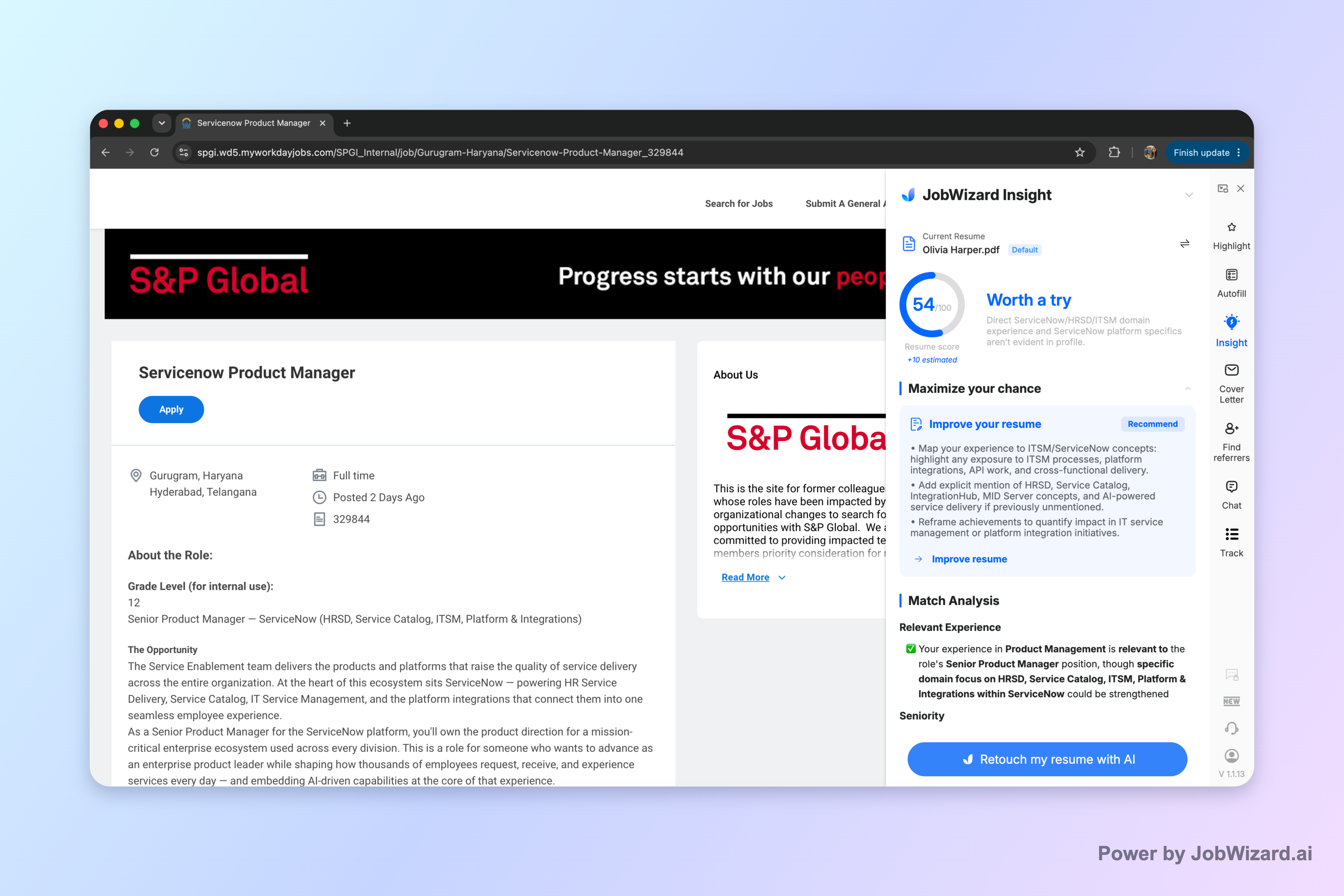
Use Insight to tighten your resume for the specific job description (then re-run autofill)
If you want Greenhouse applications to feel less like a numbers game, start by aligning your resume language with the posting. JobWizard’s Insight can compare your selected resume with the current job description and present a match score, along with improvement suggestions.
This doesn’t mean “guaranteed ATS passage” or “guaranteed interview.” The score is not hiring probability. It’s a structured way to identify expression gaps and turn them into specific next steps you can review and edit.
How to use Insight before you submit (a practical workflow)
- Select the resume you plan to use for the Greenhouse application.
- Run the job-description comparison to see the match score and suggested improvements.
- Review the gap suggestions and keep only changes that reflect your real experience and accurate wording.
- Re-run autofill so the form draft reflects your updated resume language.
- Do the final review-before-submit pass—especially for custom questions.
This is also where you can reduce the “autofill wrote something generic” problem. If the job description emphasizes certain tools, competencies, or responsibilities, Insight can help you make your resume phrasing more aligned—then autofill becomes a faster bridge, not a source of mismatch.
Want to go deeper on the end-to-end workflow? Start with how to autofill job applications step-by-step with JobWizard, then use the extension-focused guide Autofill Job Applications Extension: A Chrome Workflow That Fills, Reviews, and Helps You Apply Faster.
If you specifically want a tighter focus on the “review every answer” behavior, this article connects directly: Autofill Extension for Job Application: How to Fill Repetitive Fields and Still Review Before You Submit. And for Greenhouse-specific form navigation, use Greenhouse Application Checklist: Autofill, Review, and Submit Without Missing Required Fields.
Greenhouse Application Autofill checklist: custom questions, resume upload, and review before submit
Before you click submit on any Greenhouse form, use this checklist to keep your workflow fast and accurate. It’s designed around Greenhouse Application Autofill: Custom Questions, Resume Upload, and Review Before Submit.
Before you start
- Confirm your resume is ready: update skills, titles, and dates so autofill can draft correctly.
- Skim the job description: identify skills and themes you must reflect in custom questions.
After autofill populates the form
- Check required fields: make sure every required prompt is complete.
- Review sponsorship/EEO/comp: these often can’t be safely inferred.
- Answer custom questions in your own words: tighten specificity and ensure alignment with the role.
Before submitting
- Do one last page scan from top to bottom to catch anything autofill didn’t complete.
- Submit yourself: keep final control of the answers.
Bottom line: JobWizard helps you move quickly through repetition, but your review-before-submit step is what keeps your applications accurate and credible.
Try it on your next application: use JobWizard’s autofill draft to fill repetitive fields faster, then review every answer before you submit.
Do this automatically with JobWizard
Skip the manual work — JobWizard's Smart Autofill handles this for you. On these platforms: Greenhouse autofill.
FAQs about Greenhouse Application Autofill
Does JobWizard automatically submit Greenhouse applications for me?
No—JobWizard fills detected, repetitive fields so you can review what was populated and submit yourself. If a required field still needs attention, you’ll be routed to the matching question.
How does JobWizard handle Greenhouse custom questions during autofill?
JobWizard uses your saved profile and resume data to populate detected fields. For required custom questions that still need your input, it helps you jump to the matching question so you can review and answer accurately.
Can I upload a resume and use it for Greenhouse autofill and review?
Yes. JobWizard uses saved resume data as part of the autofill workflow so you can have repetitive fields populated quickly, then review everything—including any resume-driven content—before submitting.
Will the system fill every field perfectly on Greenhouse forms?
No. You should treat autofill as a fast draft: you review the populated fields before submitting. Don’t assume every field is completed, or that the content is perfect—especially for sponsorship, salary, EEO, or custom questions.
Should I compare my resume to the specific job description before applying with autofill?
Yes. JobWizard Insight can compare your selected resume to the job description and show a match score with improvement suggestions. Use that diagnosis to make targeted resume edits, then run autofill again and do a final review before submitting.
Frequently Asked Questions
See your resume's match score for any job
JobWizard compares your resume to each job description and shows the exact keywords to add — free.