How to Upload Resume to Indeed Without Losing the Right Version
Learn how to upload resume to Indeed, replace an outdated file, and check that the resume attached to your profile is the version you want employers to see. Follow a simple workflow for file checks, profile review, and application-specific uploads.
Free Chrome extension
See your resume's match score for any job
JobWizard compares your resume to each job description and shows the exact keywords to add — free.
How to Upload Resume to Indeed: Start With the Version You Want Employers to See
To learn how to upload resume to Indeed, sign in, open your profile’s resume area, upload the correct file, and verify it before applying. The last step matters: a resume saved on your profile is not automatically proof that every application will use that exact file.
Before you begin, locate the version you intend to share and check that it is current, readable, and clearly named. If you have several versions, distinguish them with descriptive filenames such as “Jordan-Lee-Operations-Resume” rather than “Resume-final-2.”
For a broader application workflow, see our step-by-step guide to autofilling job applications with JobWizard. It covers the application process beyond uploading a resume, including the importance of checking information before you submit.
How to Upload Resume to Indeed: A Step-by-Step Checklist
Use Indeed’s profile or resume area to add the file, then confirm the upload and check what an employer-facing or application preview displays. Menu labels can change, so look for the current resume or profile controls rather than relying on an exact button name.
- Sign in. Open Indeed and sign in to the account where you manage your job-search profile.
- Open your profile. Go to the area that contains your resume or job-seeker information.
- Choose the upload option. Select the control to add or upload a resume file, then choose the intended document from your device.
- Wait for completion. Keep the page open while the file is processing. If it seems to stall, check your connection before trying again.
- Review the result. Open the saved resume or preview and check that the right file appears and its text is readable.
- Check the application itself. When you apply, review the resume shown or selected for that job before continuing.
That final application check catches a common mix-up: your profile may contain a newer resume while a particular application still has an older file selected. Confirm the job title and the attached document together before moving forward.
For an upload problem on a company’s own careers site rather than Indeed, use our guide to online application resume attachment errors and hidden requirements. The troubleshooting principles overlap, but the application platform and its file rules may differ.
How Do I Upload a New Resume on Indeed?
To upload a new resume on Indeed, return to your resume area, add the updated file, and verify which version is active or selected. Avoid assuming that uploading a replacement automatically changes a file already attached to an application in progress.
First, check the updated document outside Indeed. Make sure it contains your current contact details, recent experience, and accurate dates, and that the layout remains readable when opened. A quick filename check also helps you distinguish the new copy from older drafts.
Then sign in, open the profile or resume section, and use the available upload or add-resume control. Select the new file and wait for the site to finish processing it. If Indeed offers more than one resume-related choice, read the labels carefully and confirm the result rather than guessing which action replaces or adds a file.
- Check the saved profile: Confirm the new resume appears where you expect it.
- Check the application: Start or return to the relevant application and inspect its resume selection.
- Check the content: Verify that the preview shows the updated summary and work history, not an older draft.
If you already applied with the wrong version, do not assume that updating your profile changes a submitted application. Check the application status and any options Indeed provides, or contact the employer if you need to clarify which document they received.
Prepare the Resume and Fix Common Upload Problems
A clean, compatible file and a quick post-upload review prevent many avoidable resume mistakes. File types and size rules can vary by site and may change, so follow the requirements displayed by Indeed when you upload instead of relying on a remembered limit.
Before uploading, use this short preparation check:
- Choose a readable format: Use a file type accepted by the upload control, and open it once to confirm the text and layout display properly.
- Use a clear filename: Identify yourself or the resume version without including private information you do not want in a filename.
- Review the content: Check spelling, contact details, dates, and role-specific information before sharing.
- Keep a copy: Save the version you uploaded locally so you can identify it later.
If an upload fails, troubleshoot one variable at a time. Confirm the file opens on your device, check the requirements shown by Indeed, and retry from a stable connection. If you are using a phone, make sure the file is available to the app or browser through your device’s file picker.
If the upload appears to finish but the wrong resume shows up, return to the resume area and inspect the saved file. Then revisit the job application and check the selected attachment there. A profile file and an application attachment are related, but the preview is the practical confirmation of what you are about to send.
For applications on Greenhouse, the employer’s system may have its own resume-upload step and required questions. Our guide to Greenhouse application autofill, resume uploads, and review before submitting explains why it is worth checking both the attached document and the answers requested by the form.
Tailor and Review Before Applying
Use a role-specific resume when it accurately reflects your experience, and review every change before sending it. A resume that is current but generic may not foreground the skills and examples most relevant to a particular opening.
One practical approach is to compare your resume with the job description. Identify the required skills and responsibilities, then make accurate adjustments to wording or emphasis. Do not add tools, achievements, credentials, or duties you cannot support with your actual experience.
JobWizard’s Insight compares a selected resume with the current job description and presents a match score, an overall assessment, and improvement suggestions. Its JD-based diagnosis can identify expression gaps and turn them into an editable resume revision draft; you should verify each suggested change and keep only accurate experience.
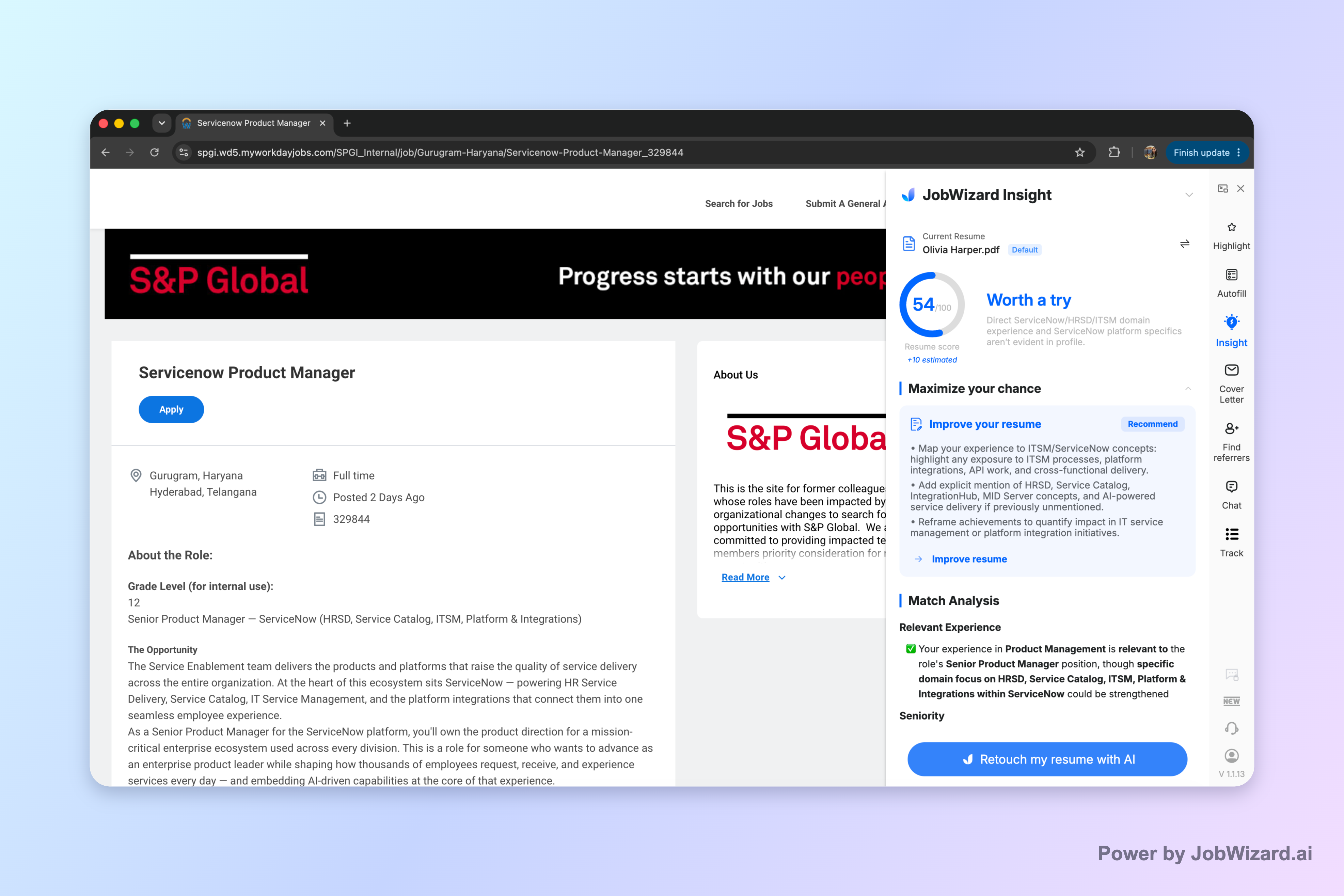
The match score is not a hiring probability and does not guarantee an ATS pass or an interview. Treat it as a way to review how your resume relates to a specific description, not as a promise about an employer’s decision.
If you want to work from a browser-based resume workflow, read how the JobWizard autofill resume extension supports tailoring while keeping review in your hands. For broader applications, JobWizard autofills repetitive fields while leaving sponsorship, salary, EEO, and custom questions for you to review before you submit.
When you use any application tool, pause at the final review. Check the employer, job title, resume attachment, and answers to questions before submitting the application yourself.
Do this automatically with JobWizard
Skip the manual work — JobWizard's Smart Autofill handles this for you.
Frequently Asked Questions About Indeed Resume Uploads
These quick answers cover phone uploads, attachment errors, and choosing a resume for a specific application. If Indeed’s current screen gives different instructions, follow the instructions shown in your account.
How do I upload a new resume on Indeed?
Sign in to Indeed, open your profile or resume area, and choose the option to upload or add a resume. Select the new file, complete the upload, then check your profile and application preview to confirm the correct version is attached.
How to upload resume to Indeed from my phone?
Open Indeed in the app or a mobile browser, sign in, and go to your profile or resume area. Choose the upload option, select a file from your device, wait for it to finish, and review the result before applying.
Why can't I attach my resume to an Indeed application?
The file may be in an unsupported format, too large, still uploading, or unavailable to the browser or app. Check Indeed's current file requirements, choose a compatible file, retry the upload, and confirm the resume appears in the application before submitting.
Can I use a different resume for each Indeed job application?
You can prepare a resume tailored to a specific role and select or upload that version when the application allows it. Check the application preview each time so you do not send a general or outdated copy by mistake.
Ready to check whether your resume fits a specific opening? Compare it with the job description using JobWizard Insight, review the identified gaps, and keep only changes that accurately represent your experience before applying.
Frequently Asked Questions
See your resume's match score for any job
JobWizard compares your resume to each job description and shows the exact keywords to add — free.