Google Sheet Job Application Tracker That Actually Keeps Your Follow-Ups Straight (Template + System)
A google sheet job application tracker helps you capture application activity, track status, and schedule follow-ups—without losing context. Build a review-ready system that stays easy to use.
Free Chrome extension
Track all your applications in one place
JobWizard auto-tracks status changes across Workday, Greenhouse, and every major job site — free.
Google sheet job application tracker: build one system that keeps status and follow-ups aligned
If you’ve ever wondered “Where did I apply, what did they say, and when do I follow up?”, a google sheet job application tracker can turn the chaos into a single, review-ready workflow. The goal isn’t just to log activity—it’s to make your next move obvious when you come back a week (or two) later.
You’ll still complete applications and review any autofilled answers before you submit. This guide focuses on tracking application status, capturing context for follow-ups, and keeping everything consistent across roles.
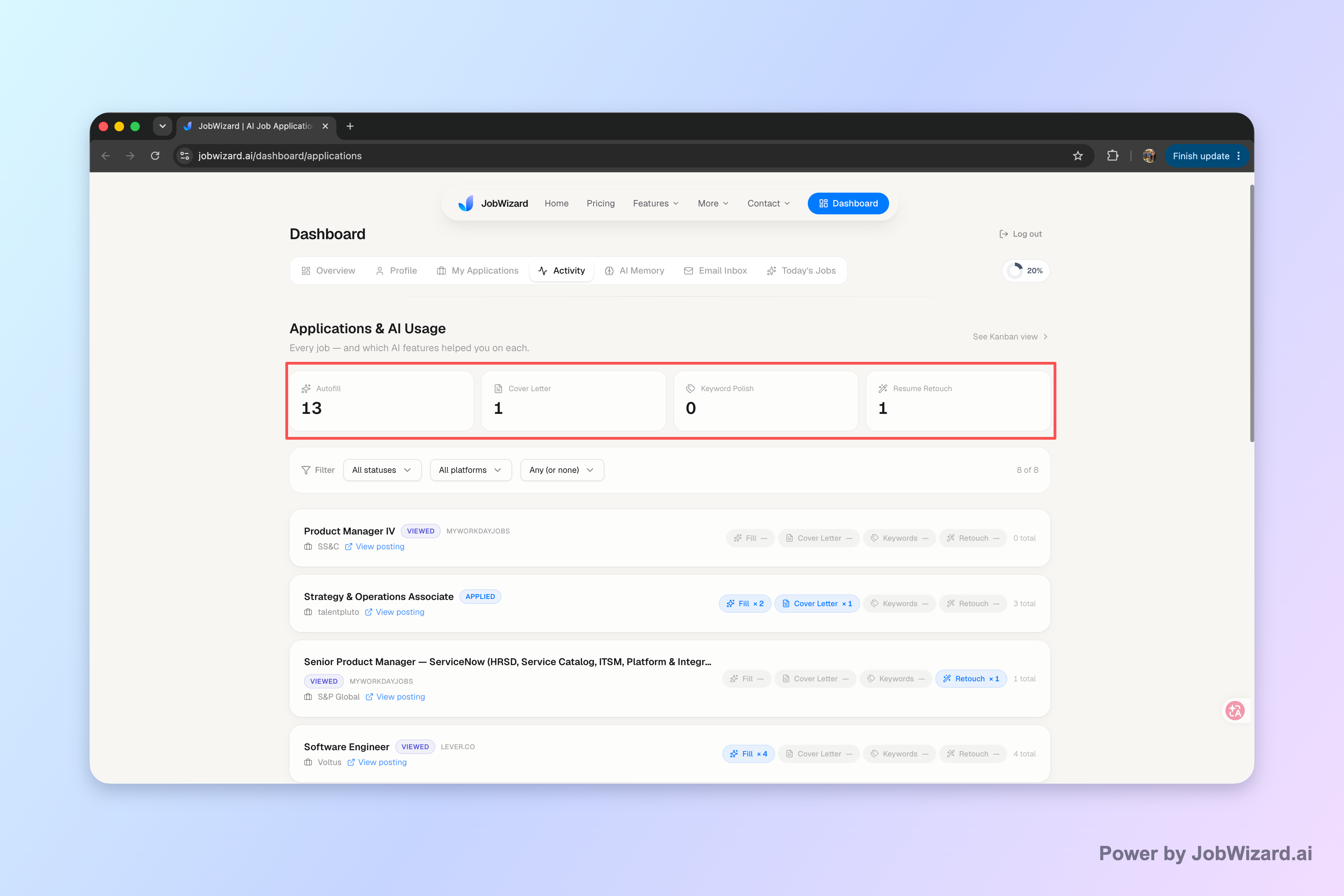
One of the easiest ways to keep your tracker accurate is to pair your spreadsheet with JobWizard’s Activity view, which shows application status and which JobWizard tools were used for each role.
Set up your google sheet job application tracker with the right fields
A good tracker spreadsheet makes “what’s next?” answerable in seconds. To do that, include fields that represent both application status and follow-up timing.
Below is a practical column set you can copy. Adjust wording to match your workflow, but keep the structure consistent.
| Column | What to put there | Why it matters |
|---|---|---|
| Company | Company name as listed | Quick scanning and sorting |
| Role title | Exact title you applied to | Prevents “almost the same role” confusion |
| Portal / Job board | Workday, Greenhouse, Lever, Ashby, etc. | Helps you jump back to the right site |
| Date applied | Your submission date (YYYY-MM-DD) | Anchor for follow-up scheduling |
| Application link / posting URL | URL or internal job ID | Fast retrieval when you need details |
| Application activity (status) | Current state: under review, in process, interview, not retained, etc. | So you know whether to follow up or wait |
| Disposition (optional) | Outcome label if it’s final | Keeps your history clean over time |
| Follow-up date | The next planned touch date | Prevents “I forgot to follow up” misses |
| Contact name | Recruiter/hiring manager name if known | Personalizes outreach |
| Last action | Submitted / emailed recruiter / updated application | Gives you context for the next step |
| Notes | Custom Qs you answered, salary/EEO notes you want to remember, reminders | Reduces rework and improves consistency |
If you want a head start, use a structured template approach rather than starting from a blank sheet. For example, you can adapt the pipeline concept from this google sheets job application tracker template for a follow-up-ready pipeline that stays organized and then map those columns to your own job search pace.
Turn status updates into a “review-before-submit” workflow
Tracking gets useful when it connects to action: what to update, what to wait on, and what to send next. The key is to treat your spreadsheet as your “decision surface,” while keeping your application content review-ready.
Here’s a simple workflow that works well for most applicants:
- Log the application row immediately Add the company, role, portal, and Date applied as soon as you submit.
- Set a tentative Follow-up date Use your own timing, then adjust after you see movement.
- Update Application activity (status) when you confirm it Only change status when you have a real signal (portal update, recruiter email, interview invite).
- Record the Last action Note whether you emailed, updated, or waited—so future you doesn’t guess.
- Review custom items before any next submission For any sponsorship/salary/EEO/custom questions, keep your notes and ensure you verify everything matches what you intend.
Tip: If you’re using JobWizard, think of it as helping with repetitive fields so you can move faster—while you still review and submit the application yourself.
In fact, JobWizard’s Activity view is built specifically to help you see application status and which JobWizard tools were used for each role, so your spreadsheet stays anchored to the real activity timeline.
Use JobWizard Activity to reduce tracker guesswork (and keep context)
Instead of treating your spreadsheet like a memory test, connect it to an activity log you can trust. JobWizard’s Activity view shows application status and which JobWizard tools were used for each role—so you can update your tracker with confidence.
That matters because application journeys often include multiple steps and touchpoints. With a tracker plus Activity context, you can answer questions like: “Did I submit through this tool?” “Is this still under consideration?” and “Have I already followed up?”
To build your status + follow-up system in one place, start with Job Application Tracker Google Sheets: Build a Status + Follow-Up System You’ll Actually Use, then use the Activity view to keep the status column honest.
If you want to go even more minimal, you can also model the basics from Job Tracker Spreadsheet: Build a Simple System to Track Applications and Follow Up and expand only what you need (usually Follow-up date + Notes first).
Avoid the two biggest tracker failures: duplicates and vague notes
Most trackers fail for one of two reasons: you add duplicate rows, or your Notes don’t explain what you actually did. Fix both and you’ll instantly make your google sheet job application tracker easier to maintain.
Failure #1: you tracked the same application twice
Duplicates happen when you apply through different portals, reuse similar job titles, or paste URLs inconsistently. Solve it by creating a unique identifier.
- Unique identifier: Company + Role title + posting URL (or job ID).
- Dedicated column: Store the identifier in one cell so you can sort/filter quickly.
- Rule: If the identifier already exists, update the existing row instead of adding a new one.
Failure #2: your “Notes” can’t support a real follow-up
Your next message should be easy to write. A useful Notes field captures outcomes and details you’ll want later—especially when applications include custom questions.
- Last action and date: “Submitted,” “Replied to recruiter,” or “Updated application,” plus when.
- Custom questions you answered: Keep a short checklist so you don’t reconstruct it from memory.
- What you’re waiting for: Example: “Waiting on recruiter response after interview” or “Still under review.”
When you do this well, follow-ups stop feeling random. You’ll also be able to compare your current status across applications without digging through emails.
Do this automatically with JobWizard
Skip the manual work — JobWizard's Application Tracker handles this for you.
FAQ: google sheet job application tracker questions
What columns should I include in a google sheet job application tracker?
Start with: Company, Role title, Job board/portal, Date applied, Application link (or posting URL), Current status (e.g., under review / interview / not retained), Follow-up date, Contact name (if you have one), and Notes for EEO/salary/custom questions you handled manually.
Should I use JobWizard alongside my google sheet job application tracker?
Yes—use JobWizard for the “application activity” view (so you can see status and which JobWizard tools you used for each role), then keep your spreadsheet as the place for follow-up timing, notes, and any details you want to review before you submit or reach out.
How do I avoid tracking the same application twice?
Create a unique identifier—commonly a combination of Company + Role title + posting URL (or job ID). Put that identifier in one dedicated column and only add new rows when the identifier doesn’t already exist.
What’s the difference between application status and disposition?
Application status is where the role stands right now (for example, under review or in process). Disposition is the outcome category after the process ends (such as not retained or no longer being considered). Treat status as the “current state” and disposition as the “final outcome.”
How should I handle follow-ups if I don’t hear back?
Use a Follow-up date column and set reminders when you apply. In your notes, record exactly what you last did (submitted, updated, emailed recruiter) so each follow-up has context and you can quickly decide what to ask next.
Ready to keep every role’s status and next step in one place? Use JobWizard’s Activity view to track application status, then maintain your google sheet job application tracker for follow-up dates and notes. Start organizing today with JobWizard and keep your next action obvious.
Frequently Asked Questions
Track all your applications in one place
JobWizard auto-tracks status changes across Workday, Greenhouse, and every major job site — free.