Badge Scan Follow Up Email Template: Get Replies Without Sounding Automated
A badge scan follow up email helps you bridge the “I just scanned you” moment into a real conversation. Use this reply-first template and checklist to track status and send at the right time.
Free Chrome extension
Autofill your next job application
JobWizard is a free Chrome extension that fills applications, tracks statuses, and optimizes your resume.
Badge scan follow up email is the bridge between “I met you at the event” and “here’s the next step I’m asking for.” The problem: most follow-up emails either sound generic, or they ask for an update too soon (or too vaguely), which makes recruiters ignore them.
In this guide, you’ll get a reply-first badge scan follow up email template, timing rules, and a simple tracking workflow so you can follow up with confidence—without guessing what stage your application is in.
What a badge scan follow up email should accomplish (and what to avoid)
Make it easy to respond—your email should clearly tell the recipient what you want and why you’re reaching out.
After you scan a badge, you usually have just enough context to be relevant, but not enough to be “expected” as a candidate. Your goal is to convert that moment into action: routing, next steps, or confirmation that you should apply / stay in the loop.
Here’s what works best:
- One specific reference to your conversation (a team, role, project area, or challenge).
- A simple request (e.g., confirm how they prefer candidates to apply, or share what “next steps” look like).
- Short proof of fit (one sentence: what you’ve done that connects to what they mentioned).
- Clear signature with your name + role you want + links (portfolio/LinkedIn), so they can reply fast.
And here’s what to avoid:
- Vague status fishing (“Just checking in”) without tying it to the role you discussed.
- Long life stories—recruiters are scanning for intent and relevance.
- Over-automated tone (“As per our conversation…” repeated boilerplate), especially right after events.
- Asking for everything at once—if you want a referral, a timeline, and an interview all in one message, you’ll slow down the reply.
Timing: when to send your badge scan follow up email
Send fast, then follow up with purpose—the timing should match both the event and your application stage.
A good rule of thumb is to send your first badge scan follow up email within 24–72 hours after the event. That window keeps the conversation top-of-mind, but it still leaves enough time for the recipient to have reviewed contact info.
Then decide your second follow up based on what you know (or can verify):
- First email (24–72 hours) — confirm continued interest and ask about the next step.
- Wait (give them time) — don’t spam while they’re processing event connections.
- Second email (new value) — include a relevant update or a sharper question about the role’s priorities.
Important limitation to keep in mind: using any tracking system doesn’t mean every update is detected automatically, or that tracking itself improves hiring outcomes. Your job as a candidate is still to review and decide what to ask for in each follow-up.
Reply-ready badge scan follow up email template (copy/paste)
Use this structure to sound personal while keeping the ask clear and easy to answer.
Below is a template designed for the exact situation: you scanned their badge at an event, talked briefly about a role, and want to turn it into a concrete next step.
Template: badge scan follow up email
Subject: Great speaking at [Event Name] — [Role Title] next steps?
Hi [Name],
It was great meeting you at [Event Name]—I appreciated your point about [specific topic they mentioned]. I’m especially interested in the [Role Title] role because [one sentence connecting your background to their topic].
If you’re the right person to advise, could you share what the preferred next step is for candidates coming from the event (or whether I should route through a specific process)?
In case it helps, my info is below:[Full Name][LinkedIn or Portfolio][Resume link if appropriate]
Thanks again, and looking forward to your guidance.Best,[Full Name]
Replace the bracketed parts with your real details. The highest-reply version is the one that feels like you wrote it in one pass, not the one that sounds polished-but-generic.
Track where each application stands—so your follow ups match reality
Don’t follow up in the dark—tie your emails to the stage you can see.
Job hunting gets confusing when you’re managing multiple roles across different pipelines. JobWizard’s Activity view is built to reduce that confusion by showing application status and which JobWizard tools were used for each role.
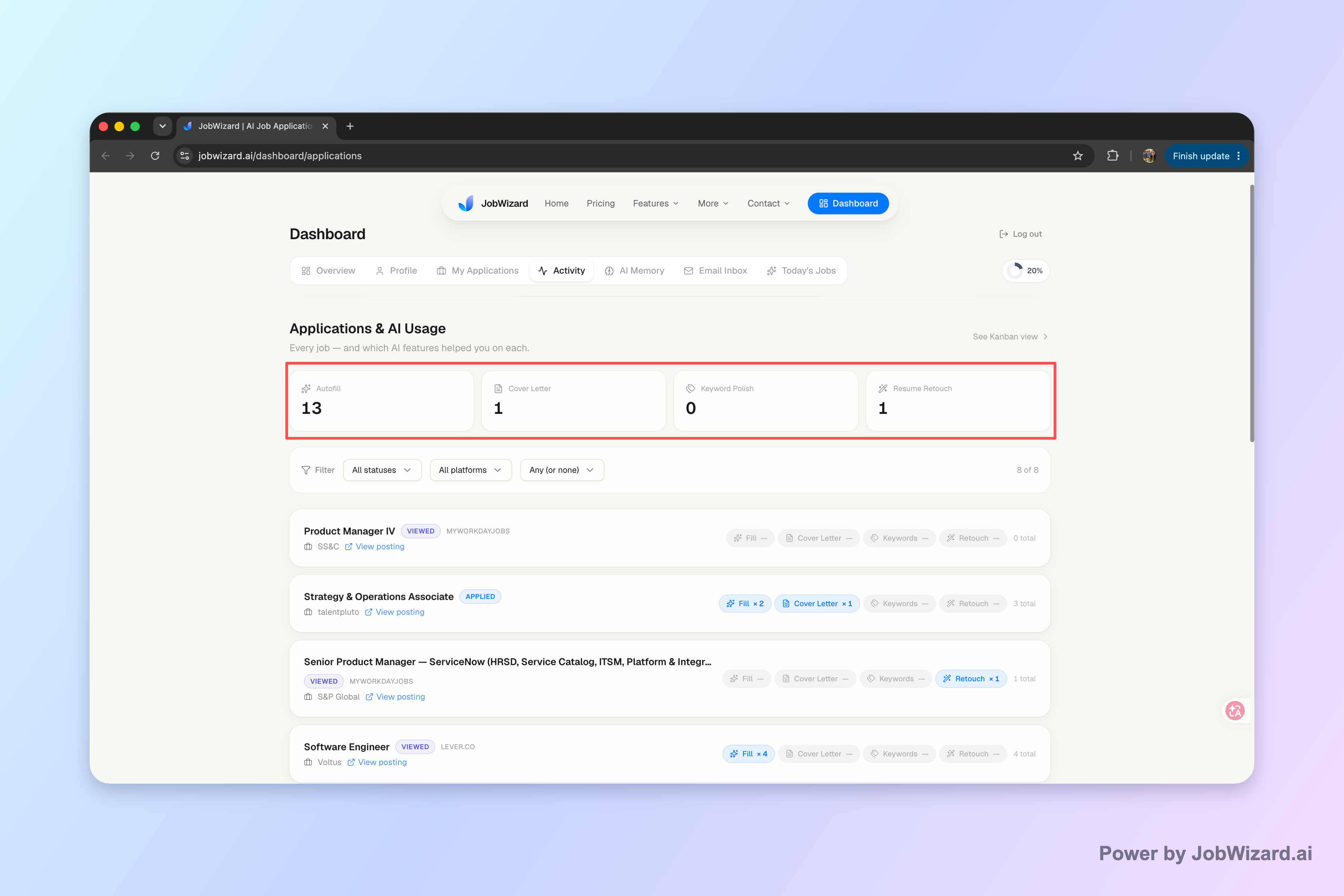
What to do with it: before you send your badge scan follow up email, check whether you’re already “in process,” “under review,” or otherwise moving—then craft your message accordingly (e.g., ask about routing/next steps vs. asking for an update on something you can already see).
JobWizard usage data from our database (2026-07) shows how frequently candidates move through the process and review what gets filled: there have been 720,000+ applications submitted and 600,000+ autofill sessions, and autofill typically fills about ~18 repetitive fields per application (often 11–23). The key workflow is autofill + review-before-submit—so sponsorship/salary/EEO/custom questions are left for your review and you submit yourself.
Use that same mindset with badge scan follow ups: you’re the final reviewer, and you choose what to ask. The goal is relevance, not automation.
If you want a practical system beyond email templates, these guides help you build consistent follow-through:
- How to Track Job Applications: A Practical System (JobWizard + Beyond)
- How to Start a Follow Up Email That Gets Read (and Moves Your Job Search Forward)
Do this automatically with JobWizard
Skip the manual work — JobWizard's Application Tracker handles this for you.
FAQs about badge scan follow up email
Get the answers you need so your follow ups are timely, personal, and easy to respond to.
How soon should I send a badge scan follow up email after an event?
Send it within 24–72 hours while your interaction is still fresh. If you also submitted an application, align the email with your application activity so you’re not asking about status you already see as moving.
What should I include so my badge scan follow up email doesn’t sound automated?
Reference the specific conversation and the role you discussed, include one concrete detail you genuinely noticed, and keep the message short. If you have more than one question, put the easiest one first so it’s quick for the recipient to answer.
Should I attach my resume in a badge scan follow up email?
Only attach it if they didn’t already have it from the event process, or if the email is specifically asking them to route you to the right recruiter. Otherwise, include a direct line in your signature (or a simple “Resume available upon request”) to avoid extra friction.
How do I follow up if I haven’t heard back after the first badge scan email?
Wait, then send a second note with a new angle: update them on a relevant project, confirm continued interest in the role, or ask one sharper question about next steps. Track the application status (including where you are “in process” vs. “not retained”) so you don’t guess.
Can JobWizard help me track badge scan follow ups alongside applications?
Yes. JobWizard’s Activity view shows application status and which JobWizard tools were used for each role, so you can keep each application and its next step in one place before you send follow-up emails.
If you want to polish your exact next message, use these step-by-step playbooks:
- How to Send a Follow Up Email for a Job: A Reply-Ready Plan (No Guesswork)
- Follow Up Email to Recruiter: A Reply-First Timing Plan That Gets Seen
CTA: Keep your badge scan follow ups grounded—sign into JobWizard and use the Activity view to check each role’s current status before you hit send, so your next email matches where the application actually is.
Frequently Asked Questions
Autofill your next job application
JobWizard is a free Chrome extension that fills applications, tracks statuses, and optimizes your resume.