Should I Copy and Paste My Resume to an Online Application? Here’s the Safer Way to Match
Wondering, “should i copy and paste my resume to an online application”? Learn when it helps, when it hurts, and how to qualify your content before you submit.
Free Chrome extension
See your resume's match score for any job
JobWizard compares your resume to each job description and shows the exact keywords to add — free.
If you’re asking should i copy and paste my resume to an online application, you’re not alone—online forms can feel like a trap where one small formatting mistake costs you credibility. The goal isn’t “paste as much as possible.” The goal is to qualify with the job description while keeping your information accurate and easy to review before you submit.
At JobWizard, the practical approach is to treat copy/paste as a tool—not a strategy. You’ll compare your resume to the current job description, spot gaps in expression, and then edit and fill the required fields yourself.
When copying and pasting your resume helps (and when it backfires)
Copy/paste can help when the form expects flexible text—but it backfires when formatting or keyword alignment matters more than convenience.
Here’s the quick rule of thumb: if the application gives you a single free-text area (or a “summary” box) and doesn’t require structured entries for each experience section, copy/paste may be fast and still usable. But if the form is built around specific fields—like separate job history segments, skills lists, or required “work experience” entries—copy/paste often creates messy results you still have to clean up manually.
- Helps: Short text fields where the content structure won’t get mangled (e.g., a brief “professional summary”).
- Backfires: Multi-section resume content that loses headings, bullet structure, or dates after pasting.
- Risk to watch: Incomplete or inaccurate paste edits—especially when you later realize a section didn’t transfer correctly.
Most job seekers underestimate one key point: your resume content isn’t the only thing under review. Online applications also ask for specific information (and in some cases, follow-up questions) that you need to answer precisely. Copy/paste is rarely the best way to handle that responsibility.
What “match score” style feedback can (and can’t) tell you
Match score guidance is about alignment—not proof you’ll be selected.
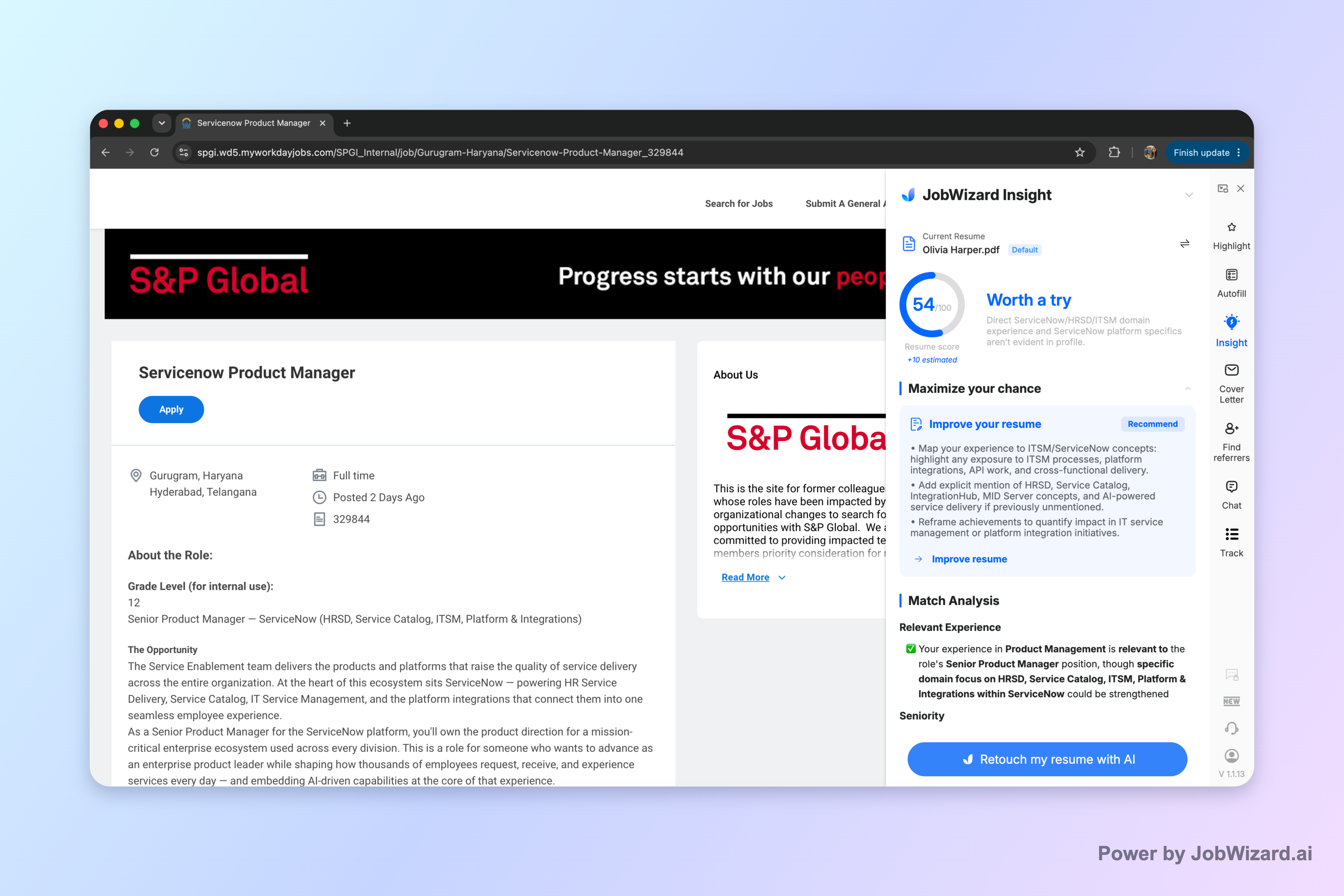
JobWizard’s Insight compares the selected resume with the current job description and presents a match score, an overall assessment, and improvement suggestions. It can also diagnose expression gaps and turn them into an editable resume revision draft so you can address them before you submit.
Here’s the limitation you should treat as non-negotiable: the score is not a hiring probability and does not guarantee ATS passage or an interview. You still have to verify every suggested resume change and keep only accurate experience.
Practical takeaway: Use the match score to find what’s missing (especially job-description phrasing), then review everything yourself before submitting.
This is why copy/paste alone can stall your progress: you can paste quickly, but you may not actually qualify the wording the job description is looking for. Insight helps you shift from “paste and hope” to “tailor, then fill.”
A safer workflow than copy/paste: tailor to the job description, then fill the form
The safest workflow is JD-first tailoring, then careful entry.
Instead of copying your entire resume into every field, use a structured sequence that keeps you in control of what gets submitted. This reduces formatting surprises and helps you focus on what actually matches the job.
- Anchor on the job description: Treat the job post as the checklist for skills, responsibilities, and qualifying keywords.
- Compare resume vs. JD: Identify expression gaps and where your resume may not reflect the job’s phrasing.
- Revise only what’s accurate: Convert gaps into an editable draft, then confirm your real experience supports any change.
- Fill required online fields: Enter information yourself (based on your verified draft) and keep sponsorship/salary/EEO/custom answers for review.
- Final review-before-submit: Read through the form to catch missing required items or broken formatting.
JobWizard also supports autofill + review-before-submit workflows so repetitive fields can be filled fast while you keep control over the content that needs judgment. In our usage data, JobWizard autofills an average of ~18 repetitive fields per application (typically 11–23), and it’s most frequently used on Workday (~65% of applications). Just remember: you still review-before submitting, especially for questions that must be correct and specific to you.
Resume upload vs. paste: how to choose on each application page
Choose based on what the form is optimizing for—structured fields usually want you to be deliberate.
Many applications give you an option to upload a resume and also require filling fields or answering questions. Even when upload is available, the safest approach is to assume the system still uses what you enter in the form. That means your pasted or autofilled text can’t be “close”—it needs to be correct and aligned.
| Application requirement | Is copy/paste a good idea? | Better approach |
|---|---|---|
| Free-text summary or brief description box | Often workable if formatting stays clean | Paste a trimmed version you reviewed, then verify dates and keywords |
| Multiple structured work-history fields | Usually messy and easy to misalign | Enter each segment intentionally (or use autofill + review-before-submit) |
| Skills or keyword lists | Risky if your paste doesn’t match the job | Tailor your skills to the job description, then fill the list fields |
| Custom questions (including eligibility, motivation, or experience-specific prompts) | Rarely “done” without editing | Draft and write answers that reflect your real background and the job post |
If you want platform-specific tactics, use these guides to handle common friction points like repeated fields, custom questions, and review-before-submit workflows: How to Autofill Job Applications (Step-by-Step with JobWizard) and Workday Application Help: Resume Upload, Status, and Repetitive Fields.
You can also get deeper on common platform behaviors here: Greenhouse Application Autofill: Custom Questions, Resume Upload, and Review Before Submit (Without Missing Required Fields) and iCIMS Application Forms: How to Handle Repeated Resume Fields with JobWizard.
Common mistakes people make when they paste a resume into job applications
Most copy/paste problems aren’t “ATS myths”—they’re avoidable submission errors.
- Unreviewed formatting: Headings or bullet lists collapse, turning a readable resume into an unreadable block.
- Wrong focus: Pasting your resume without checking whether your wording matches the job description.
- Inaccurate edits: Making changes “based on memory” instead of verifying your experience details.
- Missing required answers: Custom questions get skipped or answered with generic text because the applicant treats paste as “done.”
- Assuming a score = success: Even if a tool shows a match score, it’s not a hiring guarantee and you still must verify changes.
This is where a JD-based comparison helps: Insight compares your selected resume with the current job description and identifies expression gaps you can turn into an editable revision draft. The result is a resume that’s closer to the job’s language—so your application fields look intentional, not accidental.
If you’re ready to stop guessing, start by comparing a resume against the specific job description and reviewing the identified gaps before you submit.
Do this automatically with JobWizard
Skip the manual work — JobWizard's Smart Autofill handles this for you.
FAQ
Should I copy and paste my resume into an online application if the form has text boxes?
It depends: copy/paste can work for a few fields, but it often breaks formatting and can miss job-description keywords. If the system asks you to fill specific areas (experience, skills, or a resume text field), review what you paste and adjust to match the job description. When possible, use a resume upload option and focus on tailoring the content you’re required to enter.
Will copy and paste hurt my chances because of ATS or formatting?
Copying and pasting can create formatting problems (extra line breaks, merged headings, inconsistent bullets). Those issues can make it harder for you—and sometimes for parsers—to map your content to the fields in the application. The key limitation to remember is that any “match score” or ATS-style feedback isn’t proof you’ll pass; you still need to verify every suggested change and keep only accurate experience.
What’s a better workflow than copy/paste for online applications?
Use the job description as your anchor: (1) compare your resume against the job description, (2) identify expression gaps and turn them into an editable revision draft, then (3) fill the online fields based on what you tailored. In JobWizard, Insight can compare your selected resume to the current job description, show a match score with improvement suggestions, and convert gaps into next steps you can review before submitting.
Does a resume match score mean I’m guaranteed to get an interview?
No. A match score is not a hiring probability and does not guarantee ATS passage or an interview. Treat it as guidance for where your resume expression may not align yet—then verify every suggested resume change and keep only accurate experience.
If an application requires custom questions, should I paste those too?
No—custom questions are where you should answer with the specifics of your background. Copy/paste can be a starting point, but you should edit answers so they reflect your real experience and the job description. Leave sponsorship, salary/compensation, EEO, and any custom questions for your review before submitting, rather than relying on any auto-filled text blindly.
Ready to tailor instead of paste? Compare your resume to the exact job description with JobWizard Insight, review the identified gaps, and then fill your application fields with confidence before you submit.
Frequently Asked Questions
See your resume's match score for any job
JobWizard compares your resume to each job description and shows the exact keywords to add — free.