Jobscan Chrome Extension vs resume matching: how to qualify faster (and still review)
Searching for a jobscan chrome extension? Learn how resume-to-job matching and Smart Autofill work together—so you can spot resume gaps and still review every answer before you submit.
Free Chrome extension
See your resume's match score for any job
JobWizard compares your resume to each job description and shows the exact keywords to add — free.
Why your “jobscan chrome extension” search should start with job-matching, not blind auto-apply
When you search for a jobscan chrome extension, you’re usually chasing one outcome: figuring out whether your resume actually fits the specific job description (JD) you’re applying to. The fastest way to get clarity is to combine resume-to-JD matching with a controlled autofill workflow—so you can move quickly without skipping your review.
Job matching matters because ATS-focused screening often looks for the right skills and phrasing. But the “right” version of your resume isn’t the one that looks most automated—it’s the one you can verify is accurate, relevant, and ready to stand behind.
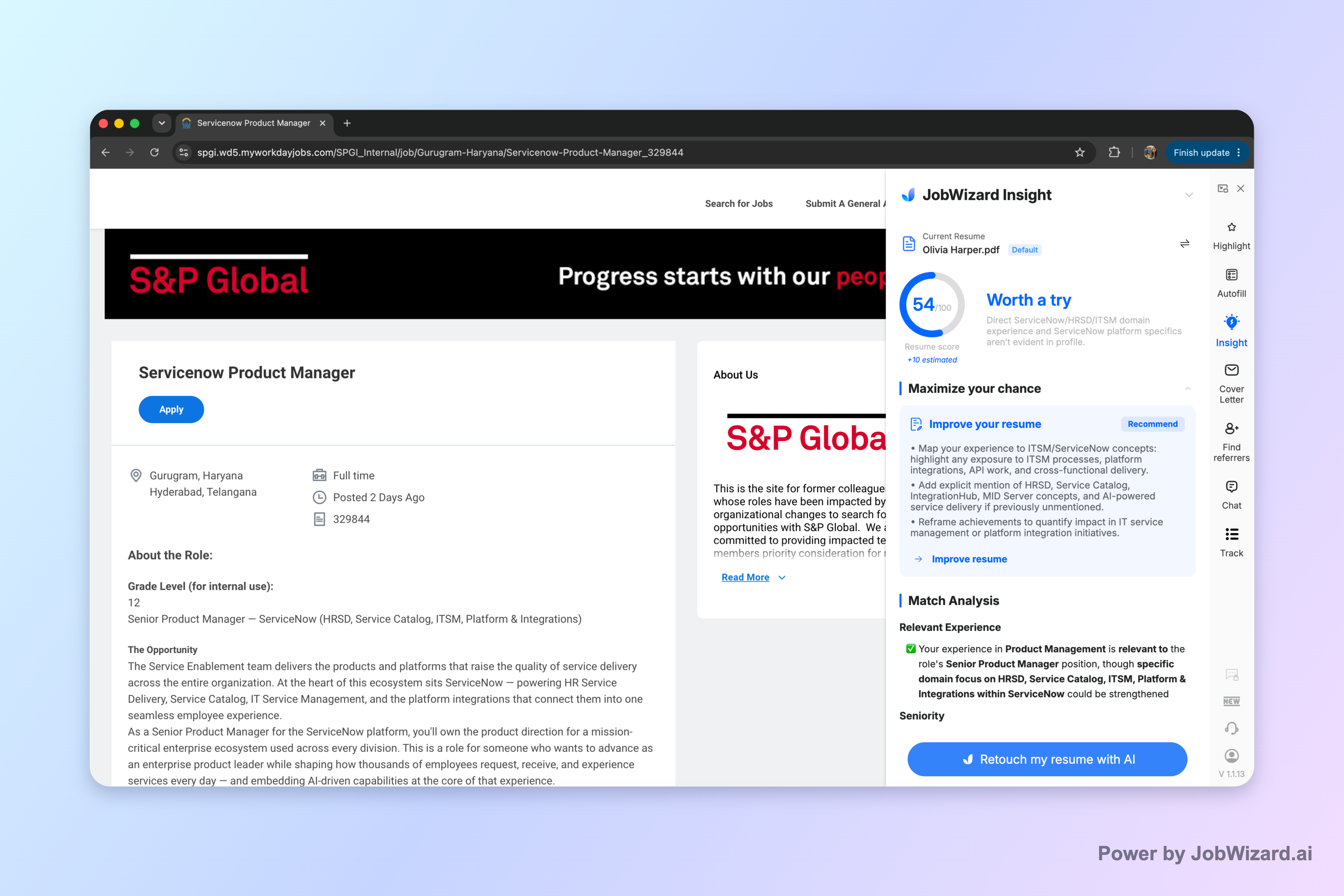
One practical way to start is by using an insight view that compares your resume against the JD, then turns gaps into improvement suggestions you can edit. For example, JobWizard Insight compares a selected resume with a job description and shows a match score, an overall assessment, and improvement suggestions you can act on.
What a match score should (and shouldn’t) be used for
- Use it as a diagnosis: Insight compares your resume with the current job description, highlights expression gaps, and helps produce an editable resume revision draft.
- Don’t treat it as certainty: The score is not a hiring probability and doesn’t guarantee ATS passage or an interview.
- Verify everything: You must verify every suggested resume change and keep only accurate experience.
That last point is where controlled workflows beat “set-and-forget” tools. If you don’t review the output, you can easily end up with changes that don’t reflect your actual background—or answers that don’t match how you want to present yourself.
What “jobscan extension” tools should show you about resume-vs-JD gaps
A good resume matching workflow makes it obvious what’s missing, misaligned, or under-explained. With JobWizard Insight, the JD-based diagnosis is meant to identify resume expression gaps and turn them into an editable resume revision draft you can review and adjust.
This is especially helpful when you’re trying to tailor without rewriting your entire resume from scratch. Instead of guessing, you can use the gap list as a roadmap for targeted edits that better reflect the role you’re pursuing.
How to tailor effectively using match-score insights
- Pick the exact JD: Match your resume to the specific job posting you’re applying to, not a generic “similar roles” version.
- Review the gap findings: Look for the skills and phrasing that the JD emphasizes, then compare them to your resume’s current language.
- Edit only what’s accurate: Keep updates that reflect your real experience. Don’t “optimize” by inventing responsibilities or metrics.
- Update your resume draft, then proceed: Once changes are accurate and consistent, you’re ready to apply with a stronger resume foundation.
Key limitation: The match score isn’t a hiring guarantee and doesn’t ensure ATS passage. It’s a tool to help you improve alignment and wording.
Where Smart Autofill fits: faster forms, still review before submitting
Even with a tailored resume, job applications can stall on repetitive data entry—names, contact details, addresses, employment dates, and similar fields. That’s where a Smart Autofill step can help: it fills detected fields so you can focus on the questions that actually require your judgment.
JobWizard Smart Autofill uses saved profile and resume data to fill detected fields on supported application pages. Importantly, the user reviews the populated fields and submits the application themselves.

How to use autofill without turning your application into “bot-style” content
- Autofill first, then review: The repetitive fields are populated quickly, but the final review is still yours.
- Don’t assume perfection: You should expect to double-check every populated answer for accuracy and completeness.
- Handle required questions: If a required field still needs attention, JobWizard can identify it and let you jump to the matching question.
- Submit yourself: The workflow is not automatic submission—your review comes before you click submit.
If you want a workflow that feels efficient but stays controlled, this structure works well: diagnose the resume with match-score insights, then use autofill for the repetitive form work while you keep ownership of the final answers.
Jobscan chrome extension alternatives: choose the combo that matches your real bottlenecks
Not everyone is stuck in the same place. Some people need better resume-to-JD alignment; others are spending too much time retyping the same form fields. That’s why the right approach is usually a combination: resume matching insights + controlled autofill.
| What you’re trying to fix | What to look for | How JobWizard supports it (based on approved facts) |
|---|---|---|
| “Am I qualified for this JD?” | Resume vs JD comparison, match score, and improvement suggestions | Insight compares your resume with the current job description and presents a match score, assessment, and improvement suggestions; it can identify expression gaps and help create an editable resume revision draft. |
| “I waste time on repetitive fields.” | Autofill that populates detected fields, with a review-before-submit workflow | Smart Autofill fills detected fields using saved profile and resume data; you review populated fields and submit the application yourself. |
| “I’m worried about getting the details wrong.” | Clear guidance that you must verify suggested changes/answers | Match-score suggestions must be verified by you, and autofilled content should be reviewed before submitting. |
| “A required question won’t fill.” | Tool helps you find and complete the missing required field | When a required field needs attention, JobWizard can identify it and let you jump to the matching question. |
Where this matters most is the difference between assistive autofill + review-before-submit versus anything that tries to remove your decision-making. If you’re applying to roles that truly matter, you’ll want speed in the mechanical steps—not shortcuts in the judgment steps.
Real usage context: JobWizard has processed 720,000+ applications submitted and 600,000+ autofill sessions, averaging ~18 repetitive fields per application (typically 11–23). Of applications submitted through it, ~65% are on Workday.
Do this automatically with JobWizard
Skip the manual work — JobWizard's Smart Autofill handles this for you. On these platforms: JobWizard vs Jobscan.
FAQ about the jobscan chrome extension workflow
Is a jobscan chrome extension actually useful for ATS keyword matching?
It can be useful—when it shows you how your resume aligns with the specific job description. The key is to treat the results as a diagnosis (what’s missing or mis-stated) and then verify and edit the changes based on your real experience.
Does Smart Autofill (or any autofill tool) automatically submit my applications?
No. The workflow is designed for autofill + review-before-submit: it fills detected fields on supported pages, you review everything populated, and then you submit yourself.
How do I use match-score insights without gaming the system?
Use the match score as guidance to find resume expression gaps, then keep only accurate updates that reflect your actual background. Don’t rewrite your history—verify every suggested change and retain only what’s true.
What should I check if a required field still needs attention?
If a required field still needs your input, the tool can identify it and help you jump to the matching question. Before submitting, review that field carefully to ensure it’s complete, correct, and consistent with the rest of your application.
What’s the best next step if I want to apply faster without losing control?
Compare your resume to the specific job description first to identify gaps, then use controlled autofill to complete repetitive fields while you review sponsorship/salary/EEO/custom questions and anything else that requires your judgment.
Ready to replace “guess and hope” with a faster, controlled workflow? Try JobWizard to compare your resume against the exact job description using Insight, then use Smart Autofill to fill repetitive application fields—while you review everything before you submit.
Frequently Asked Questions
See your resume's match score for any job
JobWizard compares your resume to each job description and shows the exact keywords to add — free.