How to Add a Promotion on LinkedIn Without Notifying Everyone
Learn how to add a LinkedIn promotion without notifying everyone, with desktop and mobile steps, privacy tips, and what to do if the toggle is missing....
Free Chrome extension
Update LinkedIn quietly, with confidence
Get AI help wording profile changes and job moves without awkward guesswork.
Quick answer: how to add a promotion on LinkedIn without notifying everyone
If you’re trying to update your promotion on LinkedIn without sending a notification, the key is to turn off sharing for that profile update. In most accounts, LinkedIn offers a “Notify your connections” (or similarly named) option when you add or edit an experience entry—choose not to notify before you save. This guide walks you through the exact workflow for both adding a brand-new role and editing an existing one, so you can answer how to add a promotion on LinkedIn without notifying everyone with confidence.
Before we dive in, keep one limitation in mind: LinkedIn’s controls can vary slightly by account type, app vs. desktop, and whether you’re adding a new role or editing an existing one. If you don’t see the same checkbox, use the profile update visibility settings described below.
Step-by-step: add a promotion without notifying connections (desktop workflow)
Start on the LinkedIn desktop site if possible, because it typically shows the most granular options. This workflow is the most direct way to learn how to add a promotion on LinkedIn without notifying everyone when you’re creating a new experience entry for the promoted role.
1) Use “Add position” for the new promoted role
Go to your profile, then locate the Experience section. Click Add experience (or the + button), then enter your promoted title, company, location (if applicable), and the correct start date.
2) Find the “notify” or “share” control before you save
During the save flow, look for a toggle, checkbox, or dropdown related to whether your connections (or network) will be notified. It may appear as “Notify your network” or “Share with your network,” depending on your interface.
- Choose the option that indicates you do not notify people.
- If there are multiple audience options, select the most restrictive privacy choice.
3) Save and double-check the post-like behavior
After you hit Save, quickly confirm that your profile shows the new promoted role with the right dates. If you see any “shared” or “announcement” style update on your profile or feed, undo and re-check the notify/share setting on the edit screen.
Tip: If your goal is “no LinkedIn promotion notification,” always make the notify/share choice before the save action. Once saved, you may have to go back and edit the visibility setting.
Editing an existing experience entry: the safest way to avoid a notification
Sometimes the most reliable approach to how to add a promotion on LinkedIn without notifying everyone is to edit an existing job entry rather than create a brand-new one. Editing a current company role can keep the change tied to your existing history and reduce the odds of LinkedIn treating it like a fresh announcement.
1) Open your current role and choose “Edit”
From your profile’s Experience section, click the pencil/edit icon next to your current role at that company. Update the title to the promoted title and adjust dates as needed.
2) Check whether LinkedIn asks about notification sharing
When you edit, LinkedIn may show notification/share options again. If it does, set it to do not notify (or the closest equivalent wording).
3) Save, then review the Experience entry formatting
After saving, make sure your job history looks correct and consistent (title, date ranges, and any description you want visible). If your profile shows an announcement-style element, revisit the edit screen and change the notify/share option.
If you don’t see a “notify connections” checkbox: adjust LinkedIn profile update settings
It’s common to run into an interface mismatch—especially between mobile and desktop. If you can’t find the “notify” checkbox during the promotion update, your next step is to adjust your LinkedIn profile update visibility settings. This is how you continue solving how to add a promotion on LinkedIn without notifying everyone even when the save screen doesn’t expose the toggle.
1) Go to Settings & Privacy
Open LinkedIn settings (usually under your profile menu). Look for a section related to visibility, sharing, or profile updates.
2) Look for controls that govern profile update sharing
Depending on your account, you may see options that control whether LinkedIn shares changes to your profile with your network. Turn off the setting that would notify connections about changes like job updates.
- Prefer the setting that limits sharing of profile updates.
- If there are multiple categories (like “activity” vs. “profile updates”), prioritize the one about job/experience changes.
3) Re-apply your promotion update after changing settings
Once you update the visibility/share setting, go back to your profile and add or edit the promotion entry again. Then save using the same “no notify/share” approach whenever available.
Reminder: LinkedIn’s exact labels can differ, so focus on the meaning—controls that prevent your network from being notified about profile changes.
Mobile app vs. desktop: what to watch for when you update your promotion
If you’re on the LinkedIn mobile app, the user experience may hide or simplify notification controls. To avoid accidentally answering how to add a promotion on LinkedIn without notifying everyone the hard way, use these checks before you tap Save.
1) Update from the “Edit experience” screen when possible
On mobile, try to edit the existing entry for your promoted role rather than creating a brand-new experience item—this can be a more predictable path.
2) Watch for “share” prompts at the end of the flow
Some mobile flows reveal sharing choices only near the final step. Don’t rush the confirmation screen—look for any audience/notification option and switch it off.
3) After saving, scan your profile for anything that looks like an announcement
If you see a feed-like update or a visible “shared” element, treat it as a signal that sharing wasn’t disabled. Go back to the promotion entry and adjust the notify/share control.
After the promotion: use JobWizard to quietly move toward your next role
Updating your promotion on LinkedIn can be a power move when you’re actively job searching—because your new title helps recruiters (and potential referrers) understand your current scope. And if you’re already thinking about your next step, JobWizard can help you reach out faster in a targeted way. One practical option is Referral Finder, which helps you generate outreach that you review and personalize before you contact anyone.
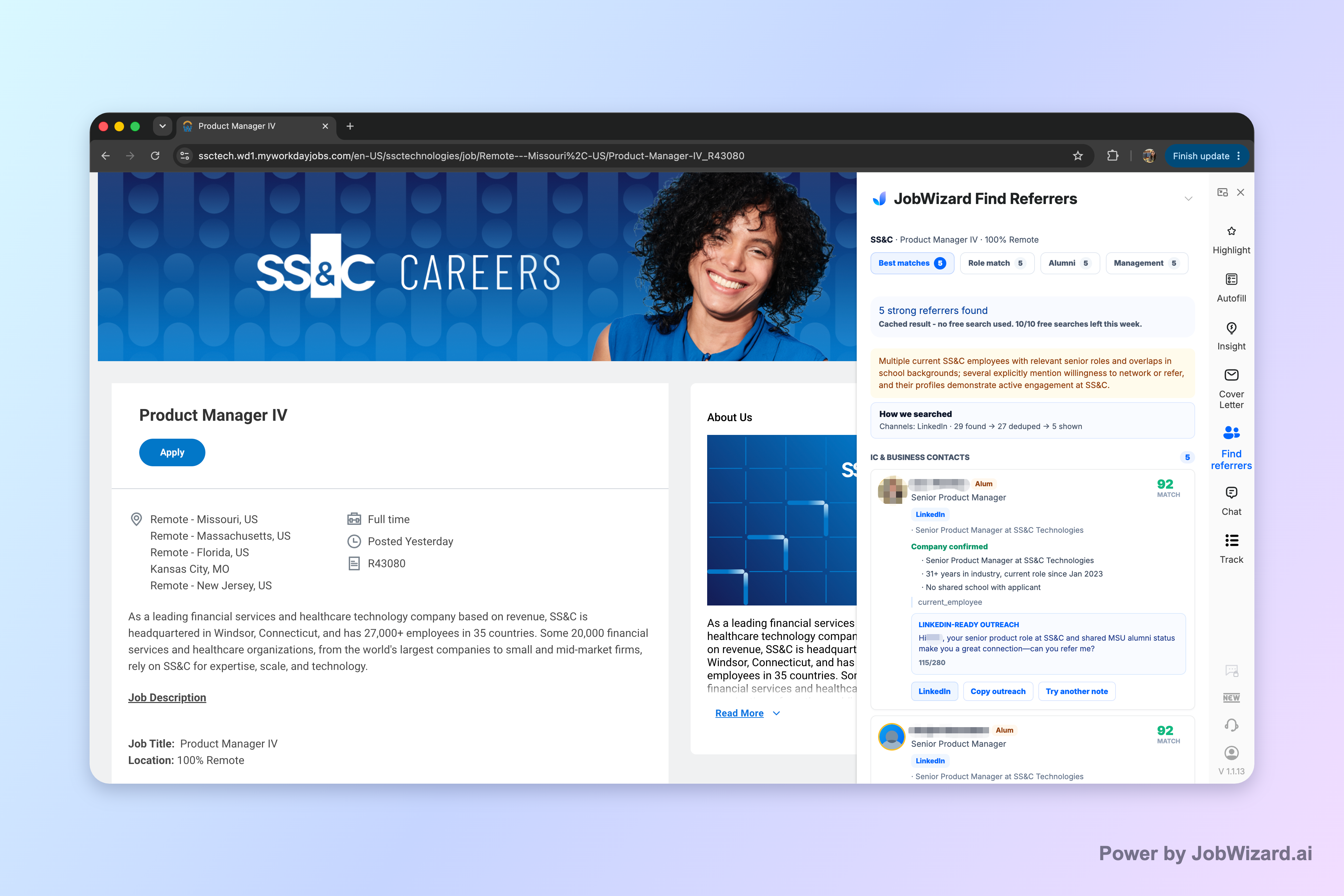
Here’s the key workflow from a job seeker’s perspective: Referral Finder organizes relevant employees by match type (including role and alumni context) and prepares an outreach draft you can review and personalize. You still choose whom to contact, and you must add a truthful, specific reason for reaching out—so you never rely on an AI-generated message as-is.
Important limitations to keep in mind: Referral Finder does not guarantee contact accuracy, responses, or referral outcomes. It also can’t replace your judgment—your outreach should be specific to the person and your connection.
- Pick people you genuinely want to talk to.
- Personalize the draft with a specific, truthful reason (e.g., shared work, common alumni path, or relevance to your promotion/experience).
If your LinkedIn promotion is part of your strategy to move into a new team or role, this combination—updating your profile discreetly plus preparing outreach quickly—can help you stay focused on actions that drive interviews.
Do this automatically with JobWizard
Skip the manual work — JobWizard's Referral Finder handles this for you.
Promotion update checklist: prevent LinkedIn notifications and keep your profile accurate
Use this quick checklist when you update your promotion. It’s designed specifically for the scenario behind how to add a promotion on LinkedIn without notifying everyone—and it works whether you’re adding a new entry or editing an existing one.
- Choose the right action: add a new experience entry for the promoted role, or edit the existing entry to reflect the promotion.
- Disable sharing before saving: look for “notify your connections/network” or equivalent and set it to “no.”
- If no toggle appears: adjust Settings & Privacy profile update/sharing controls.
- Use desktop when possible: it’s more likely to show the full set of options.
- After saving: confirm the entry is correct and check for any feed/announcement-like behavior.
When you’re careful at the save step and consistent with your visibility settings, you significantly reduce the chance that your promotion turns into a broadcast.
Will LinkedIn notify my connections if I update my job title?
It depends on your account’s sharing settings and the options shown when you save. In many cases, LinkedIn provides a “notify/share” choice—select “no notify” to prevent a connection notification. If you don’t see the option, check your Settings & Privacy profile update sharing controls.
What’s the difference between adding a promotion as a new role vs. editing my existing experience?
Adding a new promoted role may trigger notification prompts more often because it resembles a fresh experience entry. Editing an existing experience entry can be a more controlled update, and it still usually lets you choose whether to share the change.
I don’t see any “notify connections” option—what should I do?
Update your visibility/sharing settings in Settings & Privacy, then repeat the promotion update. Also try a desktop browser if you’re using the mobile app, since the interface may differ.
Can I fix it later if I accidentally notified people?
If you already saved with sharing enabled, revisit the promotion entry and check for any notification/share settings you can change. LinkedIn’s behavior can vary, so focus on disabling sharing options going forward and keep your profile updates accurate.
Does JobWizard help with LinkedIn notifications?
JobWizard focuses on job-search tasks like autofilling ATS forms, resume optimization, finding referrals, and generating cover letters. For preventing LinkedIn promotion notifications, you’ll control that through LinkedIn’s own sharing/visibility settings.
Ready to follow up on your promotion strategically? Use JobWizard’s Referral Finder to identify relevant employees and generate a personalized outreach draft you can review before contacting anyone. The more specific your message, the better your chances of starting a meaningful conversation.
Frequently Asked Questions
Update LinkedIn quietly, with confidence
Get AI help wording profile changes and job moves without awkward guesswork.