Track Greenhouse Applications Like a Pro: A Greenhouse Application Tracker Workflow
Learn how a greenhouse application tracker helps you keep every Greenhouse status, question, and next step in one place—plus how to autofill without missing required fields.
Free Chrome extension
Track all your applications in one place
JobWizard auto-tracks status changes across Workday, Greenhouse, and every major job site — free.
Use a greenhouse application tracker to turn “waiting” into a clear next step
Waiting on a Greenhouse submission gets frustrating fast—especially when you’re juggling multiple roles and can’t remember which answers you already gave. A greenhouse application tracker helps you organize each application’s current status, your notes, and what you plan to do next.
The goal isn’t to “guess” hiring timelines. It’s to keep your actions consistent: apply, track the status you see, and follow up only when it makes sense for that specific role.
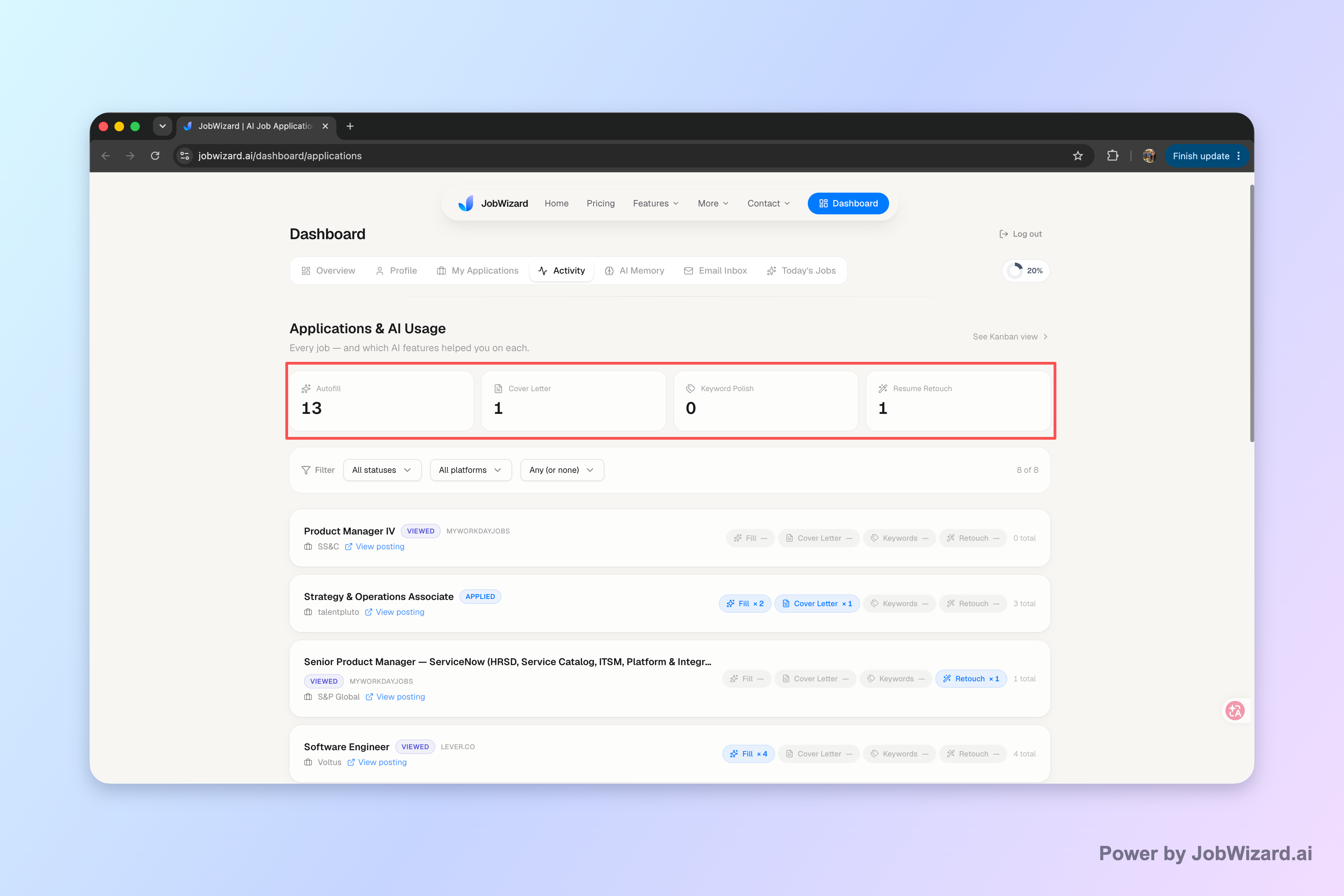
With JobWizard’s Activity view, you can see application status and which JobWizard tools you used along the way—so your tracker isn’t scattered across tabs, emails, or spreadsheets.
What makes Greenhouse tracking different from a generic tracker?
Greenhouse is where applicants often see status wording like “under review” or “not retained,” and those phrases can change over time. A greenhouse application tracker should be built around those real status transitions and your next-action plan—whether you’re waiting, preparing for an interview, or deciding when to reach out.
Instead of tracking only “applied/not applied,” you’ll want a place to capture: role, date, current stage, and your notes. That structure makes follow-ups easier and reduces “did I already message them?” mistakes.
Set up your Greenhouse tracker workflow: apply → autofill → review → track
A simple workflow keeps your greenhouse application tracker accurate and usable—especially when you’re submitting through Greenhouse’s form questions and required fields. Here’s a practical process you can run every time.
- Capture basics immediately: log the company + role title + apply date as soon as you’re on the submission page.
- Autofill the repetitive fields: use JobWizard’s Chrome extension to populate detected fields on supported job application pages.
- Review before submitting: confirm each answer—especially custom questions, EEO or eligibility items, and anything that needs personalization.
- Track the next step: after submission, update your tracker with the current Greenhouse status you see and add any notes (recruiter name, referral source, etc.).
Autofill with guardrails (so your answers stay yours)
Autofill is most helpful when it’s focused on repetitive fields—not when you’re trying to “set and forget” an application. JobWizard’s smart autofill is designed so the user reviews what’s been populated and submits the application themselves.
If a required field still needs attention, JobWizard can help you identify it and jump to the matching question—so you don’t miss something important while you’re moving fast.

In practice, you’ll see fields filled while you stay in control of the final review and submission decision.
Follow up with context, not chaos
A good tracker makes follow-up decisions clearer. Instead of sending “Just checking in” messages repeatedly, you can reference: what stage you last saw, when you applied, and what you already asked for.
When Greenhouse status changes, your notes should tell you what that means for your next step—waiting vs. prepping interview materials vs. drafting a concise follow-up.
Know which Greenhouse status changes are worth updating in your tracker
Not every status label should trigger action, but your greenhouse application tracker should still record key transitions so you can plan without second-guessing.
Here’s a practical way to decide when to update your tracker (and what to write down).
| Greenhouse stage (what you may see) | Update your tracker? | What to note |
|---|---|---|
| Under review / in process | Yes | Your current status wording + date you observed it; add recruiter/referral notes if relevant. |
| Viewed / application activity updates | Yes | When you noticed the change; if you sent a message already, include the date. |
| Not retained / disposed | Yes | Close the loop with a note (what you’d improve next time) so you don’t repeat the same mistake. |
| Pending approval / interview status | Yes | Any scheduling details and follow-up date you plan to use. |
Where JobWizard fits: activity tracking + review-before-submit
Your tracker should reflect both what happened in the application and what you did to get it there. JobWizard’s Activity view shows application status and which JobWizard tools were used for each role.
That means you can keep your tracker aligned with your actual workflow—autofill + review-before-submit—rather than relying on memory.
If you want deeper guidance on decoding what each stage typically indicates on Greenhouse, use this companion read: Greenhouse Application Status Meanings Decoded — What Each Stage Tells You.
Greenhouse tracker templates that stop you from missing required questions
The fastest way to derail a greenhouse application tracker is letting your notes become “vague.” Instead, use templates that force you to capture the details that matter—especially for custom questions.
Template 1: The “Role + Next Step” card
- Company + role: (e.g., Company A — Backend Engineer)
- Date submitted: (YYYY-MM-DD)
- Current Greenhouse status: exact wording you see
- Next step: waiting / follow up on date / prep interview
- Notes: referral, recruiter name, or anything you should remember
Template 2: The “Question coverage” checklist
- Custom questions: answered? yes/no
- Resume upload: correct version? yes/no
- Work authorization / eligibility: verified? yes/no
- Open-ended responses: do they sound like you? yes/no
This template works especially well when you’re using smart autofill, because it reminds you that you’re reviewing and tailoring—rather than letting automation choose your voice.
Make autofill repeatable across Greenhouse (without losing control)
If you want a step-by-step setup for Greenhouse specifically, start here: How to Autofill Greenhouse Applications Using a Chrome Extension.
And if your biggest worry is missing required fields in custom questions, this guide is built for that: Greenhouse Application Autofill: Custom Questions, Resume Upload, and Review Before Submit (Without Missing Required Fields).
Why JobWizard’s Activity view belongs in your greenhouse application tracker
Your tracker should reflect both status updates and the actions you took while applying—because that’s what makes follow-ups consistent.
JobWizard’s Activity view provides an application tracking layer that shows application status and which JobWizard tools were used for each role. It’s designed for autofill + review-before-submit, so you stay responsible for what gets submitted.
Real usage, real workflow: JobWizard has supported 720,000+ applications submitted and 600,000+ autofill sessions run through the platform, with autofill filling an average of ~18 repetitive fields per application (typically 11–23).
When your tracker is tied to that workflow, it becomes easier to answer questions like: “Which roles did I autofill for?” “Which application did I already review carefully?” and “What was the status when I last checked?”
If you want a deeper walkthrough of the overall process, use How to Autofill Job Applications (Step-by-Step with JobWizard) to build a repeatable routine across job boards.
CTA: Ready to keep your greenhouse application tracker accurate from submission to follow-up? Try JobWizard’s autofill for your next application, review every answer before submitting, and use the Activity view to keep your next steps in one place.
Do this automatically with JobWizard
Skip the manual work — JobWizard's Smart Autofill handles this for you. On these platforms: Greenhouse autofill.
FAQ: greenhouse application tracker questions job seekers ask most
What should I track in a greenhouse application tracker besides the status?
Track the company, role, date you applied, the specific Greenhouse status you’re seeing, any notes from the hiring process (e.g., recruiter email, referral, or interview scheduling), and which parts still require your input (like custom questions).
Does JobWizard automatically submit or follow up on my Greenhouse applications?
No. JobWizard autofills repetitive fields so you can review every populated answer, then you submit the application yourself. It’s designed for autofill + review-before-submit, not blind auto-submit or automatic follow-ups.
How do I handle required custom questions on Greenhouse without losing my answers?
When a required field needs attention, JobWizard can identify it and let you jump to the matching question. You review each populated response, add what’s missing or tailored, and then submit when everything is correct.
What do I do if my Greenhouse application status changes after I apply?
Use your tracker view to see where that application stands now, then decide your next step—whether that’s waiting, sending a short follow-up, or preparing for interview steps. The key is keeping your notes and timelines consistent so you don’t double-message recruiters.
Is a greenhouse application tracker only useful if I’m applying every day?
Not at all. Even if you apply occasionally, a greenhouse application tracker helps you remember what you applied to, when you applied, and what stage you’re in—so you can follow up at the right time and avoid repeating questions.
Frequently Asked Questions
Track all your applications in one place
JobWizard auto-tracks status changes across Workday, Greenhouse, and every major job site — free.