
Chrome Extension Resume Workflow: Match Score Diagnostics + Gap Fixes Before You Submit
Learn how a chrome extension resume workflow can compare your CV to the job description, surface expression gaps, and turn them into reviewable edits—before you submit.
Free Chrome extension
See your resume's match score for any job
JobWizard compares your resume to each job description and shows the exact keywords to add — free.
Turn a chrome extension resume into a job-specific resume plan—not just another upload
If you’re using a chrome extension resume workflow, the goal shouldn’t be “submit faster”—it should be “tailor smarter.” The fastest way to lose opportunities is to apply with a resume that doesn’t express the same skills and phrasing the job description expects.
What “good tailoring” looks like in practice: you take the job description (JD), identify the resume expression gaps (where your experience isn’t presented in the language the JD is asking for), then draft edits you can confidently verify. In JobWizard, that process is centered around Insight: it compares your selected resume with the current job description, assigns an match score, and generates improvement suggestions.
Important limitation to keep in mind: the score is not a hiring probability and it doesn’t guarantee ATS passage or an interview. Still, the JD-based diagnosis can help you quickly locate where your resume may be under-expressing the role—so you can fix it.
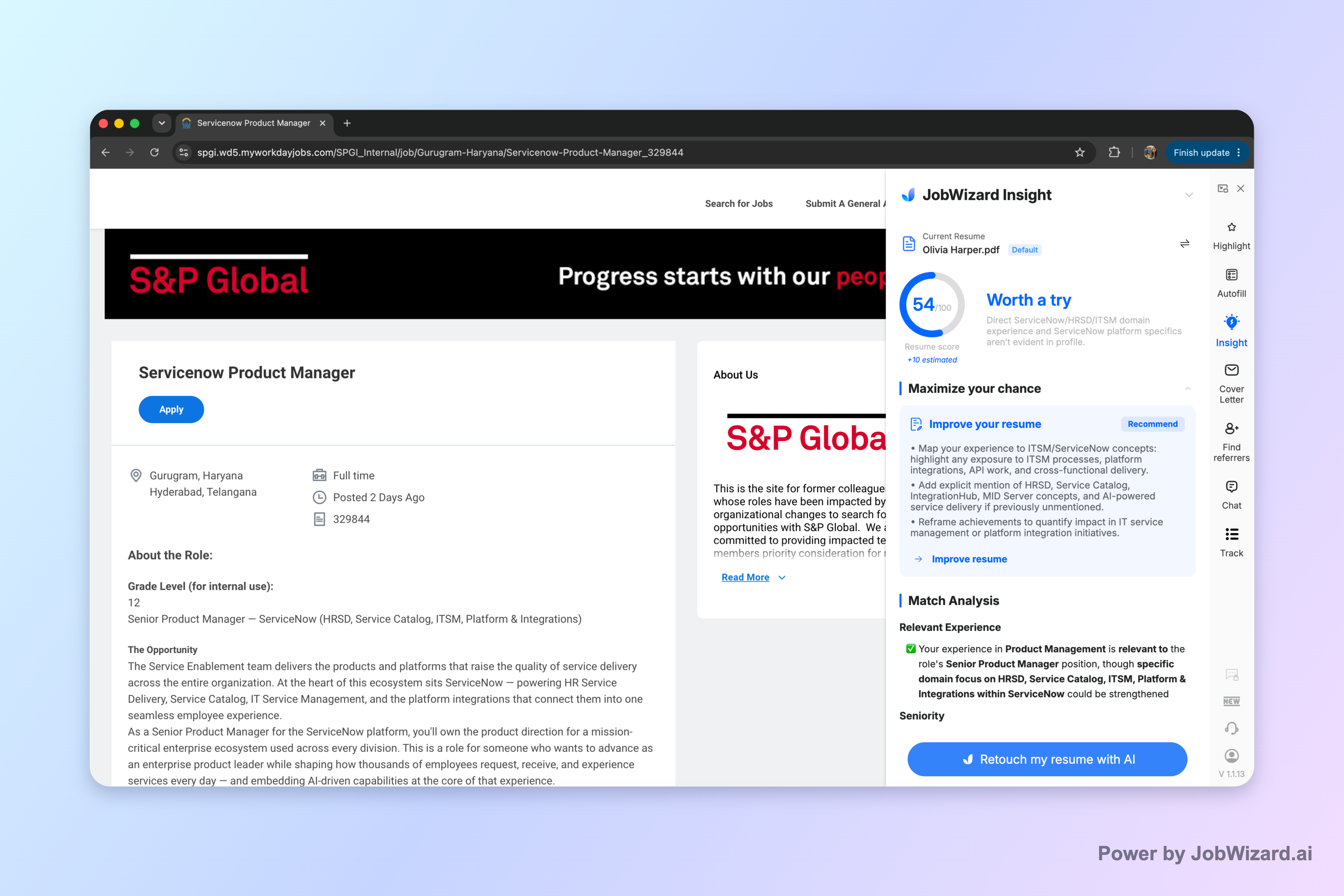
Next, you’ll see how to use Insight’s match score and recommendations as a practical, review-before-submit workflow for your chrome extension resume.
Use the match score to find “what’s missing” in your resume
A chrome extension resume workflow is most useful when it turns feedback into decisions—starting with the JD comparison. In JobWizard Insight, you compare your resume to the job description and get an overall assessment plus a match score.
Here’s the key: the JD-based diagnosis can identify resume expression gaps. That means you can focus on the specific lines, skills, or phrasing where your resume may not reflect what the posting is asking for.
To use the match score effectively, treat it like a diagnostic, not a finish line. If your match score is lower than you expected, don’t guess. Instead, follow the recommendations and inspect the underlying gap areas so you can decide which edits are both accurate and impactful.
What to do when the score is lower than you want
- Read the job description twice: highlight the required skills and the repeated phrasing (tools, responsibilities, competencies, and scope).
- Map gaps to your experience: for each highlighted requirement, find the closest evidence in your resume—then check whether your wording actually matches the JD’s language.
- Draft only what you can verify: the best edits are the ones you can back up with real dates, projects, and responsibilities.
JobWizard’s limitation still applies here: you must verify every suggested resume change and keep only accurate experience. The tool can accelerate the first draft of edits, but your final resume must stay true to your background.
Turn identified gaps into editable resume improvementsbefore you submit
The biggest value of a chrome extension resume workflow is turning analysis into an editable draft you can review. With JobWizard Insight, the JD comparison doesn’t just score you—it can turn gaps into specific next steps you can incorporate.
Think of this as a “review-before-submit” loop: the repetitive and formatting-heavy work gets handled quickly, but sponsorship / salary / EEO / custom question inputs (and any truly personal statements) are still for you to review before you submit.
Example workflow: fix one bullet without overhauling your whole resume
Let’s say the job description repeatedly mentions “stakeholder management,” “cross-functional collaboration,” and “requirements gathering,” but your resume bullet reads like this:
Original bullet: “Worked with teams to support project tasks.”
After running your chrome extension resume comparison, you notice an expression gap: the JD wants explicit stakeholder and requirements phrasing. A safer, more accurate rewrite might look like:
Revised bullet (template): “Coordinated with stakeholders across engineering and product to gather requirements, clarify scope, and deliver project updates on timeline.”
Before you finalize: confirm you truly led requirements gathering (or supported it), confirm the stakeholder groups you worked with, and confirm the scope/timeline you can defend.
Another example: align ATS keywords without stuffing
If your JD includes specific tool names or competencies, don’t just paste keywords. Use the gap suggestions to update only the bullets where you can truthfully add detail. For example, instead of adding a tool name to a vague statement, link the tool to a real responsibility:
- Replace vague scope with concrete context (what the system/project was).
- Link the tool to the outcome (what it helped you do).
- Keep numbers only if accurate (use what you can verify).
This is where you avoid the most common tailoring trap: the temptation to make your resume “sound right” while losing accuracy. The limitation is clear: you must verify every suggested change and keep only accurate experience.
Make your chrome extension resume workflow repeatable for every application
The fastest applicants don’t just apply—they run a consistent loop that reduces rework. With a chrome extension resume workflow, you want a repeatable process: compare against the specific JD, fix gaps, then submit.
JobWizard supports this review-before-submit approach with autofill and quick completion of repetitive fields. Across the system, there have been 720,000+ applications submitted and 600,000+ autofill sessions run through JobWizard. That’s part of why the workflow can stay moving while you still review and submit yourself.
How it typically works: autofill fills an average of about ~18 repetitive fields per application (typically 11–23). And most applications flow through common ATS platforms: ~65% on Workday, ~19% Greenhouse, ~12% Ashby, and ~4% Lever.
Reality check: the goal is autofill + review-before-submit. The tool can fill repetitive inputs quickly, but sponsorship / salary / EEO / custom questions and any resume edits still require your verification.
A simple repeatable checklist (for each new job posting)
- Load the exact job description you plan to apply to (don’t rely on an older posting).
- Run the chrome extension resume comparison to view match score + improvement suggestions.
- Edit only the gap areas into bullets you can verify.
- Re-read for clarity (remove fluff, ensure your resume says what the JD asks for).
- Review everything before submitting—especially any filled fields and any drafted resume changes.
Compare your options: when a chrome extension resume workflow is worth it
A chrome extension resume workflow is most worth it when your bottleneck is tailoring—finding what to change, not just sending a resume. If your applications feel inconsistent, it’s usually because your resume doesn’t reflect each JD’s language.
Some job seekers use multiple tools for different steps (keyword analysis, resume scoring, application support). The right fit depends on what part of the process slows you down:
| Workflow need | What you should look for | How JobWizard Insight helps (match score + gaps) |
|---|---|---|
| Tailoring to the JD | Diagnosis against the current job posting | Insight compares your resume with the specific job description and provides an overall assessment and improvement suggestions. |
| Finding expression gaps | Actionable next steps, not generic advice | JD-based diagnosis can identify resume expression gaps and turn them into an editable resume revision draft (for you to verify). |
| Confidence before submit | Review-before-submit safeguards | Suggested resume changes require you to verify accuracy; the score is not a hiring probability or ATS guarantee. |
Bottom line: if your current process is “apply, hope, repeat,” a chrome extension resume workflow can shift you toward “diagnose, edit, review.” That’s a practical path to better alignment with each job description.
Do this automatically with JobWizard
Skip the manual work — JobWizard's Smart Autofill handles this for you.
FAQs about chrome extension resume workflows
Is a chrome extension resume tool the same as an auto-apply tool?
No. A chrome extension resume workflow is typically about preparing your materials (like comparing your resume to the job description). You still review any suggested edits or filled fields and submit yourself.
What does a match score actually mean for my resume?
In JobWizard Insight, the match score compares your selected resume with the job description and shows an overall assessment plus improvement suggestions. It’s not a hiring probability and it doesn’t guarantee ATS passage or an interview.
Can the tool fix my resume for me automatically?
It can draft improvement ideas, but you must verify every suggested resume change and keep only accurate experience. Treat the output as a starting point for your edits, not a blind replacement.
How do I use a match score when the job description changes?
Compare your resume against the current job description that you plan to apply to. If the JD changes, re-run the comparison so the gaps and suggested rewrites reflect the latest skills, keywords, and phrasing in that specific posting.
What’s the best way to turn “expression gaps” into edits I can trust?
Use the suggested gap areas to locate where your resume wording doesn’t reflect the job’s expectations. Then update bullets using facts you can defend (your real tools, outcomes, scope, and dates) and remove anything that isn’t accurate.
Ready to tailor with confidence? Compare your resume against the specific job description using JobWizard Insight, review the match score and identified gaps, and then apply with edits you’ve verified are accurate.
Frequently Asked Questions
See your resume's match score for any job
JobWizard compares your resume to each job description and shows the exact keywords to add — free.