iCIMS Application Status Not Updating: What It Means and What to Do
Wondering why your iCIMS application status is stuck? Learn what it usually means, when to follow up, and how to stay organized next....
Free Chrome extension
Keep your iCIMS apps organized
Auto-fill iCIMS forms and track each application so you know what changed.
If your iCIMS application status isn’t updating, it usually doesn’t mean your application was rejected—it often reflects delays, manual reviews, or system timing. This guide will help you decode what “stuck” typically means, what to check in your iCIMS candidate portal, and what to do next to follow up intelligently. You’ll also learn a practical workflow to keep every application and its next step organized in one application tracker using JobWizard’s Activity view, plus how to apply faster when you submit again (or when you apply to a new role) with Smart Autofill—while still reviewing everything before you hit submit.
What it usually means when iCIMS application status isn’t updating
When the iCIMS portal doesn’t change, the most important mindset is: the portal may not be a real-time window into every internal decision. Many candidates interpret an unchanged status as a negative outcome, but status updates can be periodic, dependent on recruiter review, or triggered by admin actions outside the candidate’s control.
“Not updating” also happens when the job’s hiring process moves forward faster than the status pipeline does. Some teams review in batches, some only update after interviews, and some rely on internal notes or spreadsheets rather than immediate candidate-facing changes. In other words, your application may be active even if the status looks stalled.
Common “stuck” patterns and how to interpret them
- Confirmation submitted, then nothing: Your application likely made it into the system, but recruiter review hasn’t been reflected yet.
- “In progress” type statuses: That can mean the application is still within an internal workflow. It doesn’t automatically mean interviews are scheduled.
- No movement after a follow-up email: That’s still normal—some portals update on schedules, not on messages.
- Status changes, then switches back or gets replaced: Some iCIMS setups re-map candidates across stages, which can look confusing.
What “not updating” does not prove
It doesn’t reliably prove rejection, even if your timeline feels long. It also doesn’t prove you should keep spamming follow-ups. A static status is a signal to be strategic: verify your materials are complete, keep track of your next best action, and follow up through the most appropriate channel.
Start with verification: what to check inside iCIMS before you assume anything
Before you act, confirm the basics. A lot of “stuck” cases come down to simple details—like which email address you used, whether your application was fully submitted, or whether the portal is even showing the correct application entry.
Use the iCIMS candidate portal (or the email notifications you received after applying) to confirm you’re looking at the right posting and the correct timestamp. If you applied more than once, make sure you’re tracking the specific role, not a different job in the same company.
Quick verification checklist
- Confirm you’re viewing the right job: Same company name is not enough—match the job title and posting ID if shown.
- Check submission confirmation: Look for an email receipt, “application received” message, or portal confirmation.
- Look for profile updates: Some portals let you update contact info; verify you didn’t apply with an outdated email.
- Review required-field completeness: If a required field was missing at the time of submission, it can delay progress.
- Note last update date: Even if it isn’t changing now, knowing when it last moved helps you decide whether to follow up.
Tip: If you can’t find the last update date, write it down from the portal screenshot and use that as your “baseline” for follow-up timing.
Decide your next move: follow up, apply again, or refine your materials
Your decision should be based on what you know—not on whether the status changed. Use the verification checklist above to confirm you submitted correctly, then choose one next action.
If your application is truly “stuck,” the safest approach is usually: follow up once with a concise message and then focus on improving your fit for roles you’re still targeting. If you’re applying to similar openings, you can also apply again with small targeted improvements—especially to fields that tend to be misinterpreted in ATS forms.
Action paths you can take today
- Follow up (one time): If enough time has passed since submission, send a brief, professional follow-up referencing the role and confirming interest.
- Apply to a better-matched role: If your materials are strong but you applied to a broader posting, switch to an opening with closer keyword alignment and clearer requirements.
- Refine your ATS form answers: If your past submissions included generic wording, update your approach to the specific questions in the application.
- Request a referral (if possible): A referral can bypass some uncertainty about status timing because it creates direct context for the hiring team.
When to be cautious about follow-up volume
Even if you’re eager, repeated follow-ups without new information can reduce goodwill. Aim for relevance: mention something concrete (your continued interest, a new credential, a project update, or a reason you’re excited about the role). If the portal doesn’t move, your follow-up should focus on value, not frustration.
Use a real application tracker so you don’t lose time (and sanity)
One of the biggest reasons iCIMS status not updating becomes stressful is that job seekers track applications in fragments—email here, spreadsheet there, notes on your phone somewhere else. When you’re trying to decide “what’s next,” you need a single view of where each application stands and which steps you already took.
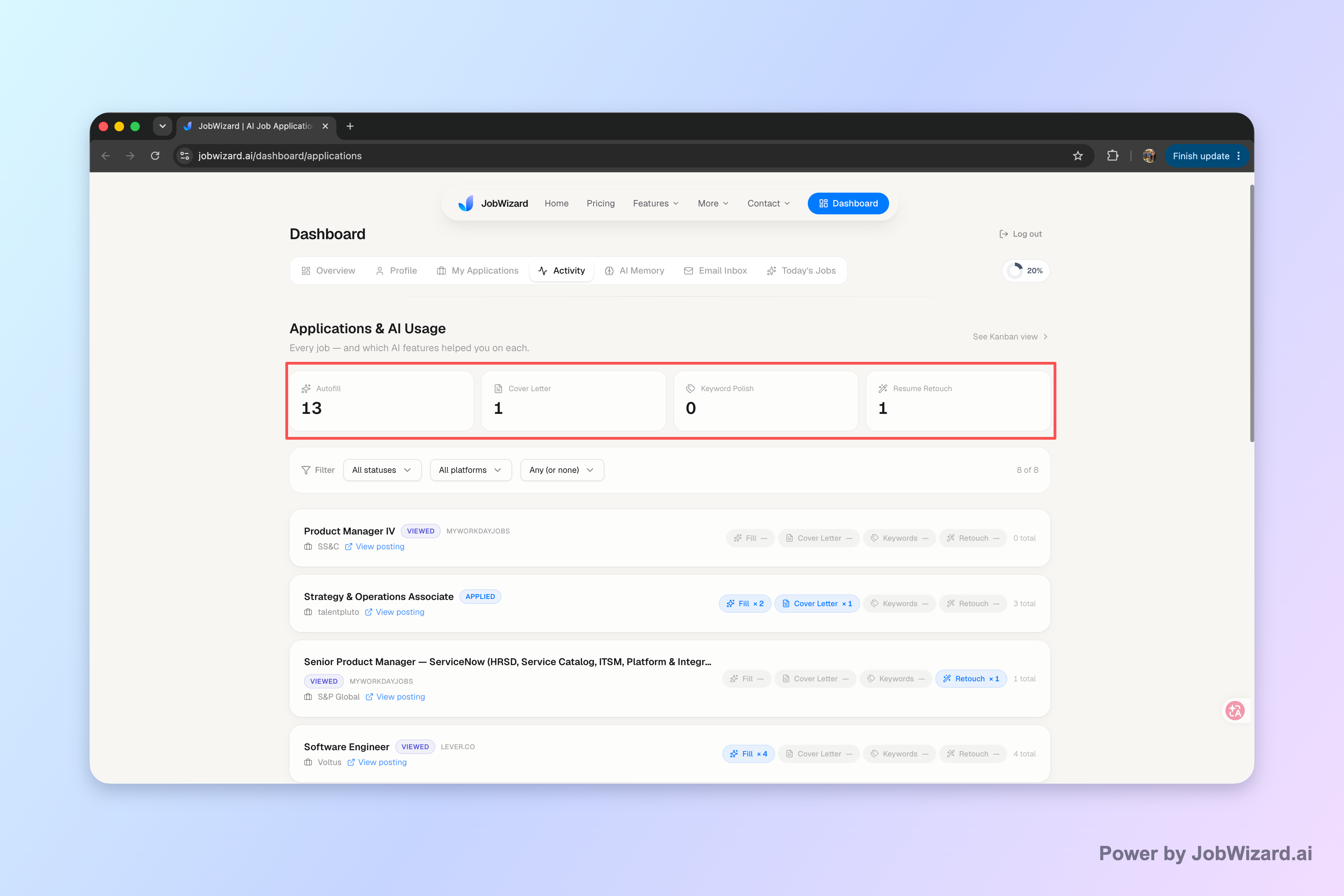
JobWizard’s Activity view is built for this exact problem. It shows where each application stands and what JobWizard tools were used for each role—so you can follow up with context and avoid duplicate effort.
How to set up your workflow in one sitting
Start by creating a simple rule: every application gets its own “card” in your activity view, including your last action. Then you’ll always know whether you already followed up, whether you applied to a revised posting, and whether you still need to review form-specific details.
- Create an entry for each job you apply to: Include the company and role title.
- Record your follow-up step: For example, “Follow-up email sent” or “Waiting for portal update.”
- Track next step expectations: Decide when you’ll check again or when you’ll refine your materials for another application.
- Use the tool history: If you used JobWizard’s autofill on that application, you can quickly recall what was entered and review accordingly.
A key limitation to keep in mind
Don’t assume the status will update immediately everywhere just because you’re tracking it. Status visibility is still limited by the hiring team’s processes and how the iCIMS portal is configured. Your advantage is not “guaranteed updates”—it’s better decisions, better timing, and fewer wasted cycles.
Apply faster without rushing: use Smart Autofill, then review every answer
If you suspect your application is delayed because of form-field issues (or you’re applying to a new role while you wait), the fastest way to improve your outcome is to submit accurate, complete answers. Many job applications include long, repetitive ATS questions—where one missing field can stall the process.

JobWizard’s Smart Autofill fills detected application fields using your saved profile and resume data. The important part: you still review the populated fields and submit the application yourself, and you can jump to any required field that needs attention.
Smart Autofill workflow (the way job seekers should use it)
Use a “fill → review → submit” rhythm. That keeps you moving quickly while protecting you from accidental errors or overly generic phrasing.
- Start your application and wait for JobWizard to detect the fields.
- Let Smart Autofill populate the repetitive questions (experience details, education, and similar sections where your resume already has the info).
- Review each section before submitting—especially role-specific questions.
- Fix anything the system flags as still needing attention and make sure it matches the job you’re targeting.
Where Smart Autofill helps most (and where it won’t)
Smart Autofill is designed to reduce the repetitive work of filling supported application pages, but it won’t eliminate the need for your judgment. Also, not every job site or field behaves the same way, so treat it as acceleration—not instant perfection or universal coverage.
When iCIMS status isn’t updating, this matters because you may decide to apply to additional roles. In those moments, the goal is to submit complete, consistent information quickly while maintaining your accuracy and tailoring.
Build stronger “application tracker + form accuracy” habits
Combine these two approaches: keep each application’s status and actions in your activity tracker, then use Smart Autofill to reduce form fatigue for future applications. When you do this, you’ll spend less time wondering what you already did and more time improving what you can control.
Do this automatically with JobWizard
Skip the manual work — JobWizard's Smart Autofill handles this for you. On these platforms: iCIMS autofill.
FAQ
Does an iCIMS application status that isn’t updating mean I’m rejected?
No. A static status often reflects hiring workflow timing, batch review, or portal update schedules. Verify you’re looking at the correct job entry and use that to decide on the next action.
What should I do if my iCIMS application status doesn’t change after a follow-up?
If you already followed up once, focus on improving your next step: refine your application materials for similar roles, consider applying to a better-matched posting, or look for a referral path rather than repeatedly messaging.
How can I keep track of multiple iCIMS applications without losing details?
Use an application tracker workflow where each role has its own entry and you log your last action. JobWizard’s Activity view is designed to show where each application stands and which JobWizard tools were used for each role.
Can Smart Autofill submit my iCIMS application automatically?
No. Smart Autofill fills detected fields using your saved data, but you still review the populated answers and submit the application yourself.
What if a required field still needs attention after autofill?
JobWizard can identify fields that still need review so you can jump to the matching question and make sure your submission is complete and accurate.
Next step: take control of your applications with JobWizard
If your iCIMS application status isn’t updating, don’t let the unknown slow you down. Keep each role organized in JobWizard’s Activity view, then use Smart Autofill for your next application so you can move faster while staying in control of every final answer.
Try JobWizard now—and keep your application tracker updated as you apply, review, and follow up.
Frequently Asked Questions
Keep your iCIMS apps organized
Auto-fill iCIMS forms and track each application so you know what changed.