How To Check Resume Parsing Problems Before Uploading to Workday (Step-by-Step)
Learn how to check resume parsing problems before uploading to Workday using a Workday job-description walkthrough, match-score gap checks, and smart autofill verification—so your experience fields don’t get scrambled.
Free Chrome extension
See your resume's match score for any job
JobWizard compares your resume to each job description and shows the exact keywords to add — free.
Workday is one of the most common places job seekers upload a resume before they can apply—and that’s exactly where resume parsing problems start to hurt. When your resume content doesn’t map cleanly into the application fields, your experience, dates, titles, and skills can land in the wrong places (or not land at all). The fastest way to How To Check Resume Parsing Problems Before Uploading to Workday is to treat the upload like a test: compare your resume to the job description, anticipate where parsing can fail, and then verify the filled fields before you submit.
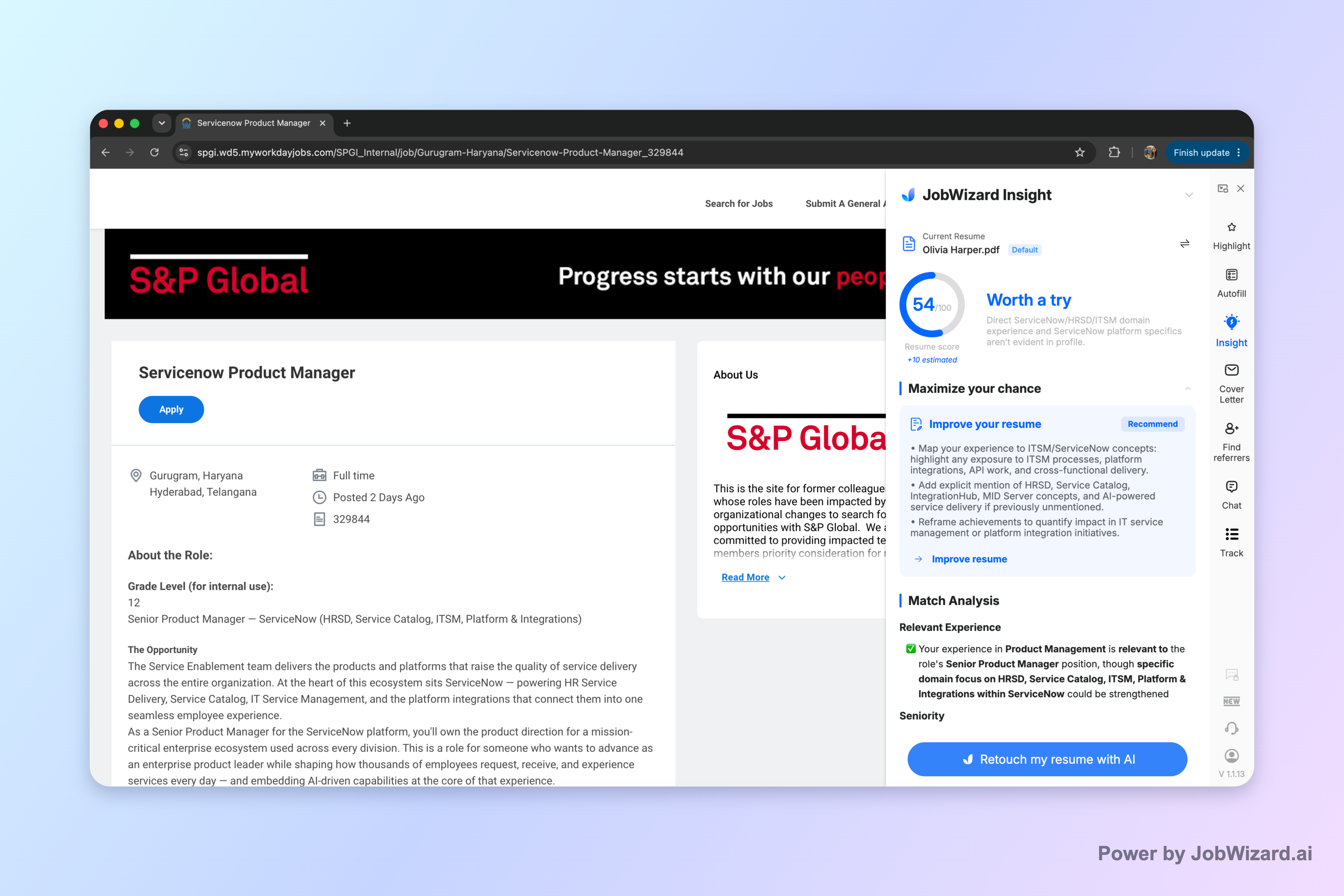
One practical workflow starts with JobWizard Insight, which compares your selected resume with the current job description and shows a match score, an overall assessment, and improvement suggestions. It can also diagnose resume expression gaps and turn them into an editable resume revision draft—so you’re not guessing what the system might miss.
Step 1: Start with the job description you will upload to Workday
Before you upload anything, don’t start with your resume “as-is.” Start with the job description (JD) you’re targeting, because parsing issues often come down to mismatched wording and missing (or hard-to-extract) information.
Extract the elements that parsing typically turns into fields
As you review the JD, highlight the items that usually map into structured application questions—especially:
- Job titles (and how they’re written)
- Employer names (if present)
- Date ranges (months/years)
- Skills and tools named in the JD
- Responsibilities that imply specific experience depth
Look for “expression gaps” (not just missing skills)
A common reason parsing “feels wrong” is that your resume content exists, but it’s expressed differently than the JD. If the JD says “data modeling,” but your resume says “database design,” your application may not align in the way Workday’s ingestion and the downstream screening expects. This isn’t about gaming keywords—it’s about making sure the structured information you provide matches what the job is asking for.
Step 2: Use a JD-based diagnostic to spot likely parsing gaps
Here’s the core idea behind How To Check Resume Parsing Problems Before Uploading to Workday: use a JD-based diagnosis to surface what doesn’t translate cleanly, then adjust your resume in a targeted way.
Run a resume vs. JD comparison
With JobWizard Insight, compare your resume to the specific JD. The output includes a match score, an overall assessment, and improvement suggestions. Most importantly, the JD-based diagnosis can identify resume expression gaps and turn them into an editable resume revision draft.
- Match score: useful as a diagnostic signal, not a guarantee.
- Improvement suggestions: point you toward what the JD is looking for in your resume’s wording.
- Editable draft: gives you a starting point to revise your resume content before you upload.
Reality check: The match score is not a hiring probability and does not guarantee ATS passage or an interview. You still need to verify every suggested resume change and keep only accurate experience.
Translate “gap findings” into resume edits you can control
When you see gaps, focus on changes that are both verifiable and easier for parsing to extract:
- Rename roles to match reality and clarity (e.g., “Software Engineer” vs. a custom internal title that parsing might not interpret correctly).
- Make dates consistent (month/year format is usually easier to interpret).
- Mirror tool names exactly if the JD names them (e.g., “SQL” not “databases,” “Tableau” not “dashboards”).
- Rebuild responsibility bullets around the JD themes without inventing new accomplishments.
Step 3: Predict common parsing failure points before you upload
Even with great content, resume parsing can stumble on formatting and field mapping. This is where you check before uploading by reviewing your resume with an “application form lens.”
Scan your resume for structures that often confuse extraction
Use this checklist as your pre-upload sanity test:
- Multiple date formats mixed together (e.g., “Spring 2023” next to “03/2022”).
- Unclear section labeling (e.g., skills embedded mid-experience).
- Columns or tables that may be reflowed unpredictably.
- Special characters that could break parsing rules (excessive punctuation, unusual symbols).
- Headings that are too creative (parsers often look for standard section names).
Check that every essential detail exists in your resume text (not only visually)
Parsing can struggle when information is presented in a way that’s more visual than textual. Before upload, confirm you can copy key details and have them still make sense in plain text—especially:
- Each employer and role name
- Start/end dates
- Skill lists (and that they’re clearly separated)
- Any certifications that the JD might require or prefer
Keep it accurate: parsing “fixes” should be real
It’s tempting to tweak words to satisfy the JD, but you should keep changes true to your experience. JobWizard’s workflow emphasizes verifying every suggested change and keeping only accurate experience. That principle matters most when your goal is parsing reliability—because you’re trying to prevent the system from mis-mapping your real background.
Step 4: Autofill-style verification—review every populated field before submitting
After you’ve done a JD-based diagnostic and cleaned up likely weak spots, the next part of How To Check Resume Parsing Problems Before Uploading to Workday is field verification. Instead of hoping parsing is correct, you test by working through the application form workflow like a human QA pass.
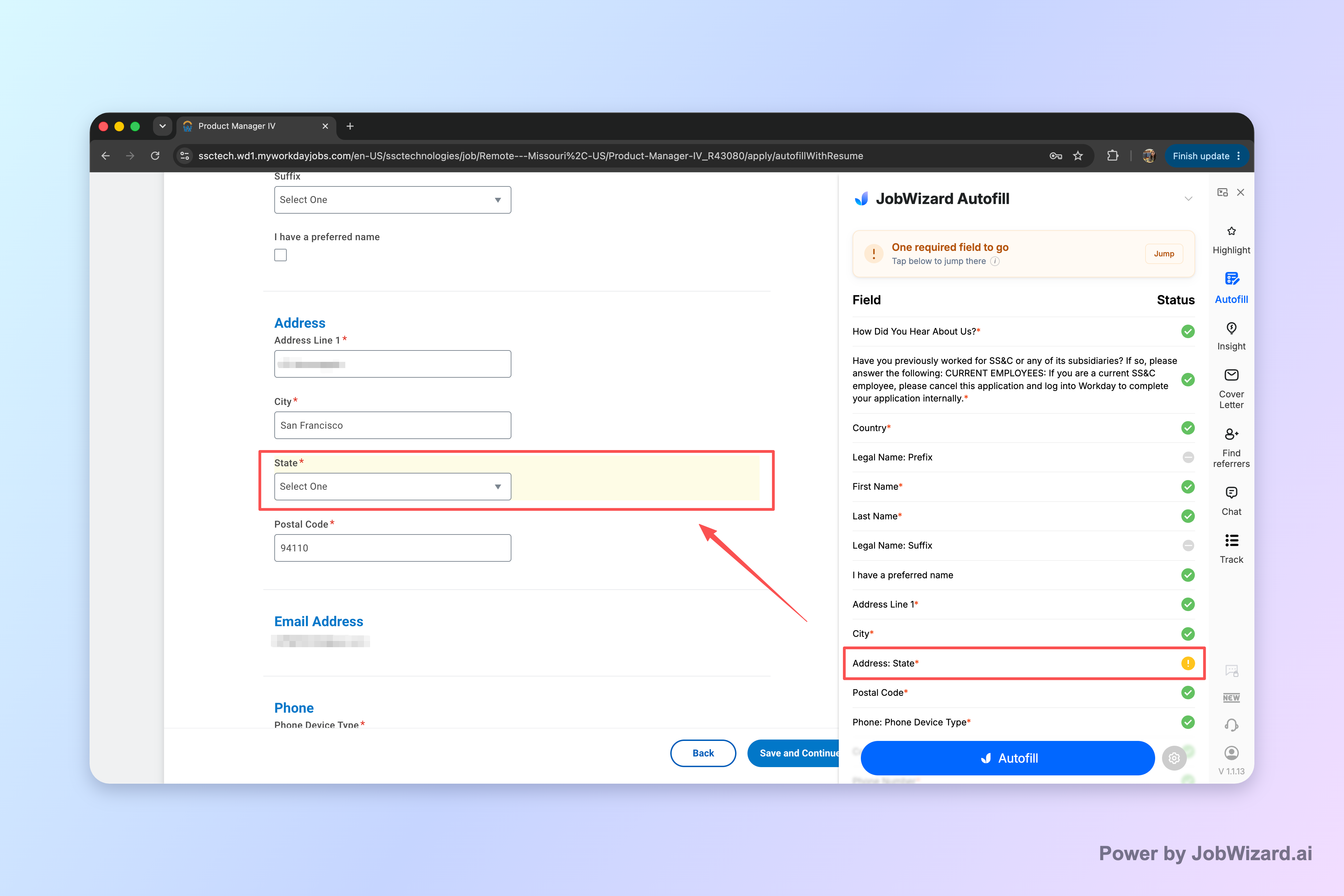
JobWizard’s Smart Autofill uses saved profile and resume data to fill detected fields on supported application pages. The important part is that you review the populated fields and submit the application yourself. If a required field still needs attention, JobWizard can identify it and let you jump directly to the matching question.
Run the workflow the right way: verify, don’t blindly trust
As you proceed through Workday’s application steps, do a quick verification pass that focuses on what parsing most often gets wrong:
- Role titles: Are they consistent with your resume and the JD?
- Dates: Did month/year formats land correctly?
- Employer mapping: Did it place the correct company next to the correct role?
- Skills: Did it populate the right list (and not a truncated or generic set)?
- Required fields: Are any missing or flagged, and do they match your resume content?
If you see fields that don’t align, don’t try to “paper over” inaccuracies. Return to your resume revision draft, make only accurate updates, and re-check the form. This loop is the best way to validate your resume’s extractability before you settle on a final submission.
Use “jump to the matching question” to fix specific parsing issues fast
Required fields are where parsing problems become immediate blockers. With Smart Autofill, when something still needs attention, JobWizard can identify it and let you jump directly to the matching question. That reduces the time spent scanning screens and increases the likelihood you catch mapping errors before hitting submit.
Workday upload check: a concrete example workflow
Here’s a realistic, step-by-step workflow you can follow to check resume parsing problems before uploading to Workday—built around the two most relevant JobWizard features: JD-based Insight and Smart Autofill verification.
Example: You’re applying to a JD that emphasizes specific skills and role phrasing
- Open the Workday job page and copy the full job description text.
- Run Insight with your current resume vs. that JD.
- Review the match score and improvement suggestions.
- Focus on expression gaps (e.g., “data modeling” vs. “database design”).
- Use the editable resume revision draft to make targeted, accurate edits.
- Adjust role titles to be clear and consistent.
- Normalize date formatting.
- Mirror key tool names from the JD.
- Proceed to the Workday application form and use Smart Autofill on supported pages.
- Review every populated field before submitting.
- If a required field is incomplete, jump to it and correct it.
- Do a final “mapping QA” pass:
- Verify that each experience entry matches your resume.
- Confirm skills are complete and not generic.
- Check that your most important details weren’t dropped or reassigned.
- Submit only after verification.
Why this method works
Because it doesn’t rely on blind assumptions. You’re diagnosing likely gaps using the job description, then validating with field-by-field review in the application workflow. That’s the difference between “I uploaded a resume” and How To Check Resume Parsing Problems Before Uploading to Workday.
For context on real-world usage patterns, JobWizard has helped job seekers complete 720,000+ applications submitted with 600,000+ autofill sessions run through the platform. That usage is framed as autofill + review-before-submit: repetitive fields are filled quickly while sponsorship/salary/EEO/custom questions are left for you to review before submitting. In particular, JobWizard’s autofill fills an average of about 18 repetitive fields per application (typically 11–23). Workday is where it saves the most time—roughly 65% of applications submitted through JobWizard are on Workday.
Do this automatically with JobWizard
Skip the manual work — JobWizard's Smart Autofill handles this for you. On these platforms: Workday autofill.
FAQ: How To Check Resume Parsing Problems Before Uploading to Workday
What are “resume parsing problems” on Workday uploads?
They’re formatting or keyword issues that cause key details from your resume (like job titles, dates, skills, and sections) to be extracted incorrectly or placed into the wrong fields during or after upload to Workday.
How can I check for Workday resume parsing problems before uploading?
Use a job-description-based comparison to spot expression gaps, then run your application workflow and verify every populated field—especially any required fields—before submitting.
What should I do if my resume gets parsed wrong in Workday?
Edit the resume content to match the role’s wording and structure, then re-verify by re-checking the field-by-field results (and any required fields) before submitting. Keep only accurate changes to your experience.
Does a “match score” guarantee my resume will pass Workday parsing?
No. JobWizard’s Insight match score is not a hiring probability and does not guarantee ATS passage or an interview. It’s a diagnostic tool to identify gaps and suggest an editable revision draft that you must verify.
Is Smart Autofill the same as auto-submitting my application?
No. Smart Autofill fills detected fields using saved profile and resume data on supported pages. You still review the populated fields and submit the application yourself.
Ready to check your resume like it’s a test? Start by comparing your resume to the exact Workday job description with JobWizard Insight, then use Smart Autofill to populate fields on the application and verify every answer before submitting. That’s the most reliable way to approach How To Check Resume Parsing Problems Before Uploading to Workday.
Frequently Asked Questions
See your resume's match score for any job
JobWizard compares your resume to each job description and shows the exact keywords to add — free.